
1. Introduction
Thank you for choosing the Aurora AU200MA 200-Sheet Auto-Feed Micro-Cut Paper Shredder. This manual provides essential information for the safe and efficient operation, maintenance, and troubleshooting of your new shredder. Please read these instructions thoroughly before use and retain them for future reference.

Figure 1.1: Aurora AU200MA Paper Shredder
The Aurora AU200MA is designed for commercial and home office use, offering high-security micro-cut shredding for sensitive documents. It features an automatic feed for up to 200 sheets and a manual feed slot for up to 10 sheets, including credit cards and small paper clips.
2. Important Safety Instructions
To reduce the risk of fire, electric shock, or injury, always follow basic safety precautions when using this appliance:
- Read all instructions before operating the shredder.
- Keep children and pets away from the shredder.
- Keep loose clothing, jewelry, hair, and hands away from the paper entry slot.
- Do not spray any aerosol-based products into or around the shredder.
- Do not shred metal objects, cardboard, or plastic other than credit cards.
- Do not operate the shredder if the power cord is damaged.
- Always unplug the shredder before moving, cleaning, or emptying the waste bin.
- Ensure the shredder is placed on a stable, level surface.
3. Product Overview
3.1 Components
- Auto-Feed Tray: For automatic shredding of up to 200 sheets.
- Manual Feed Slot: For manual shredding of up to 10 sheets, credit cards, and small paper clips.
- Control Panel: Features power button and indicator lights.
- Waste Bin: 8.5-gallon pullout bin for shredded materials.
- Casters: For easy mobility of the unit.
3.2 Control Panel and Indicators

Figure 3.1: Control Panel Overview
The control panel includes various LED indicators to communicate the shredder's status:
- Standby: Indicates the shredder is powered on and ready for operation.
- Overheat: Illuminates when the shredder has exceeded its continuous run time and needs to cool down.
- Bin-full: Indicates the waste bin is full and needs to be emptied.
- Overload: Lights up if too much paper is inserted, triggering the anti-jam auto-reverse function.
- Door Open: Indicates the waste bin is not properly closed or inserted.
4. Setup
- Unpack the Shredder: Carefully remove the shredder from its packaging.
- Position the Shredder: Place the shredder on a flat, stable surface. The integrated casters allow for easy movement.
- Connect Power: Plug the power cord into a standard 120V AC outlet.
- Ensure Bin is Closed: Make sure the pullout waste bin is fully and correctly inserted into the shredder. The "Door Open" indicator should not be lit.
5. Operating Instructions
5.1 Auto-Feed Shredding

Figure 5.1: Auto-Feed Tray with Documents
The auto-feed feature allows for convenient shredding of multiple sheets without manual feeding.
- Open the auto-feed tray cover.
- Stack up to 200 sheets of paper neatly into the auto-feed tray. Ensure the paper is free of staples, paper clips (except small ones in manual feed), and other foreign objects.
- Close the auto-feed tray cover. The shredder will automatically begin processing the documents.
- The shredder has a continuous run time of 60 minutes. After this period, it may enter an overheat state to cool down.
5.2 Manual Feed Shredding

Figure 5.2: Manual Feed Slot and Shredding Capabilities
For smaller quantities of paper or other shreddable items:
- Insert up to 10 sheets of paper into the manual feed slot.
- The manual feed slot can also shred credit cards and small paper clips. Insert these items one at a time into the center of the manual feed slot.
5.3 Anti-Jam Auto-Reverse
The shredder is equipped with an anti-jam auto-reverse function. If too much paper is inserted, the shredder will automatically reverse to clear the jam. If a jam persists, press the reverse button on the control panel to manually clear the paper.
5.4 Auto Power-Sleep
For energy efficiency, the shredder will automatically enter a power-sleep mode after a period of inactivity. It will reactivate when paper is detected or a button is pressed.
6. Maintenance
6.1 Emptying the Waste Bin

Figure 6.1: Pullout Waste Bin
When the "Bin-full" indicator illuminates, the waste bin needs to be emptied.
- Ensure the shredder is in standby mode or unplugged.
- Gently pull out the 8.5-gallon waste bin from the front of the shredder.
- Dispose of the shredded material.
- Slide the waste bin back into the shredder until it clicks securely into place. Ensure the "Door Open" indicator is off.
6.2 Shredder Oiling
Regular oiling of the shredder blades is recommended to maintain optimal performance and extend the life of your micro-cut shredder. Use shredder oil specifically designed for paper shredders.
- Apply a thin line of shredder oil across the paper entry slot.
- Run a few sheets of paper through the manual feed slot to distribute the oil.
- Repeat this process after every 30 minutes of accumulated shredding or when you notice a decrease in performance.
6.3 Cleaning
Wipe the exterior of the shredder with a soft, dry cloth. Do not use abrasive cleaners or solvents.
7. Troubleshooting
| Problem | Possible Cause | Solution |
|---|---|---|
| Shredder does not operate. | No power; Waste bin not properly inserted; Overheat protection activated. | Check power connection; Ensure waste bin is fully closed (Door Open indicator off); Allow shredder to cool down if Overheat indicator is on. |
| Paper jam. | Too much paper inserted; Paper not inserted straight. | The shredder has an anti-jam auto-reverse function. If it persists, press the reverse button on the control panel to manually clear the paper. Reduce the amount of paper for future shredding. |
| Shredder stops during operation. | Overheat protection activated; Waste bin full. | Allow shredder to cool down if Overheat indicator is on; Empty the waste bin if Bin-full indicator is on. |
| Shredded material is not fine enough. | Not applicable (Micro-cut shredder). | The Aurora AU200MA is a micro-cut shredder, producing tiny particles (P-5 security level). |
8. Specifications
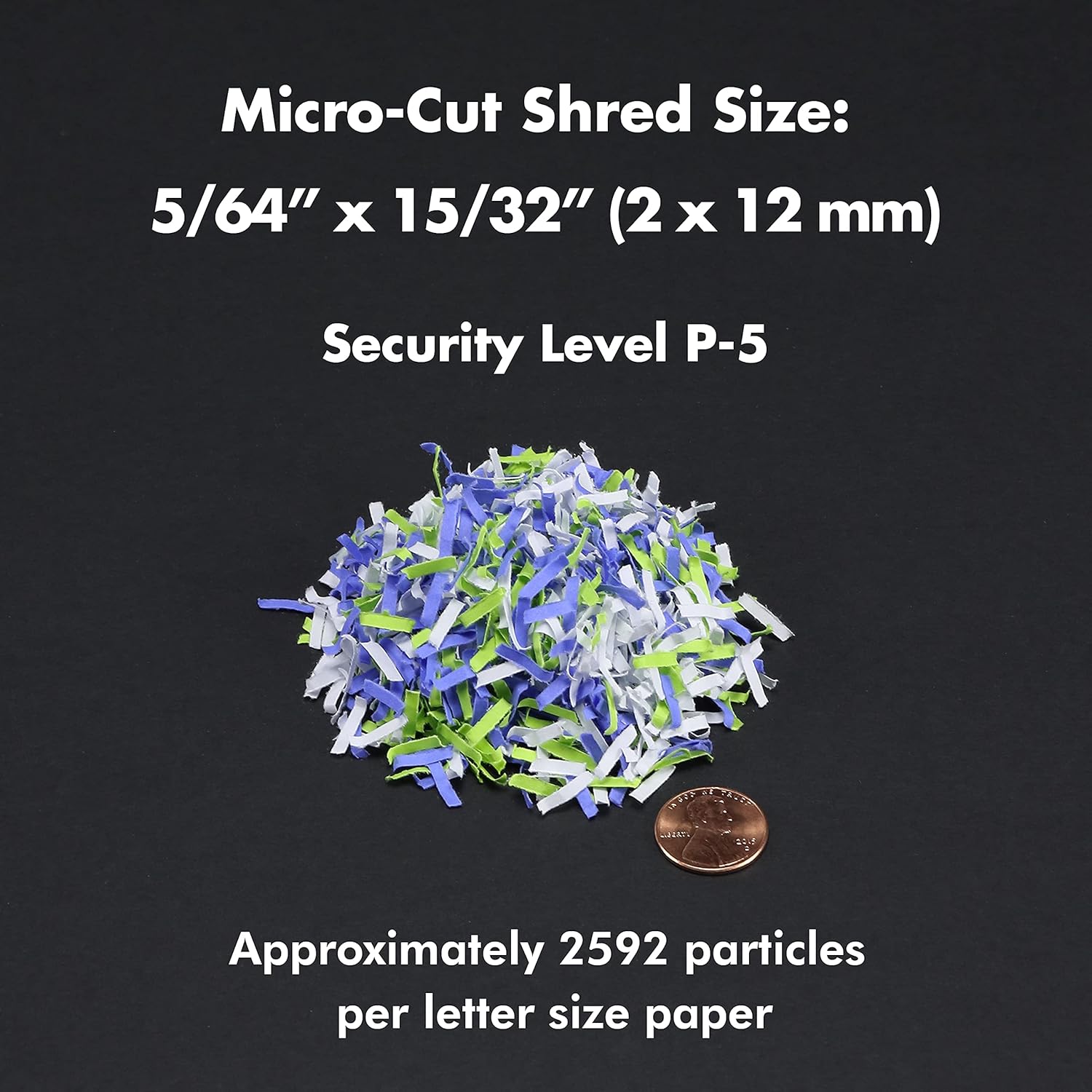
Figure 8.1: Micro-Cut Shred Size and Security Level
- Model: AU200MA
- Shred Type: Micro-Cut
- Shred Size: 5/64" x 15/32" (2 x 12 mm)
- Security Level: P-5
- Auto-Feed Capacity: Up to 200 sheets
- Manual Feed Capacity: Up to 10 sheets
- Continuous Run Time: 60 minutes
- Cool Down Time: Approximately 30-40 minutes (after 60 min continuous use)
- Waste Bin Capacity: 8.5 gallons
- Shreds: Paper, Credit Cards, Small Paper Clips
- Voltage: 120V AC
- Frequency: 60 Hz
- Product Dimensions (H x W x L): 22.83" x 14.02" x 18.35"
- Item Weight: 38.1 lbs
9. Warranty and Support
For warranty information or technical support, please refer to the warranty card included with your product or visit the official Aurora website. You may also contact Aurora customer service directly for assistance.
Aurora Customer Service: Please refer to your product packaging or the official Aurora website for the most current contact information.


