
Introduction
The havit GK58B is a USB plug-and-play gaming microphone designed for clear voice communication. It features omnidirectional sound pickup, a flexible gooseneck, a stable base, and unique RGB lighting effects. This manual provides instructions for setup, operation, maintenance, and troubleshooting to ensure optimal performance.
Features
- USB Plug and Play: Simple connection without driver installation.
- Omnidirectional Pickup: Captures sound from all directions for clear communication.
- Flexible Gooseneck: Adjustable microphone position for optimal voice capture.
- Stable Base: Ensures the microphone remains securely in place.
- RGB Lighting: Integrated lighting for an enhanced aesthetic.
Package Contents
The havit GK58B package includes:
- 1 x havit GK58B USB Gaming Microphone
- 1 x User Manual (this document)

Image: Front view of the havit GK58B USB Gaming Microphone retail packaging.

Image: Back view of the havit GK58B USB Gaming Microphone retail packaging, showing product specifications.
Setup
- Unpack the Microphone: Carefully remove the havit GK58B microphone from its packaging.
- Position the Microphone: Place the microphone on a stable, flat surface. Adjust the flexible gooseneck to position the microphone head optimally for your voice, typically 15-30 cm (6-12 inches) from your mouth.
- Connect to Computer: Plug the USB connector of the microphone cable into an available USB port on your computer.
- Driver Installation: The microphone is plug-and-play and does not require additional driver installation. Your operating system should automatically detect and configure the device.
- Select as Default Device:
- Windows: Go to Sound Settings > Sound Control Panel > Recording tab. Select "havit GK58B" or similar as your default recording device.
- macOS: Go to System Preferences > Sound > Input tab. Select "havit GK58B" or similar as your input device.
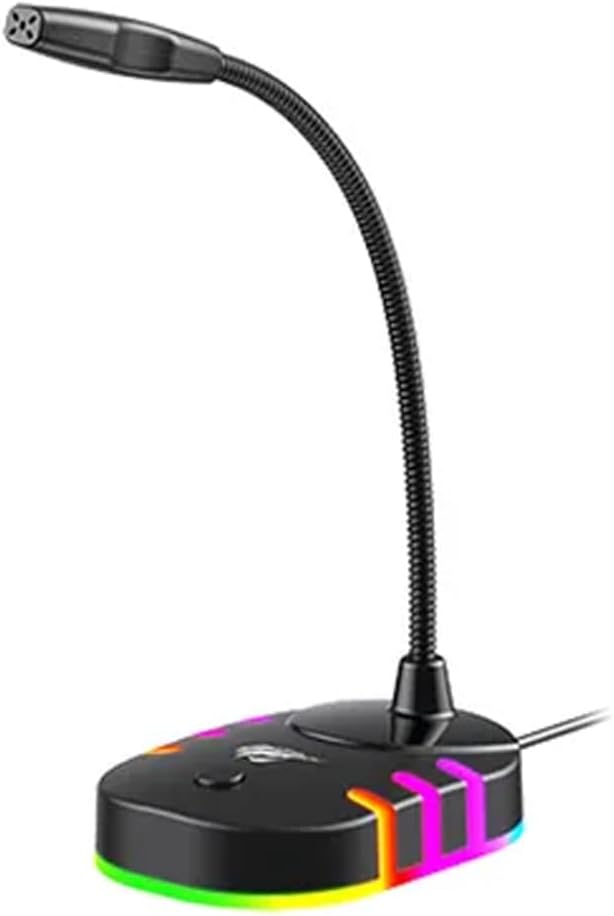
Image: Front-side view of the havit GK58B USB Gaming Microphone, showing the gooseneck and base with RGB lighting.
Operating Instructions
- Microphone Activation: Once connected and selected as the default input device, the microphone is ready for use. The RGB lighting on the base will illuminate, indicating it is powered on.
- Adjusting Volume: Microphone input volume can be adjusted through your computer's sound settings or within the specific application you are using (e.g., game chat, communication software).
- Omnidirectional Pickup: The GK58B features an omnidirectional polar pattern, meaning it picks up sound equally from all directions. This is suitable for capturing ambient sound or multiple speakers around the microphone. For best voice clarity, speak directly towards the microphone head.
- RGB Lighting Control: The microphone base features RGB lighting. While specific controls are not detailed, typically these lights cycle automatically or can be toggled via a button on the base if present. Refer to the product's physical buttons for any lighting control options.
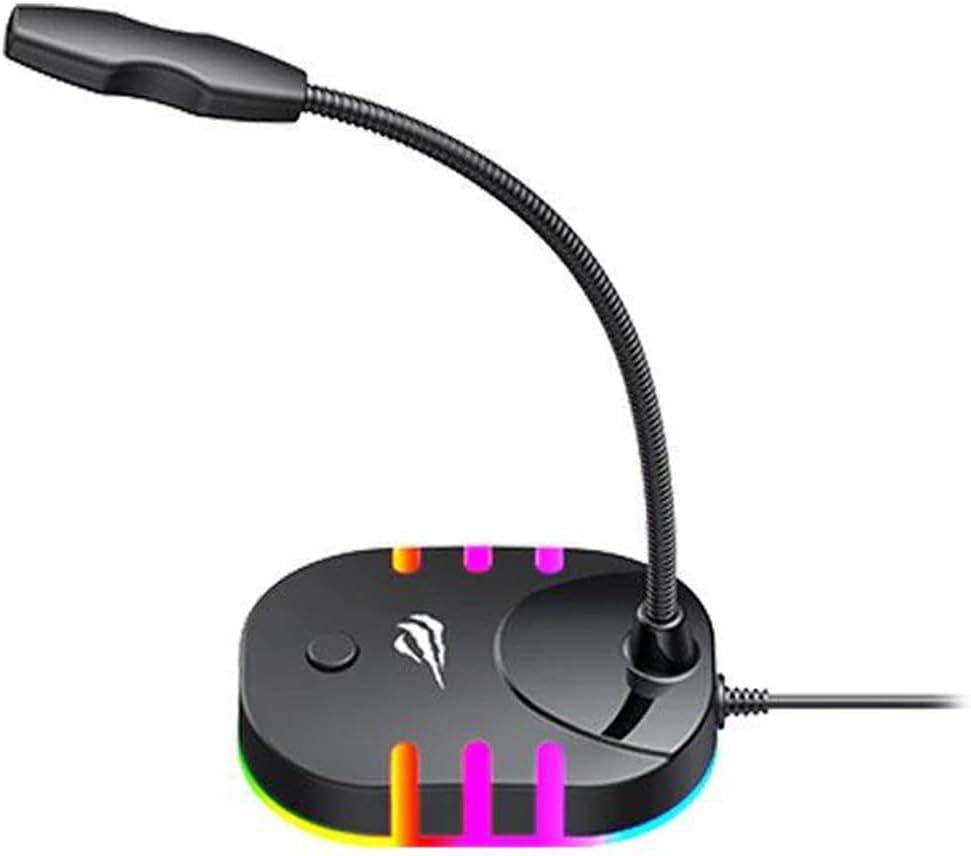
Image: Back-side view of the havit GK58B USB Gaming Microphone, showing the USB cable connection point and the base with RGB lighting.
Maintenance
- Cleaning: Use a soft, dry cloth to wipe the microphone and its base. Avoid using liquid cleaners or abrasive materials, as these can damage the device.
- Storage: When not in use, store the microphone in a clean, dry environment away from direct sunlight and extreme temperatures.
- Cable Care: Do not bend or crimp the USB cable excessively. Always grasp the plug, not the cable, when disconnecting.
Troubleshooting
| Problem | Possible Cause | Solution |
|---|---|---|
| Microphone not detected / No sound input |
|
|
| Low microphone volume |
|
|
| RGB lighting not working |
|
|
Specifications
| Model Name | GK58B |
| Connectivity Technology | USB |
| Connector Type | USB Type-A |
| Polar Pattern | Omnidirectional |
| Sensitivity | -36±3dB |
| Impedance | 2.2kΩ |
| Frequency Response | 30Hz – 16kHz |
| Cable Length | 1.5m |
| Operating Voltage | 5.0V |
| Operating Current | 90mA |
| Microphone Dimensions | φ6*5mm |
| Product Dimensions | 7.5 x 13 x 11 cm |
| Item Weight | 2 g |
| Compatible Devices | Laptop, Personal Computer |
| Special Feature | Stand, RGB Lighting |
Warranty and Support
For warranty information and technical support, please refer to the official havit website or contact your local retailer. Keep your purchase receipt for warranty claims.
Manufacturer: Havit


