
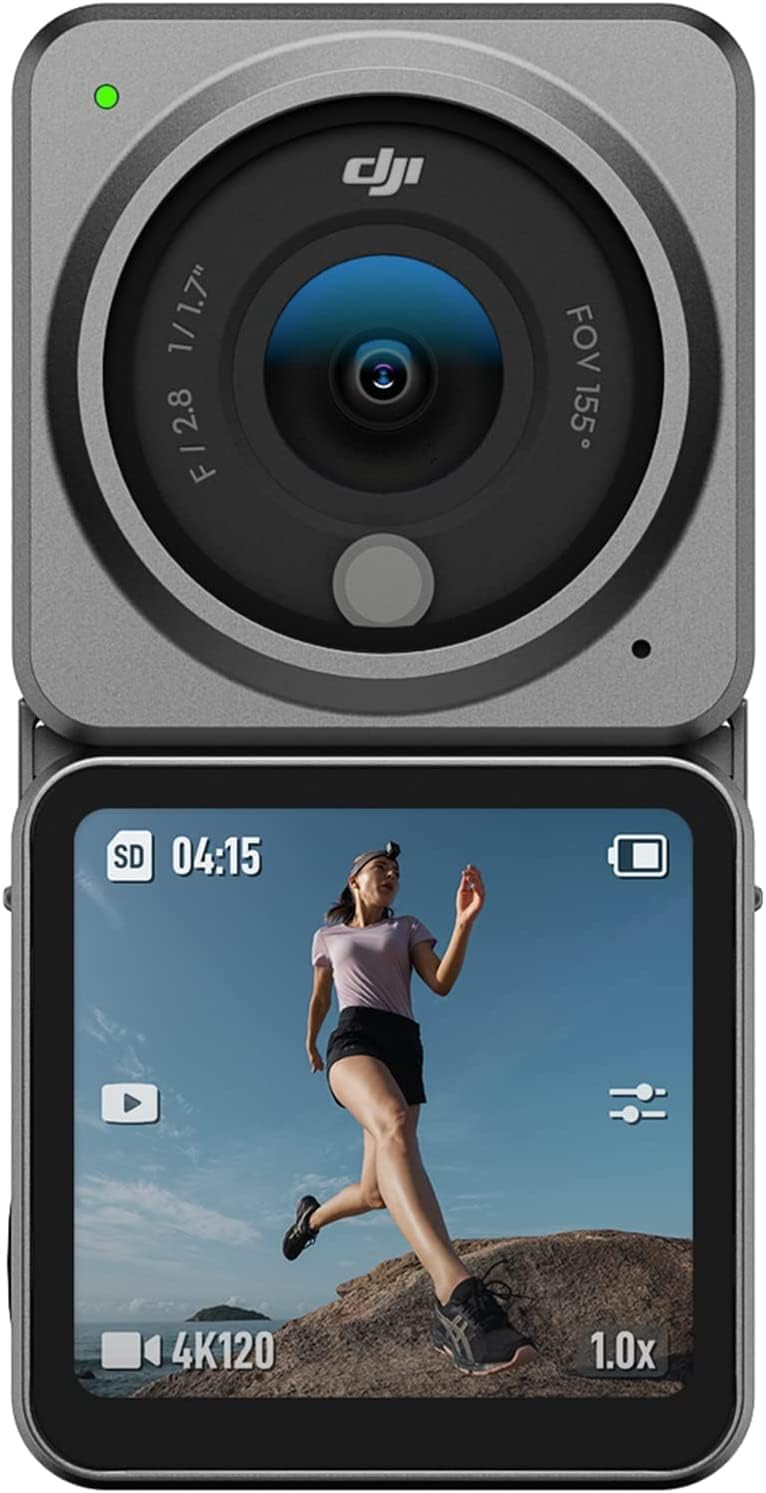
1. Overview
The DJI Action 2 Dual-Screen Combo is a compact and powerful action camera designed for capturing dynamic moments. Its innovative magnetic design allows for quick and effortless attachment of accessories, enhancing its versatility for various shooting scenarios. The camera unit itself is waterproof, making it suitable for aquatic adventures.
Key Features:
- Magnetic Design: Allows for effortless switching of accessories and modules.
- Dual OLED Touchscreens: Provides clear framing and control from both front and rear.
- 4K/120fps Video: Records stunningly smooth video with rich detail.
- 155° FOV: Ultra-wide field of view to capture more of your surroundings.
- RockSteady 2.0 & HorizonSteady: Advanced stabilization technologies for smooth footage.
- Waterproof Camera Unit: Submersible up to 10 meters without additional housing.
What's in the Box:

An illustration of the components included in the DJI Action 2 Dual-Screen Combo package.
- DJI Action 2 Camera Unit x1
- Front Touchscreen Module x1
- Magnetic Lanyard x1
- Magnetic Ball-Joint Adapter Mount x1
- Magnetic Adapter Mount x1
- Power Cable x1
2. Setup
Initial Charging:
Before first use, fully charge the DJI Action 2 Camera Unit and the Front Touchscreen Module using the provided Power Cable. Connect the cable to the USB-C port on the module, and then to a USB power adapter (not included).
Assembling Modules:
The DJI Action 2 features a magnetic modular design. To assemble, align the camera unit with the front touchscreen module. The strong magnets will snap them securely together. Ensure the connection is firm before use.

The magnetic connection system allows for quick and secure assembly of the camera and its modules.
DJI Mimo App Connection:
Download the DJI Mimo app on your mobile device. Power on the DJI Action 2 and follow the in-app instructions to connect your camera via Bluetooth. The app provides live view, remote control, editing features, and firmware updates.
3. Operating Instructions
Basic Controls:
- Power On/Off: Press and hold the power button on the camera unit or module.
- Record/Shutter: Press the record button to start/stop recording or take a photo.
- Touchscreen Navigation: Swipe and tap on the OLED touchscreens to access settings, change modes, and review footage.
Recording Modes & Quality:
The DJI Action 2 supports high-resolution video recording, including 4K at up to 120 frames per second (fps). Its ultra-wide 155° FOV captures expansive scenes.

Experience industry-leading performance with 4K/120fps video and a 155° FOV lens.
- Slow-Motion: Capture dramatic slow-motion footage.
- Timelapse: Condense long periods into short, dynamic videos.

The DJI Mimo app offers effortless editing with features like slow-motion and timelapse.
Stabilization:
Equipped with RockSteady 2.0 and HorizonSteady, the DJI Action 2 ensures incredibly smooth and stable footage, even during intense action. These technologies detect and correct camera shake and rotation in real-time.

Upgraded stabilization ensures smooth footage no matter how wild the action gets.
Intelligent Features:
- ActiveTrack 5.0: Advanced object tracking for keeping subjects in frame automatically.
- Obstacle Sensing: The camera can detect objects around it (front, back, top, bottom, and sides) to avoid collisions or navigate around obstacles.
- Advanced Return to Home (RTH): The drone can intelligently plan a fast, safe, and optimized route back to its home point, activated by low battery or pilot command.
File Transfer & Webcam:
The DJI Action 2 can be connected to a computer for file transfer or used as a webcam. Connect the camera unit (with or without a module) to your computer via the USB-C port. A prompt will appear on the camera's screen to select 'File Transfer' or 'Webcam'.
Official DJI video demonstrating file transfer and webcam functionality of the DJI Action 2.
4. Maintenance
Waterproofing & Overheating:
The Action 2 camera unit is waterproof up to 10 meters. The front touchscreen module and power module are NOT waterproof. For prolonged underwater use (e.g., diving) or high water pressure, use the DJI Action 2 Waterproof Case (sold separately).

The DJI Action 2 camera unit is built tough and waterproof up to 10 meters.
The camera unit may experience overheating during prolonged high-resolution recording. Using the DJI Action 2 Magnetic Protective Case (not included in this combo) can help reduce surface temperature and optimize recording length.
Cleaning & Storage:
- After aquatic use, ensure the camera unit and any connected modules are thoroughly dried, especially around the magnetic contacts, to prevent corrosion.
- Clean the lens and screens with a soft, lint-free cloth. Avoid abrasive materials.
- Store the camera in a cool, dry place away from direct sunlight and extreme temperatures.
5. Troubleshooting
Overheating Issues:
The DJI Action 2 is designed to stop recording when a set auto-stop recording temperature is reached to prevent damage. This is more noticeable when recording in 4K/120fps.
- Solution: Reduce recording resolution or frame rate. Use the Magnetic Protective Case to help dissipate heat. Ensure adequate airflow around the camera.
- Recording Times: At 4K/120fps, recording may stop around 3 minutes (Standard Auto-Stop Rec Temp) or 5 minutes (High Auto-Stop Rec Temp). With the protective case, recording time can extend to about 10 minutes indoors at 25°C.
Connectivity Problems:
- Issue: Camera not connecting to DJI Mimo app or computer.
- Solution: Ensure Bluetooth is enabled on your mobile device. Restart both the camera and the mobile device. Check USB cable connection for computer transfer. Update DJI Mimo app and camera firmware.
6. Specifications
| Feature | Detail |
|---|---|
| Model Number | CP.OS.00000183.01 |
| Item Weight | 4.2 ounces |
| Product Dimensions | 1.54 x 1.54 x 0.88 inches |
| Video Capture Resolution | 4K |
| FOV | 155° |
| Screen Size | 1.76 Inches (visible diagonal) |
| Connectivity Technology | Bluetooth, Wi-Fi |
| Waterproof Rating | IP68 (Camera Unit only, up to 10m) |
7. Warranty & Support
DJI products come with an official warranty. For specific warranty terms and conditions, please refer to the documentation included with your product or visit the official DJI website.
Further Assistance:
For detailed instructions, safety guidelines, and advanced features, please consult the official User Manual (PDF) available online:
Download Official User Manual (PDF)
You can also visit the DJI Store on Amazon for additional product information and accessories.


