
Introduction
Thank you for choosing the DeLUX M618 Wireless Ergonomic RGB Optical Mouse. This manual provides detailed instructions for setting up, operating, and maintaining your new mouse. Please read this manual carefully before use to ensure optimal performance and longevity of your device.
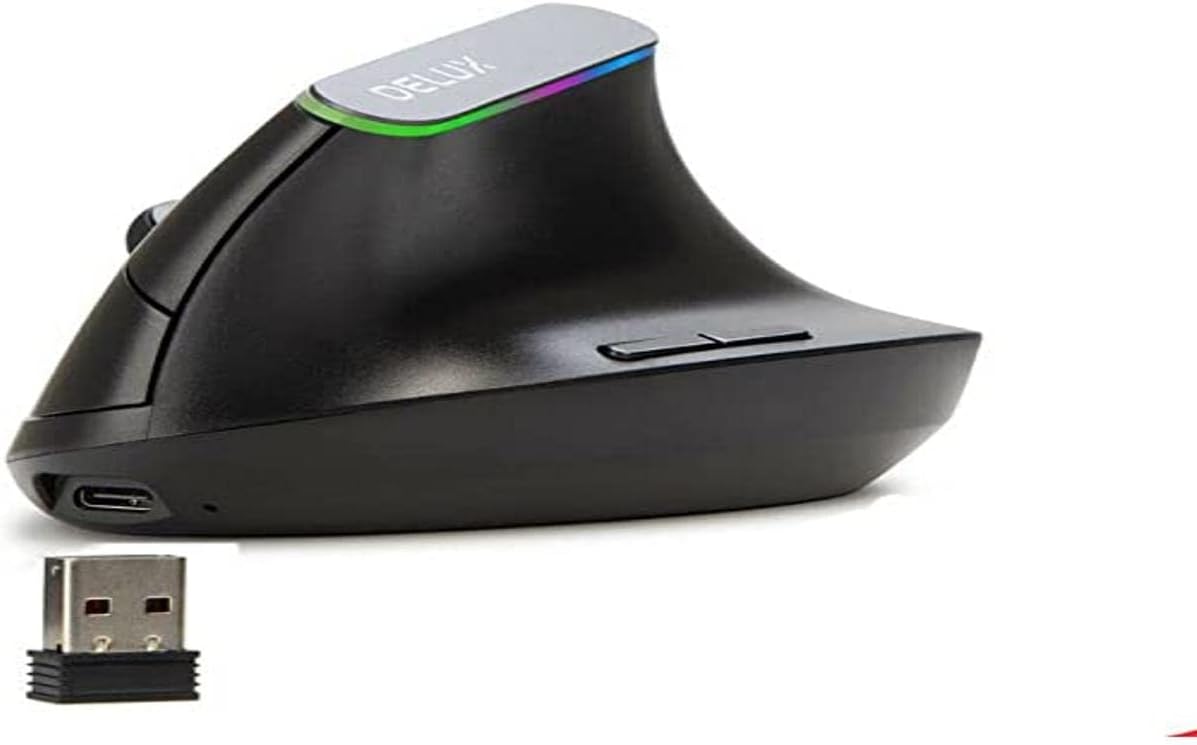
The DeLUX M618 is designed with an ergonomic vertical shape to reduce wrist strain, making it suitable for extended use. It features adjustable DPI settings, 2.4 GHz wireless connectivity, RGB lighting, and a rechargeable battery.
Package Contents
- DeLUX M618 Wireless Ergonomic RGB Optical Mouse
- USB Receiver (Nano receiver)
- USB Charging Cable
- User Manual (this document)
Product Overview
Below is an image of the DeLUX M618 mouse, highlighting its ergonomic design and key components.
Setup
- Charge the Mouse: Before first use, connect the mouse to a USB power source (e.g., computer USB port, USB wall adapter) using the provided USB charging cable. The mouse has a rechargeable 500 mAh battery.
- Locate the USB Receiver: The USB receiver is typically stored in a compartment on the underside of the mouse for safekeeping during transport.
- Connect the USB Receiver: Insert the USB receiver into an available USB port on your computer or laptop.
- Power On: Turn on the mouse using the power switch, usually located on the underside.
- Plug and Play: The mouse is designed for plug-and-play functionality. Your operating system should automatically detect and install the necessary drivers. No additional software installation is typically required.
Operating Instructions
Basic Functions
- Left/Right Click: Standard mouse button functions.
- Scroll Wheel: Scroll up or down through documents and web pages.
- Forward/Backward Buttons: Located near the thumb rest, these buttons typically navigate forward and backward in web browsers or file explorers.
DPI Adjustment
The DeLUX M618 features adjustable DPI (Dots Per Inch) settings, allowing you to change the cursor sensitivity. Press the DPI button (usually located near the scroll wheel or on the top of the mouse) to cycle through the available DPI settings:
- 800 DPI
- 1200 DPI
- 1600 DPI
- 2400 DPI
Each press will change the sensitivity, indicated by a visual cue (e.g., LED color change) on the mouse.
Wireless Connectivity
The mouse operates using 2.4 GHz wireless technology, providing a stable and fast connection. The effective operating range is up to 10 meters (approximately 33 feet) without significant interference.
RGB Lighting
The integrated RGB lighting enhances the aesthetic of your setup. The lighting effects are typically pre-programmed and may cycle through various colors automatically.
Ergonomic Design
The vertical ergonomic design of the M618 mouse is intended to promote a more natural hand and wrist posture, reducing muscle tension and discomfort during prolonged use. This design helps alleviate strain often associated with traditional horizontal mice.
Maintenance
Charging the Battery
The mouse is equipped with a rechargeable 500 mAh battery. When the battery level is low, the mouse's indicator light may change or flash. Connect the mouse to a USB power source using the provided charging cable to recharge. Avoid using the mouse while it is charging for optimal battery life, though it can function if necessary.
Cleaning
To clean your mouse, gently wipe the surface with a soft, damp cloth. Avoid using harsh chemicals or abrasive materials, as these can damage the finish or internal components. Ensure the mouse is powered off and disconnected from any charging cables before cleaning.
Troubleshooting
- Mouse Not Responding / Frequent Disconnections:
- Ensure the mouse is fully charged.
- Verify the USB receiver is securely plugged into a working USB port. Try a different USB port.
- Ensure the mouse is within the 10-meter operating range of the receiver and there are no significant obstructions or sources of interference (e.g., other wireless devices, large metal objects).
- If the mouse enters idle mode to conserve battery, it may require a button press (not just movement) to reactivate.
- Restart your computer.
- Cursor Movement is Erratic or Inaccurate:
- Clean the optical sensor on the underside of the mouse.
- Ensure you are using the mouse on a suitable surface (e.g., a mouse pad). Avoid highly reflective or transparent surfaces.
- Adjust the DPI setting to a level that suits your preference.
- RGB Lighting Not Working:
- Ensure the mouse is powered on and has sufficient battery charge.
- The RGB lighting is typically automatic and does not have user-adjustable settings.
Specifications
| Feature | Detail |
|---|---|
| Brand | DeLUX |
| Model Number | M618DB-Black |
| Connectivity Technology | 2.4 GHz Wireless (Nano receiver) |
| Movement Detection Technology | Optical |
| DPI Settings | 800 / 1200 / 1600 / 2400 |
| Number of Buttons | 6 |
| Hand Orientation | Right |
| Special Features | Ergonomic Design, RGB Lighting, Rechargeable, Plug & Play |
| Battery | 500 mAh Rechargeable |
| Power Source | Battery |
| Color | Black |
| Product Dimensions | 2.79 x 24.64 x 16.51 cm; 180 g |
| Compatible Devices | Laptop, PC |
| Operating System Compatibility | Windows 2000/XP/Vista/7/8/10 |
| Recommended Product Use | Gaming |
Warranty and Support
For warranty information and technical support, please refer to the documentation provided at the time of purchase or visit the official DeLUX website. Keep your proof of purchase for any warranty claims.
For further assistance, you may contact DeLUX customer service through their official channels. Details can typically be found on the manufacturer's website or product packaging.