
Acrojoy D501
ACROJOY D501 Native 1080P Mini Projector User Manual
Model: D501
1. Introduction
This manual provides essential information for the safe and efficient operation of your ACROJOY D501 Native 1080P Mini Projector. Please read it thoroughly before using the product and retain it for future reference.
2. Safety Information
- Do not look directly into the projector lens when the lamp is on. The intense light can cause eye damage.
- Ensure proper ventilation around the projector. Do not block ventilation openings.
- Keep the projector away from water, moisture, and extreme temperatures.
- Use only the power adapter supplied with the projector.
- Do not attempt to repair the projector yourself. Refer all servicing to qualified personnel.
- Keep out of reach of children.
3. Package Contents
Verify that all items are present in your package:
- 1x ACROJOY D501 Projector
- 1x User Manual/Quick Start/Warranty Information
- 1x Cleaning Kit
- 1x HDMI Cable
- 1x Power Cord
- 1x Projector Lens Cover
- 1x 120-inch Projector Screen
- 1x Remote Control
4. Product Overview
Familiarize yourself with the main components of your ACROJOY D501 projector.

Figure 4.1: ACROJOY D501 Projector and included 120-inch screen. The image highlights key features such as native 1080p resolution, 5G+2.4G WiFi, 9500 lumens (as indicated in image), and 4K support.

Figure 4.2: Side view of the projector illustrating its connectivity options, including ports for PS5, Nintendo Switch, TV Stick, Phone/Tablet, USB, Laptop/PC, and Audio output.
5. Setup
5.1 Projector Placement
Position the projector on a stable, flat surface or mount it (ceiling, tripod) according to your preference. Ensure the projector is perpendicular to the projection surface for optimal image quality.
- Projection Distance: The optimal projection distance ranges from 4 to 40 feet.
- Screen Size: The projector can produce an adjustable display size from 35 inches to 400 inches. A 120-inch screen is included for convenience.

Figure 5.1: The ACROJOY D501 Projector in an outdoor setting, demonstrating its portability and the use of the bundled 120-inch projector screen for an enjoyable viewing experience.
5.2 Power Connection
- Connect the power cord to the projector's power input port.
- Plug the other end of the power cord into a suitable electrical outlet (120 Volts).
- The power indicator light on the projector will illuminate.
5.3 Focus and Keystone Adjustment
After powering on the projector, adjust the image for clarity and shape:
- Focus Ring: Rotate the focus ring on the projector lens until the projected image is sharp and clear.
- Keystone Correction: Use the keystone correction dial or digital adjustment (if available) to correct trapezoidal distortion, ensuring a rectangular image. The projector supports ±15 degrees keystone correction.
6. Operating Instructions
6.1 Power On/Off
- Power On: Press the power button on the projector or the remote control.
- Power Off: Press the power button again. Confirm shutdown if prompted.
6.2 Input Source Selection
The projector supports multiple input sources. Use the 'Source' button on the projector or remote to select the desired input:
- HDMI: Connect devices like laptops, TV sticks, gaming consoles (PS5, Xbox) via HDMI cables. The projector has 2 HDMI ports.
- USB: Insert a USB drive to play media files directly.
- AV: Connect older devices using an AV cable.
6.3 Wireless Connectivity (WiFi & Bluetooth)
6.3.1 WiFi Screen Mirroring
The projector features 5G+2.4G dual-band WiFi for fast and stable screen mirroring from your smartphone or tablet.
- Ensure your projector and mobile device are connected to the same WiFi network.
- Select the 'Screen Mirroring' or 'Wireless Display' option on the projector's menu.
- On your iOS device, use 'Screen Mirroring'. On Android, use 'Wireless Projection' or similar.
- Select the projector from the list of available devices.
Note: Due to copyright restrictions, streaming services like Netflix, Amazon Prime Video, and Hulu cannot be wirelessly mirrored directly from your device. Use an HDMI-connected TV stick or similar device for these services.

Figure 6.1: Demonstrates 5G WiFi screen mirroring for seamless video streaming from iOS, Android, or Windows devices to the projector.
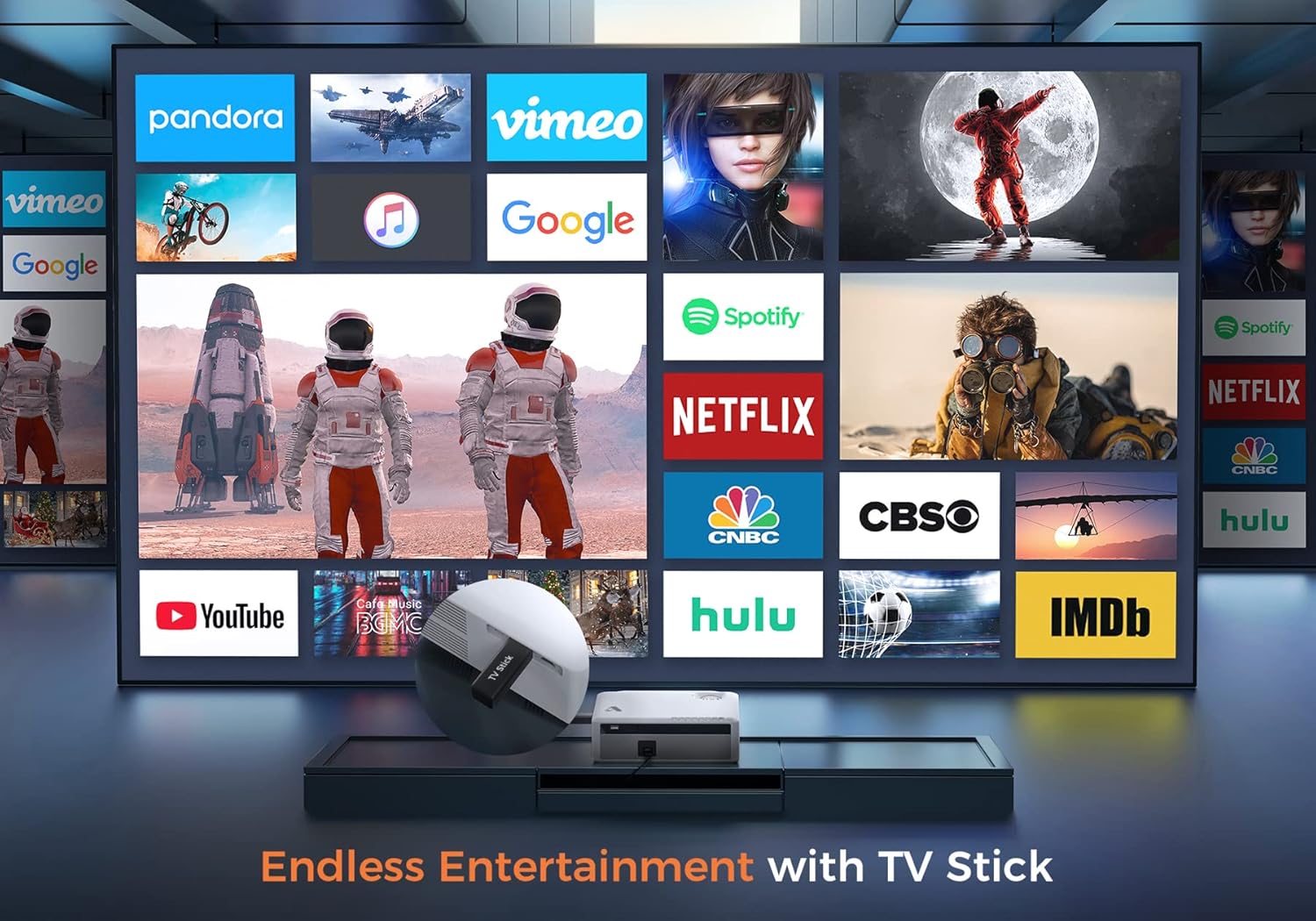
Figure 6.2: Illustrates how to access various entertainment apps like YouTube, Netflix, and Hulu by connecting a TV stick to the projector.
6.3.2 Bluetooth Connection
Connect external Bluetooth speakers or headphones for enhanced audio.
- Enable Bluetooth on your external audio device and set it to pairing mode.
- On the projector's menu, navigate to 'Bluetooth Settings'.
- Select your device from the list to pair.
The projector also features a built-in Hi-Fi speaker for direct audio output.
6.4 Zoom Function
Adjust the image size without moving the projector using the 50%-100% zoom function, typically found in the projector's display settings menu.
7. Maintenance
- Lens Cleaning: Use the provided cleaning kit or a soft, lint-free cloth specifically designed for optical lenses. Do not use abrasive cleaners.
- Dust Removal: Regularly clean the projector's exterior with a soft, dry cloth. Use a small brush or compressed air to gently clear dust from ventilation openings.
- Storage: When not in use, store the projector in a cool, dry place, protected from dust and direct sunlight. Always replace the lens cover.
8. Troubleshooting
- No Power: Ensure the power cord is securely connected to both the projector and the power outlet. Try a different outlet.
- No Image: Check the input source selection. Ensure the connected device is powered on and sending a signal. Verify HDMI/USB cable connections.
- Blurry Image: Adjust the focus ring. Ensure the projection distance is within the recommended range.
- Image is Trapezoidal: Adjust the keystone correction.
- No Audio: Check the volume settings on both the projector and the source device. If using external speakers, ensure they are properly connected or paired via Bluetooth.
- WiFi Mirroring Issues: Ensure both devices are on the same WiFi network. Some copyrighted content cannot be mirrored wirelessly.
9. Specifications
| Brand | Acrojoy |
| Model Number | D501 |
| Native Resolution | 1920 x 1080 (Full HD) |
| Max Supported Resolution | 3840 x 2160 (4K) |
| Brightness | 5500 Lumens |
| Contrast Ratio | 12000:1 |
| Display Type | LCD |
| Connectivity | 5G+2.4G WiFi, Bluetooth 5.1 |
| Input Ports | 2x HDMI, 1x USB, AV |
| Output Ports | 3.5mm Audio Out |
| Projection Size | 35" - 400" |
| Projection Distance | 4 - 40 ft |
| Aspect Ratio | 4:3 / 16:9 |
| Keystone Correction | ±15 degrees |
| Zoom Function | 50% - 100% |
| Product Dimensions | 22.86 x 17.75 x 7.62 cm |
| Item Weight | 3.19 kg |
| Power Source | Corded Electric (120 Volts, 600 Watts) |
10. Warranty and Support
ACROJOY provides comprehensive support for your projector:
- Warranty: A 3-year warranty covers manufacturing defects and malfunctions.
- Technical Support: Lifetime professional technical support is available.
- Contact: For any questions or assistance, please refer to the contact information provided in your Quick Start Guide or Warranty Information document.
Related documentsD501


Ask a question about this manual
Ask about setup, troubleshooting, compatibility, parts, safety, or missing instructions. Manuals+ will review the question and use this page’s manual context to help answer it.