
1. Introduction
This manual provides detailed instructions for the installation, operation, and maintenance of your BrosTrend WiFi 6 AX1800Mbps USB WiFi Adapter (Model AX1). This device is designed to upgrade your PC, laptop, or desktop to the latest WiFi 6 standard, offering faster speeds and improved network efficiency. It supports Windows 11 and Windows 10 operating systems only.
2. Safety Information
- Do not expose the device to water or excessive humidity.
- Avoid extreme temperatures.
- Do not attempt to disassemble or repair the device yourself. Refer to qualified service personnel.
- Keep out of reach of children.
- Ensure proper ventilation when in use.
3. Package Contents
Verify that your package contains the following items:
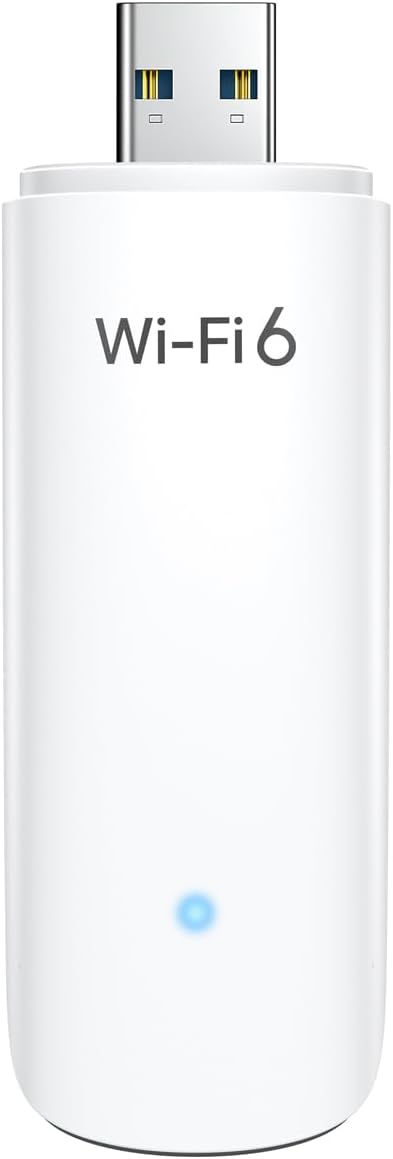
- 1 x BrosTrend AX1800Mbps USB WiFi 6 Adapter (Model AX1)
- 1 x Quick Installation Guide
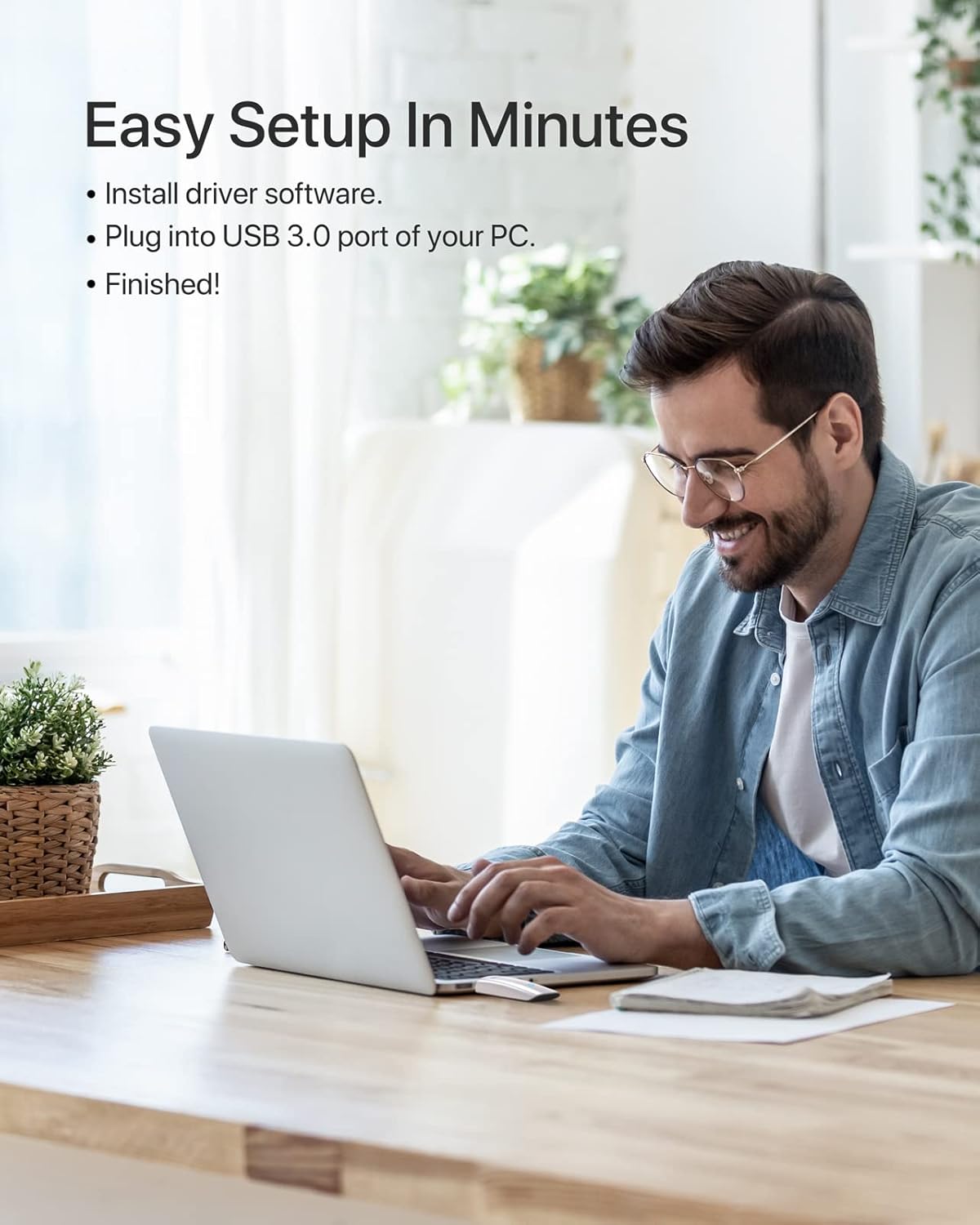
4. Setup and Installation
Follow these steps to install your BrosTrend WiFi 6 USB Adapter:
- System Requirements: Ensure your computer is running Windows 11 or Windows 10. Linux operating systems are not supported.
- Driver Installation: The adapter comes with a pre-loaded driver. When you plug it into your computer for the first time, the system should automatically detect the device and initiate driver installation. If automatic installation does not occur, you may need to access the adapter's internal storage (which appears as a virtual CD-ROM drive) and run the setup executable.
- Connect the Adapter: Insert the BrosTrend AX1800Mbps USB WiFi 6 Adapter into an available USB 3.0 port on your PC, laptop, or desktop. For optimal performance, use a USB 3.0 port (typically blue inside).
- Verify Installation: After installation, a new wireless network adapter should appear in your computer's Device Manager. The blue LED indicator on the adapter will illuminate when it is properly connected and functioning.

5. Operating Instructions
Once the adapter is installed, you can connect to a wireless network:
- Access Network Settings: Click on the Wi-Fi icon in your system tray (usually in the bottom-right corner of your screen).
- Select Network: A list of available wireless networks will appear. Select your desired network (SSID).
- Connect: Click "Connect" and enter the network security key (password) if prompted.
- Dual Band Operation: The adapter supports both 5GHz and 2.4GHz bands. For higher speeds and less interference, connect to a 5GHz network if available. For broader coverage, the 2.4GHz band is suitable.
- Advanced Features: The adapter utilizes UL/DL MU-MIMO and OFDMA technologies for improved network throughput and efficiency, especially in environments with multiple devices. Beamforming technology enhances signal strength and coverage.


6. Maintenance
To ensure the longevity and optimal performance of your adapter:
- Keep the adapter clean and free from dust. Use a soft, dry cloth for cleaning.
- Avoid physical impact or dropping the device.
- When not in use, you may unplug the adapter and store it in a safe place. The adapter includes a protective cap for the USB connector.
- Periodically check the BrosTrend website for updated drivers, although the pre-loaded driver is generally sufficient.

7. Troubleshooting
If you encounter issues with your BrosTrend WiFi 6 USB Adapter, consider the following:
- Adapter Not Detected / No Indicator Light:
- Ensure the adapter is fully inserted into a USB 3.0 port.
- Try a different USB port on your computer.
- Restart your computer.
- Verify that your operating system is Windows 11 or Windows 10.
- Slow Speeds / Frequent Disconnections:
- Ensure you are connected to a 5GHz network if available and within range for optimal speed.
- Check for obstacles between your computer and the wireless router.
- Update your router's firmware.
- Temporarily disable any VPN or firewall software to see if it resolves the issue.
- Reinstall the adapter drivers.
- Driver Installation Issues:
- If the driver does not install automatically, open "This PC" or "My Computer", locate the virtual CD-ROM drive associated with the adapter, and run the setup file.
- Ensure your antivirus software is not blocking the driver installation.
- Download the latest drivers from the official BrosTrend support website if necessary.
8. Specifications
| Feature | Detail |
|---|---|
| Model Number | AX1 |
| Wireless Standard | IEEE 802.11ax (WiFi 6) |
| Data Transfer Rate | Up to 1800Mbps (1201Mbps on 5GHz, 574Mbps on 2.4GHz) |
| Frequency Bands | 2.4GHz and 5GHz (Dual Band) |
| Interface | USB 3.0 |
| Compatible Operating Systems | Windows 11, Windows 10 (Linux NOT supported) |
| Antenna Type | Internal On-Board Antennas |
| Dimensions (L x W x H) | 3.62 x 1.18 x 0.51 inches (9.2 x 3.0 x 1.3 cm) |
| Item Weight | 0.635 ounces (18 Grams) |
| Color | White |
| Advanced Features | UL/DL MU-MIMO, OFDMA, Beamforming, WPA3 Encryption |
9. Warranty and Support
BrosTrend products come with a manufacturer's warranty. Please refer to the official BrosTrend website or the Quick Installation Guide for specific warranty terms and conditions.
For technical support, driver downloads, or further assistance, please visit the BrosTrend support page or contact their customer service. Contact information is typically provided in the Quick Installation Guide or on the official BrosTrend website.
Online Support: www.brostrend.com/support (Example link, please verify actual support URL)


