
Inseego M2000
Contents
Inseego MiFi M2000 5G Mobile Hotspot User Manual
Model: M2000
1. Introduction
This user manual provides comprehensive instructions for the Inseego MiFi M2000 5G Mobile Hotspot. The M2000 is a portable wireless device designed to provide high-speed 5G and 4G LTE internet access, featuring Wi-Fi 6 technology for enhanced connectivity. It allows multiple devices to connect to a secure, personal Wi-Fi network on the go, making it ideal for business professionals, remote workers, and travelers.
Please read this manual thoroughly before operating your device to ensure proper setup, optimal performance, and safe usage.
2. Product Overview
The Inseego MiFi M2000 is a compact and robust mobile hotspot, equipped with a touchscreen display for easy navigation and control. Its design prioritizes portability and reliable high-speed internet access.
2.1 Key Features
- 5G and 4G LTE Connectivity: Access the latest cellular networks for fast internet speeds.
- Wi-Fi 6 Technology: Supports the newest Wi-Fi standard for improved efficiency and speed for connected devices.
- Touchscreen Display: Intuitive interface for managing settings, monitoring data usage, and viewing connected devices.
- Portable Design: Small and compact, designed for mobility.
- USB-C Charging: Modern and convenient charging port.
2.2 Device Layout and Components

Figure 2.1: Front view of the Inseego MiFi M2000, showing the touchscreen interface with network signal, 5G indicator, battery level, Wi-Fi status, connected devices count, and options for Menu and Help.

Figure 2.2: Angled perspective of the Inseego MiFi M2000, highlighting its sleek, rectangular form factor and the integrated touchscreen.

Figure 2.3: A different angled view of the Inseego MiFi M2000, showcasing its compact size and the subtle 'inseego' branding on the bottom right.
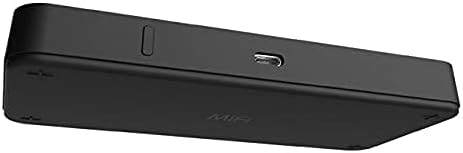
Figure 2.4: Side view of the Inseego MiFi M2000, clearly showing the USB-C charging port and the power button, indicating its modern connectivity options.
2.3 Official Product Videos
No official product videos from the seller are available for embedding at this time.
3. Setup
Follow these steps to set up your Inseego MiFi M2000 for the first time.
3.1 Charging the Device
Before initial use, fully charge your MiFi M2000. Connect the provided USB-C cable to the device's USB-C port and the other end to a compatible USB power adapter (not always included with renewed products) or a computer's USB port. The screen will indicate charging status.
3.2 SIM Card Installation
- Ensure the device is powered off.
- Locate the SIM card slot, typically on the side or under a removable back cover. Refer to the device's physical markings for exact location.
- Insert your activated Nano-SIM card into the slot with the gold contacts facing down and the notched corner aligned correctly. Push gently until it clicks into place.
- If applicable, replace the back cover securely.
3.3 Powering On
Press and hold the power button (located near the USB-C port) for a few seconds until the Inseego logo appears on the screen. The device will then boot up and attempt to connect to the cellular network.
3.4 Initial Configuration
Upon first boot-up or after a factory reset, the device may guide you through an initial setup wizard on the touchscreen. This typically involves setting up Wi-Fi names (SSIDs) and passwords for your primary and guest networks. Follow the on-screen prompts.
4. Operating Instructions
Learn how to use your Inseego MiFi M2000 to connect to the internet and manage its features.
4.1 Connecting Devices to Wi-Fi
- On your Wi-Fi enabled device (laptop, smartphone, tablet), open the Wi-Fi settings.
- Locate the Wi-Fi network name (SSID) displayed on your MiFi M2000's screen (e.g., "Wi-Fi Name/Password" section).
- Select the network and enter the password shown on the MiFi M2000's screen.
- Your device should now be connected to the internet via the MiFi M2000.
4.2 Using the Touchscreen Menu
The touchscreen provides quick access to various settings and information:
- Wi-Fi: View and manage Wi-Fi settings, including primary and guest networks.
- Connected Devices: See a list of devices currently connected to your hotspot.
- Data Usage: Monitor your data consumption.
- Settings: Access advanced device settings, including network preferences, security, and system information.
Navigate the menu by tapping on options and using the back arrow or home icon to return to previous screens or the main display.
4.3 Accessing the Admin Web Portal
For advanced configuration and management, you can access the MiFi M2000's web-based administration interface:
- Ensure your computer or device is connected to the MiFi M2000's Wi-Fi network.
- Open a web browser and enter the IP address of the hotspot (usually
192.168.1.1or192.168.0.1, check the device's settings or documentation for the exact address). - Enter the administrator username and password. These are typically found on a label inside the device's battery compartment or on the packaging.
- From the admin portal, you can customize network settings, manage connected devices, view detailed data usage, and perform firmware updates.
5. Maintenance
Proper maintenance ensures the longevity and optimal performance of your Inseego MiFi M2000.
5.1 Battery Care
- Avoid extreme temperatures, which can degrade battery life.
- Use the original or a certified USB-C charger for optimal charging.
- If leaving the device plugged in for extended periods, ensure it has proper ventilation to prevent overheating.
5.2 Software Updates
Regularly check for and install software updates to improve device performance, enhance security, and add new features. Updates can typically be initiated via the device's touchscreen menu under "Settings" or through the web administration portal.
5.3 Cleaning and Storage
- Wipe the device with a soft, dry cloth. Avoid using harsh chemicals or abrasive materials.
- Store the device in a cool, dry place when not in use.
6. Troubleshooting
This section addresses common issues you might encounter with your Inseego MiFi M2000.
6.1 No Internet Connection / "No SIM Detected"
- Check SIM Card: Ensure the SIM card is correctly inserted and fully activated with your mobile carrier. Power cycle the device after inserting the SIM.
- Network Coverage: Verify that you are in an area with adequate 5G or 4G LTE coverage from your carrier.
- Data Plan: Confirm your data plan is active and has available data.
- APN Settings: If issues persist, you may need to manually configure the Access Point Name (APN) settings via the web administration portal. Consult your carrier for correct APN details.
6.2 Wi-Fi Connectivity Issues
- Incorrect Password: Double-check the Wi-Fi password.
- Device Limit: Ensure you haven't exceeded the maximum number of connected devices supported by the hotspot.
- Restart Devices: Restart both the MiFi M2000 and the device you are trying to connect.
- Signal Strength: Move closer to the hotspot to improve Wi-Fi signal strength.
6.3 Touchscreen Unresponsive or Laggy
- Restart Device: A simple restart can often resolve minor software glitches affecting touchscreen responsiveness.
- Clean Screen: Ensure the screen is clean and free of smudges or debris.
- Software Update: Check for and install any pending software updates, as these often include performance improvements.
6.4 Device Overheating
- Ventilation: Ensure the device is placed in a well-ventilated area and not covered.
- Charging: Disconnect from charging if it's excessively hot while charging.
- Reduce Load: Temporarily disconnect some devices or reduce heavy data usage if the device consistently overheats.
7. Specifications
Detailed technical specifications for the Inseego MiFi M2000.
| Feature | Detail |
|---|---|
| Product Dimensions | 0.71 x 2.2 x 5.9 inches |
| Item Weight | 12.3 ounces |
| ASIN | B09FRQZF6C |
| Item Model Number | M2000 |
| Batteries | 1 Product Specific batteries required. |
| Date First Available | September 8, 2021 |
| Manufacturer | Inseego |
| Brand | Inseego |
| Model Name | Inseego USB MiFi M2000 |
| Special Feature | WPS |
| Frequency Band Class | Dual-Band |
| Wireless Communication Standard | 802.11ax (Wi-Fi 6) |
| Compatible Devices | Personal Computer, Smartphones, Tablets, etc. |
| Recommended Uses For Product | Home, Mobile, Business |
| Connectivity Technology | USB, Wi-Fi |
| Color | Black |
| Antenna Type | Internal |
8. Warranty and Support
As this product is listed as "Renewed," specific warranty terms may vary from new products. Please refer to the seller's (e.g., Amazon Renewed) policy regarding warranty and returns at the time of purchase.
For technical support related to the Inseego MiFi M2000, it is recommended to first consult the official Inseego support resources or your mobile carrier's support, especially for SIM card and network-related issues. For issues specific to the "Renewed" condition, contact the seller directly.
For general information and support, you may visit the Inseego official website.
Documents and downloads
Ask a question about this manual
Ask about setup, troubleshooting, compatibility, parts, safety, or missing instructions. Manuals+ will review the question and use this page’s manual context to help answer it.