Introduction
Thank you for choosing the Nikai 43-inch 4K UHD LED TV, Model UHD43SLED1. This television combines stunning 4K Ultra High Definition resolution with the versatility of Android 9.0, offering a superior viewing experience and access to a wide range of smart features, including Netflix. This manual provides detailed instructions to help you set up, operate, and maintain your new television.
Important Safety Information
Please read all safety instructions carefully before using your television. Keep this manual for future reference.
- Power Source: Ensure the power supply voltage matches the rating label on the TV.
- Ventilation: Do not block ventilation openings. Allow adequate space around the TV for proper airflow.
- Water and Moisture: Do not expose the TV to rain or moisture. Do not place objects filled with liquids, such as vases, on the TV.
- Cleaning: Unplug the TV before cleaning. Use a soft, dry cloth. Do not use liquid cleaners or aerosol cleaners.
- Placement: Place the TV on a stable, level surface. Avoid placing it in direct sunlight or near heat sources.
- Lightning: During lightning storms or when unused for long periods, unplug the TV from the wall outlet.
- Servicing: Do not attempt to service this product yourself. Refer all servicing to qualified service personnel.
Package Contents
Verify that all items are present in the package:
- Nikai 43-inch 4K UHD LED TV (Model: UHD43SLED1)
- TV Stand (2 pieces)
- Remote Control
- AAA Batteries for Remote Control (2x)
- Power Cord
- User Manual (this document)
- Screws for Stand Assembly
Setup Instructions
1. Unpacking and Placement
Carefully remove the TV from its packaging. It is recommended to have two people for this process. Place the TV face down on a soft, flat surface (e.g., a blanket or foam) to protect the screen during stand installation.
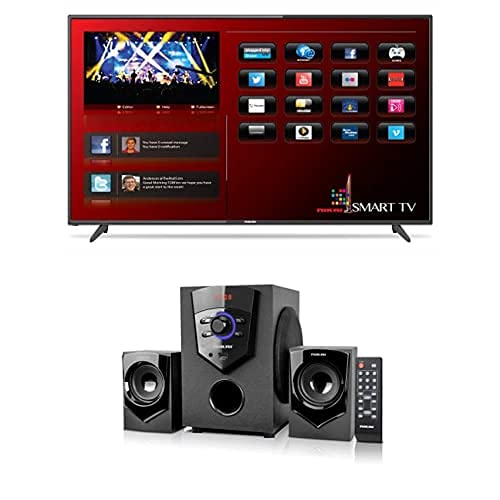
Image: Front view of the Nikai 43-inch 4K UHD LED TV, Model UHD43SLED1, showing its slim bezel design.
2. Attaching the TV Stand
- Identify the left and right stand pieces.
- Align each stand piece with the corresponding slots on the bottom of the TV.
- Secure the stand pieces using the provided screws. Ensure they are tightened firmly to prevent wobbling.
- Carefully lift the TV to an upright position and place it on a stable, level surface.
3. Connecting External Devices
Connect your external devices (e.g., cable box, Blu-ray player, gaming console) to the appropriate ports on the back or side of the TV. Common connection types include HDMI, USB, and Antenna/Cable input.
- HDMI: For high-definition video and audio. Use HDMI ports for best quality.
- USB: For connecting USB storage devices to play media files.
- Antenna/Cable: Connect your antenna or cable TV feed for broadcast channels.
4. Power Connection
Plug the power cord into the TV's power input, then plug the other end into a wall outlet. The TV will enter standby mode.
5. Initial Setup Wizard
Upon first power-on, the TV will guide you through an initial setup wizard. Follow the on-screen prompts to configure:
- Language selection
- Network connection (Wi-Fi or Ethernet)
- Google account sign-in (for Android TV features)
- Channel scan (for antenna/cable TV)
- Time zone and other basic settings
Operating Instructions
1. Remote Control Overview
The remote control allows you to access all TV functions. Insert the provided AAA batteries into the remote control, ensuring correct polarity.
- Power Button: Turns the TV on or off (standby mode).
- Input/Source: Selects input sources (HDMI, AV, TV).
- Navigation Buttons (Up/Down/Left/Right/OK): Navigate menus and confirm selections.
- Volume Up/Down: Adjusts the volume level.
- Channel Up/Down: Changes TV channels.
- Home: Accesses the Android TV home screen.
- Back: Returns to the previous screen or menu.
- Netflix Button: Direct access to the Netflix application.
- Menu/Settings: Opens the TV settings menu.
2. Basic TV Functions
- Power On/Off: Press the Power button on the remote control.
- Selecting Input Source: Press the "Input" or "Source" button on the remote and use the navigation buttons to select your desired input (e.g., HDMI 1, TV, USB).
- Adjusting Volume: Use the Volume Up (+) and Volume Down (-) buttons.
- Changing Channels: Use the Channel Up (CH+) and Channel Down (CH-) buttons for broadcast TV.
3. Smart TV Features (Android 9.0)
Your Nikai TV runs on Android 9.0, providing access to a world of entertainment and applications.
- Home Screen: Press the "Home" button to access the Android TV home screen, where you can find installed apps, recommended content, and settings.
- Netflix: Use the dedicated Netflix button on your remote or select the Netflix app from the home screen to stream movies and TV shows. An active Netflix subscription is required.
- Google Play Store: Download and install additional applications, games, and streaming services from the Google Play Store.
- Google Assistant: Use voice commands (if your remote supports it) to search for content, control smart home devices, and get information.
- Casting: Cast content from your smartphone or tablet to the TV using built-in Chromecast functionality.
4. FM Radio Function
Your TV includes an FM Radio function. To access it, navigate to the Apps section on the home screen and select the "FM Radio" application. Ensure an antenna is connected to the TV for optimal reception.
Maintenance and Care
Proper care ensures the longevity and optimal performance of your TV.
- Cleaning the Screen:
- Turn off the TV and unplug the power cord.
- Gently wipe the screen with a soft, lint-free cloth (e.g., microfiber cloth).
- For stubborn marks, lightly dampen the cloth with water or a specialized screen cleaner (never spray directly onto the screen).
- Do not use abrasive cleaners, alcohol, benzene, or thinners, as these can damage the screen.
- Cleaning the Cabinet: Wipe the TV cabinet with a soft, dry cloth.
- Ventilation: Keep the ventilation openings clear of dust and debris.
- Power Cord: Regularly check the power cord for any damage. If damaged, contact customer support for replacement.
Troubleshooting
Before contacting customer support, try these common solutions for minor issues:
| Problem | Possible Solution |
|---|---|
| No power | Ensure the power cord is securely plugged into both the TV and the wall outlet. Check if the wall outlet is working by plugging in another device. |
| No picture, but sound is present | Check the input source. Ensure the correct HDMI, AV, or TV input is selected. Check cable connections. |
| No sound, but picture is present | Check the volume level. Ensure the TV is not muted. Check audio cable connections if using external speakers. |
| Remote control not working | Replace the batteries. Ensure there are no obstructions between the remote and the TV's IR sensor. |
| Cannot connect to Wi-Fi | Ensure your Wi-Fi router is on and working. Re-enter the Wi-Fi password. Try restarting both the TV and the router. |
| Picture is distorted or blurry | Check the resolution settings of the connected device. For broadcast TV, check antenna connection and signal strength. |
Product Specifications
| Brand | Nikai |
| Model Name | UHD43SLED1 |
| Screen Size | 43 inches |
| Display Technology | LED |
| Resolution | 3840 x 2160 (4K UHD) |
| Operating System | Android 9.0 |
| Supported Internet Services | Netflix |
| Audio System | 2.1 Channel System with Amplifier and 2 Satellite Speakers |
| Special Features | Wide viewing angle, FM Radio function |
| Included Components | Television, Stand |
| Installation Type | Tabletop |
| ASIN | B09FQ799DR |
Warranty Information
Nikai products are manufactured to the highest quality standards. This product is covered by a limited warranty from the date of purchase. Please refer to the warranty card included in your product packaging for specific terms, conditions, and duration of the warranty. Keep your purchase receipt as proof of purchase for warranty claims.
Customer Support
If you encounter any issues that cannot be resolved using the troubleshooting guide, or if you require further assistance, please contact Nikai customer support. Contact details can typically be found on the official Nikai website or in the warranty documentation provided with your product.
When contacting support, please have your TV model number (UHD43SLED1) and purchase information readily available.


