
KoreHealth Kore Elite
Kore 2.0 Elite Fitness Tracker User Manual
Model: Kore Elite | Brand: KoreHealth
Introduction
Welcome to the user manual for your Kore 2.0 Elite Fitness Tracker. This guide provides essential information on setting up, operating, maintaining, and troubleshooting your device to help you maximize its features for a healthier lifestyle. The Kore 2.0 Elite is designed to monitor various health and fitness metrics, keeping you informed and motivated.

Image: The Kore 2.0 Elite Fitness Tracker, a sleek black wristband device with a digital display showing time and step count.
Setup Guide
1. Charging Your Device
Before initial use, fully charge your Kore 2.0 Elite. The device comes with a dedicated charging dongle.
- Connect the charging dongle to a USB power source (e.g., computer USB port, USB wall adapter).
- Attach your Kore 2.0 Elite to the charging dongle, ensuring the magnetic contacts align properly.
- A charging indicator will appear on the screen. A full charge typically takes 1.5-2 hours.

Image: The Kore 2.0 Elite Fitness Tracker placed on its sleek charging stand, connected via a cable.
2. App Installation
To access all features and track your data, download the official KoreHealth App.
- For iOS devices, search for "KoreHealth App" in the Apple App Store.
- For Android devices, search for "KoreHealth App" in the Google Play Store.
- Install the app on your smartphone.
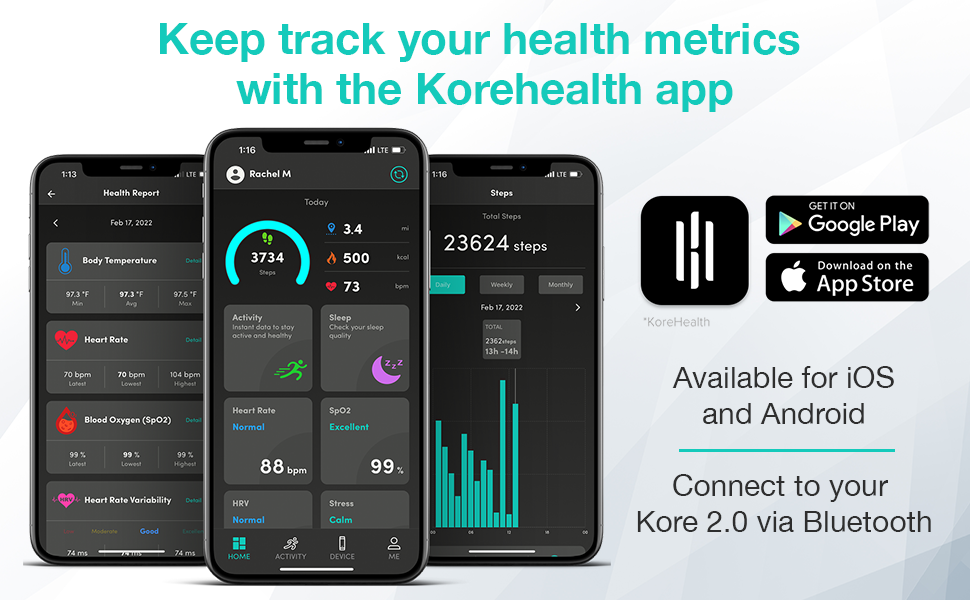
Image: A smartphone displaying the KoreHealth App interface, showing various health metrics like body temperature, heart rate, blood oxygen, and HRV.
3. Device Pairing
Once the app is installed, pair your Kore 2.0 Elite via Bluetooth.
- Ensure Bluetooth is enabled on your smartphone.
- Open the KoreHealth App and follow the on-screen instructions to add a new device.
- Select "Kore 2.0 Elite" from the list of available devices.
- Confirm the pairing on both your smartphone and the fitness tracker if prompted.
- Your device will sync data automatically once paired.
Operating Your Kore 2.0 Elite
Basic Navigation
The Kore 2.0 Elite features an advanced touch screen for easy navigation.
- Swipe Up/Down: Scroll through different data screens and menu options.
- Tap: Select an option or view more details.
- Press and Hold: Activate certain functions or return to the main screen.
Health Monitoring
Your fitness tracker continuously monitors key health metrics.
- Heart Rate: Real-time heart rate monitoring.
- Blood Oxygen Levels (SpO2): Supports 24/7 blood oxygen measurement.
- Body Temperature: Provides body temperature readings.
- Sleep Tracking: Monitors sleep cycles (deep, light, awake time) to help understand sleep quality.
- Stress Levels: Tracks and provides insights into stress.
- Calories Burned: Estimates calorie expenditure throughout the day.

Image: A person wearing the Kore 2.0 Elite Fitness Tracker, interacting with their smartphone which displays various health and fitness metrics.

Image: Close-up of the Kore 2.0 Elite on a wrist, showing a 99% blood oxygen reading on its display.

Image: The Kore 2.0 Elite displaying detailed sleep tracking data, including deep and light sleep durations, next to a smartphone showing a sleep analysis graph.
Activity Tracking
Monitor your daily physical activity with precision.
- Step Counter: Tracks your steps throughout the day.
- Distance Traveled: Calculates the distance covered based on your steps.
- Calories Burned: Provides an estimate of calories burned during activities.
- Activity Duration: Records the length of your workouts.

Image: A man checking his Kore 2.0 Elite Fitness Tracker on his wrist, with the text "Monitor & count your steps accurately" overlaid.
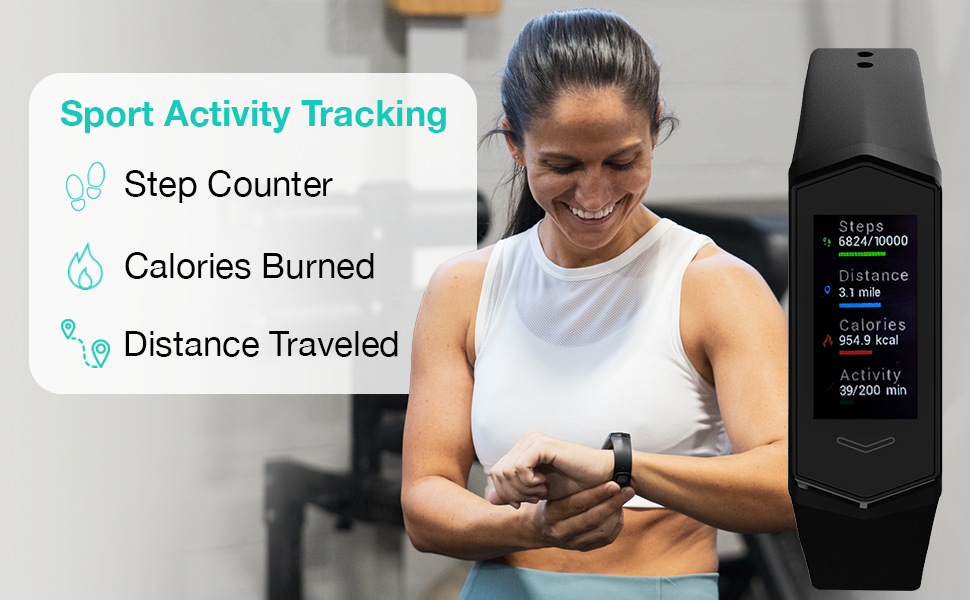
Image: The Kore 2.0 Elite displaying sport activity tracking data, including step count, distance, calories burned, and activity duration, next to a smiling woman in a gym setting.
Smart Notifications & Controls
Stay connected without constantly checking your phone.
- Call & Message Alerts: Receive notifications for incoming calls and messages directly on your wrist.
- Social Media Notifications: Get alerts from your favorite social media apps.
- Music Control: Control your music playback (skip songs, change playlists) directly from the tracker.
- Inactivity Alerts: The device can remind you to get up and move if you've been inactive for too long.
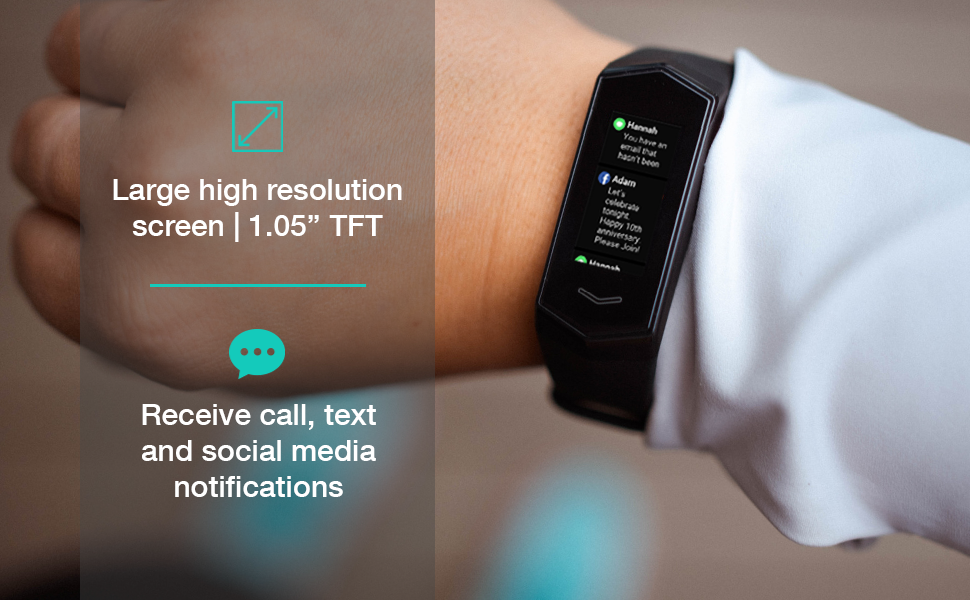
Image: A close-up of the Kore 2.0 Elite on a wrist, showing text and social media notifications on its large, high-resolution screen.
Maintenance
Water Resistance
The Kore 2.0 Elite is IP67 water-resistant.
- This means it can withstand immersion in up to 1 meter of water for 30 minutes.
- It is suitable for washing hands, showering, and swimming in shallow water.
- Avoid prolonged immersion or use in hot water/steam (e.g., saunas, hot tubs) as this can compromise the seal.

Image: A woman running outdoors, with text indicating the Kore 2.0 Elite is "Sweat & Splash Resistant with IP67 rating."
Cleaning Your Device
To maintain hygiene and device longevity:
- Wipe the device and band regularly with a soft, damp cloth.
- Avoid using abrasive cleaners or harsh chemicals.
- Ensure the charging contacts are clean and dry before charging.
Battery Care
The Kore 2.0 Elite features a long-lasting battery.
- Charge the device when the battery indicator is low.
- Avoid completely draining the battery frequently to prolong its lifespan.
- Store the device in a cool, dry place when not in use for extended periods.
Troubleshooting
If you encounter issues with your Kore 2.0 Elite, try the following steps:
- Device Not Turning On: Ensure the device is fully charged. Connect it to the charger for at least 30 minutes.
- Not Syncing with App:
- Check if Bluetooth is enabled on your smartphone.
- Ensure the KoreHealth App is open and running in the background.
- Try restarting both your smartphone and the fitness tracker.
- Unpair and re-pair the device in the app's settings.
- Inaccurate Readings (Heart Rate, Steps, etc.):
- Ensure the tracker is worn snugly on your wrist, about one finger's width above your wrist bone.
- Clean the sensor on the back of the device.
- Ensure the firmware is up to date via the KoreHealth App.
- Screen Unresponsive: Try restarting the device by connecting it to the charger. If the issue persists, contact customer support.
For more detailed troubleshooting or persistent issues, refer to the official KoreHealth App or the PDF user manual.
Specifications
| Feature | Detail |
|---|---|
| Model Name | Kore Elite |
| Brand | KoreHealth |
| Screen Size | 1.05 Inches |
| Connectivity Technology | Bluetooth 5.0 |
| Water Resistance | IP67 |
| Operating System | Android Wear 2.0 (Note: This refers to compatibility, not the OS running on the tracker itself.) |
| Battery Type | Lithium Ion |
| Item Weight | 70 Grams |
| Dimensions (LxWxH) | 8.66 x 1.18 x 0.79 inches |
Warranty Information
The Kore 2.0 Elite Fitness Tracker comes with a 1-year manufacturer's warranty covering defects in materials and workmanship. This warranty does not cover damage caused by misuse, accidents, unauthorized modifications, or normal wear and tear. Please retain your proof of purchase for warranty claims.
Support
For further assistance, frequently asked questions, or to report an issue, please utilize the following resources:
- KoreHealth App: The app provides real-time data, settings, and often includes an FAQ or support section.
- Official User Manual (PDF): A detailed PDF manual is available for download. Download PDF Manual
- KoreHealth Website: Visit the official KoreHealth website for product information and support contacts.
Related documentsKore Elite

Ask a question about this manual
Ask about setup, troubleshooting, compatibility, parts, safety, or missing instructions. Manuals+ will review the question and use this page’s manual context to help answer it.