1. Introduction
Welcome to the user manual for your ASUS E410 14-inch laptop. This guide provides essential information to help you set up, operate, maintain, and troubleshoot your device. Please read this manual thoroughly to ensure proper use and to maximize the performance and longevity of your laptop.
The ASUS E410 is designed for productivity and portability, featuring an Intel Celeron N4020 processor, 4GB DDR4 RAM, and 320GB storage, running on Windows 11.
2. Getting Started
2.1 Package Contents
Before you begin, ensure all items are present in your package:
- ASUS E410 Laptop
- Power Adapter
- Microfiber Cloth
- User Manual (this document)
2.2 Laptop Overview
Familiarize yourself with the main components of your ASUS E410 laptop.

Figure 2.2.1: Front view of the ASUS E410 laptop displaying the Windows 11 desktop and Start Menu. This image shows the full keyboard, touchpad, and screen.
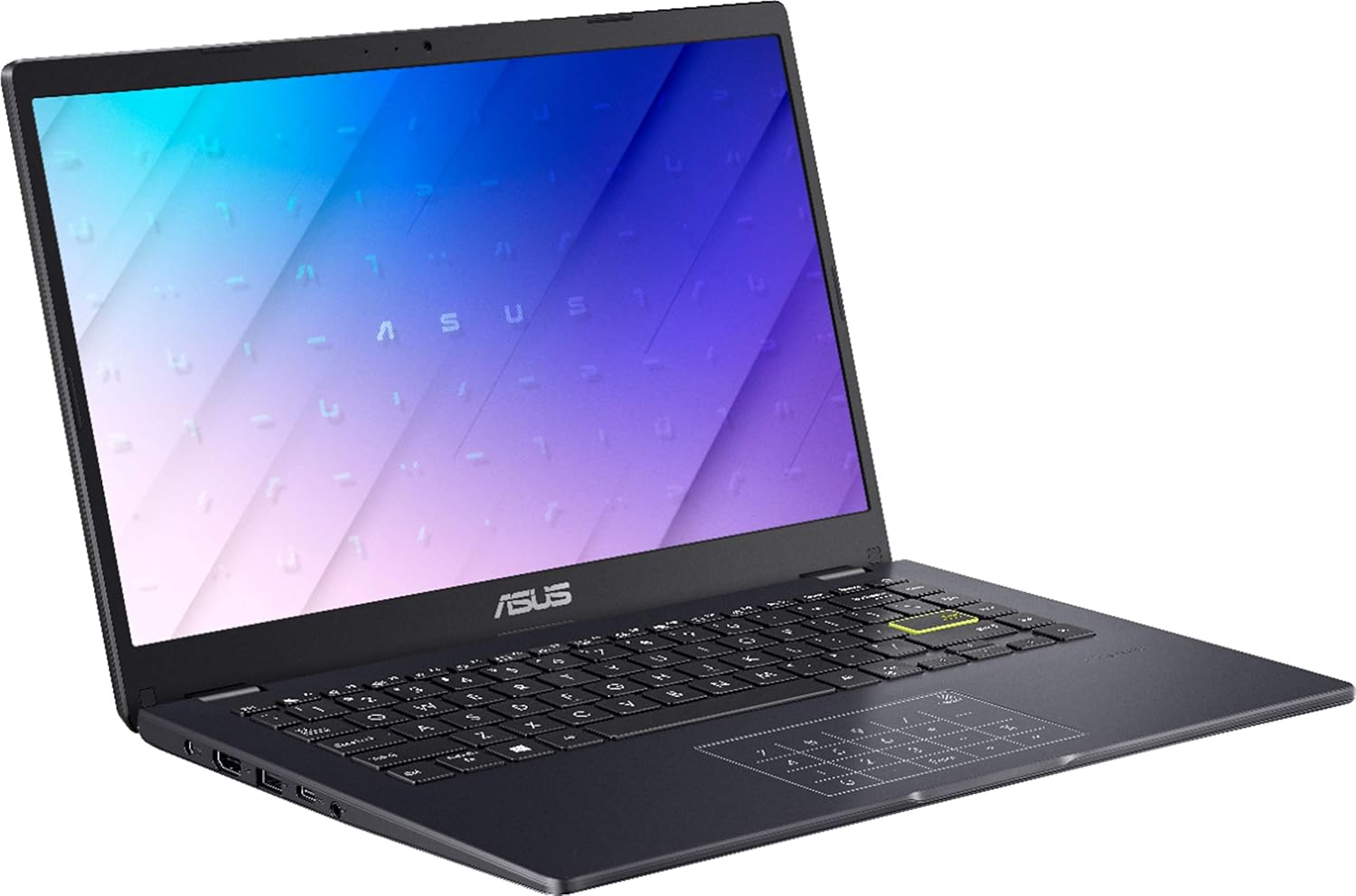
Figure 2.2.2: Side view of the ASUS E410 laptop, highlighting the various ports available for connectivity.
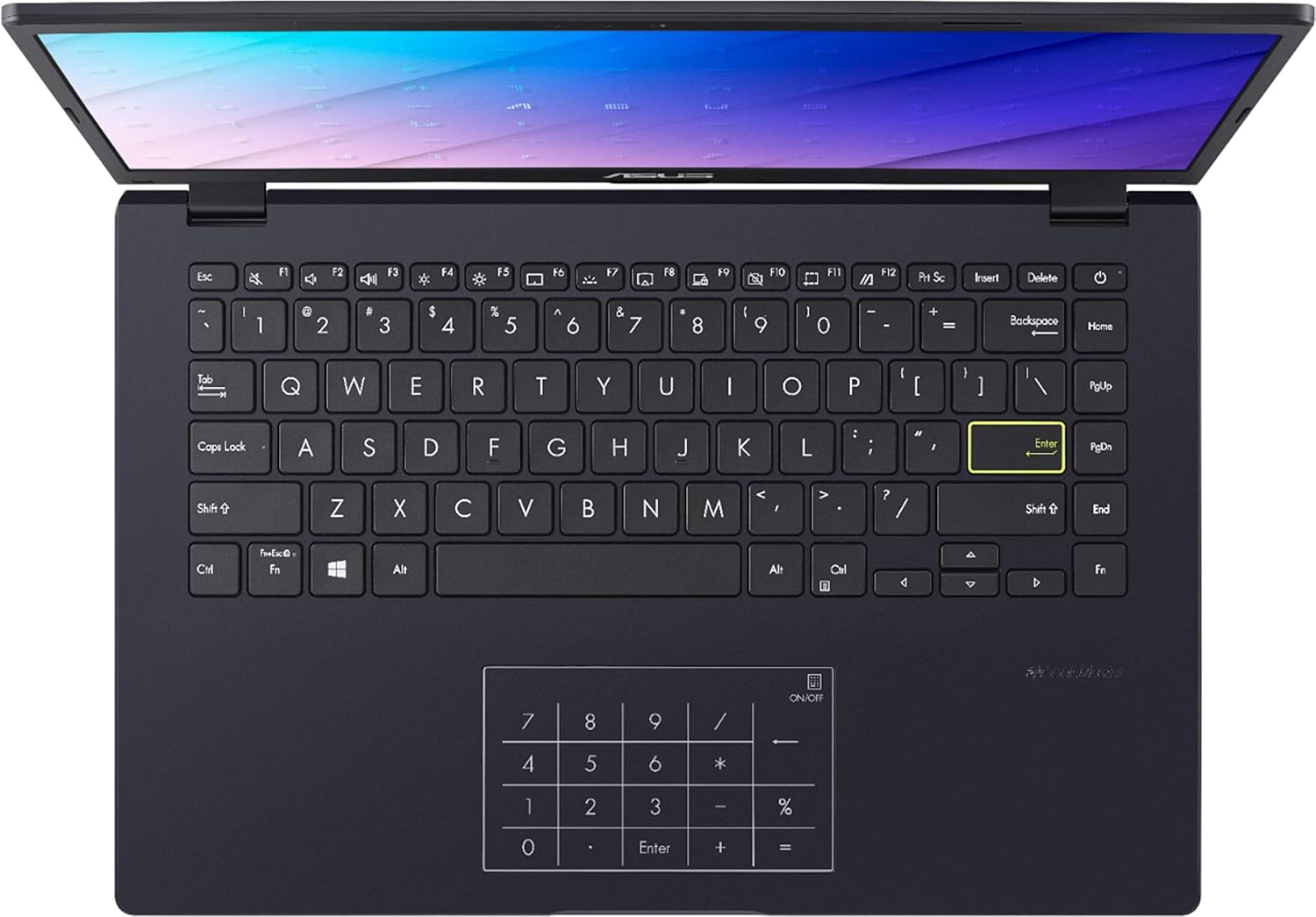
Figure 2.2.3: Top-down view of the ASUS E410 keyboard and touchpad, which features an integrated numeric keypad.
3. Setup
3.1 Initial Power-On
- Connect the power adapter to the laptop's charging port and then to a power outlet.
- Open the laptop lid.
- Press the power button, typically located on the top-right of the keyboard or on the side.
- Follow the on-screen instructions to complete the Windows 11 initial setup, including language, region, network connection, and user account creation.
3.2 Connecting Peripherals
Your ASUS E410 laptop includes various ports for connecting external devices:
- USB 3.2 Type-C Gen 1: For high-speed data transfer.
- USB Standard Port (x2): For connecting USB devices like mice, keyboards, or external drives.
- HDMI: For connecting to external displays or projectors.
- Micro SD Connectivity: For reading Micro SD cards.
Simply plug your peripheral devices into the appropriate ports. The operating system will typically detect and install necessary drivers automatically.
3.3 Switching Out of Windows 11 S Mode
Windows 11 in S mode is designed for security and performance, exclusively running apps from the Microsoft Store. If you need to install apps from outside the Microsoft Store, you can switch out of S mode. This is a one-way switch.
- On your PC running Windows 11 in S mode, open Settings.
- Navigate to Update & Security, then select Activation.
- In the "Switch to Windows 11 Home" or "Switch to Windows 11 Pro" section, select Go to the Store.
(Note: If you also see an "Upgrade your edition of Windows" section, be careful not to click the "Go to the Store" link that appears there.) - On the "Switch out of S mode (or similar)" page that appears in the Microsoft Store, select the Get button.
- After you see a confirmation message, you will be able to install apps from outside of the Microsoft Store.
4. Operating Your Laptop
4.1 Keyboard and Touchpad
The laptop features a full-sized keyboard and a multi-touch touchpad. The touchpad also integrates a numeric keypad for convenient data entry.
- Function Keys (Fn): Use the Fn key in combination with the function keys (F1-F12) to access special features like adjusting screen brightness, volume, or enabling/disabling Wi-Fi.
- Touchpad Gestures: The touchpad supports various multi-touch gestures for navigation and control within Windows 11. Refer to Windows settings for customization.
4.2 Battery Management
Your ASUS E410 is equipped with a Lithium Polymer battery, offering an average battery life of up to 12 hours under optimal conditions.
- Charging: Connect the power adapter to fully charge the battery before first use and whenever the battery level is low.
- Battery Health: To prolong battery life, avoid frequently discharging the battery completely. It is recommended to keep the battery level between 20% and 80% when possible.
- Power Modes: Utilize Windows 11 power settings to optimize battery life or performance based on your needs.
4.3 Wireless Connectivity
The laptop supports Wi-Fi 5 (802.11ac) for wireless network connections.
- Click the Wi-Fi icon in the system tray (bottom-right corner of the screen).
- Select your desired Wi-Fi network from the list.
- Enter the network password if prompted and click Connect.
5. Maintenance
5.1 Cleaning Your Laptop
- Screen: Use a soft, lint-free cloth, slightly dampened with water or a screen cleaner, to gently wipe the display. Avoid harsh chemicals.
- Keyboard and Chassis: Use a soft cloth to wipe surfaces. A can of compressed air can remove dust from between keys.
- Ports: Ensure ports are free of dust and debris. Use compressed air if necessary.
Always power off and unplug the laptop before cleaning.
5.2 Software Updates
Regularly update your Windows operating system and drivers to ensure optimal performance, security, and compatibility.
- Windows Update: Go to Settings > Windows Update to check for and install updates.
- Driver Updates: ASUS may provide specific driver updates. Visit the official ASUS support website for your model.
6. Troubleshooting
This section addresses common issues you might encounter with your laptop.
- Laptop does not power on:
- Ensure the power adapter is securely connected to both the laptop and a working power outlet.
- Check if the power outlet is functional by plugging in another device.
- Try holding the power button for 15-20 seconds to perform a hard reset.
- No Wi-Fi connection:
- Verify that Wi-Fi is enabled in Windows settings.
- Restart your router and modem.
- Ensure you are within range of a Wi-Fi network.
- Check for updated network drivers.
- Slow performance:
- Close unnecessary applications running in the background.
- Check for and install any pending Windows updates.
- Run a disk cleanup. For SSDs, ensure TRIM is enabled (usually automatic).
- Scan for malware or viruses.
- Consider if you are running many demanding applications simultaneously.
- External display not working:
- Ensure the HDMI cable is securely connected to both the laptop and the external display.
- Check the input source on your external display.
- Press Windows key + P and select a display option (e.g., Duplicate, Extend).
7. Specifications
Below are the detailed technical specifications for the ASUS E410 laptop:
| Feature | Specification |
|---|---|
| Model Name | E410 |
| Screen Size | 14 Inches |
| Screen Resolution | 1366 x 768 pixels |
| Processor | Intel Celeron N4020 (1.1 GHz, up to 2.8 GHz Burst Frequency) |
| RAM | 4 GB DDR4 |
| Storage | 320 GB SSD (64GB eMMC + 256GB PCIe SSD) |
| Graphics Coprocessor | Intel UHD Graphics 600 |
| Operating System | Windows 11 |
| Wireless Type | 802.11ac (Wi-Fi 5) |
| Average Battery Life | 12 Hours |
| Ports | 1x USB 3.2 Type-C Gen 1, 2x USB Standard Port, 1x HDMI, 1x Micro SD |
| Item Weight | 2.87 pounds |
| Product Dimensions | 12.81 x 8.56 x 0.74 inches |
| Color | Blue |
8. Support and Warranty
8.1 Customer Support
For further assistance, technical support, or service inquiries, please visit the official ASUS support website. You can find drivers, FAQs, and contact information there.
8.2 Warranty Information
Your ASUS laptop comes with a limited warranty. Please refer to the warranty card included in your product packaging or visit the ASUS support website for detailed warranty terms and conditions specific to your region and product model. Keep your proof of purchase for warranty claims.


