
Introduction
This manual provides essential information and instructions for using your Apple iPad Pro 5th Generation 12.9-inch. It covers initial setup, daily operation, maintenance, and troubleshooting to ensure optimal performance and user experience. The iPad Pro is a powerful tablet designed for a wide range of tasks, from creative work to entertainment and productivity.
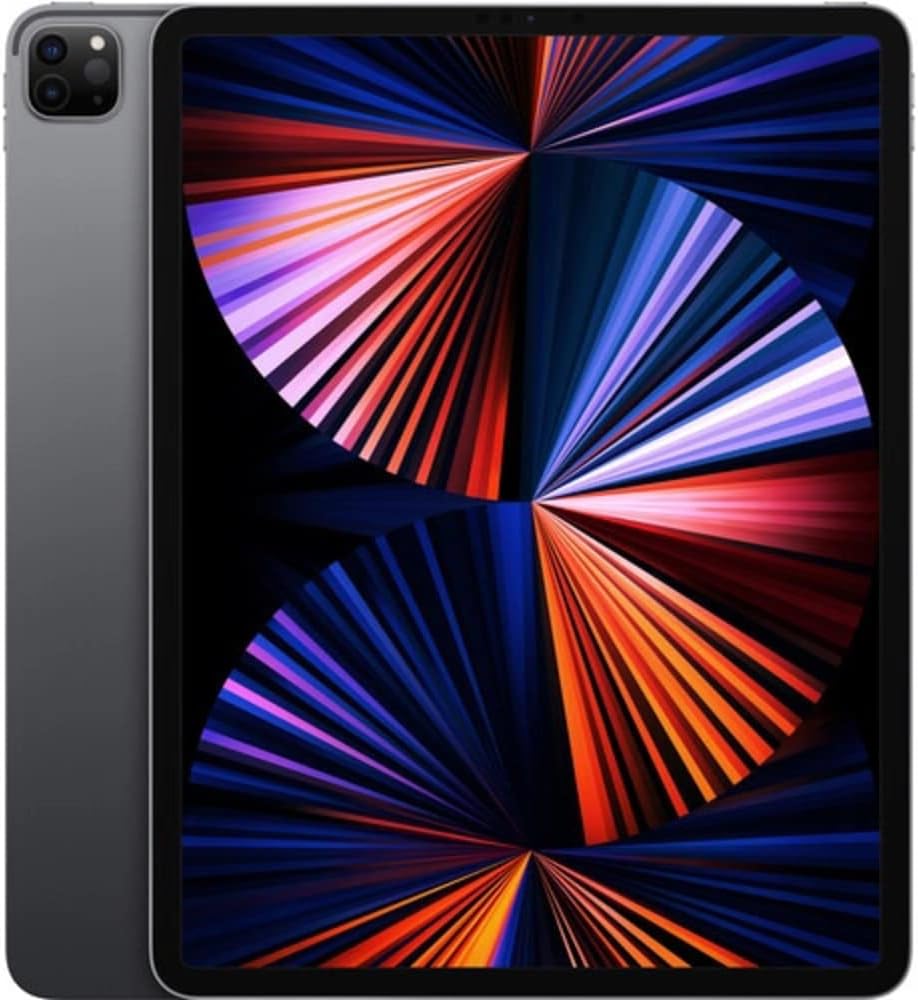
Image: Front view of the Apple iPad Pro 5th Generation 12.9-inch in Space Gray, showcasing its Liquid Retina XDR display.
Setup
1. Initial Power On and Charging
Before first use, ensure your iPad Pro is fully charged. Connect the provided USB-C Charge Cable to the iPad's USB-C port and the 18W USB-C Power Adapter to a power outlet.
2. Basic Setup
Follow the on-screen instructions to set up your iPad Pro. This includes selecting your language and region, connecting to a Wi-Fi network, setting up Face ID, and signing in with your Apple ID. If you do not have an Apple ID, you can create one during this process.
3. Attaching Accessories (Optional)
The iPad Pro supports various accessories like the Apple Magic Keyboard and Apple Pencil (2nd Gen). These accessories attach magnetically and connect automatically. The Magic Keyboard can also provide pass-through charging for your iPad.
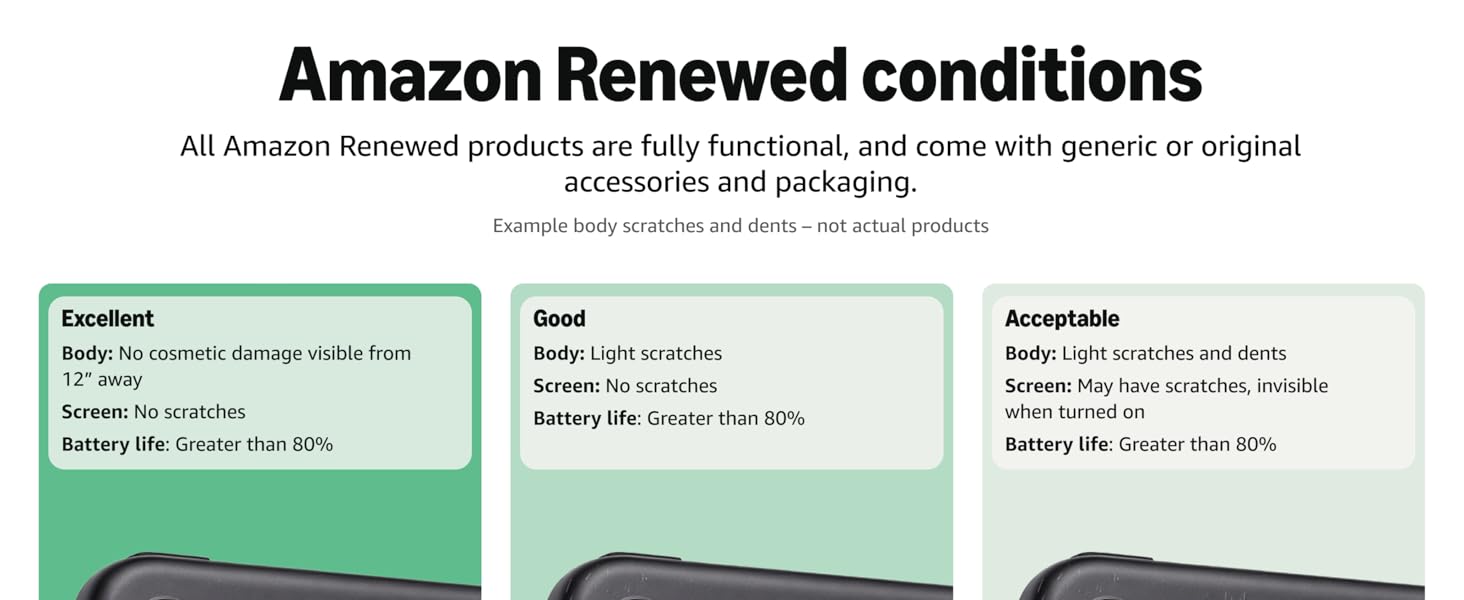
Image: Apple iPad Pro attached to a Magic Keyboard, demonstrating its laptop-like functionality.
Operating Your iPad Pro
1. Navigating iPadOS
iPadOS uses intuitive gestures for navigation:
- Home Screen: Swipe up from the bottom edge of the screen.
- App Switcher: Swipe up from the bottom edge and pause in the middle of the screen.
- Control Center: Swipe down from the top-right corner.
- Notifications: Swipe down from the top-left corner.
2. Multitasking with Split View
To use two apps at once, open an app, then drag a second app from the Dock to the left or right edge of the screen. You can adjust the size of each app by dragging the divider.
Image: A close-up of the iPad Pro's screen displaying the iPadOS interface with various application icons.
3. Camera Features
The iPad Pro features a 12MP Wide camera, 10MP Ultra Wide camera, and a LiDAR Scanner on the rear, along with a 12MP Ultra Wide front camera with Center Stage. Center Stage automatically keeps you in the frame during video calls.
4. Audio System
The iPad Pro is equipped with a four-speaker audio system and supports Dolby Atmos, providing rich, immersive sound for media consumption and video calls.
5. Connectivity
The USB-C port supports Thunderbolt for high-speed data transfer and connecting external displays, including the Pro Display XDR at 6K resolution. It also supports Wi-Fi 6 (802.11ax) for fast wireless internet access.

Image: Side profile of the Apple iPad Pro, highlighting the USB-C port and speaker grilles.
6. Official Product Videos
Video: A seller's perspective on the Apple 2021 12.9-inch iPad Pro, highlighting its features and performance.
Video: An overview of the Apple 2021 iPad Pro 12.9-inch, demonstrating its capabilities and design.
Video: An honest review of the iPad Pro 12.9-inch (5th generation), detailing user experience and features.
Maintenance
1. Battery Care
To maximize battery life, avoid extreme temperatures and keep the battery charge between 20% and 80% when possible. For long-term storage, charge the battery to about 50%.
2. Cleaning the Device
Use a soft, lint-free cloth to clean your iPad Pro. Avoid abrasive materials, aerosols, or cleaning sprays. For stubborn smudges, a slightly dampened cloth with water is sufficient.
3. Software Updates
Regularly check for and install iPadOS updates to ensure your device has the latest features, security enhancements, and performance improvements. Go to Settings > General > Software Update.
Troubleshooting
Common Issues and Solutions
- Device Unresponsive: Force restart your iPad by pressing and quickly releasing the Volume Up button, then the Volume Down button, then press and hold the Top button until the Apple logo appears.
- Wi-Fi Connectivity Issues: Try restarting your Wi-Fi router. On your iPad, go to Settings > Wi-Fi, turn Wi-Fi off and then on again. If issues persist, forget the network and reconnect.
- App Crashing: Close the app from the App Switcher and reopen it. If the problem continues, check the App Store for updates or reinstall the app.
Specifications
| Feature | Detail |
|---|---|
| Brand | Apple |
| Model Name | Apple iPad Pro 5th Generation |
| Model Number | MHRA3LL/A-cr |
| Screen Size | 12.9 inches |
| Display Resolution | 2732x2048 (264 ppi) Liquid Retina XDR |
| Processor | Apple M1 chip (8-Core CPU, 8-Core GPU, 16-Core Neural Engine) |
| RAM | 16 GB |
| Storage Capacity | 1TB |
| Rear Camera | 12MP Wide, 10MP Ultra Wide, LiDAR Scanner |
| Front Camera | 12MP Ultra Wide with Center Stage |
| Operating System | iPadOS |
| Battery Life | Up to 10 hours |
| Connectivity | Wi-Fi 6 (802.11ax), Cellular, Thunderbolt/USB-C |
| Weight | 2 Pounds |
Warranty and Support
Warranty Information
This Apple iPad Pro comes with a 90-day limited warranty. Please refer to the warranty documentation included with your purchase for full terms and conditions.
Customer Support
For additional support, troubleshooting, or service inquiries, please visit the official Apple Support website or contact Apple customer service directly. Online resources include comprehensive guides, FAQs, and community forums.