
OMOTON B09FLPDMKN
OMOTON Bluetooth Keyboard User Manual
Model: B09FLPDMKN | Brand: OMOTON
Product Overview
The OMOTON Bluetooth Keyboard is a versatile and ultra-slim wireless keyboard designed for seamless compatibility with a wide range of iPad devices, including iPad Pro 13/11 inch 2024, iPad Air 13/11 inch 2024, iPad 10th Generation (10.9 inch), iPad 10.2 inch (9th/8th/7th generation), iPad Pro 11/12.9, iPad Air 10.9/10.5, iPad 9.7, and iPad Mini series. It features a built-in 400mAh lithium battery for extended use, illuminated LED backlighting with 7 adjustable colors and 3 brightness levels, and effective shortcut keys for enhanced productivity. Its lightweight and compact design make it highly portable, providing a comfortable and quiet typing experience.
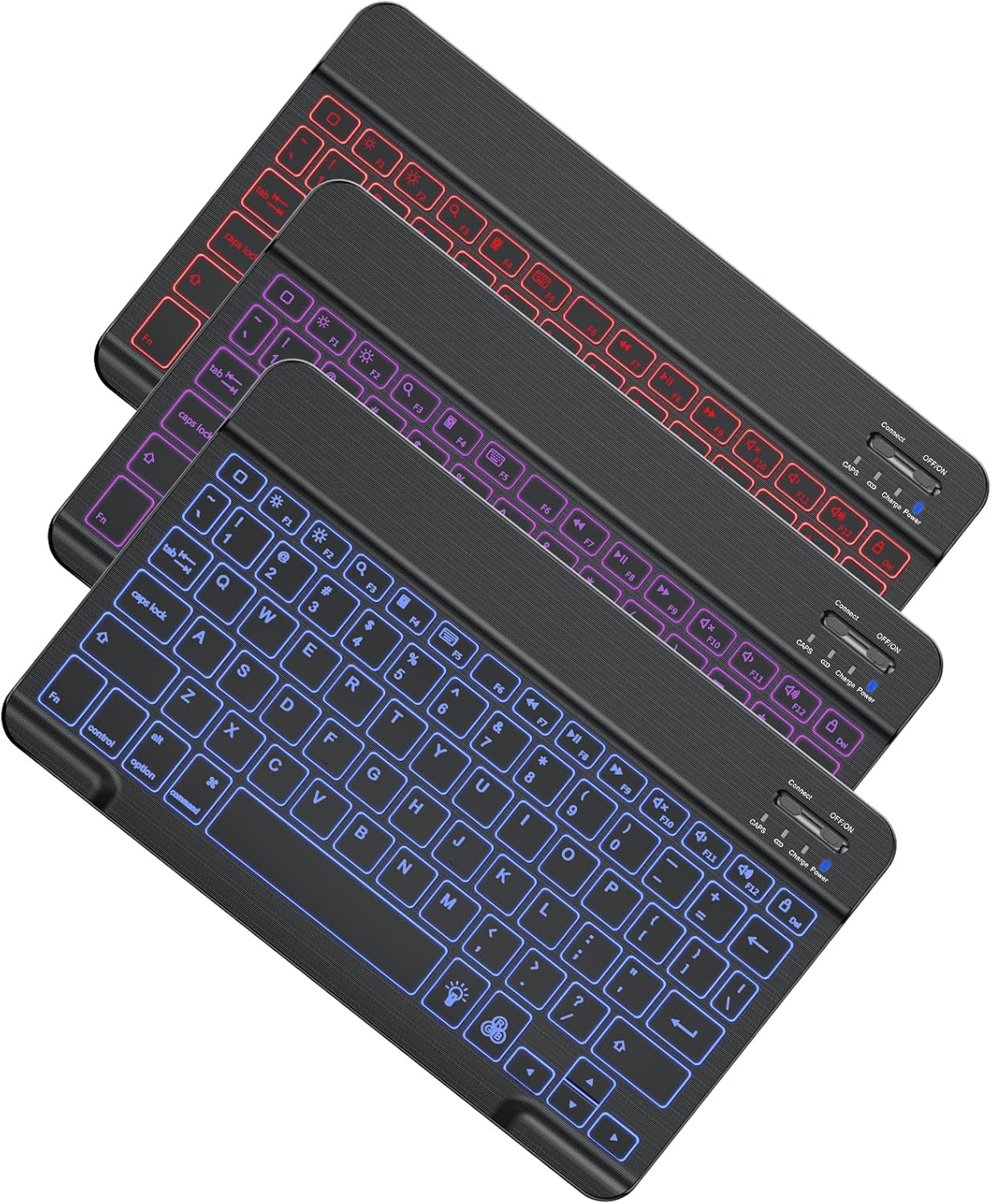
Image: The OMOTON Bluetooth Keyboard showcasing its illuminated keys in red, purple, and blue, highlighting its sleek design.
What's in the Box
- OMOTON Bluetooth Keyboard
- USB Cable (for charging)
- User Manual (this document)
Product Specifications
| Brand | OMOTON |
| Model (ASIN) | B09FLPDMKN |
| Product Dimensions | 9.7 x 5.9 x 0.25 inches (247 x 150 x 6.5 mm) |
| Item Weight | 9.6 ounces (0.44 pounds) |
| Batteries | 1 Lithium Polymer batteries required (included) |
| Connectivity Technology | Bluetooth |
| Keyboard Description | Multimedia |
| Special Features | Portable, Backlit, Rechargeable |
| Color | Black (RGB backlighting) |
| Number of Keys | 78 |
| Keyboard Backlighting Color Support | RGB (7 colors) |
| Style | Modern |

Image: The keyboard's ultra-slim profile (6.5mm thickness) and lightweight design (0.44 pounds) are highlighted, along with its compact size (247x150mm).
Setup Guide
1. Charging the Keyboard
Before initial use, ensure the keyboard is fully charged. Connect the provided USB cable to the charging port on the keyboard and to a USB power source (e.g., computer, USB wall adapter). The charge indicator light will illuminate during charging. A full charge takes approximately 3 hours and provides over 40 hours of working time.
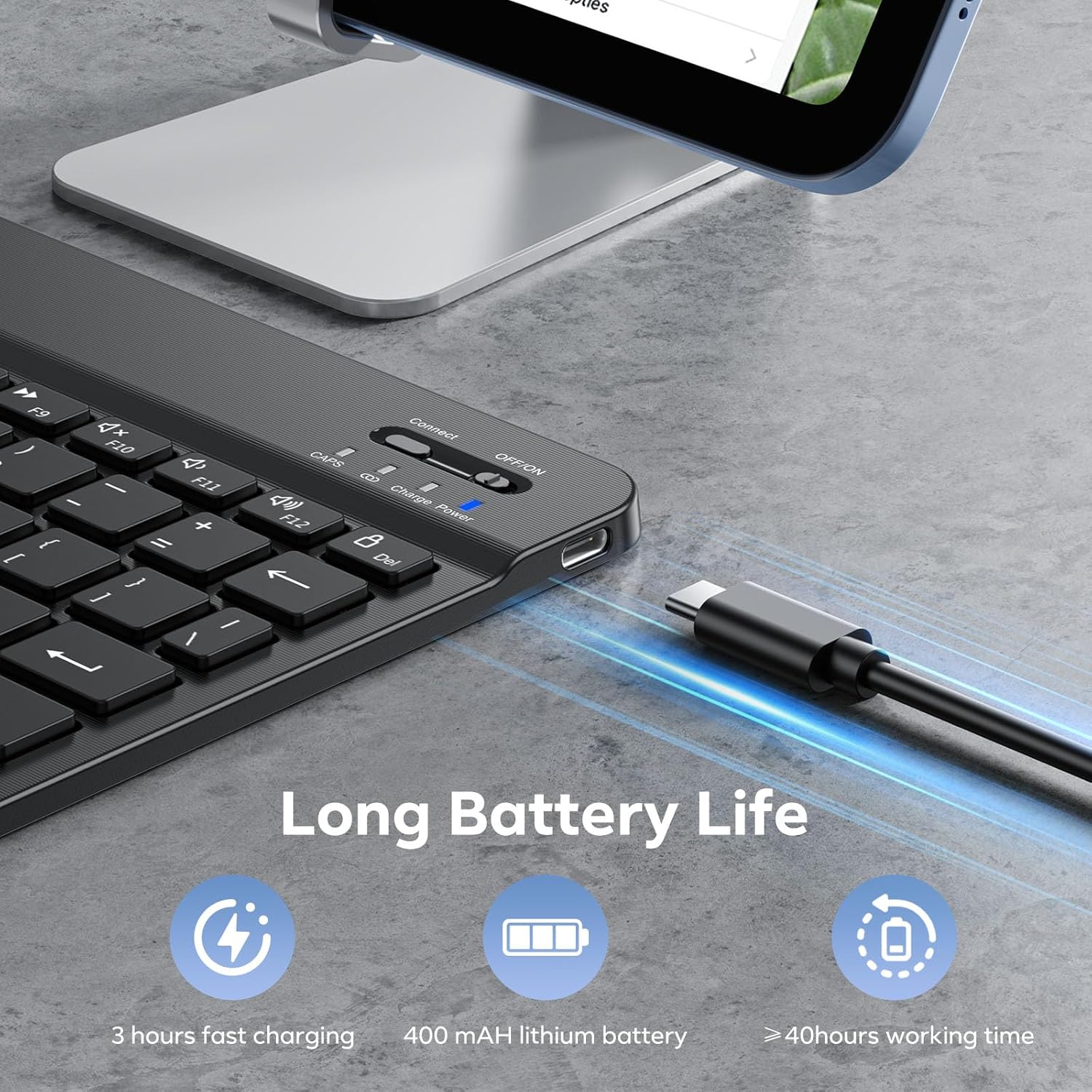
Image: The keyboard's charging port with a USB cable connected, illustrating its long battery life and fast charging capability.
2. Bluetooth Pairing
- Power On: Locate the ON/OFF switch on the top right side of the keyboard and slide it to the "ON" position. The power indicator light will turn on.
- Activate Pairing Mode: Press the "Connect" button located next to the ON/OFF switch. The Bluetooth indicator light will start blinking, indicating the keyboard is in pairing mode.
- Enable Bluetooth on your iPad: Go to your iPad's "Settings" app, then tap on "Bluetooth". Make sure Bluetooth is toggled "On".
- Select Keyboard: Your iPad will search for nearby Bluetooth devices. Look for "Bluetooth Keyboard" (or a similar name like "OMOTON Keyboard") in the list of "Other Devices" and tap on it.
- Confirm Connection: Your iPad may display a pairing code. Type this code on the OMOTON keyboard and press Enter. Once successfully paired, the Bluetooth indicator light on the keyboard will stop blinking and remain solid, and your iPad will show "Connected" next to the keyboard's name.

Image: Close-up of the keyboard's top right corner, showing the "Connect" button, "OFF/ON" switch, and indicator lights for CAPS, Bluetooth, Charge, and Power.
Operating Instructions
1. Using the Backlight Function
- Turn On/Off Backlight: Press the light bulb icon key (usually located near the bottom right of the keyboard) once to turn on the backlight. Press it a second time to activate the breathing light effect. Press it a third time to turn off the backlight.
- Change Backlight Color: Press the RGB icon key (next to the light bulb icon) to cycle through the 7 available backlight colors (e.g., blue, green, red, purple, yellow, cyan, white).
- Adjust Brightness: Use the Fn + light bulb icon key (up arrow) to increase brightness and Fn + light bulb icon key (down arrow) to decrease brightness. There are 3 levels of brightness.
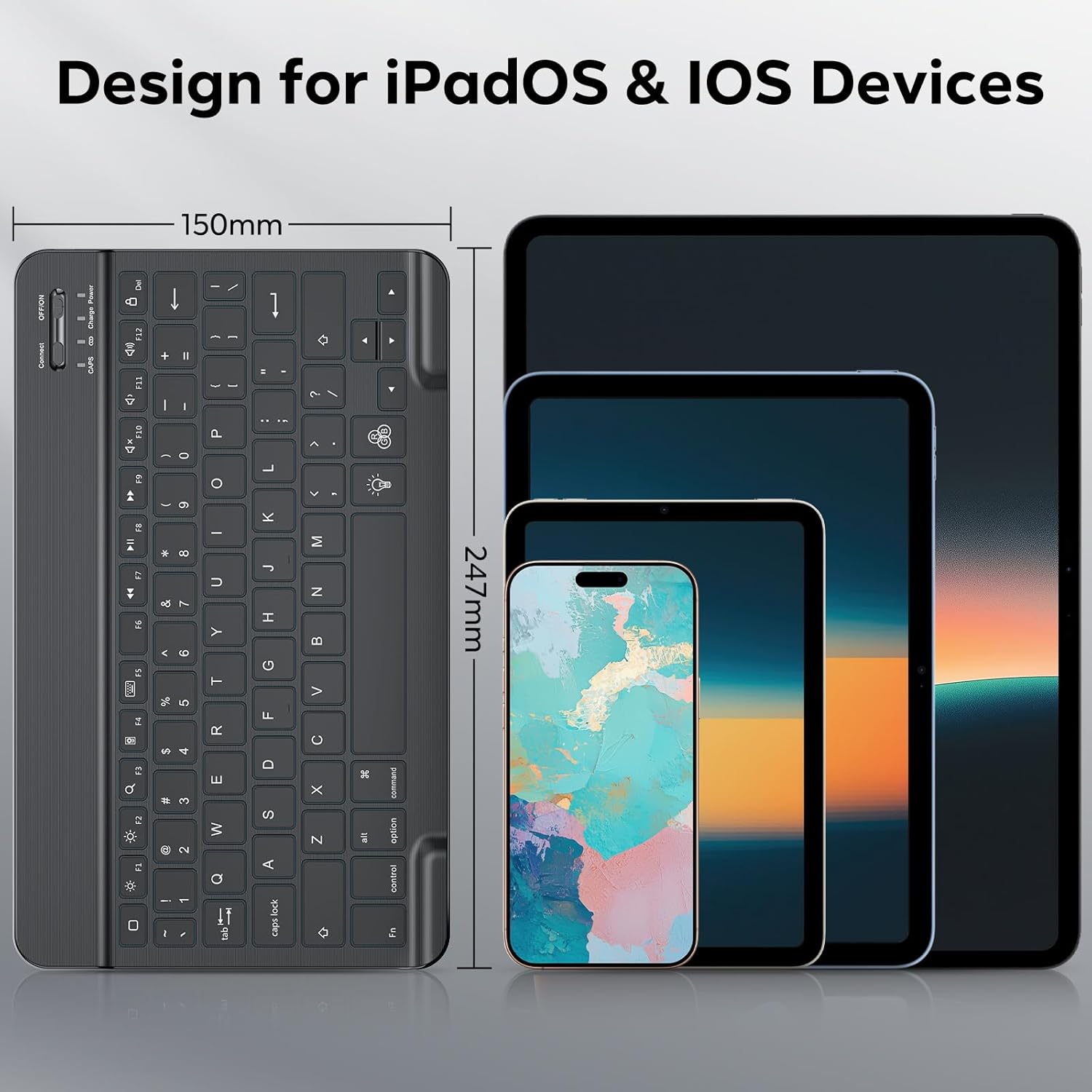
Image: A close-up of the keyboard with its keys illuminated in blue, demonstrating the adjustable backlight feature.

Image: A visual representation of the keyboard's 7 adjustable backlight colors, including blue, green, red, and purple options.
2. Using Shortcut Keys
The keyboard is equipped with multimedia shortcut keys for convenient operation. These keys are typically accessed by pressing the Fn key in combination with the corresponding function key (F1-F12).
- Fn + F1: Home Screen
- Fn + F2: Search
- Fn + F3: Select All
- Fn + F4: Copy
- Fn + F5: Paste
- Fn + F6: Cut
- Fn + F7: Previous Track
- Fn + F8: Play/Pause
- Fn + F9: Next Track
- Fn + F10: Mute Volume
- Fn + F11: Volume Down
- Fn + F12: Volume Up
- Caps Lock: The CAPS indicator light on the keyboard will illuminate when Caps Lock is active.
Care and Maintenance
- Cleaning: Use a soft, dry, lint-free cloth to clean the keyboard. For stubborn dirt, slightly dampen the cloth with water or a mild cleaning solution. Avoid excessive moisture.
- Storage: Store the keyboard in a cool, dry place away from direct sunlight and extreme temperatures.
- Avoid Liquids: Do not expose the keyboard to liquids, as this can cause damage to internal components.
- Handle with Care: While durable, avoid dropping the keyboard or subjecting it to strong impacts.
- Non-Slip Mat: The keyboard features non-slip mats on the bottom to prevent slipping during use. Ensure these are clean and intact for optimal stability.

Image: A close-up view of the keyboard's non-slip mat, designed to provide stability and prevent movement during typing.
Troubleshooting
Keyboard Not Connecting/Pairing:
- Ensure the keyboard is powered on and fully charged.
- Make sure Bluetooth is enabled on your iPad.
- Press the "Connect" button on the keyboard to enter pairing mode.
- If the keyboard was previously paired with another device, disconnect it from that device first.
- Try forgetting the device on your iPad's Bluetooth settings and re-pairing.
- Restart both your iPad and the keyboard.
Keys Not Responding:
- Check the keyboard's battery level. Recharge if necessary.
- Ensure the keyboard is still connected via Bluetooth to your iPad.
- Restart the keyboard and your iPad.
- Clean around the keys to ensure no debris is obstructing them.
Backlight Not Working/Changing:
- Ensure the keyboard is powered on.
- Press the light bulb icon key to cycle through backlight modes.
- Press the RGB icon key to change colors.
- Adjust brightness using Fn + light bulb icon key (up/down arrows).
- If the battery is very low, the backlight might not function or might be dim. Charge the keyboard.
Warranty and Support
OMOTON products are designed and manufactured to the highest quality standards. For specific warranty information, please refer to the warranty card included with your product or visit the official OMOTON website. If you encounter any issues or have questions regarding your OMOTON Bluetooth Keyboard, please contact OMOTON customer support for assistance. Contact details can typically be found on the product packaging or the brand's official website.
For further assistance, you may also refer to the OMOTON Store on Amazon: OMOTON Store
Related documentsB09FLPDMKN


Ask a question about this manual
Ask about setup, troubleshooting, compatibility, parts, safety, or missing instructions. Manuals+ will review the question and use this page’s manual context to help answer it.