
1. Overview
The TECLAST Mini PC N10 is a compact and portable desktop computer designed for various applications, including office work, home theater, and educational use. It features an Intel Celeron N4000 processor, 6GB DDR4 RAM, and a 128GB M.2 SSD, offering efficient performance for daily tasks. Its small form factor and comprehensive connectivity options make it a versatile solution for users seeking a powerful yet space-saving computing device.

Image 1.1: The TECLAST Mini PC N10, showcasing its compact design and various ports, including the VGA port on the side.
2. Product Features
2.1 Performance
The N10 Mini PC is equipped with an Intel Celeron N4000 processor (up to 2.6GHz), 6GB of LPDDR4 memory, and a 128GB M.2 SSD. This configuration provides efficient multitasking capabilities and quick access to files, suitable for light office work, web browsing, and media playback.
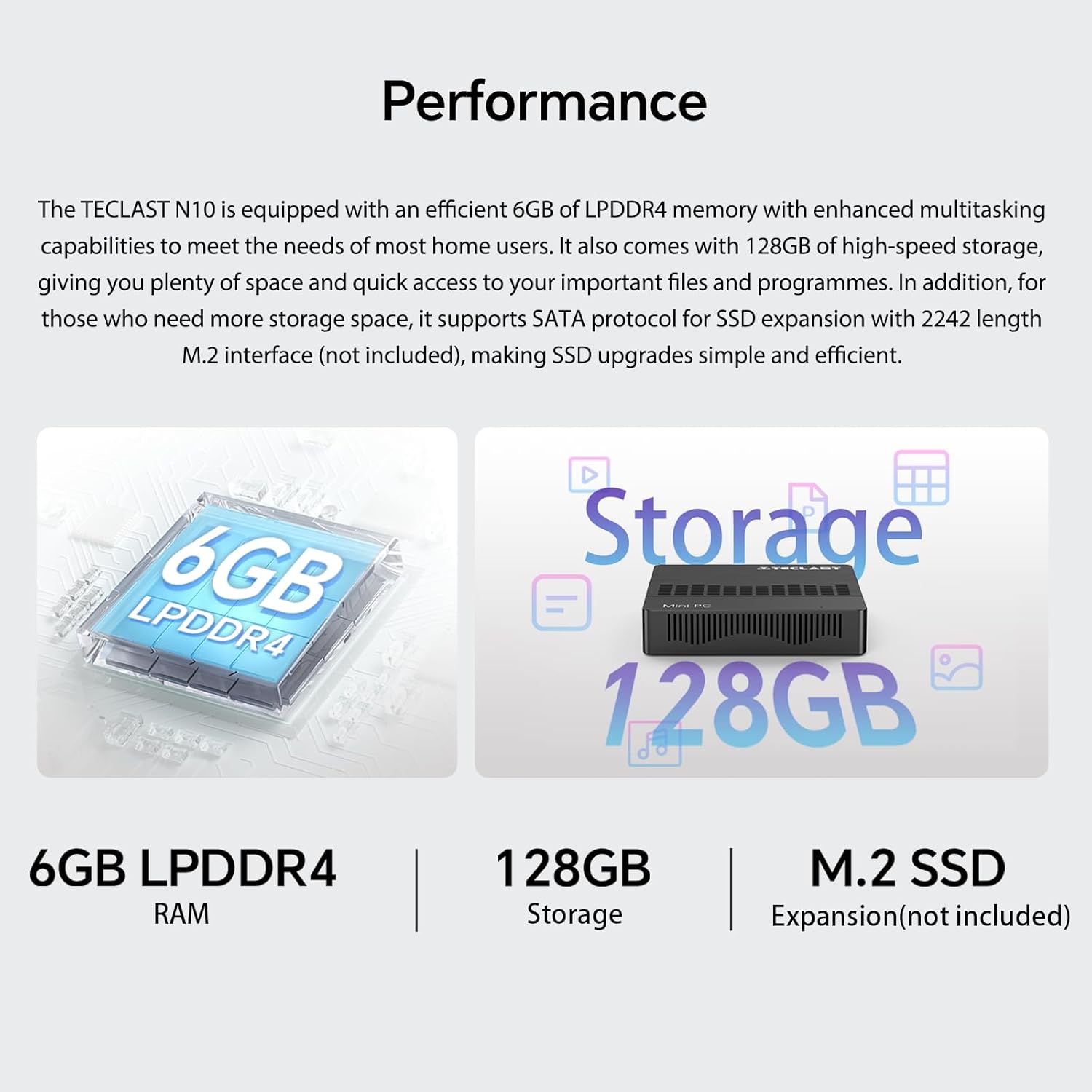
Image 2.1: Visual representation of the TECLAST N10's performance specifications, highlighting 6GB LPDDR4 RAM, 128GB internal storage, and support for M.2 SSD expansion.
2.2 Connectivity
The device offers a wide range of integrated ports and wireless options for versatile connectivity:
- Video Output: HDMI x 1, VGA x 1, supporting dual display output and 4K@60Hz resolution via HDMI.
- USB Ports: 3 x USB 3.2 GEN1 (5Gbps) for high-speed data transfer.
- Network: 1 x 1000Mbps RJ45 Ethernet port for stable wired internet.
- Wireless: Dual-band WiFi (2.4G/5G) for fast wireless internet and Bluetooth 5.0 for peripheral connections.
- Audio: 3.5mm Headphone Output.
- Storage Expansion: TF (MicroSD) port for memory cards.

Image 2.2: Overview of the TECLAST N10's connectivity features, including wireless standards and wired ports.

Image 2.3: Illustration of the TECLAST N10's dual display capability using both HDMI and VGA ports simultaneously.
2.3 Compact Design
Measuring 11.9 x 0.24 x 11.9 cm and weighing 641 g, the N10 is highly portable. Its compact size allows for easy placement in various environments, and it supports VESA mounting for a clean desktop setup.
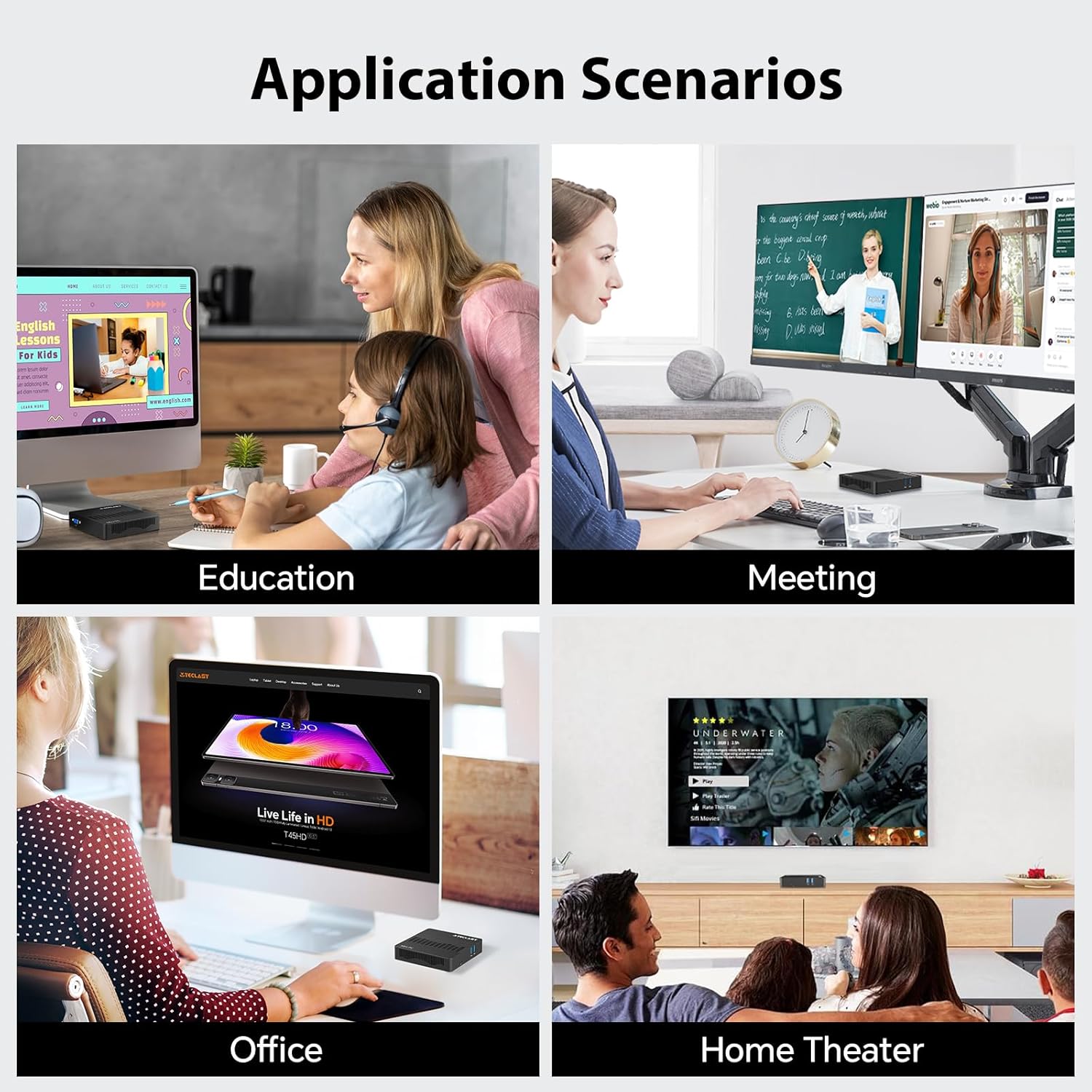
Image 2.4: Visual representation of the TECLAST N10's compact dimensions and lightweight design.
2.4 Effortless Expansion
The N10 includes a TF (MicroSD) expansion port for convenient access to photos and videos, eliminating the need for an external card reader. It also supports SSD replacement for increased storage capacity.
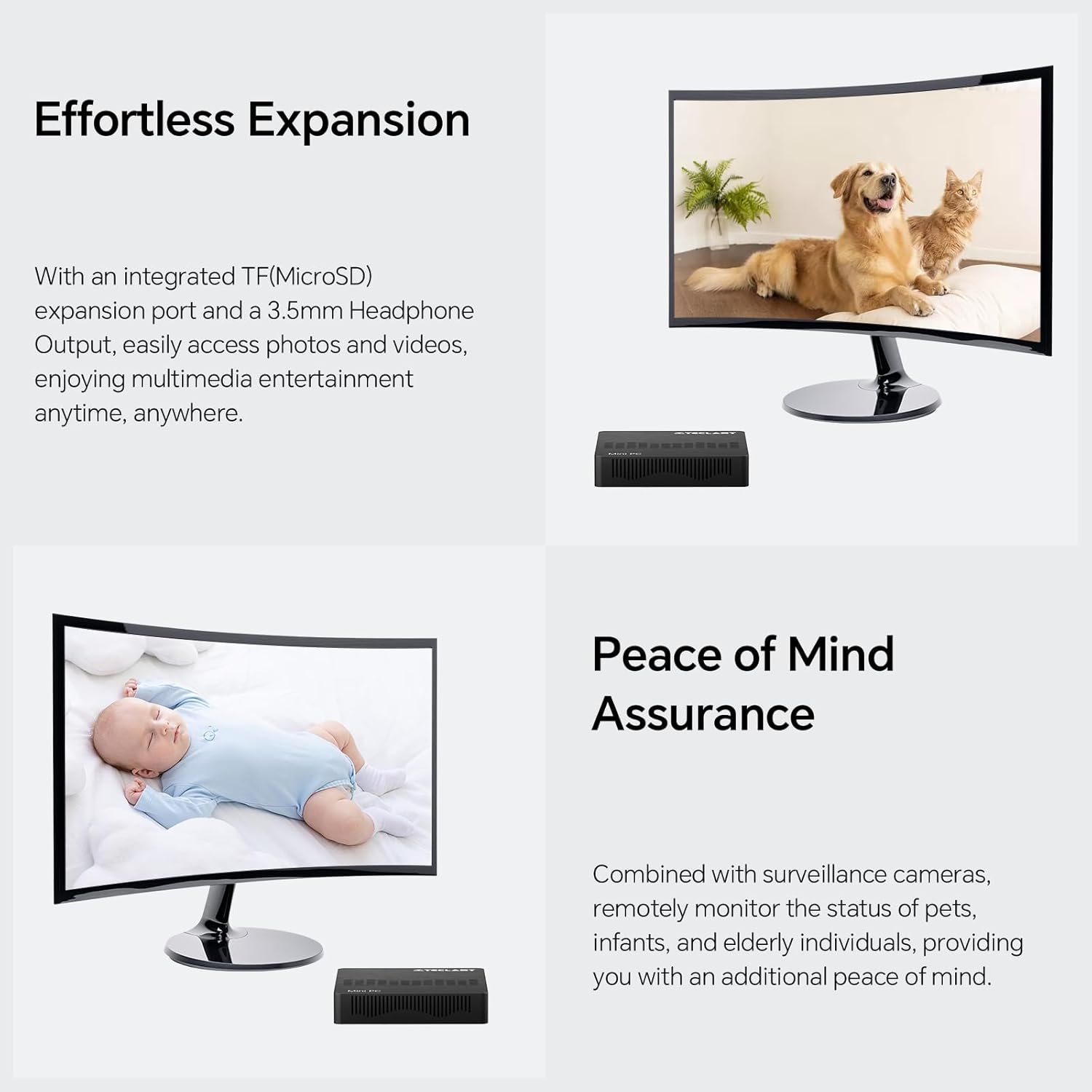
Image 2.5: The TECLAST N10 Mini PC demonstrating its expansion capabilities, including the TF(MicroSD) slot and headphone output.
3. Setup Guide
3.1 Unpacking
- Carefully remove the Mini PC and all accessories from the packaging.
- Verify that all components are present: TECLAST N10 Mini PC, Power Adapter, User Manual.
3.2 Connecting Peripherals
Before powering on, connect your essential peripherals:
- Monitor: Connect your monitor to the Mini PC using either the HDMI or VGA port. For dual display, connect two monitors to both ports.
- Keyboard & Mouse: Connect your USB keyboard and mouse to the available USB 3.2 ports.
- Network (Optional): For a wired internet connection, connect an Ethernet cable from your router/modem to the RJ45 LAN port on the Mini PC.
- Audio (Optional): Connect headphones or speakers to the 3.5mm audio output jack.
Image 3.1: The TECLAST N10 Mini PC's top and side views, illustrating the location of USB ports, power button, VGA port, and other connections.
3.3 Powering On
- Connect the power adapter to the DC-in port on the Mini PC.
- Plug the power adapter into a wall outlet.
- Press the power button located on the top right side of the Mini PC. The power indicator light will illuminate.
- The system will boot up, and you will see the operating system (Windows 11 Pro) loading on your connected display.
4. Operating Instructions
4.1 Operating System
The TECLAST N10 Mini PC comes pre-installed with Windows 11 Pro. Follow the on-screen instructions for initial setup, including language selection, network connection, and user account creation.
4.2 Dual Display Configuration
To utilize the dual display feature:
- Connect your primary monitor to the HDMI port and your secondary monitor to the VGA port.
- Once both monitors are connected and powered on, Windows should automatically detect them.
- To configure display settings (extend, duplicate, or show only on one display), right-click on the desktop, select "Display settings," and adjust as needed.
Image 4.1: Diagram illustrating how to connect two monitors to the TECLAST N10 using HDMI and VGA for a dual display setup.
4.3 Storage Management
The Mini PC includes a 128GB M.2 SSD for primary storage. For additional storage, you can:
- Insert a TF (MicroSD) card into the dedicated slot.
- Connect external USB storage devices to the USB 3.2 ports.
- The M.2 interface supports SSD replacement for creating more storage space. Refer to the official TECLAST support for detailed upgrade instructions.
4.4 Wireless and Wired Network Setup
Wireless (Wi-Fi):
- Click the Wi-Fi icon in the system tray (bottom right corner of the screen).
- Select your desired Wi-Fi network from the list.
- Enter the network password and click "Connect."
Wired (Ethernet):
- Connect an Ethernet cable from your router/modem to the RJ45 LAN port on the Mini PC.
- The system will automatically detect the wired connection and establish internet access.
Bluetooth:
- Go to Windows Settings > Bluetooth & devices.
- Ensure Bluetooth is turned on.
- Click "Add device" and select "Bluetooth" to pair with your Bluetooth peripherals.
Image 4.2: The TECLAST N10 Mini PC demonstrating its support for 2.4G+5G AC wireless, 1000Mbps RJ45 Ethernet, and Bluetooth 4.2 for various connectivity needs.
5. Maintenance
5.1 Cleaning
- Regularly clean the exterior of the Mini PC with a soft, dry, lint-free cloth.
- Do not use liquid cleaners or aerosol sprays directly on the device.
- Use compressed air to gently clear dust from ventilation openings.
5.2 Ventilation
- Ensure the Mini PC is placed in a well-ventilated area.
- Do not block the ventilation holes on the device.
- Avoid placing the Mini PC on soft surfaces like carpets or blankets that can obstruct airflow.
5.3 Software Updates
- Regularly check for and install Windows updates to ensure system stability and security.
- Keep device drivers updated for optimal performance.
6. Troubleshooting
| Problem | Possible Cause | Solution |
|---|---|---|
| No display on monitor. | Monitor not connected or powered on; incorrect input source; faulty cable. | Ensure monitor is connected and powered. Check monitor's input source. Try a different HDMI/VGA cable. |
| Mini PC does not power on. | Power adapter not connected; power outlet issue. | Ensure power adapter is securely connected to the Mini PC and a working power outlet. |
| No Wi-Fi connection. | Wi-Fi disabled; incorrect password; router issue. | Check Wi-Fi settings in Windows. Re-enter password. Restart your router. |
| Slow performance. | Too many applications running; insufficient storage; outdated drivers. | Close unnecessary applications. Free up disk space. Update Windows and drivers. |
| Bluetooth device not pairing. | Bluetooth disabled; device out of range; device not in pairing mode. | Ensure Bluetooth is enabled on Mini PC. Move device closer. Put device in pairing mode. |
7. Technical Specifications
| Feature | Specification |
|---|---|
| Brand | TECLAST |
| Model Number | N10 |
| Product Dimensions | 11.9 x 0.24 x 11.9 cm |
| Item Weight | 641 g |
| Processor Brand | Intel |
| Processor Type | Celeron N4000 |
| Processor Speed | 2.6 GHz (Max Turbo Frequency) |
| Processor Count | 1 |
| RAM Size | 6 GB |
| Memory Technology | DDR4 |
| Maximum Memory Supported | 6 GB |
| Hard Disk Description | SSD |
| Memory Storage Capacity | 128 GB |
| Hard Drive Interface | PCIE x 4 (M.2) |
| Graphics Coprocessor | Integrated Graphics |
| Graphics Chipset Brand | Intel |
| Graphics Card Description | Integrated |
| Graphics RAM Type | GDDR4 |
| Graphics Card Ram Size | 6 GB (Shared) |
| Screen Resolution | 3840 x 2160 (4K) |
| Wireless Type | Bluetooth, Wi-Fi (2.4G/5G) |
| Number of USB 3.0 Ports | 3 (USB 3.2 GEN1) |
| Number of HDMI Ports | 1 |
| VGA Port | 1 |
| Ethernet Port | 1 (1000Mbps RJ45) |
| TF (MicroSD) Port | 1 |
| Headphone Output | 1 (3.5mm) |
| Operating System | Windows 11 Pro |
| Form Factor | Stick / Mini PC |
| Specific uses for product | Business, Home Theater, Office, Education |
8. Warranty Information
TECLAST products typically come with a standard manufacturer's warranty. Please refer to the warranty card included with your product or visit the official TECLAST website for detailed warranty terms and conditions specific to your region. Keep your proof of purchase for warranty claims.
9. Customer Support
For technical assistance, product inquiries, or support, please visit the official TECLAST support website or contact their customer service. You may find FAQs, driver downloads, and contact information on their official channels.
Note: Specific contact details and support channels may vary by region.


