
1. Product Overview
The TECLAST T65 is a high-performance tablet designed for both productivity and entertainment. It features a large 13.4-inch 120Hz display, runs on Android 16 with Gemini AI integration, and offers robust connectivity options including 4G LTE and 5G WiFi. This manual provides essential information for setting up, operating, and maintaining your device.
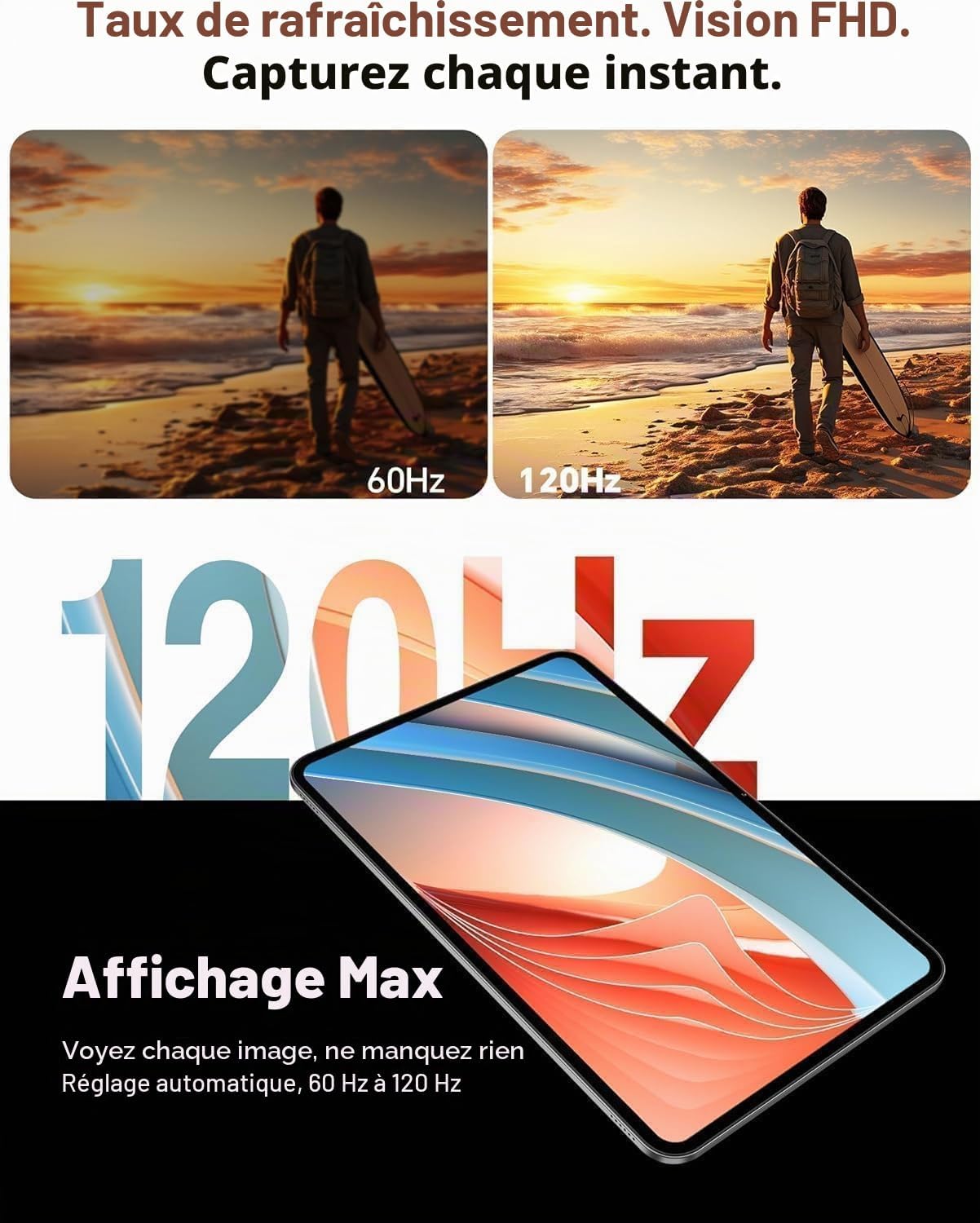
Image: Front view of the TECLAST T65 Tablet, showcasing its large display.
2. Setup Guide
2.1. Unboxing and Initial Inspection
Carefully remove all items from the packaging. Ensure the following components are present:
- TECLAST T65 Tablet
- Bluetooth Keyboard
- Passive Stylus
- Protective Case
- OTG Adapter
- Keyboard Stickers
- Power Adapter (not explicitly listed but implied for charging)

Image: The TECLAST T65 Tablet displayed with its full set of included accessories, including the keyboard, stylus, and protective case.
2.2. Powering On and Initial Configuration
- Press and hold the Power button located on the side of the tablet until the TECLAST logo appears.
- Follow the on-screen prompts to select your language, region, and connect to a Wi-Fi network.
- Sign in with your Google account or create a new one to access Android services and the Google Play Store.
2.3. Inserting SIM and MicroSD Cards
The TECLAST T65 supports Dual SIM 4G LTE and MicroSD card expansion up to 4TB.
- Locate the SIM/MicroSD card tray on the side of the tablet.
- Use the provided SIM ejector tool to open the tray.
- Carefully place your Nano-SIM cards and/or MicroSD card into the designated slots. Ensure correct orientation.
- Gently push the tray back into the tablet until it clicks into place.

Image: Close-up view of the SIM and MicroSD card tray, illustrating how to insert the cards.
2.4. Connecting Accessories
Your tablet comes with a Bluetooth keyboard and a passive stylus for enhanced functionality.
- Bluetooth Keyboard: Turn on the keyboard and enable Bluetooth on your tablet (Settings > Connected devices > Bluetooth). Select the keyboard from the list of available devices to pair.
- Passive Stylus: The passive stylus does not require pairing. Simply use it directly on the screen for writing or drawing.
- Protective Case: Install the protective case to safeguard your tablet from bumps and scratches. It can also serve as a stand.
3. Operating Your TECLAST T65
3.1. Android 16 and Gemini AI
The TECLAST T65 runs on Android 16, offering a streamlined and intelligent user experience. It integrates the latest Gemini AI assistant for various tasks.
- Gemini AI: Access Gemini AI to synthesize information, draft emails, plan appointments, create content, and engage in online discussions.
- Fluid OS: Experience smooth performance, real-time information updates, and enhanced anti-theft protection.

Image: Screenshot of the Android 16 system update interface, highlighting new features.

Image: Visual representation of Gemini AI 3.0 features, including intelligent recognition, content creation, and real-time translation.
3.2. Display Features
The 13.4-inch IPS display offers a Full HD resolution of 1920x1200 pixels and a 120Hz AdaptiveSync refresh rate.
- 120Hz AdaptiveSync: Enjoy smoother visuals and reduced eye strain, especially during fast-paced content like games or videos. The refresh rate adjusts automatically between 60Hz and 120Hz to optimize battery life.
- Widevine L1 Certification: Stream high-definition content from platforms like Netflix, YouTube, Disney+, Hulu, HBO Max, and Amazon Prime Video with rich colors and sharp details.

Image: A dynamic scene demonstrating the smoothness of the 120Hz AdaptiveSync display compared to 60Hz.

Image: Logos of various streaming services (YouTube, Netflix, Disney+, Hulu, HBO Max, Prime Video) indicating Widevine L1 support for high-quality streaming.
3.3. Connectivity
Stay connected with various wireless technologies.
- 4G LTE Dual SIM: Use two SIM cards for mobile data and calls, ensuring connectivity even without Wi-Fi.
- 5G Wi-Fi: Enjoy fast and stable internet connections with dual-band Wi-Fi (2.4GHz + 5GHz).
- Bluetooth 5.0: Connect wireless peripherals like headphones, speakers, or the included keyboard with efficient power consumption.
- GPS: The integrated GPS supports multiple satellite systems (GPS, BeiDou, GLONASS, Galileo) for accurate navigation.

Image: Icons representing 4G, VoLTE, GPS, and Wi-Fi connectivity, demonstrating the tablet's versatile connection options.

Image: The TECLAST T65 Tablet displaying a navigation map, illustrating its GPS functionality.
3.4. Camera and Audio
Capture moments and enjoy immersive sound.
- Rear Camera: 13 MP with AI technology for clear photos.
- Front Camera: 5 MP, ideal for video calls and selfies.
- Dual Speakers: Equipped with a smart chip for clear, powerful, and balanced audio.

Image: A person using the TECLAST T65 Tablet for a video call, demonstrating the front camera functionality.

Image: A graphic illustrating the immersive sound experience provided by the tablet's dual speakers and smart audio chip.
3.5. Productivity and Entertainment
- Split-Screen Mode: Android 16 supports split-screen mode, allowing you to run multiple applications side-by-side for enhanced productivity.
- Gaming: The Octa-Core T7280 processor and Mali-G57 GPU ensure smooth gaming performance.
- Screen Mirroring: Wirelessly cast your tablet's screen to a larger display for presentations or home entertainment.

Image: A tablet screen demonstrating split-screen mode, showing two applications running simultaneously to boost productivity.

Image: A person holding the TECLAST T65 Tablet while playing a graphic-intensive game, highlighting its gaming capabilities.

Image: A tablet mirroring its screen content to a large projector, demonstrating wireless screen duplication.
4. Maintenance
4.1. Cleaning Your Tablet
To keep your tablet in optimal condition, follow these cleaning guidelines:
- Use a soft, lint-free cloth to wipe the screen and body.
- For stubborn smudges, slightly dampen the cloth with water or a screen-cleaning solution.
- Avoid using harsh chemicals, abrasive materials, or excessive moisture.
4.2. Software Updates
Regularly check for and install software updates to ensure your tablet has the latest features, security patches, and performance improvements.
- Go to Settings > System > System update.
- Follow the on-screen instructions to download and install any available updates.
4.3. Storage Management
Manage your tablet's 256GB internal storage and expandable 4TB MicroSD card support to maintain performance.
- Regularly delete unnecessary files, apps, and media.
- Utilize cloud storage services for backups.
- Move large files to your MicroSD card to free up internal storage.
4.4. Battery Care
The 10000 mAh battery provides extended usage. Follow these tips for optimal battery life:
- Avoid extreme temperatures.
- Do not let the battery completely drain frequently.
- Use the original charger or a certified compatible charger.

Image: A visual representation of the tablet's 10000 mAh battery capacity, highlighting its long-lasting performance.

Image: The TECLAST T65 Tablet securely placed within its protective case, emphasizing device protection.
5. Troubleshooting
5.1. Common Issues and Solutions
- Tablet not powering on: Ensure the battery is charged. Connect the charger and wait a few minutes before attempting to power on again.
- Wi-Fi connectivity issues: Restart your tablet and Wi-Fi router. Check if other devices can connect to the Wi-Fi network. Forget and reconnect to the network on your tablet.
- Slow performance: Close unnecessary background applications. Clear cache data for apps. Check for available software updates.
- Apps crashing: Ensure apps are updated to their latest versions. Clear app cache or data (Settings > Apps > [App Name] > Storage > Clear cache/data).
5.2. Factory Reset
If you encounter persistent software issues, a factory reset may resolve them. Warning: This will erase all data on your tablet. Back up important data before proceeding.
- Go to Settings > System > Reset options.
- Select "Erase all data (factory reset)".
- Confirm your decision and follow the on-screen prompts.
6. Specifications
| Feature | Specification |
|---|---|
| Brand | TECLAST |
| Model Name | T65 |
| Operating System | Android 16 |
| Processor | Unisoc T7280 Octa-Core (2.2 GHz) |
| GPU | Mali-G57 |
| RAM | 26 GB (6GB physical + 20GB virtual) |
| Internal Storage | 256 GB |
| Expandable Storage | MicroSD up to 4 TB |
| Screen Size | 13.36 Inches |
| Display Resolution | 1920 x 1200 Pixels (FHD) |
| Refresh Rate | 120 Hz (AdaptiveSync) |
| Battery Capacity | 10000 mAh |
| Battery Life (Average) | 12 hours |
| Rear Camera | 13 MP |
| Front Camera | 5 MP |
| Connectivity | 4G LTE (Dual SIM), 5G Wi-Fi (802.11 ac/b/g/n), Bluetooth 5.0, USB Type-C |
| GPS | GPS, BeiDou, GLONASS, Galileo |
| Audio | Dual Speakers, 3.5mm Headphone Jack |
| Weight | 720 Grams |
| Dimensions (L x W x H) | 30L x 19W x 0.8H Centimeters |

Image: Diagram illustrating the Unisoc T7280 Octa-Core processor and its key specifications.
7. Warranty and Support
7.1. Product Warranty
The TECLAST T65 Tablet comes with a 2-year manufacturer's warranty, valid immediately after purchase. This warranty covers manufacturing defects and ensures peace of mind regarding your product's quality.
7.2. Customer Support
Should you encounter any issues or require assistance with your TECLAST T65 Tablet, please contact TECLAST customer support via Amazon. Our specialists aim to respond within one business day. We stand by our products and are committed to providing excellent service.
For further assistance, please refer to the TECLAST brand store on Amazon: TECLAST Amazon Store


