
1. Introduction
This manual provides essential information for setting up, operating, and maintaining your TECLAST T60Pro 12-inch 2K Tablet. The T60Pro features a 12-inch 2K IPS display, powered by a MediaTek Helio G99 Octa-Core processor, running Android 15. It includes 20GB RAM (8GB physical + 12GB virtual expansion) and 128GB internal storage, expandable up to 1TB via Micro SD. The tablet is equipped with four stereo speakers, a 13MP rear camera, an 8MP front camera, and an 8000mAh battery with 18W fast charging.

The TECLAST T60Pro features a slim 7.9mm metal body, weighing 553g, designed for portability and comfortable handling.
2. What's in the Box
Verify that all items are present in the package:
- TECLAST T60Pro Tablet (x1)
- Charger (x1)
- USB-C Cable (x1)
- SIM Ejector Tool (x1)
- User Manual (x1)
This video demonstrates the unboxing process of the TECLAST T60Pro tablet and its included accessories.
3. Setup
3.1 Device Layout
The image displays the side profile of the tablet, highlighting the SIM/TF Card slot, speaker grilles, and the Type-C port for charging and data transfer.
3.2 Charging the Tablet
Before first use, fully charge the tablet using the provided USB-C cable and charger. Connect the USB-C cable to the tablet's Type-C port and the charger to a power outlet. The battery indicator on the screen will show charging status.
3.3 Power On/Off
- To power on: Press and hold the Power button until the TECLAST logo appears.
- To power off: Press and hold the Power button, then select 'Power off' from the options on the screen.
- To restart: Press and hold the Power button, then select 'Restart' from the options.
3.4 SIM/TF Card Installation
To install a SIM card for cellular connectivity or a TF (Micro SD) card for expanded storage:
- Locate the SIM/TF card tray on the side of the tablet.
- Insert the provided SIM ejector tool into the small hole next to the tray and press gently until the tray pops out.
- Place your Nano-SIM card(s) and/or Micro SD card into the designated slots on the tray, ensuring correct orientation.
- Carefully push the tray back into the tablet until it clicks into place.

The tablet supports up to 1TB Micro SD card expansion for additional storage.
3.5 Initial Android Setup
Upon first power-on, follow the on-screen prompts to complete the initial setup, which includes selecting your language, connecting to Wi-Fi, setting up your Google account, and configuring security options.
4. Operating Instructions
4.1 Display and Visuals
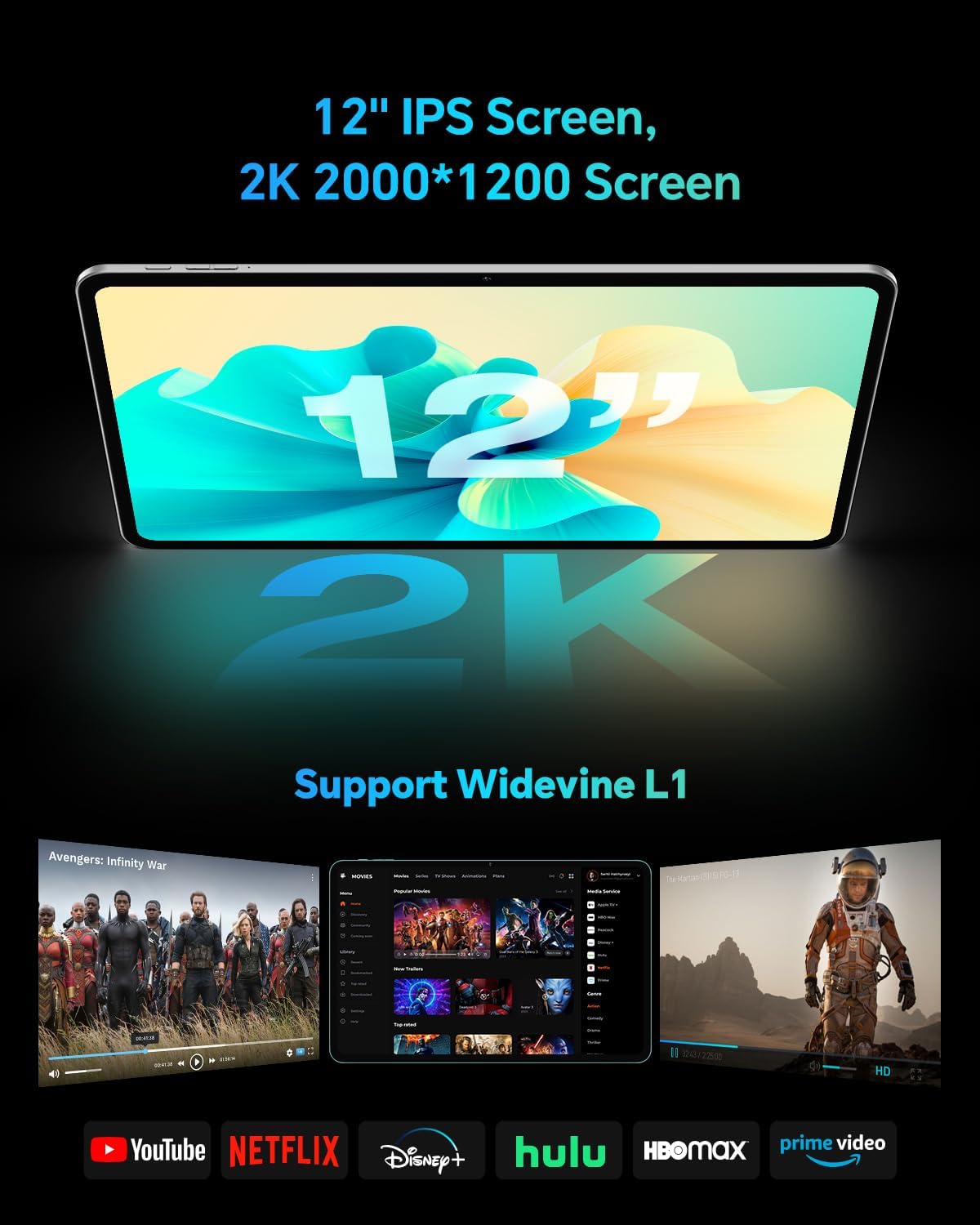
The TECLAST T60Pro features a 12-inch 2K (2000x1200) IPS TDDI full-lamination screen. It includes built-in blue light filtering for eye protection. The display supports Widevine L1 for high-definition streaming content.

Experience crisp visuals and support for HD streaming with the 12-inch 2K IPS display and Widevine L1 certification.
4.2 Audio
The tablet is equipped with four high-fidelity stereo speakers, providing an immersive audio experience for media consumption and video calls.
4.3 Camera Functions
The T60Pro includes a 13MP rear camera and an 8MP front camera. The rear camera is designed for clear shooting, even in low-light conditions. Utilize the camera for photos, videos, and video calls.

The tablet features a 13MP rear camera and an 8MP front camera, supporting features like Google Lens and Face Recognition.
4.4 Connectivity
- Wi-Fi: Supports 2.4/5GHz dual-band Wi-Fi (802.11a/b/g/n/ac) for stable internet connection.
- Bluetooth: Features Bluetooth 5.2 for connecting wireless accessories.
- Cellular: Supports 4G cellular connectivity with a compatible SIM card.
- GPS: Integrated A-GPS/GPS/BeiDou/GLONASS/Galileo multi-navigation system for accurate location services.

The tablet includes built-in GPS with support for multiple satellite positioning systems for reliable navigation.
4.5 Storage Management
The tablet comes with 128GB of internal storage. This can be expanded up to 1TB using a Micro SD card (sold separately).
4.6 Face Recognition
For convenient and secure unlocking, the tablet supports face recognition. Simply hold your face in front of the front camera. If face recognition fails, use your registered password or adjust ambient lighting for better recognition.

Unlock your tablet quickly and securely using the face recognition feature.
4.7 Wireless Projection
Mirror your tablet's display to a larger screen, such as a TV, for an enhanced viewing experience. Refer to your TV's manual for specific wireless projection setup instructions.
4.8 Parental Controls and Kids Mode
The Android 15 system includes built-in parental controls to manage screen time and app access for children. Utilize these features to create a safe and controlled environment for younger users.
5. Maintenance
5.1 Cleaning the Device
Use a soft, lint-free cloth to clean the tablet's screen and body. Avoid using harsh chemicals or abrasive materials that could damage the surfaces.
5.2 Battery Care
To prolong battery life:
- Avoid extreme temperatures.
- Do not let the battery completely drain frequently.
- Use the provided charger for optimal charging.
5.3 Software Updates
Regularly check for and install system updates to ensure optimal performance, security, and access to the latest features. Navigate to Settings > System > System update to check for available updates.
5.4 Screen Protection
The tablet comes with a pre-applied tempered glass screen protector. A protective film for shipping is also applied, which should be removed after opening the package.

The tablet includes a pre-applied screen protector for immediate use and protection.
6. Troubleshooting
6.1 Device Not Powering On
- Ensure the battery is charged. Connect the tablet to the charger for at least 30 minutes before attempting to power on.
- Press and hold the Power button for 10-15 seconds to perform a forced restart.
6.2 Connectivity Issues (Wi-Fi/Bluetooth)
- Toggle Wi-Fi or Bluetooth off and on in the Settings menu.
- Restart your router or Bluetooth device.
- Forget the network/device and reconnect.
6.3 Low Audio Volume
- Adjust the volume using the physical Volume buttons on the tablet.
- Check media volume settings in Settings > Sound & vibration.
- Ensure no external audio devices are connected via Bluetooth or Type-C that might be overriding the internal speakers.
6.4 Apps Crashing or Freezing
- Close and reopen the app.
- Clear the app's cache and data in Settings > Apps > [App Name] > Storage > Clear cache/Clear data.
- Ensure the app is updated to its latest version from the Google Play Store.
7. Specifications
| Feature | Specification |
|---|---|
| Brand | TECLAST |
| Model Name | T60pro |
| Operating System | Android 15 |
| Screen Size | 12 Inches |
| Display Resolution | 2000x1200 Pixels (2K) |
| Processor | MediaTek Helio G99 Octa-Core (2.2 GHz) |
| RAM Memory | 20 GB (8GB physical + 12GB virtual) |
| Storage Capacity | 128 GB |
| Expandable Storage | Up to 1 TB (Micro SD) |
| Graphics Coprocessor | Mali-G57 MC2 |
| Battery Capacity | 8000 mAh |
| Charging | 18W USB-PD Fast Charging |
| Rear Camera | 13 MP |
| Front Camera | 8 MP |
| Wireless Technology | Wi-Fi (2.4/5GHz), Bluetooth 5.2, 4G Cellular |
| GPS Functionality | GPS/BEIDOU/GLONASS/GALILEO |
| Headphones Jack | Type-C |
| Dimensions (L x W x T) | 10.97" x 6.85" x 0.31" |
| Color | Dark Gray |
8. Warranty and Support
8.1 Manufacturer's Warranty
The TECLAST T60Pro tablet comes with a 1-year manufacturer's warranty. This warranty covers defects in materials and workmanship under normal use. Please retain your proof of purchase for warranty claims.
8.2 Customer Support
For technical assistance, troubleshooting, or warranty inquiries, please contact TECLAST customer support. Most questions are answered within 24 hours. Refer to the official TECLAST website or your purchase platform for specific contact details.
Online resources and FAQs may also be available on the TECLAST support page.


