
WOLFBOX D07
WOLFBOX D07 4K Dual Dash Cam User Manual
Model: D07
1. Introduction
This manual provides detailed instructions for the installation, operation, and maintenance of your WOLFBOX D07 4K Dual Dash Cam. Please read this manual thoroughly before using the product to ensure proper function and longevity.
The WOLFBOX D07 is a high-performance dual dash camera system designed to record both front and rear views of your vehicle. It features 4K resolution for the front camera and 1080P for the rear, built-in Wi-Fi and GPS, advanced night vision, loop recording, and smart parking monitoring capabilities.

Image: WOLFBOX D07 4K Dual Dash Cam components and app interface.
2. What's in the Box
Please verify that all components listed below are included in your package:
- D07 4K Dash Cam (Front Unit)
- 1080P IP68 Waterproof Rear Camera
- GPS Bracket
- 20ft Rear Camera Cable
- 11.5ft Power Supply Cable with Car Charger
- Electrostatic Sticker
- 3M Adhesive
- User Manual

Image: All components included in the WOLFBOX D07 Dash Cam package.
3. Setup and Installation
3.1. Inserting the Memory Card
A memory card (not included) is required for recording. Insert a high-speed Class 10 or U3 microSD card (up to 128GB recommended) into the dash cam's memory card slot. Ensure the card is inserted correctly until it clicks into place. Format the card within the dash cam settings before first use.
3.2. Front Camera Installation
The front dash cam uses a magnetic mount for easy attachment and removal. Clean the windshield area where you intend to mount the camera. Apply the electrostatic sticker to the windshield first, then attach the magnetic mount to the sticker. Finally, attach the dash cam to the magnetic mount, ensuring a clear view of the road.

Image: Magnetic mounting mechanism for the front dash cam.
3.3. Rear Camera Installation
The rear camera can be installed either inside or outside the vehicle. Choose the option that best suits your vehicle and preferences.
- Inside Installation: Mount the rear camera on the rear windshield using the provided adhesive. Route the rear camera cable along the vehicle's headliner and A-pillars to the front dash cam.
- Outside Installation: Mount the rear camera near the license plate or on the rear bumper. Route the cable through a suitable opening into the vehicle's interior and then to the front dash cam. Ensure the cable is secured and protected from external elements.
Proper cable management is crucial to avoid interference with driving and to maintain a tidy interior. Use the included pry tool to tuck cables neatly under trim panels.

Image: Rear camera installation options (inside and outside).
3.4. Power Connection
Connect the 11.5ft power supply cable to the dash cam's TYPE-C power port and plug the car charger into your vehicle's cigarette lighter socket. The TYPE-C port offers enhanced reliability and stability compared to older USB interfaces, reducing risks of restarts or black screens due to temperature fluctuations.
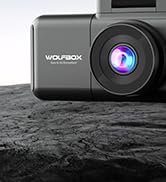
Image: The Type-C power port on the WOLFBOX D07 dash cam.
4. Operating Instructions
4.1. Power On/Off
The dash cam will automatically power on and begin recording when your vehicle's ignition is turned on. It will power off automatically when the ignition is turned off.
4.2. Video Recording (Loop Recording)
The D07 records video in continuous loops. When the memory card is full, the oldest unlocked footage will be overwritten by new recordings. This ensures continuous recording without manual intervention. Video segments can typically be set to 1, 3, or 5-minute intervals in the settings menu.
Image: Dual channel recording with front 4K and rear 1080P cameras.

Image: Illustration of loop recording functionality.
4.3. Night Vision
The D07 features Super Night Vision technology with WDR (Wide Dynamic Range) and HDR (High Dynamic Range) to enhance video clarity in low-light conditions. This allows for better detail capture at night, including license plates.

Image: Night vision capabilities with WDR and HDR technology.
4.4. Built-in Wi-Fi & GPS
The dash cam includes built-in Wi-Fi and GPS. Download the WOLFBOX app on your iOS or Android device to connect to the dash cam. This allows you to view live footage, download recorded videos to your smartphone, and manage settings. The built-in GPS records your driving route and speed, which can be viewed via the app or dedicated PC software.
Image: Wi-Fi connectivity for app control and GPS tracking.
4.5. Parking Monitoring
The D07 offers two parking monitoring modes when connected via a dedicated hardwire kit (sold separately):
- G-Sensor Trigger Record: The dash cam will automatically start recording if an impact is detected while the vehicle is parked. This footage is then locked to prevent overwriting.
- Time-Lapse Record: The dash cam continuously records at 1 frame per second (1FPS) for up to 24 hours, compressing long periods into short videos. Note: G-Sensor Trigger Record mode will not function simultaneously with Time-Lapse Record.
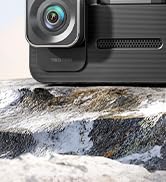
Image: Explanation of the two parking monitoring modes.
5. Maintenance
5.1. Memory Card Care
To ensure optimal performance and prevent data corruption, it is recommended to format the microSD card regularly (e.g., once a month). This can be done through the dash cam's settings menu. Always use a high-quality, reputable brand of microSD card.
5.2. Cleaning the Lenses and Screen
Gently wipe the camera lenses and LCD screen with a soft, lint-free cloth. Avoid using abrasive cleaners or solvents, as these can damage the surfaces.
5.3. Temperature Considerations
The WOLFBOX D07 is designed to operate within a wide temperature range, utilizing a supercapacitor for enhanced durability in extreme conditions (from -4°F to +158°F). However, prolonged exposure to direct sunlight in very hot climates can still affect performance. If the device feels excessively hot, allow it to cool before continued use.

Image: Supercapacitor for temperature resistance.
6. Troubleshooting
- Dash Cam Restarts or Black Screen: Ensure the power cable is securely connected to the TYPE-C port and the car charger. Verify the car charger is functioning correctly. A faulty or low-quality memory card can also cause instability; try formatting or replacing the microSD card.
- "SD Card Error" Message: This usually indicates a problem with the memory card. Try formatting the card within the dash cam settings. If the issue persists, the card may be corrupted or incompatible; replace it with a new high-speed Class 10 or U3 microSD card.
- Wi-Fi Connection Issues: Ensure the WOLFBOX app is updated to the latest version. Restart both your smartphone and the dash cam. Make sure you are within close proximity to the dash cam when attempting to connect.
- Illegible License Plates: While the D07 records in 4K, license plate legibility can be affected by vehicle speed, lighting conditions, and distance. For stationary or slow-moving vehicles, plates should be clear. At highway speeds, legibility may be reduced due to motion blur and resolution limitations.
- Camera Not Turning On: Check the power connection. Ensure the vehicle's ignition is on and the car charger is receiving power. If using a hardwire kit, verify its installation and fuse connections.
7. Specifications
| Feature | Specification |
|---|---|
| Model Name | D07 Dash Camera for Cars |
| Front Camera Resolution | 4K (3840*2160P) |
| Rear Camera Resolution | 1080P (1920*1080P) |
| Front Camera FOV | 170 Degrees |
| Rear Camera FOV | 140 Degrees |
| Display | 2.45" LCD |
| Connectivity | Built-in Wi-Fi, GPS Enabled |
| Special Features | WDR, HDR, G-sensor, Loop Recording, Dual Parking Monitor (G Sensor Trigger Record & Time-lapse), Night Vision, Smart App Control |
| Power Port | TYPE-C |
| Mounting Type | Magnetic Mount |
| Product Dimensions | 2.95 x 0.79 x 1.77 inches |
| Item Weight | 3.6 ounces |
| Supported Languages | English, French, German, Italian, Spanish |
8. Warranty and Support
The WOLFBOX D07 Dash Cam comes with a 12-month protection plan from the date of purchase. This warranty covers manufacturing defects and ensures product reliability.
For technical support, warranty claims, or any questions regarding your product, please contact WOLFBOX customer service:
- Email: service_us@wolfbox.com
- Phone: +1 888 296 8399
WOLFBOX provides 7*24 hours technical support to assist you with any concerns.

Image: WOLFBOX customer support team.
Related documentsD07


Ask a question about this manual
Ask about setup, troubleshooting, compatibility, parts, safety, or missing instructions. Manuals+ will review the question and use this page’s manual context to help answer it.