
1. Introduction
This manual provides essential information for the safe and efficient use of your TECLAST P85 Android 15 Tablet. Please read it thoroughly before operating the device and retain it for future reference.
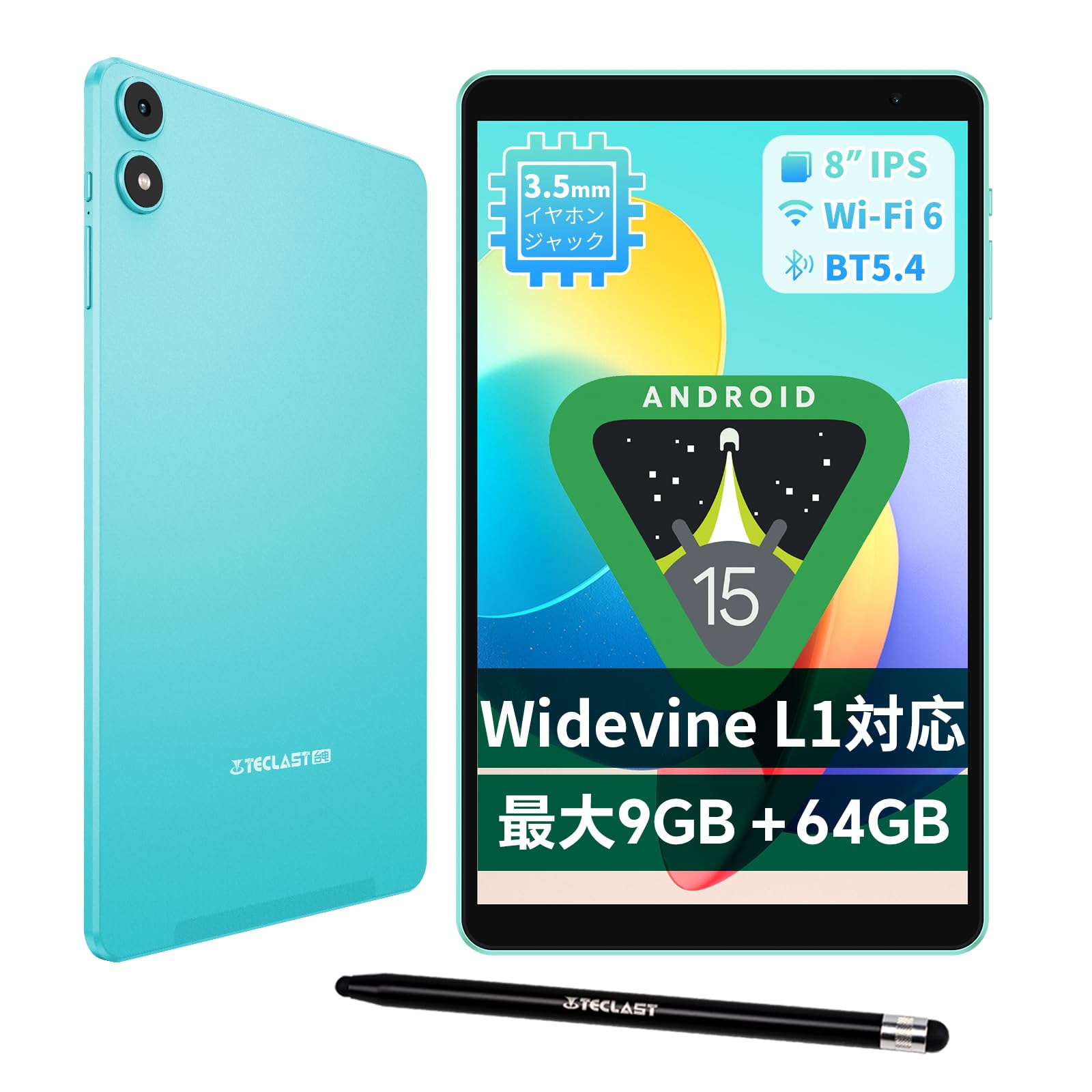
Figure 1: TECLAST P85 Tablet. This image shows the front and back of the tablet, highlighting its slim design and camera placement.
2. Product Overview
2.1 Package Contents
Verify that all items are present in the package:
- TECLAST P85 Tablet
- Power Adapter (may vary by region)
- Data Cable (USB Type-C)
- Maintenance Card
- User Manual
- Stylus Pen

Figure 2: Package contents. This image displays the tablet, power adapter, data cable, maintenance card, and user manual.
2.2 Device Layout
Familiarize yourself with the tablet's physical components:
- Front Camera: Located above the screen, used for video calls and selfies.
- Power Button: On the side, used to turn the device on/off or wake/sleep the screen.
- Volume Buttons: On the side, used to adjust audio volume.
- USB Type-C Port: For charging and data transfer.
- 3.5mm Headphone Jack: For connecting wired headphones.
- Speakers: Dual speakers for audio output.
- MicroSD Card Slot: For expanding storage.
- Rear Camera & LED Flash: On the back, for taking photos and videos.
3. Setup
3.1 Initial Charging
Before first use, fully charge the tablet. Connect the USB Type-C cable to the tablet's charging port and the power adapter to a wall outlet. The charging indicator will show the charging status.

Figure 3: Tablet charging. The image illustrates the tablet connected to a Type-C charger.
3.2 Power On/Off
- To Power On: Press and hold the Power button until the TECLAST logo appears.
- To Power Off: Press and hold the Power button, then select "Power off" from the options on the screen.
- To Restart: Press and hold the Power button, then select "Restart" from the options.
3.3 Initial Setup Wizard
Upon first power-on, the tablet will guide you through the initial setup process. This includes selecting your language, connecting to a Wi-Fi network, and setting up your Google account.

Figure 4: Android 15 Go interface. This image shows the Android 15 Go operating system, optimized for performance.
3.4 Inserting a MicroSD Card
To expand storage, insert a microSD card into the designated slot. Ensure the tablet is powered off before inserting or removing the card.
4. Operating Instructions
4.1 Touch Screen Gestures
- Tap: Select an item or activate a function.
- Tap and Hold: Access contextual menus or drag items.
- Swipe: Navigate through screens or scroll content.
- Pinch: Zoom in or out on images and web pages.
4.2 Home Screen and Navigation
The home screen displays app icons, widgets, and quick access to settings. Swipe left or right to access additional home screens. Swipe down from the top of the screen to access notifications and quick settings.
4.3 App Management
The TECLAST P85 is GMS certified, allowing full access to the Google Play Store for downloading and installing applications.

Figure 5: GMS certified. This image shows the Google Play Store interface with various applications available for download.
5. Media Features
5.1 Display
The 8-inch IPS display offers a 1280x800 resolution with a 16:10 aspect ratio, suitable for various content viewing. It supports T-Color image optimization for vivid visuals.

Figure 6: Display features. This image highlights the 8-inch IPS display with 1280x800 resolution and T-Color technology.
The tablet offers different display modes for various uses:
- Reading Mode: Adjusts screen settings for a comfortable reading experience.
- Normal Mode: Standard display settings for general use.
- Eye Protection Mode: Reduces blue light to minimize eye strain.

Figure 7: Display modes. This image shows the tablet screen in reading mode, normal mode, and eye protection mode.
5.2 Audio
The tablet features dual speakers for clear audio output. A 3.5mm headphone jack is available for private listening.

Figure 8: Audio experience. This image depicts a person enjoying audio with headphones, highlighting the tablet's sound capabilities and 3.5mm jack.
5.3 Camera
The TECLAST P85 includes a 2MP rear camera with LED flash and a 0.3MP front camera for video calls. The rear camera supports autofocus.

Figure 9: Camera functionality. This image shows the tablet's rear and front cameras, emphasizing its photo and video call capabilities.
5.4 Video Playback and Streaming
With Widevine L1 certification, the TECLAST P85 supports high-definition streaming from platforms like Netflix, YouTube, and Amazon Prime Video.

Figure 10: Widevine L1 support. This image indicates the tablet's compatibility with high-quality streaming services.
6. Connectivity
6.1 Wi-Fi Connection
The tablet supports dual-band 2.4G/5G Wi-Fi 6 for fast and stable wireless internet access. To connect, go to Settings > Network & internet > Wi-Fi, select your network, and enter the password.

Figure 11: Wi-Fi 6 connectivity. This image illustrates the tablet's support for Wi-Fi 6 for improved wireless performance.
6.2 Bluetooth Pairing
The tablet features Bluetooth 5.4 for connecting wireless accessories such as headphones or speakers. To pair a device, go to Settings > Connected devices > Pair new device, select your device, and follow the on-screen prompts.
6.3 OTG (On-The-Go)
The TECLAST P85 supports OTG, allowing you to connect external USB devices like flash drives or keyboards using an OTG adapter (sold separately).
7. Advanced Features
7.1 Wireless Projection
You can wirelessly project your tablet's screen to a larger display, such as a TV, if the display supports wireless projection. This feature is useful for sharing content or presentations.

Figure 12: Wireless projection. This image demonstrates the tablet's ability to cast its screen to a larger display.
7.2 Split Screen Functionality
The tablet supports split-screen mode, allowing you to run two applications simultaneously. This enhances multitasking, for example, watching a video while browsing the web.
7.3 Child Protection (Google Family Link)
Utilize Google Family Link for parental controls. This feature allows parents to manage screen time, monitor app usage, remotely lock the device, and track the tablet's location, ensuring a balanced learning and entertainment experience for children.

Figure 13: Child protection. This image illustrates the tablet's child protection features, including Google Family Link.
7.4 Stylus Support
The TECLAST P85 supports stylus input, enhancing precision for drawing, note-taking, and navigation.
8. Maintenance
8.1 Cleaning the Device
Use a soft, lint-free cloth to clean the screen and body of the tablet. Avoid using harsh chemicals or abrasive materials.
8.2 Battery Care
- Avoid exposing the tablet to extreme temperatures.
- Do not allow the battery to fully discharge frequently.
- Use only the provided charger or a compatible Type-C charger.
8.3 Software Updates
Regularly check for and install system updates to ensure optimal performance and security. Go to Settings > System > System update.
9. Troubleshooting
If you encounter issues with your tablet, refer to the following common solutions:
| Problem | Solution |
|---|---|
| Tablet does not turn on | Ensure the battery is charged. Press and hold the Power button for 10-15 seconds to force a restart. |
| Wi-Fi connection issues | Restart the tablet and your Wi-Fi router. Check Wi-Fi settings and ensure the password is correct. |
| Apps are slow or crashing | Close unnecessary background apps. Clear app cache (Settings > Apps > [App Name] > Storage & cache). Restart the tablet. |
| Screen is unresponsive | Force restart the tablet by holding the Power button. If the issue persists, contact support. |
| Battery drains quickly | Reduce screen brightness. Close unused apps. Disable Wi-Fi/Bluetooth when not in use. Check for power-intensive apps. |
10. Specifications
Detailed technical specifications for the TECLAST P85 Tablet:
| Feature | Detail |
|---|---|
| Model Name | P85 |
| Operating System | Android 15 Go |
| CPU | Allwinner A333 Penta-Core (1*A73 + 4*A53), 1.8 GHz |
| GPU | Mali-G57 |
| RAM | 9GB (3GB Physical + 6GB Virtual) |
| Internal Storage | 64GB |
| Expandable Storage | Up to 1TB via microSD card |
| Display Size | 8 inches |
| Display Type | IPS LCD |
| Resolution | 1280 x 800 pixels |
| Aspect Ratio | 16:10 |
| Refresh Rate | 60Hz |
| Wi-Fi | Wi-Fi 6 (802.11ax), Dual-band 2.4G/5G |
| Bluetooth | Bluetooth 5.4 |
| Rear Camera | 2MP with LED Flash, Autofocus |
| Front Camera | 0.3MP for HD video calls |
| Battery | 5000mAh Lithium Polymer (19.25 Wh) |
| Charging Port | USB Type-C |
| Audio Port | 3.5mm Headphone Jack |
| Dimensions (LxWxH) | 20 x 12 x 0.9 cm |
| Weight | Approximately 322g |
| Color | Mint Green |
| Certifications | PSE, CE, FCC, TELEC, GMS, Widevine L1 |

Figure 14: Storage and RAM. This image details the 9GB RAM, 64GB internal storage, and 1TB microSD expansion capability.

Figure 15: A333 Penta-Core CPU. This image highlights the A333 processor with its core configuration and clock speed.

Figure 16: Mali-G57 GPU. This image emphasizes the Mali-G57 GPU's role in enhancing visual performance for gaming and detailed video playback.
11. Warranty and Support
11.1 Manufacturer's Warranty
The TECLAST P85 Tablet comes with a 1-year manufacturer's warranty from the date of purchase. This warranty covers defects in materials and workmanship under normal use. Please retain your proof of purchase for warranty claims.
11.2 Contact Support
For technical assistance, warranty claims, or other inquiries, please contact TECLAST customer support through the following methods:
- Via Amazon: Go to your Amazon account, select "Orders," find your purchase, and contact the seller.
- Via TECLAST Store: Click on the "TECLAST Store" link on the product page and use the "Ask a question" option.
Customer service is available from 10:00 AM to 7:00 PM (excluding weekends and holidays). Responses are typically provided within 24 hours on weekdays and 48-72 hours on weekends.

Figure 17: Customer support. This image provides information on how to contact TECLAST for support and warranty services.


