
1. Introduction
This manual provides detailed instructions for the installation, operation, and maintenance of your Swann SWNHD-900BE-US 4K Bullet Security Camera. This camera is designed for both indoor and outdoor surveillance, offering 4K Ultra HD video resolution, Power over Ethernet (PoE) connectivity, and advanced security features.
The SWNHD-900BE-US camera integrates with Swann NVR systems to provide comprehensive security monitoring. It features color night vision, heat and motion detection, flashing LED lights, and advanced analytics for enhanced detection capabilities.
2. Product Overview
The Swann SWNHD-900BE-US is a robust 4K bullet-style security camera equipped with several key features:
- 4K Ultra HD Video: Provides 8MP resolution, offering significantly clearer images than 1080P systems.
- Power over Ethernet (PoE): Simplifies installation by delivering power and video through a single Cat5e Ethernet cable.
- Color Night Vision: Utilizes LED lights to provide full-color video footage up to 115ft (35m) in low-light conditions.
- Heat and Motion Detection: Triggers recording and alerts based on thermal and movement changes.
- Flashing Red & Blue Lights and Siren: Deters intruders with visible and audible warnings.
- Advanced Analytics: Includes Human and Vehicle Detection, Face Recognition, Object Removal, Sound Detection, Perimeter Intrusion, Line Crossing, and People Counting.
- Weatherproof Design: Built to withstand various outdoor elements.
- Smart Alerts: Sends notifications to your smartphone via the Swann Security App.

Image: The Swann 4K NVR Security Camera highlighting its advanced analytics capabilities including Heat Mapping, Face Recognition, Perimeter Intrusion, Line Crossing, Sound Detection, Object Removal, People Counter, and Durable Metal Construction.

Image: Front view of the Swann bullet security camera with its red and blue flashing LED lights activated, indicating an alert or deterrent function.

Image: Front view of the Swann bullet security camera with its white spotlight illuminated, providing enhanced visibility in dark conditions or acting as a deterrent.
3. Setup
3.1 Package Contents
Before beginning installation, ensure all components are present:
- NHD-900BE SwannForce Bullet Camera
- Ethernet Cable (60ft/18m)
- Mounting Screws & Plugs
- Operating Instructions (this manual)
- Theft Deterrent Stickers
3.2 Mounting the Camera
The camera is designed for surface, ceiling, or wall mounting. Choose a location that provides the desired viewing angle and is within reach of the Ethernet cable connection to your NVR.
- Positioning: Hold the camera in the desired mounting location and mark the screw holes. Ensure the camera's field of view covers the area you wish to monitor.
- Drilling: Drill pilot holes at the marked positions. If mounting on a masonry surface, insert the provided wall plugs.
- Securing: Attach the camera base to the surface using the mounting screws. Adjust the camera's angle for optimal coverage.

Image: A Swann bullet security camera mounted on an exterior wall, demonstrating its placement for monitoring an entrance. The image also shows examples of face recognition data displayed on a screen.
3.3 Connecting the Camera (PoE)
The SWNHD-900BE-US camera uses Power over Ethernet (PoE) for both power and data transmission.
- Connect Ethernet Cable: Plug one end of the provided Ethernet cable into the camera's RJ45 port.
- Connect to NVR: Plug the other end of the Ethernet cable into an available PoE port on your Swann NVR (Network Video Recorder).
- Power On: Ensure your NVR is powered on. The camera will receive power directly from the NVR via the Ethernet cable and automatically begin initialization.
3.4 Initial Configuration (Swann Security App)
For full functionality and remote access, download and configure the Swann Security App.
- Download the Swann Security App from the App Store (iOS) or Google Play Store (Android).
- Follow the in-app instructions to add your NVR system and connected cameras. This typically involves scanning a QR code on your NVR.
- Once added, you can view live footage, configure settings, and receive alerts directly on your smartphone.

Image: A woman using the Swann Security App on her smartphone, demonstrating the app's interface for multi-camera live streaming, alerts, and footage playback.
4. Operating the Camera
4.1 Live View and Recording
Access live video feeds and recorded footage through your connected NVR or the Swann Security App.
- NVR Monitor: Connect a monitor to your NVR to view live feeds from all connected cameras.
- Swann Security App: Open the app on your smartphone or tablet to view live streams, playback recordings, and manage camera settings remotely.
4.2 Smart Detection and Alerts
The camera's advanced analytics provide intelligent detection capabilities:
- Human and Vehicle Detection: The camera can differentiate between human and vehicle movement, reducing false alarms from other sources.
- Face Recognition: Identifies and logs known faces, allowing for customized alerts or actions.
- Perimeter Intrusion & Line Crossing: Define specific zones or lines, and receive alerts when they are breached.
- Sound Detection: Triggers alerts based on unusual sounds detected by the camera's microphone.
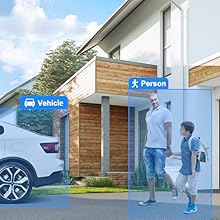
Image: A security camera view highlighting the detection of a person and a vehicle, demonstrating the camera's intelligent object recognition capabilities.
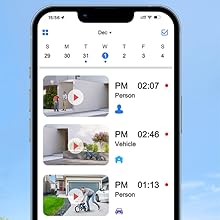
Image: A smartphone screen displaying the Swann Security App's event timeline, showing recorded events categorized by person and vehicle detection with timestamps.
4.3 Night Vision and Deterrent Features
- Color Night Vision: The camera automatically switches to color night vision in low light, providing more detailed and identifiable footage than traditional black and white infrared.
- Flashing Lights & Siren: These features can be configured to activate automatically upon detection of suspicious activity or manually via the app, serving as a powerful visual and audible deterrent.
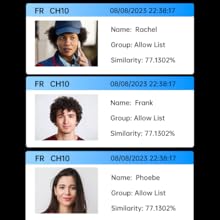
Image: A split image comparing traditional black and white night vision on the left with the camera's full-color night vision on the right, showcasing the enhanced detail and color retention in low-light conditions.
5. Maintenance
Regular maintenance ensures optimal performance and longevity of your security camera.
- Lens Cleaning: Periodically clean the camera lens with a soft, damp cloth to remove dust, dirt, or water spots that may affect image clarity. Avoid abrasive cleaners.
- Cable Inspection: Check the Ethernet cable for any signs of wear, damage, or loose connections, especially if installed outdoors.
- Firmware Updates: Regularly check for and install firmware updates for your NVR and cameras through the Swann Security App or Swann's official website. Updates often include performance improvements and security enhancements.
- Environmental Checks: Ensure the camera's mounting remains secure and that no obstructions (e.g., growing foliage) are blocking its field of view.
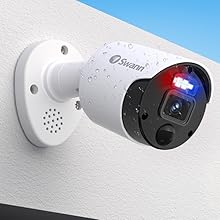
Image: A Swann bullet security camera mounted outdoors on a wall, with water droplets visible on its casing, illustrating its weatherproof design.
6. Troubleshooting
If you encounter issues with your Swann SWNHD-900BE-US camera, refer to the following common troubleshooting steps:
- No Video/Offline Camera:
- Check the Ethernet cable connection at both the camera and the NVR. Ensure it is securely plugged in.
- Verify that the NVR is powered on and functioning correctly.
- Try connecting the camera to a different PoE port on the NVR to rule out a faulty port.
- Restart the NVR.
- Poor Image Quality:
- Clean the camera lens carefully with a soft cloth.
- Ensure there are no obstructions in the camera's field of view (e.g., spiderwebs, dirt).
- Check the camera's resolution settings in the NVR or Swann Security App to ensure it is set to 4K (8MP).
- False Alarms:
- Adjust the sensitivity settings for motion and heat detection in the NVR or app.
- Configure detection zones to exclude areas with frequent, non-threatening movement (e.g., swaying trees, busy roads).
- Ensure the camera is not pointing directly at reflective surfaces or areas with rapid light changes.
- Night Vision Issues:
- Ensure the camera's LED lights are not obstructed.
- Check for strong light sources near the camera that might interfere with its night vision sensors.
For further assistance, refer to the support section on the Swann website or contact customer service.
7. Specifications
| Feature | Specification |
|---|---|
| Brand | Swann |
| Model Number | SWNHD-900BE-US |
| Connectivity Technology | Wired (Power over Ethernet) |
| Video Capture Resolution | 4K (8MP) |
| Special Features | Motion Sensor, Color Night Vision, Flashing LED Lights, Siren, Advanced Analytics (Human/Vehicle Detection, Face Recognition, etc.) |
| Recommended Uses | Outdoor Surveillance |
| Power Source | Power over Ethernet |
| Item Dimensions (L x W x H) | 2.56 x 2.56 x 7.8 inches |
| Item Weight | 1.85 pounds |
| Viewing Angle | 90 Degrees |
| Operating System Compatibility | Android, iOS (via Swann Security App) |
| Included Components | NHD-900BE SwannForce Bullet Camera, Ethernet Cable, Mounting Screws & Plugs, Operating Instructions, Theft Deterrent Stickers |
8. Warranty and Support
8.1 Warranty Information
The Swann SWNHD-900BE-US camera comes with a 1-Year Limited Warranty from the date of purchase. This warranty covers manufacturing defects and ensures the product functions as intended under normal use. Please retain your proof of purchase for warranty claims.
For detailed warranty terms and conditions, please visit the official Swann website.
8.2 Customer Support
If you experience any challenges with your product, require technical assistance, or have questions regarding its operation, please contact Swann customer service. Support resources, including FAQs and troubleshooting guides, are also available on the official Swann website:
- Swann Support Website: www.swann.com/us/support
- Contact Information: Refer to the Swann website for the most current contact details (phone, email, live chat).


