
1. Introduction
The Hama MW-650 is a versatile 6-button optical wireless mouse designed for multi-device use. It offers flexible connectivity options via a 2.4 GHz USB-A receiver and Bluetooth, allowing seamless switching between up to three devices. The optical sensor provides precise cursor control, and adjustable DPI settings cater to various user preferences. This manual provides detailed instructions for setup, operation, maintenance, and troubleshooting to ensure optimal performance of your device.
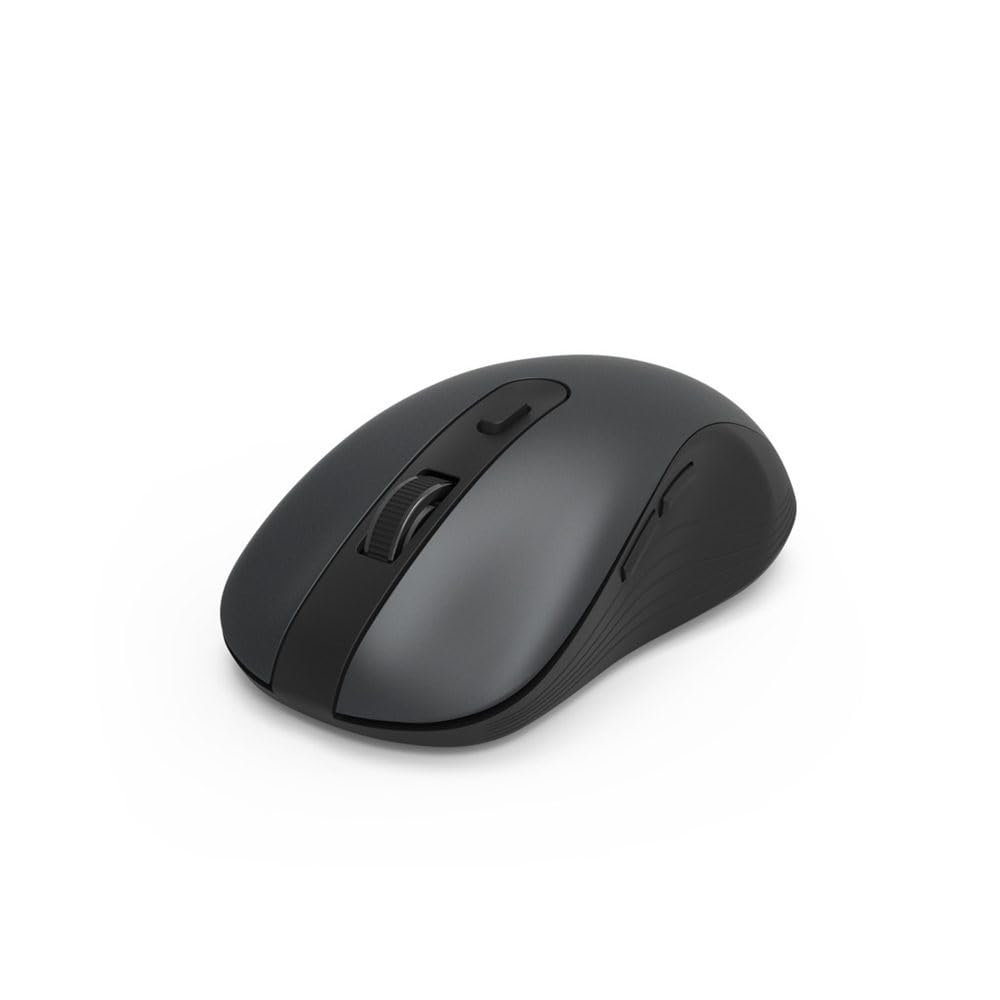
Image 1.1: Hama MW-650 Wireless Mouse (Top View)
2. Package Contents
Please check the package for the following items:
- 1 x Hama MW-650 6-Button Optical Wireless Mouse
- 1 x USB-A Receiver
- 2 x AA Mignon Batteries
- 1 x Instruction Manual (this document)

Image 2.1: Hama MW-650 Product Packaging
3. Setup
3.1. Battery Installation
- Locate the battery compartment on the underside of the mouse.
- Open the battery compartment cover.
- Insert the two AA Mignon batteries, ensuring correct polarity (+/-).
- Close the battery compartment cover securely.
3.2. Power On/Off
On the underside of the mouse, slide the ON/OFF switch to the 'ON' position to power on the mouse. Slide it to 'OFF' when not in use to conserve battery life.

Image 3.1: Underside of Hama MW-650 Mouse with ON/OFF Switch and Receiver
3.3. Connectivity Options
The Hama MW-650 mouse supports two wireless connection methods: 2.4 GHz via USB-A receiver and Bluetooth.
3.3.1. 2.4 GHz USB-A Receiver Connection
- Remove the USB-A receiver from its storage slot on the underside of the mouse.
- Plug the USB-A receiver into an available USB-A port on your computer or laptop.
- The operating system should automatically detect and install the necessary drivers.
- The mouse will connect automatically. The LED indicator for BT1/BT2 will not be lit when using the USB receiver.
3.3.2. Bluetooth Connection
The mouse can connect to two separate Bluetooth devices (BT1 and BT2).
- Ensure the mouse is powered on.
- Press the 'BT1' or 'BT2' button on the underside of the mouse to select the desired Bluetooth channel. The corresponding LED will flash slowly.
- To enter pairing mode, press and hold the selected 'BT1' or 'BT2' button for approximately 3 seconds until the LED flashes rapidly.
- On your device (PC, laptop, tablet, smartphone), enable Bluetooth and search for new devices.
- Select "Hama MW-650" from the list of available devices to pair.
- Once successfully paired, the LED will stop flashing and remain steadily lit for a few seconds before turning off.
4. Operating Instructions
4.1. Basic Mouse Functions
The Hama MW-650 features 6 buttons and a scroll wheel:
- Left Click Button: Primary function, typically for selecting items or opening links.
- Right Click Button: Secondary function, typically for context menus.
- Scroll Wheel: For scrolling up and down documents or web pages. Can also be pressed for a middle-click function.
- DPI Button: Located behind the scroll wheel, used to adjust cursor sensitivity.
- Forward/Backward Buttons: Located on the side of the mouse, typically used for navigating web pages or folders.
4.2. Switching Between Devices
The MW-650 mouse allows you to switch between three connected devices (one via USB receiver, two via Bluetooth).
- To switch to a Bluetooth-connected device, press the 'BT1' or 'BT2' button on the underside of the mouse. The corresponding LED will light up briefly.
- To switch to the device connected via the USB receiver, press the 'USB' button (or the button without a BT label) on the underside of the mouse.

Image 4.1: Multi-Device Connectivity Example

Image 4.2: Multi-Device Setup with Monitor
4.3. DPI Sensitivity Adjustment
The mouse offers adjustable DPI (Dots Per Inch) settings to control cursor speed and sensitivity. Press the DPI button located behind the scroll wheel to cycle through the available sensitivities:
- 800 DPI
- 1200 DPI (Default)
- 1600 DPI
- 2000 DPI
- 2400 DPI
Each press of the DPI button will change the sensitivity, allowing you to find the setting that best suits your task or preference.
5. Power Management
The Hama MW-650 mouse is designed with intelligent power management features to conserve battery life:
- Automatic Standby Mode: The mouse will automatically enter a standby mode after a period of inactivity. To wake it up, simply move the mouse or click any button.
- On/Off Switch: For extended periods of non-use, slide the ON/OFF switch on the underside of the mouse to the 'OFF' position to completely power down the device and maximize battery life.
6. Care and Maintenance
6.1. Cleaning
To maintain the performance and appearance of your mouse:
- Ensure the mouse is powered off before cleaning.
- Use a soft, dry, lint-free cloth to wipe the surface of the mouse.
- For stubborn dirt, slightly dampen the cloth with water or a mild cleaning solution. Avoid harsh chemicals or abrasive materials.
- Clean the optical sensor area on the underside of the mouse periodically with a cotton swab to ensure accurate tracking.
6.2. Battery Replacement
When the mouse's performance degrades or it stops responding, it may be time to replace the batteries.
- Power off the mouse using the ON/OFF switch.
- Open the battery compartment on the underside.
- Remove the old AA batteries and dispose of them according to local regulations.
- Insert new AA Mignon batteries, observing correct polarity.
- Close the battery compartment.
7. Troubleshooting
If you encounter issues with your Hama MW-650 mouse, please refer to the following common solutions:
| Problem | Possible Solution |
|---|---|
| Mouse does not respond. |
|
| Cursor movement is erratic or slow. |
|
| Cannot switch between devices. |
|
| Bluetooth pairing fails. |
|
8. Technical Specifications
| Model Number | 00182617 (MW-650) |
| Connectivity Technology | 2.4GHz RF (USB-A Receiver), Bluetooth 5.0 |
| Movement Detection Technology | Optical |
| DPI Sensitivity | 800 / 1200 / 1600 / 2000 / 2400 DPI (adjustable) |
| Number of Buttons | 6 (including scroll wheel) |
| Form Factor | Right Hand |
| Power Source | 2 x AA Mignon Batteries (included) |
| Battery Life | Up to 288 days (depending on usage) |
| Compatible Operating Systems | Windows 11/10/8/7, Android 4.3 or higher, macOS 10.10 or higher, iOS 13 or higher |
| Product Dimensions (L x W x H) | 11.3 x 6.3 x 4 cm (4.41 x 2.48 x 1.57 inches) |
| Item Weight | 3.62 ounces |
| Color | Black |
9. Warranty and Support
For warranty information and technical support, please refer to the official Hama website or contact their customer service directly. Keep your proof of purchase for any warranty claims.
- Manufacturer: Hama GmbH & Co KG
- Website: www.hama.com


