
1. Introduction
The Verizon 4G LTE Network Extender (Model SLS-BU102) is designed to enhance 4G LTE cellular signal coverage within buildings. This enterprise-grade small cell device connects to your existing internet connection to create a secure tunnel back to Verizon's core network, generating a strong LTE signal. It provides in-building coverage for multiple users, ensuring seamless cellular connectivity where outdoor signals may be weak.
This manual provides detailed instructions for the setup, operation, and maintenance of your Network Extender.
2. Package Contents
Verify that all items listed below are included in your package:
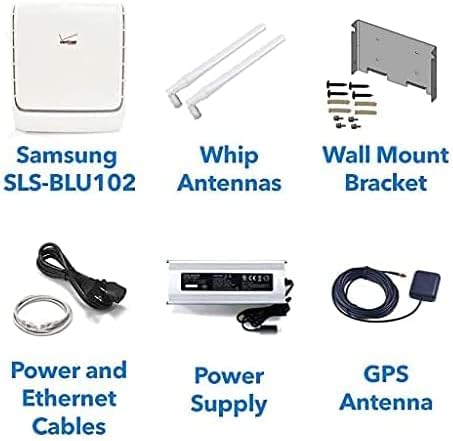
Image 2.1: Package contents including the Network Extender unit, antennas, wall mount, cables, power supply, and GPS antenna.
- Verizon 4G LTE Network Extender Unit (SLS-BU102)
- Whip Antennas (2 units)
- Wall Mount Bracket
- Power Cable
- Ethernet Cable
- Power Supply Unit
- GPS Antenna
- Instruction Manual (this document)
3. Product Overview
The Verizon 4G LTE Network Extender is a compact device designed for easy integration into various environments. It features two omnidirectional whip antennas for signal transmission and reception, and a multi-colored LED indicator to display its operational status.

Image 3.1: Front view of the Verizon 4G LTE Network Extender with attached whip antennas.
3.1 Key Components
- Main Unit: The core device that processes and amplifies the 4G LTE signal.
- Whip Antennas: Two external antennas that rotate 360 degrees for optimal signal coverage.
- LED Indicator: A single multi-colored LED on the device indicates its connectivity status.
- Ports: Includes ports for power, Ethernet, and GPS antenna connection.
4. Setup and Installation
The Network Extender is designed for simple plug-and-play installation. Follow these steps to set up your device:
4.1 Placement Considerations
- Place the unit in a central location within the desired coverage area.
- Ensure proximity to a power outlet and an active internet connection (router/modem).
- For optimal GPS signal acquisition, place the GPS antenna near a window or in an area with clear sky view.
4.2 Connection Steps
- Attach Antennas: Screw the two whip antennas onto the designated ports on the Network Extender. Adjust their orientation for best coverage.
- Connect GPS Antenna: Connect the GPS antenna cable to the GPS port on the Network Extender. Position the GPS antenna as described in 4.1.
- Connect to Internet: Use the provided Ethernet cable to connect the Network Extender's LAN port to an available LAN port on your internet router or modem.
- Connect Power: Plug the power supply into the Network Extender's power input, then plug the power cable into a wall outlet.
- Power On: The device will automatically power on and begin its startup sequence. Observe the LED indicator for status.

Image 4.1: Rear view of the Network Extender showing mounting points and approximate dimensions (in inches and millimeters).
4.3 Wall Mounting (Optional)
The Network Extender can be wall-mounted using the included bracket. Refer to Image 4.1 for anchor bolt hole dimensions and placement. Ensure the mounting surface is suitable to support the device's weight (approximately 10 pounds).
5. Operating Instructions
Once successfully set up, the Network Extender will automatically begin providing enhanced 4G LTE coverage. It operates by creating a secure connection to Verizon's network over your internet connection.
5.1 Coverage and Capacity
- A single unit provides a coverage area of up to 75,000 square feet.
- Supports up to 42 simultaneously active users.
- Supports up to 200 idle users per device.
- Multiple devices can be deployed to create a larger "super-cell" coverage area of up to 150,000 square feet.
5.2 Automatic Hand-off
When users enter the building, their devices will automatically "hand off" from the outdoor cellular network to the Network Extender's coverage zone, ensuring continuous and strong signal.
5.3 Local Administration Interface
The Network Extender supports an embedded web server, allowing for customization of IP settings and monitoring of connected devices. This interface can display currently connected users and historical capacity utilization over a 24-hour period.
6. Maintenance
The Verizon 4G LTE Network Extender requires minimal maintenance. Keep the device in a clean, dry environment and ensure proper ventilation. Avoid blocking the ventilation grilles. Do not attempt to open or repair the device yourself, as this will void any warranty.
- Regularly check cable connections to ensure they are secure.
- Dust the unit periodically with a soft, dry cloth.
- Ensure the device is not exposed to extreme temperatures or direct sunlight.
7. Troubleshooting
This section addresses common issues and their solutions.
7.1 LED Indicator Status
The Network Extender features a single multi-colored LED that indicates its operational status. Refer to the official Verizon documentation or the local administration interface for a detailed explanation of specific LED colors and patterns.
- No Signal / Weak Signal: Ensure all cables (Ethernet, power, GPS) are securely connected. Verify your internet connection is active. Check GPS antenna placement for clear sky view.
- Device Not Powering On: Check the power cable connection and the wall outlet. Try a different outlet.
- Intermittent Service: Check your internet connection stability. Ensure the Network Extender is not obstructed or placed near sources of interference.
If issues persist, contact technical support.
8. Specifications
| Feature | Detail |
|---|---|
| Model | SLS-BU102 |
| Coverage Area (Single Device) | Up to 75,000 sq. ft. |
| Coverage Area (Multiple Devices) | Up to 150,000 sq. ft. (super-cell) |
| Active User Capacity | Up to 42 simultaneous users |
| Idle User Capacity | Up to 200 idle users |
| Wireless Communication Standard | 4G LTE, 802.11ac (for internal Wi-Fi router functionality, if applicable) |
| MIMO Support | 2x2 MIMO |
| Connectivity | Ethernet (IPsec tunnel to Verizon network) |
| Power Consumption | Low power consumption design |
| Dimensions (Approximate) | 10.60 x 8.98 x 2.95 inches (269.3 x 228.2 x 75 mm) |
| Item Weight | 10 pounds |
| Compatible Devices | Smartphone, Tablet, Laptop, Wi-Fi enabled devices |
9. Warranty and Support
This product is offered as an Amazon Renewed item. For specific warranty details, please refer to the Amazon Renewed program terms and conditions at the time of purchase. Technical support is available to assist with activation, setup, and any usage issues you may encounter.
For technical assistance, please contact Verizon customer support or the Amazon Renewed support channel.


