
Introduction
This manual provides detailed instructions for the LGIDTECH FUT096-B Mi.Light RGBW Remote 4-Zone Full Touch LED Controller. This remote is designed to control Mi.Light series RGBW LED lights and LED strip controllers such as FUT037 and FUT038. It features a full touch color ring and allows for independent control of up to four zones.

Figure 1: LGIDTECH FUT096-B Mi.Light RGBW Remote Controller. This image displays the front view of the black remote with its touch color ring and various control buttons.
Product Features
- 4-Zone Control: Independently manage up to four distinct lighting zones. Each zone can contain multiple compatible LED lights.
- Full Touch Color Ring: Select from 16 million colors with a sensitive touch color ring.
- Brightness and Speed Adjustment: Adjust light brightness and program speed for dynamic lighting effects.
- Long Control Distance: Operates effectively up to 30 meters (98 feet) without direct line of sight.
- Compatibility: Exclusively designed for Mi.Light series RGBW LED lights and LED strip controllers (FUT037, FUT038).
Specifications
| Feature | Detail |
|---|---|
| Model Number | FUT096-B |
| Brand | LGIDTECH |
| Voltage | 3V (2 x AAA batteries, not included) |
| Standby Power Consumption | 20uA |
| Control Distance | 30 meters (98 feet) |
| Dimensions | 52.5mm x 21mm x 120mm |
| Transmission Frequency | 2.4GHz |
| Modulation Method | GFSK |
| Transmitting Power | 6dBm |

Figure 2: Detailed specifications and dimensions of the FUT096-B remote controller. This image provides a visual representation of the remote's size and lists key technical specifications.
Setup
1. Battery Installation
- Locate the battery compartment on the back of the remote control.
- Slide open the battery cover.
- Insert two (2) AAA batteries, ensuring correct polarity (+/-).
- Close the battery cover securely.
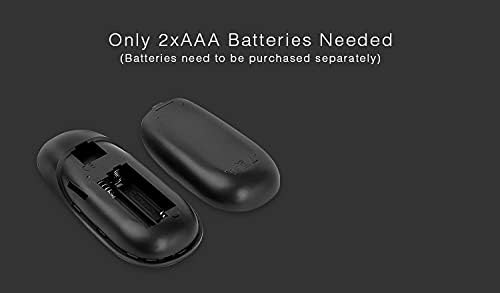
Figure 3: View of the remote's battery compartment, indicating where two AAA batteries should be inserted. Batteries are not included with the remote.
2. Linking the Remote to LED Lights
This process pairs your remote with compatible Mi.Light RGBW LED lights or controllers (e.g., FUT037, FUT038).
- Ensure the LED light or controller you wish to link is powered off.
- Turn on the power to the LED light/controller.
- Within 3 seconds of the LED light illuminating, press the "ON" button for the desired zone (1, 2, 3, or 4) on the remote.
- The LED light will blink three times, indicating successful linking.
- If linking fails, turn off the LED light, wait 5 seconds, and repeat the process.
Operating Instructions

Figure 4: Diagram illustrating the functions of each button and control area on the LGIDTECH FUT096-B remote. This includes Master ON/OFF, Color Ring, Brightness, Speed, Zone ON/OFF, and Mode buttons.
1. Basic Controls
- Master ON/OFF: Press the 'Master ON' button (top right) to turn on all linked lights. Press the 'Master OFF' button (top left) to turn off all linked lights.
- Color Ring: Touch the color ring to select a desired color for the active zone(s).
- Brightness Adjustment: Use the 'S+' button to increase brightness and 'S-' button to decrease brightness.
- Speed Adjustment: When a dynamic mode is active, use the 'S+' button to increase the speed of the effect and 'S-' button to decrease it.
2. Zone Control
The remote allows control of up to four independent zones.
- Zone ON: Press the 'ON' button (1, 2, 3, or 4) for the specific zone you wish to control. Once a zone is active, you can adjust its color, brightness, or mode independently.
- Zone OFF: Press the 'OFF' button (1, 2, 3, or 4) for the specific zone to turn off its lights.
3. Getting White Color
To activate pure white light for a specific zone:
- Long press the 'ON' button for the zone that is linked to the bulb or strip you want to set to white.
- The light will switch to white color.
4. Mode/Program Selection
Press the 'M' button to cycle through various pre-programmed dynamic lighting modes or effects.

Figure 5: The remote in use, demonstrating the selection of colors via the touch ring to control RGBW lighting. This image highlights the color selection capability.
Maintenance
1. Battery Replacement
When the remote's indicator light dims or the control distance decreases, it's time to replace the batteries. Follow the battery installation steps outlined in the Setup section.
2. Cleaning
Wipe the remote with a soft, dry cloth. Do not use abrasive cleaners or immerse the remote in water.
Troubleshooting
- Remote not responding:
- Check if batteries are correctly installed and have sufficient charge. Replace if necessary.
- Ensure the remote is within the 30-meter control range of the LED lights.
- Verify that the remote is correctly linked to the LED lights/controller (refer to "Linking the Remote" section).
- Lights not changing color/brightness:
- Confirm that the correct zone is selected and active on the remote.
- Ensure the LED lights are compatible with RGBW control.
- Linking process fails:
- Ensure the LED light is powered off for at least 5 seconds before attempting to link again.
- Press the zone 'ON' button within 3 seconds of powering on the LED light.
Warranty and Support
For warranty information or technical support, please refer to the documentation provided with your purchase or contact LGIDTECH customer service directly. Keep your purchase receipt for warranty claims.