
Introduction
The DieseRC Mini Wireless WiFi Switch and RF Remote Control Receiver is designed to provide intelligent control over your electrical appliances. This device offers versatile control options including smartphone app control (Tuya App), voice control via Amazon Alexa and Google Home, and traditional RF remote control. Its compact design allows for easy integration into most electrical boxes, making it suitable for various applications in homes, offices, and other environments.
Safety Information
- Always disconnect power before installation or maintenance to prevent electric shock.
- Installation should be performed by a qualified electrician or in accordance with local electrical codes.
- Do not exceed the maximum load capacity of 2500W (10A).
- Ensure all wire connections are secure and properly insulated.
- Keep the device away from water and high humidity environments.
- This device is for indoor use unless specified otherwise.
Package Contents
The package includes:
- 1 x DieseRC Mini Wireless WiFi Switch Receiver
- 1 x Wireless Wall Switch (RF Remote Control)
- User Manual
Specifications
| Brand | DieseRC |
| Model | Mini Wireless WiFi Switch and RF Remote Control Receiver (1 Receiver, 1 Switch) |
| Input Voltage | AC 85V ~ 250V |
| Max Load | 10A / 2500W |
| WiFi Standard | IEEE 802.11 b/g/n (2.4GHz only) |
| RF Frequency | 433MHz (EV1527 learning code) |
| Operating Mode | ON-OFF |
| Dimensions (Receiver) | 47 x 42 x 23 mm (approx. 0.88 x 0.88 x 0.38 cm) |
| Material | Plastic |
| Relay Lifespan | Over 400,000 operations |
| Wireless Switch Lifespan | Over 500,000 clicks |
Setup Instructions
1. Physical Installation of the Receiver Module
Important: Ensure power is disconnected at the main circuit breaker before proceeding with any wiring.
- Identify the Live (L) and Neutral (N) wires from your power source and to your appliance (e.g., light fixture).
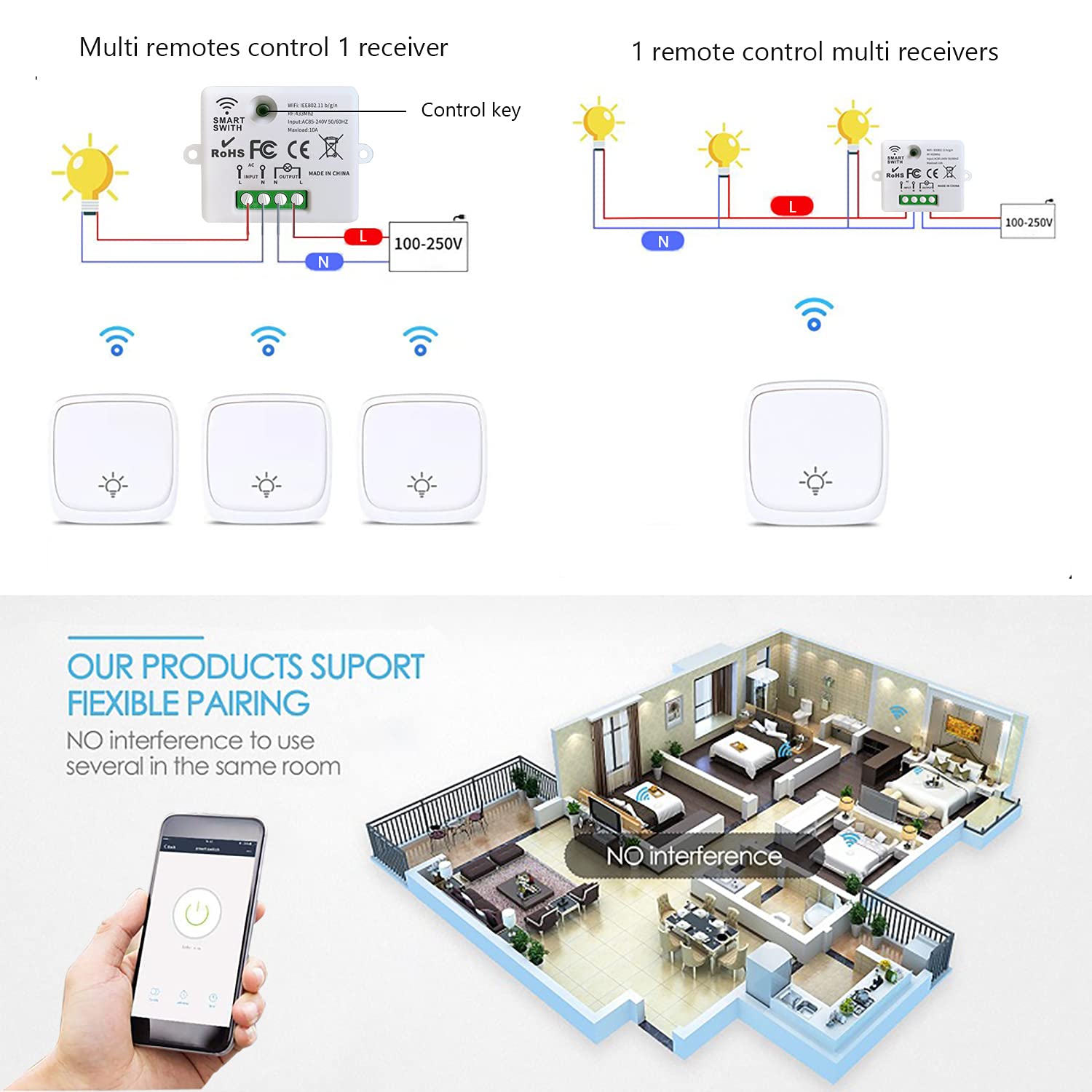
- Connect the input Live (L) and Neutral (N) wires from the power source to the corresponding 'INPUT' terminals on the receiver module.
- Connect the output Live (L) and Neutral (N) wires to your appliance from the corresponding 'OUTPUT' terminals on the receiver module.
- The compact size of the receiver (47 x 42 x 23 mm) allows it to be hidden in most electrical boxes or junction boxes.


2. App Installation and Pairing (Tuya App / Smart Life App)
The device can be controlled via the Tuya App or Smart Life App on your iOS or Android smartphone.
- Download the 'Tuya Smart' or 'Smart Life' app from your smartphone's app store.
- Register or log in to your account.
- Ensure your phone is connected to a 2.4GHz Wi-Fi network. The device does not support 5GHz Wi-Fi.
- Power on the receiver module.
- In the app, tap 'Add Device' or the '+' icon.
- Select 'Switch' or 'Electrical' -> 'Switch (Wi-Fi)' from the device list.
- On the receiver module, press and hold the 'Install' button (usually a small button on the module) for approximately 5 seconds until the indicator light flashes rapidly, indicating pairing mode.
- Confirm the indicator light is flashing rapidly in the app and proceed with network configuration. Enter your Wi-Fi password if prompted.
- The app will scan for and add the device. Once added, you can rename it for easy identification.
3. Pairing with RF Wireless Wall Switch
To pair the receiver module with the included RF wireless wall switch:
- Ensure the receiver module is powered on.
- Quickly press the 'Install' button on the receiver module two times. The indicator light will flash slowly, indicating it's in RF pairing mode.
- Within 5 seconds, press the desired button on your RF wireless wall switch. The receiver's indicator light will flash rapidly then turn off, confirming successful pairing.
- Test the RF switch to ensure it controls the connected appliance.

Operating Instructions
1. Control via Tuya App / Smart Life App
Once paired, you can control your device from anywhere using the app:
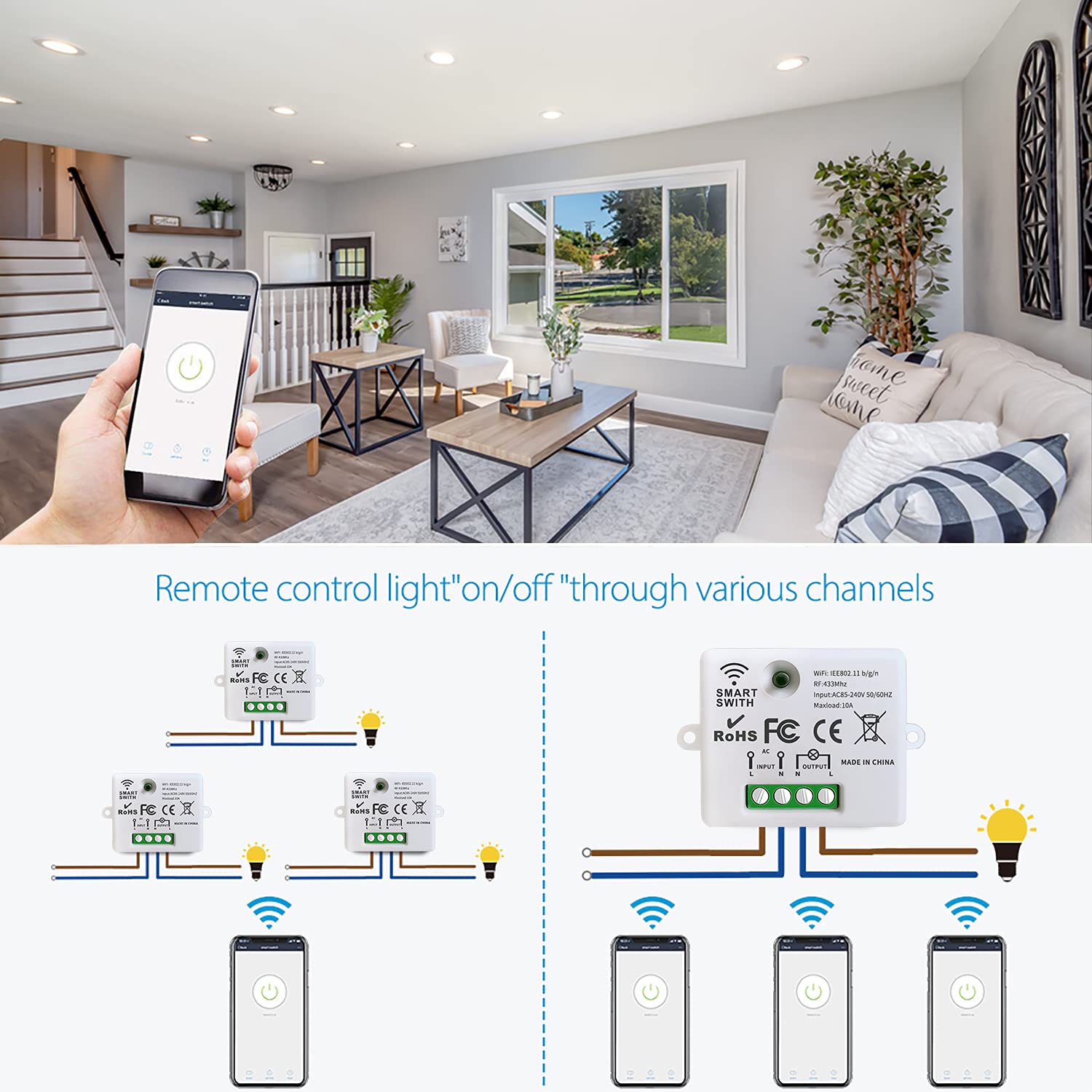
- On/Off Control: Tap the power icon in the app to turn the connected appliance on or off.
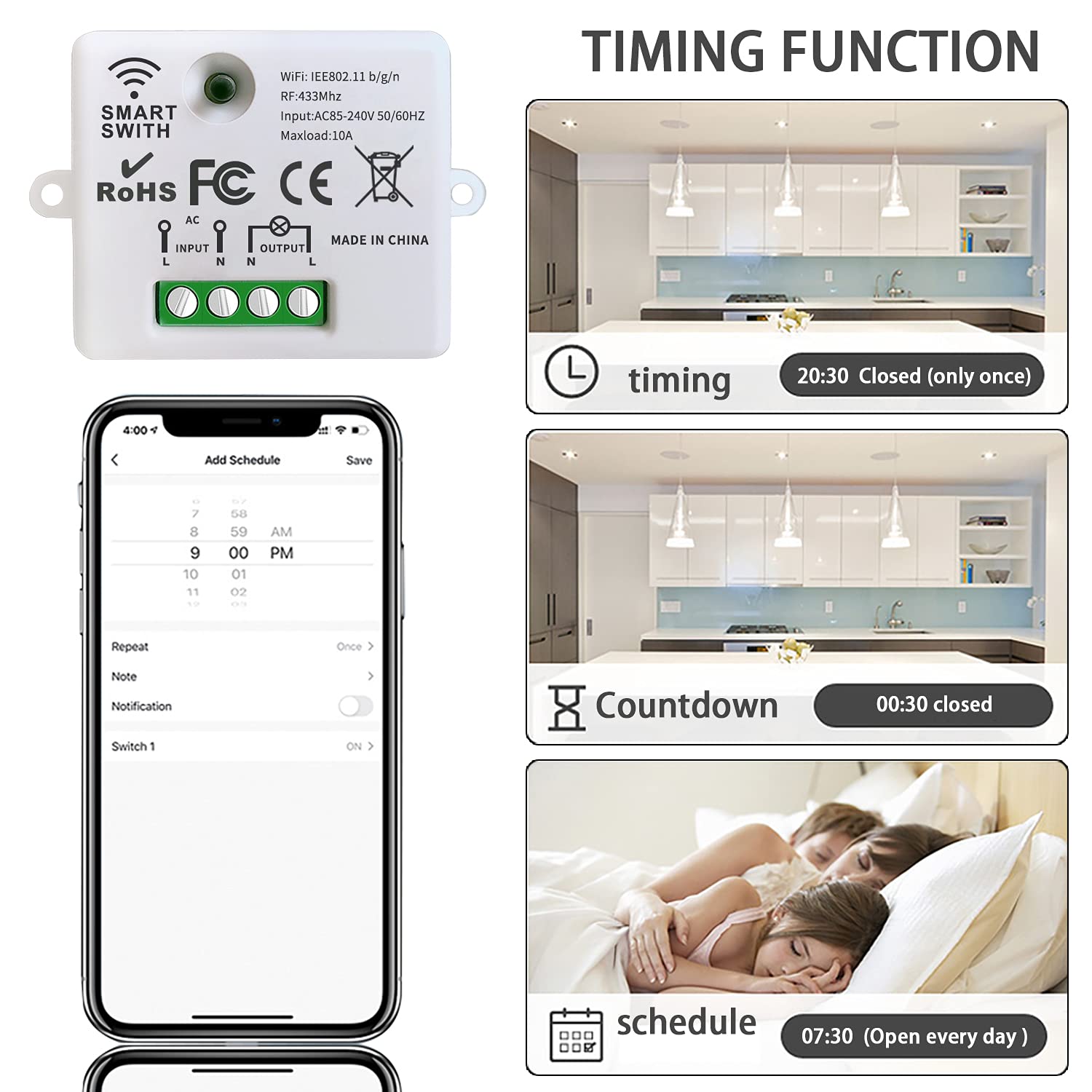
- Timer Function: Set countdown timers for automatic on/off operations.
- Scheduling: Create schedules for the device to turn on or off at specific times on chosen days.
- Inching Mode: Configure the device to automatically switch off after a set period of time (e.g., turn on for 2 seconds then off).
- Relay Status: Set the device's power-on state after a power outage (ON, OFF, or Remember Last Status).
- Child Lock: Enable this feature to prevent accidental local operation by pressing the physical switch multiple times.


2. Voice Control (Amazon Alexa / Google Home)
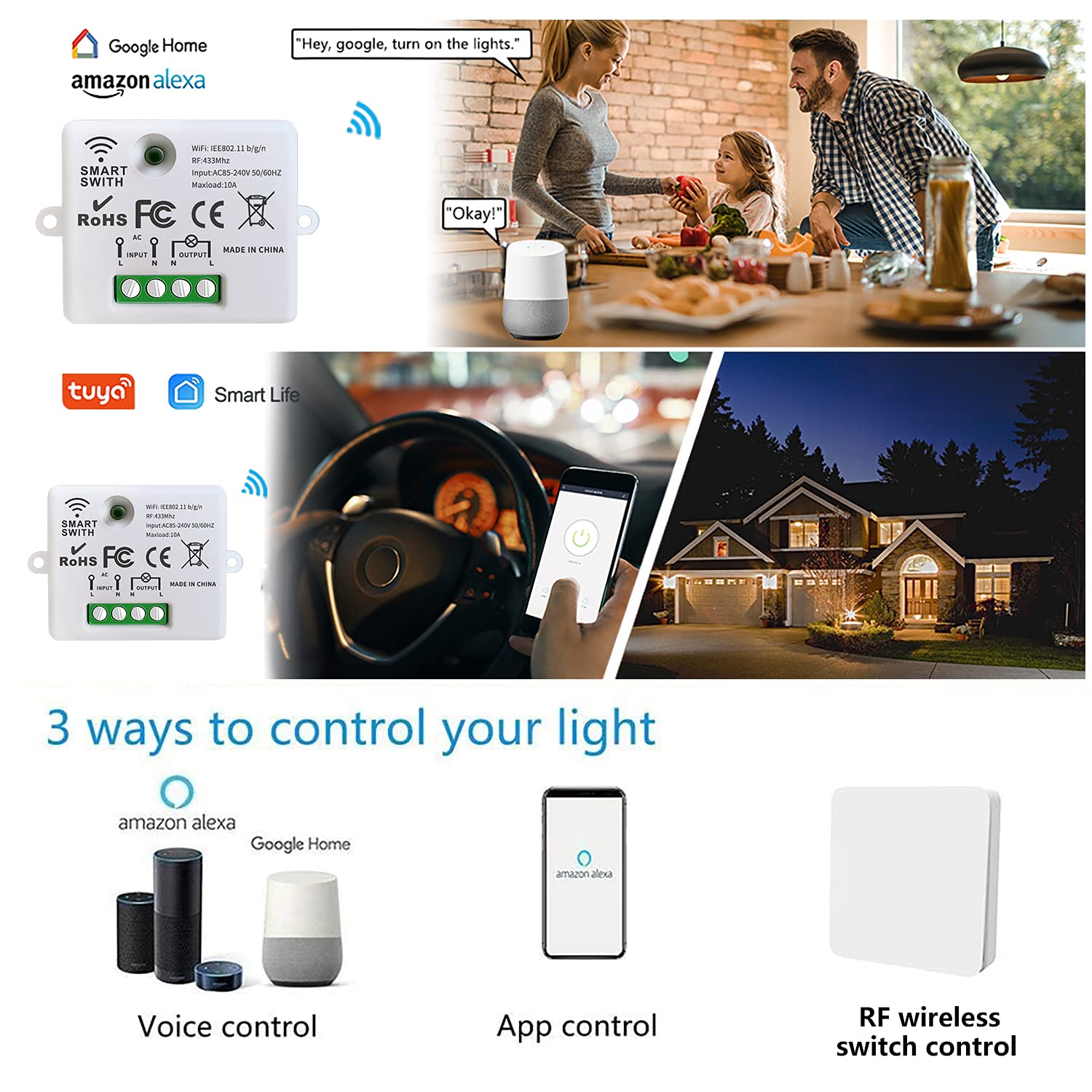
The device is compatible with Amazon Alexa and Google Home for hands-free voice control.
- Link your Tuya Smart or Smart Life account to your Amazon Alexa or Google Home app.
- Discover devices in your voice assistant app.
- Use voice commands such as:
- "Alexa, turn on the living room light."
- "Hey Google, turn off the bedroom fan."
3. RF Wireless Wall Switch Control
The included RF wireless wall switch provides convenient local control without needing your smartphone or voice assistant.
- Simply press the paired button on the wireless wall switch to toggle the connected appliance on or off.
- Multiple RF switches can be paired to one receiver, and one RF switch can control multiple receivers, offering flexible control scenarios.
Maintenance
- Keep the device clean and free from dust. Use a dry, soft cloth for cleaning.
- Avoid exposing the device to extreme temperatures or direct sunlight.
- If the RF wireless switch battery needs replacement (12V 27A battery), carefully open the switch casing to access and replace the battery.
- Regularly check wiring connections for any signs of wear or looseness.
Troubleshooting
| Problem | Possible Cause | Solution |
|---|---|---|
| Device not connecting to Wi-Fi. | Incorrect Wi-Fi password; 5GHz Wi-Fi network; device too far from router; device not in pairing mode. | Ensure correct 2.4GHz Wi-Fi password. Move device closer to router. Put device into pairing mode (press and hold 'Install' button for 5 seconds). |
| RF wireless switch not controlling the device. | Not paired; battery low/dead. | Re-pair the RF switch (quick press 'Install' button twice, then press RF switch button). Replace the 12V 27A battery in the RF switch. |
| Voice control not working. | App account not linked to voice assistant; device not discovered; incorrect voice command. | Ensure Tuya/Smart Life account is linked to Alexa/Google Home. Discover devices in the voice assistant app. Use correct voice commands. |
| Appliance not turning on/off. | Loose wiring; appliance malfunction; power outage. | Check all wiring connections. Test the appliance directly. Verify power supply. |
Warranty & Support
DieseRC products are manufactured with high-quality components and undergo strict quality control. This product comes with a standard manufacturer's warranty against defects in materials and workmanship. For specific warranty details, please refer to the product packaging or contact DieseRC customer support.
For technical support, troubleshooting assistance, or any questions regarding your DieseRC product, please visit our official website or contact our customer service team through the contact information provided on the product packaging or our website.