
1. Introduction
This manual provides detailed instructions for the setup, operation, maintenance, and troubleshooting of your HUION Kamvas Pro 13 (2.5K) Graphics Monitor Drawing Tablet. Please read this manual thoroughly before using the device to ensure optimal performance and longevity.

Image: The HUION Kamvas Pro 13 (2.5K) tablet, its adjustable stand, and the PW517 stylus.
2. What's in the Box
Verify that all the following items are included in your package:
- Kamvas Pro 13 (2.5K) Pen Display
- Digital Pen (PW517)
- 3-in-1 Cable
- USB Extension Cable
- USB-C to USB-C Cable
- USB Power Cable
- Foldable Stand (ST200)
- Pen Holder
- Standard Nibs x 5
- Felt Nibs x 5
- Nib Clip
- Glove
- Cleaning Cloth
- Quick Start Guide
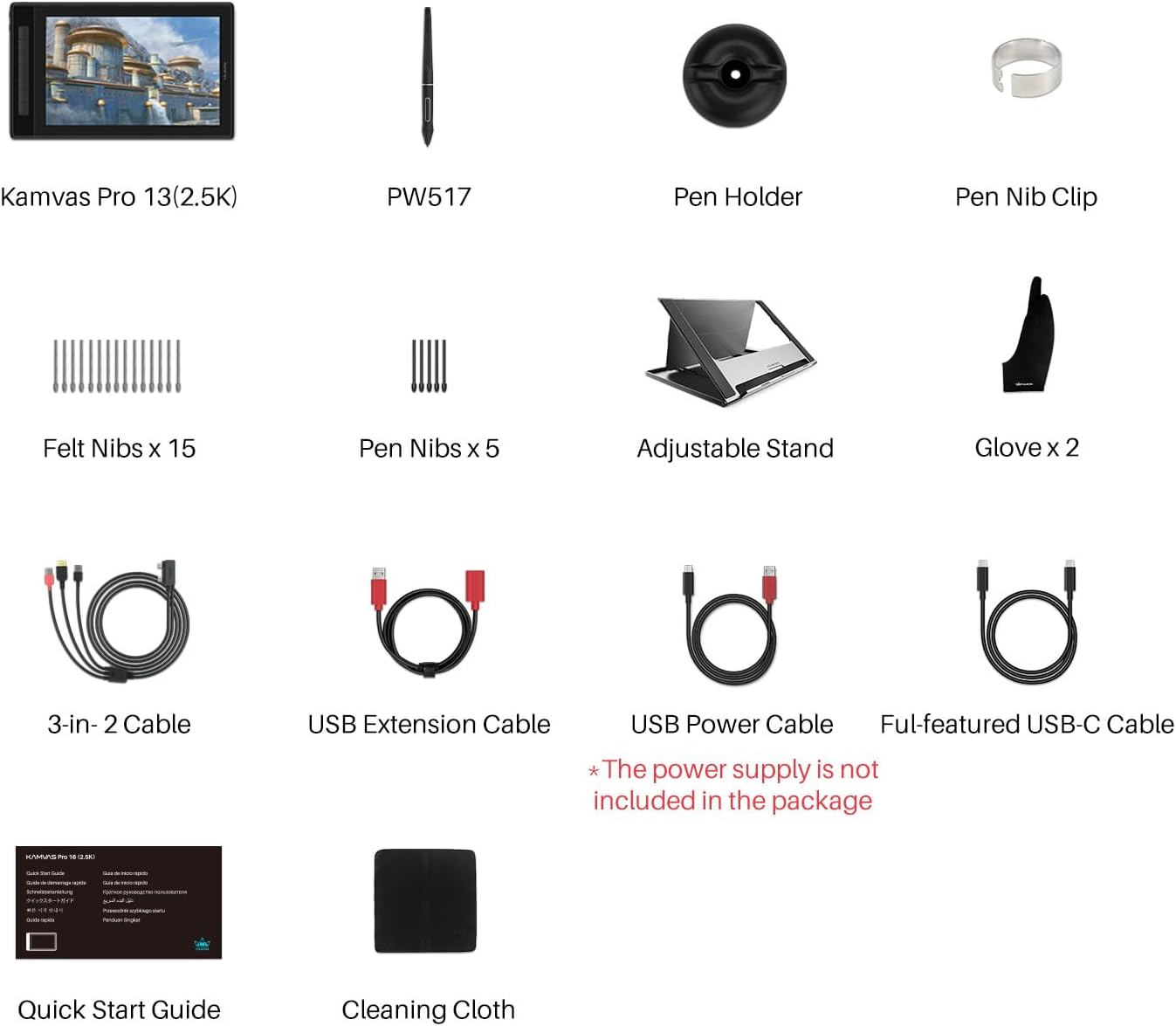
Image: All components included in the Kamvas Pro 13 (2.5K) package, laid out for inspection.
3. Setup
3.1 System Requirements
Ensure your computer or device meets the following minimum requirements:
- Windows 7 or later
- macOS 10.12 or later
- Android (USB3.1 GEN1 DP1.2 or later)

Image: Visual representation of compatible operating systems (Windows, macOS, Android) and creative software (Photoshop, Painter, Sai, GIMP, Clip Studio, Krita, AI).
3.2 Connecting the Tablet
The Kamvas Pro 13 (2.5K) offers flexible connection options:
- Using the 3-in-1 Cable: Connect the HDMI, USB-A, and power cables from the 3-in-1 cable to your computer and a power source. Then, connect the single end to the tablet's USB-C port.
- Using a Full-Featured USB-C to USB-C Cable: If your device supports full-featured USB-C (data, video, and power delivery), you can connect the tablet using a single USB-C to USB-C cable. An additional USB power cable might be required for sufficient power.

Image: Close-up of the tablet's side, illustrating the two USB-C ports: one for signal and data, and another for power supply.

Image: A user connecting the Kamvas Pro 13 (2.5K) to a laptop using the provided 3-in-1 cable.
3.3 Driver Installation
After connecting the tablet, download and install the latest driver from the official HUION website. Follow the on-screen instructions for installation. Restart your computer after installation is complete.
4. Operating the Tablet
4.1 Display Features
The Kamvas Pro 13 (2.5K) offers a high-quality visual experience:
- Resolution: 2560x1600 QHD resolution with 226ppi for sharp details.
- Color Accuracy: QLED screen with 99% sRGB color gamut coverage and 16.7 million colors for vibrant and true-to-life visuals.
- Contrast Ratio: 1200:1 for distinct light and shade presentation.
- Full Lamination & Anti-Glare Glass: Reduces parallax and minimizes reflections for a natural drawing experience.

Image: Visuals highlighting the 2.5K resolution, 226 pixels per inch, full-laminated screen, and 16:10 aspect ratio of the display.

Image: A graphic illustrating the vivid color experience with the QLED screen, showing 99% Adobe RGB, 1200:1 contrast ratio, and 16.7 million colors.

Image: A side-by-side comparison demonstrating the benefits of IPS screen with anti-glare and full lamination technology, offering wider viewing angles and reduced reflections.
4.2 Pen Performance (PW517 Stylus)
The included PW517 stylus utilizes Huion PenTech 3.0 technology for enhanced drawing precision:
- Battery-Free: No need for charging, ensuring uninterrupted workflow.
- Pressure Sensitivity: 8192 levels of pressure sensitivity for fine control over line weight and opacity.
- Tilt Recognition: Supports ±60° tilt recognition, allowing for natural shading and brush effects.
- Felt Nibs: Use the provided felt nibs to increase friction and simulate a paper-like drawing feel.

Image: A visual detailing the precise and natural performance of Huion PenTech 3.0, including +60° tilt, 8192 pressure levels, >300pps report rate, and battery-free operation.
4.3 Programmable Buttons
The Kamvas Pro 13 (2.5K) features 7 programmable express keys on the side of the display. These can be customized through the Huion driver software to assign your favorite software shortcuts, improving efficiency.

Image: An illustration of the 7 programmable buttons on the tablet's side, with examples of default assignments like Brush, Increase/Decrease Brush Size, Zoom In/Out, Hand Tool, and Undo.
4.4 Software Compatibility
The Kamvas Pro 13 (2.5K) is compatible with a wide range of mainstream design and drawing software, including but not limited to:
- Adobe Photoshop (PS)
- Corel Painter
- Paint Tool SAI
- GIMP
- Clip Studio Paint
- Krita
- Adobe Illustrator (AI)

Image: A graphic displaying the tablet's broad compatibility with Windows, macOS, Linux OS, Android devices, and popular creative applications.
5. Maintenance
To ensure the longevity and optimal performance of your Kamvas Pro 13 (2.5K), follow these maintenance guidelines:
- Cleaning: Use the provided cleaning cloth to gently wipe the screen and body of the tablet. Avoid using harsh chemicals or abrasive materials.
- Nib Replacement: When the pen nib wears down, use the nib clip to carefully remove it and insert a new one. Both standard and felt nibs are included.
- Storage: Store the tablet in a cool, dry place away from direct sunlight and extreme temperatures.
- Cable Care: Avoid bending or twisting cables excessively to prevent damage.
6. Troubleshooting
If you encounter issues with your Kamvas Pro 13 (2.5K), refer to the following common solutions:
- No Display/Signal:
- Ensure all cables are securely connected to both the tablet and your computer.
- Verify that your computer's display settings are configured to extend or duplicate the display to the tablet.
- If using a single USB-C cable, ensure your computer's USB-C port supports video output and power delivery, or connect the additional USB power cable.
- Pen Not Responding:
- Check if the Huion driver is correctly installed and running. Reinstall if necessary.
- Ensure the pen nib is properly inserted.
- Test the pen on different areas of the screen.
- Inaccurate Pen Pressure/Calibration Issues:
- Recalibrate the screen and pen in the Huion driver settings.
- Adjust pen pressure sensitivity curves in the driver to match your drawing style.
- macOS Compatibility Issues:
- Some macOS versions may have compatibility issues with external USB devices. Refer to the Huion official website or contact customer support for the latest drivers and solutions.
- Ensure necessary security and privacy permissions are granted for the Huion driver in macOS System Preferences.
- Driver Conflicts:
- If you have drivers from other tablet brands installed, uninstall them before installing the Huion driver to avoid conflicts.
7. Specifications
| Feature | Specification |
|---|---|
| Product Dimensions | 14.57 x 8.66 x 0.35 inches |
| Item Weight | 2.2 pounds (approx. 1 kg) |
| Model Number | GT1302 |
| Display Size | 13.3 inches |
| Resolution | 2560x1600 (2.5K QHD) |
| Pixel Density | 226ppi |
| Color Gamut | 99% sRGB |
| Contrast Ratio | 1200:1 |
| Pen Technology | Huion PenTech 3.0, Battery-Free |
| Pressure Sensitivity | 8192 Levels |
| Tilt Recognition | ±60° |
| Connectivity | USB-C (3-in-1 cable or full-featured USB-C) |
| Operating System Support | Windows, macOS, Android |

Image: A graphic indicating the tablet's weight (1kg) and thickness (1cm).
8. Warranty and Support
HUION products typically come with a manufacturer's warranty. For specific warranty terms and conditions, please refer to the warranty card included in your product packaging or visit the official HUION website. For technical support, driver downloads, FAQs, and service inquiries, please visit the HUION support page or contact their customer service directly.
Online Resources:
- Official HUION Website: www.huion.com
- Support Page: Refer to the official website for the most current support contact information and resources.