
Integra DRX5.4
Integra DRX-5.4 9.2 Channel Network 8K AV Receiver User Manual
Model: DRX5.4 | Brand: Integra
1. Product Overview
The Integra DRX-5.4 is a sophisticated 9.2 channel network 8K AV Receiver designed to deliver an immersive home theater experience. It combines cutting-edge audio and video technologies with versatile connectivity options, making it a central hub for all your entertainment needs. This receiver is built to support the latest video formats, including 8K, ensuring future-proof performance for your home cinema setup.

Figure 1: Front view of the Integra DRX-5.4 AV Receiver.
2. Setup Guide
2.1 Unpacking and Placement
Carefully remove the receiver from its packaging. Ensure all accessories, including the remote control, power cable, and setup guide, are present. Place the receiver on a stable, flat surface with adequate ventilation to prevent overheating. Avoid placing it near heat sources or in enclosed cabinets without proper airflow.
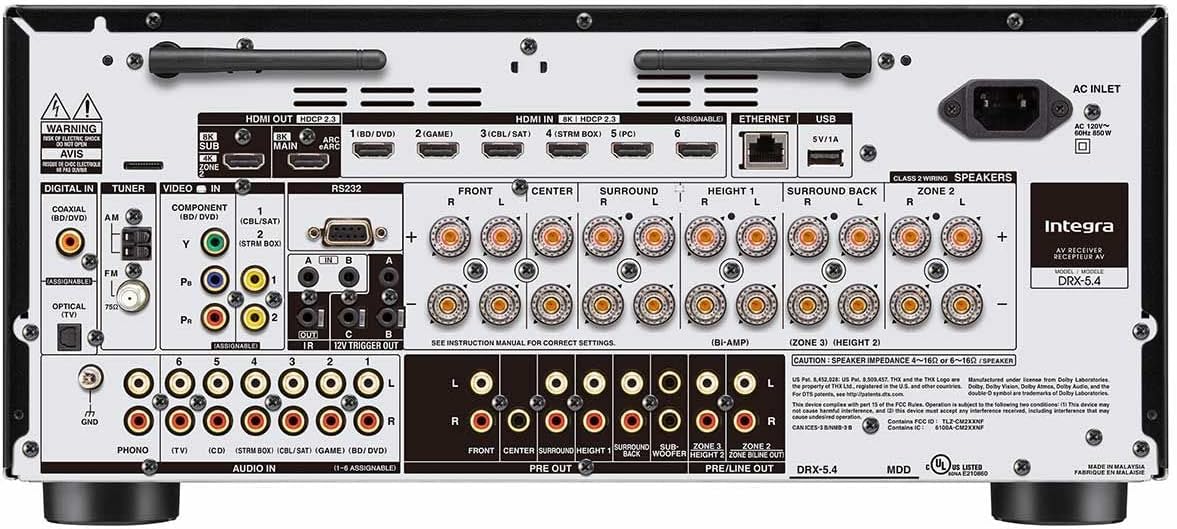
Figure 2: Rear panel connections of the Integra DRX-5.4 AV Receiver.
2.2 Connecting Speakers
The DRX-5.4 supports a 9.2 channel surround sound configuration. Connect your speakers to the corresponding terminals on the rear panel. Ensure correct polarity (positive to positive, negative to negative) for optimal sound performance. For a 9.2 setup, connect front, center, surround, surround back, and height speakers, along with up to two subwoofers.
2.3 Connecting Audio/Video Devices
Utilize the HDMI inputs for connecting your primary audio/video sources such as Blu-ray players, gaming consoles, streaming devices, and cable/satellite boxes. The receiver features 8K HDMI inputs, ensuring compatibility with the latest video technologies. Connect your display (TV or projector) to the HDMI OUT (MAIN) port. The eARC/ARC compatible HDMI output simplifies audio return from your TV.
- HDMI Connections: Connect source devices (BD/DVD, Game, CBL/SAT, STRM Box, PC) to HDMI IN ports. Connect your TV to HDMI OUT (MAIN).
- Analog Audio/Video: For legacy devices, use the Component Video, Composite Video, or RCA Audio inputs.
- Network Connection: Connect an Ethernet cable to the LAN port for wired network access, or use the built-in Wi-Fi for wireless connectivity.
- USB: A USB port is available for media playback or firmware updates.
2.4 Initial Setup and Calibration
Once all connections are made, power on the receiver. Follow the on-screen setup wizard (if available) to configure network settings, speaker calibration, and input assignments. The receiver's app compatibility (iOS/Android) allows for convenient control and setup adjustments from your mobile device.
3. Operating Instructions
3.1 Power On/Off
Press the On/Standby button on the front panel or the remote control to power the unit on or off. The Hybrid Standby feature allows for quick startup and network functionality while in standby mode.
3.2 Input Selection
Select your desired input source (e.g., BD/DVD, Game, CBL/SAT, STRM Box, PC, CD, TV, Phono, Tuner, NET, Bluetooth) using the dedicated buttons on the front panel or the remote control. The display will show the currently selected input.
3.3 Volume Control
Adjust the master volume using the large Master Volume knob on the front panel or the Volume +/- buttons on the remote control.
3.4 Sound Modes and Listening Modes
The DRX-5.4 offers various sound modes to optimize your listening experience. Use the Listening Mode buttons to cycle through options like Stereo, Direct, THX Cinema, and various surround sound modes (e.g., Dolby Atmos, DTS:X). Refer to the on-screen display for detailed information on active sound processing.
3.5 Network and Bluetooth Functionality
Access network features such as internet radio, music streaming services, and firmware updates via the NET button. Pair Bluetooth devices by selecting the Bluetooth input and following the pairing instructions on your device. This allows for wireless audio streaming from compatible smartphones or tablets.
3.6 Zone Control
The receiver supports multi-zone audio. Use the Zone 2 and Zone 3 buttons to control audio playback in different areas of your home independently. This allows for simultaneous playback of different sources in separate rooms.
4. Maintenance
To ensure the longevity and optimal performance of your Integra DRX-5.4 receiver, regular maintenance is recommended:
- Cleaning: Gently wipe the exterior surfaces with a soft, dry cloth. Avoid using abrasive cleaners, solvents, or chemical sprays, as these can damage the finish.
- Ventilation: Ensure that the ventilation openings on the top and sides of the receiver are not blocked. Proper airflow is crucial to prevent internal heat buildup.
- Dust Removal: Periodically use a soft brush or a low-power vacuum cleaner with a brush attachment to remove dust from the vents and connections.
- Cable Management: Keep cables organized and untangled to prevent strain on ports and to maintain good airflow around the unit.
- Firmware Updates: Check the Integra website periodically for firmware updates. Keeping the firmware updated ensures you have the latest features, bug fixes, and performance enhancements.
5. Troubleshooting
If you encounter issues with your DRX-5.4 receiver, try the following troubleshooting steps before contacting support:
| Problem | Possible Cause | Solution |
|---|---|---|
| No power | Power cable disconnected; Power outlet issue | Ensure power cable is securely connected. Try a different power outlet. |
| No sound | Incorrect input selected; Volume too low; Speaker cables loose | Select the correct input source. Increase volume. Check all speaker cable connections. |
| No video | Incorrect HDMI input/output; HDMI cable issue | Verify HDMI connections to source and TV. Try a different HDMI cable. Ensure TV is on correct input. |
| Remote control not working | Dead batteries; Obstruction to IR sensor | Replace batteries. Remove any obstructions between remote and receiver. |
| Network connection issues | Incorrect network settings; Router issue | Check network cable/Wi-Fi settings. Restart your router. |
6. Technical Specifications
- Model: DRX5.4
- Brand: Integra
- Surround Sound Channel Configuration: 9.2 Channel
- Connectivity Technology: Bluetooth, Wi-Fi, HDMI
- Controller Type: iOS, Android
- Total HDMI Ports: 2 (HDMI Out), Multiple HDMI In (up to 6)
- Audio Output Mode: Surround
- Video Encoding: H.264, H.265 (HEVC)
- Compatible Devices: Smartphone, Speaker
- Item Weight: 35.1 pounds
- Package Dimensions: 21 x 18.4 x 12.6 inches
- Date First Available: May 24, 2021
7. Official Product Videos
There are no official product videos from the seller available for embedding at this time. Please refer to the text descriptions and images for product information.
8. Warranty and Support
For detailed warranty information and customer support, please refer to the warranty card included with your product or visit the official Integra website. You can also contact Integra customer service for technical assistance, service, or parts inquiries.
Online Resources: For the most up-to-date information, FAQs, and additional support resources, please visit the Integra Store on Amazon or the manufacturer's official website.
Related documentsDRX5.4


Ask a question about this manual
Ask about setup, troubleshooting, compatibility, parts, safety, or missing instructions. Manuals+ will review the question and use this page’s manual context to help answer it.