
1. Setup
1.1 Unpacking
Carefully remove the humidifier from its packaging. Ensure all components are present: the main unit, remote control, and power adapter. Retain packaging for future transport or storage.
1.2 Placement
Place the Duux Beam Mini 2 humidifier on a flat, stable, and water-resistant surface. Ensure it is at least 15 cm (6 inches) away from walls and furniture to allow for proper mist dispersion. Avoid placing it directly on carpets or near heat sources.
1.3 Filling the Water Tank
The Beam Mini 2 features a convenient top-fill design.
- Remove the top lid of the humidifier.
- Pour clean, cool tap water directly into the water tank opening. Do not exceed the maximum fill line.
- Replace the top lid securely.

Image: A hand pouring water into the top opening of the Duux Beam Mini 2 humidifier. This illustrates the top-fill method for adding water to the unit.
1.4 Power Connection
Connect the power adapter to the humidifier's power input port, then plug the adapter into a suitable electrical outlet. The unit will enter standby mode.
2. Operating Instructions
2.1 Power On/Off
Press the power button on the control panel or remote control to turn the humidifier on or off. The LED display will illuminate when the unit is active.

Image: Detailed view of the control panel on the Duux Beam Mini 2 humidifier. This shows the various touch-sensitive buttons for controlling the device, including power, mode, and mist output.
2.2 Control Panel and Display
The high-resolution LED screen displays current humidity, temperature, and selected settings. Touch-sensitive buttons below the display allow for direct control.

Image: Close-up of the Duux Beam Mini 2 humidifier's digital display. The screen shows the current humidity percentage, mist level indicator, and icons for various functions like Wi-Fi and timer.
2.3 Operating Modes
- Normal Mode: Manually adjust mist output to your desired level.
- Automatic Mode: The humidifier will automatically adjust mist output to maintain a preset humidity level (between 40% and 90%).
2.4 Humidity and Mist Output Adjustment
Use the '+' and '-' buttons on the control panel or remote to adjust the desired humidity level in Automatic Mode or the mist output intensity in Normal Mode.
2.5 Aromatherapy Function
The Beam Mini 2 includes an aroma diffuser feature. To use, add a few drops of water-soluble essential oil to the designated aroma compartment. Do not add oil-based aromas directly into the water tank, as this can damage the unit.
2.6 Remote Control
The included remote control allows for convenient operation from a distance. It can be stored in a dedicated slot on the side of the humidifier when not in use.

Image: The remote control for the Duux Beam Mini 2 humidifier. This shows the compact remote with buttons for power, mode selection, and adjusting mist output levels.

Image: Side view of the Duux Beam Mini 2 humidifier showing the integrated slot for the remote control. This demonstrates how the remote can be neatly stored within the unit itself.
2.7 Duux App Connectivity
For ultimate control and operation, download the free Duux app from your device's app store. Follow the in-app instructions to connect your Beam Mini 2 humidifier for remote control and advanced settings.
3. Maintenance
Regular cleaning and maintenance are essential for optimal performance and longevity of your humidifier.
3.1 Daily Cleaning
- Empty and rinse the water tank daily with fresh water.
- Wipe the mist outlet and exterior surfaces with a soft, damp cloth.
3.2 Weekly Cleaning and Descaling
- Unplug the humidifier and empty any remaining water.
- Fill the water tank with a mixture of white vinegar and water (1:1 ratio). Let it sit for 30 minutes to an hour to loosen mineral deposits.
- Carefully scrub the inside of the tank and the ultrasonic membrane with a soft brush or cloth.
- Rinse thoroughly with clean water until the vinegar smell is gone.
- Wipe all surfaces dry before reassembling.
3.3 Filter Replacement
The Beam Mini 2 uses a water filter cartridge to reduce mineral buildup. Replace the filter cartridge every 1-3 months, depending on water hardness and usage. Refer to the filter's packaging for specific replacement instructions.
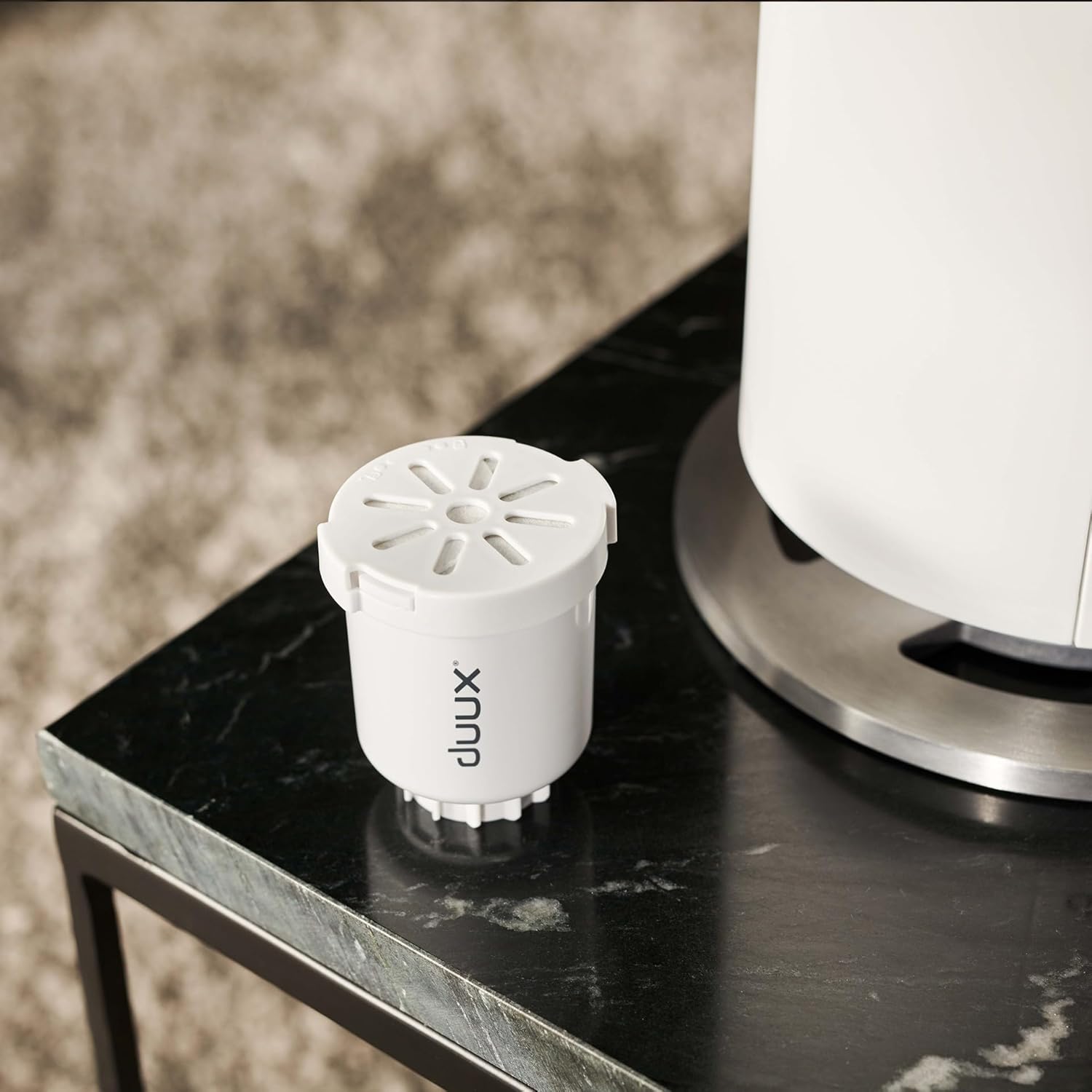
Image: A water filter cartridge for the Duux Beam Mini 2 humidifier placed next to the unit. This shows the removable filter component that helps purify the water.
4. Troubleshooting
If you encounter issues with your Duux Beam Mini 2, consult the following table before contacting customer support.
| Problem | Possible Cause | Solution |
|---|---|---|
| No mist output | Water tank is empty Ultrasonic membrane is dirty Unit not powered on | Refill water tank Clean the ultrasonic membrane as per maintenance instructions Ensure power is connected and unit is turned on |
| Unusual noise | Unit not on a flat surface Water level too low Foreign object in tank | Place on a flat, stable surface Refill water tank Inspect and remove any foreign objects |
| Humidifier not responding | Power issue Remote control battery low | Check power connection and outlet Replace remote control battery |
| White dust around unit | Hard water used Filter needs replacement | Use distilled or demineralized water Replace the water filter cartridge |
5. Specifications
| Feature | Detail |
|---|---|
| Brand | Duux |
| Model Number | DXHU13 |
| Capacity | 3 Liters |
| Mist Emission | 300 ml/h |
| Room Size | Up to 30 m² |
| Runtime | Up to 15 hours |
| Noise Level | Less than 32dB |
| Dimensions | 18 x 18 x 40 cm |
| Item Weight | 1 kg |
| Voltage | 240 Volts |
| Material | Aluminum |
| Special Features | Aroma Diffuser, Hygrometer, Auto shut-off, Remote Control, App Control |
6. Warranty and Support
6.1 Warranty Information
Your Duux Beam Mini 2 Smart Humidifier is covered by a manufacturer's warranty. Please refer to the warranty card included in your product packaging or visit the official Duux website for detailed warranty terms and conditions.
6.2 Customer Support
For technical assistance, replacement parts, or any other inquiries, please contact Duux customer support. Contact information can typically be found on the official Duux website or in your product documentation.


