
1. Introduction
The CEYOMUR CY65 Trail Camera is a high-performance device designed for capturing wildlife images and videos, as well as for outdoor surveillance. It features advanced imaging capabilities, including 4K video recording and 40MP still photos, along with integrated WiFi and Bluetooth for convenient remote control and data transfer.
This camera is built to withstand various outdoor conditions with its IP66 waterproof rating and offers enhanced night vision for clear captures in low-light environments. Its rapid 0.2-second trigger speed and wide 120-degree detection angle ensure that no moment is missed.

Image: Demonstrates the 4K video and 40MP photo capabilities of the camera, capturing a bear during the day and a raccoon at night.
2. Package Contents
Before proceeding with the setup, please verify that all components listed below are present in your package:
- CEYOMUR CY65 Trail Camera
- USB Cable
- User Manual
- Mounting Bracket
- Mounting Strap
- Screw Accessory Pack
Note: An SD card and batteries are not included and must be purchased separately for camera operation.

Image: The complete packing list for the CEYOMUR CY65 trail camera.
3. Setup
3.1 Battery and SD Card Installation
- Open the camera casing.
- Insert 8 AA batteries (not included) into the battery compartment, ensuring correct polarity.
- Insert a compatible SD card (up to 128GB, not included) into the side SD card slot.
- Close the camera casing securely to maintain its waterproof seal.

Image: The camera with its front panel open, revealing the LCD screen and the battery/SD card slots.
3.2 Mounting the Camera
The camera can be mounted using the provided mounting strap or bracket.
- Strap Mounting: Thread the mounting strap through the slots on the back of the camera and secure it around a tree or pole.
- Bracket Mounting: Use the mounting bracket and screw accessory pack to attach the camera to a wall or other flat surface.
Ensure the camera is positioned to capture the desired area, keeping in mind the 120-degree detection angle.

Image: The camera secured to a tree with its mounting strap.
4. Operating the Camera
4.1 Powering On and Basic Settings
- Switch the camera to 'ON' mode. The LCD screen will activate.
- Use the navigation buttons to access the menu and adjust settings such as date, time, photo/video mode, resolution (40MP photos, 4K video), and trigger interval.
- The 2.0-inch LCD screen allows for real-time viewing and playback of captured media.
4.2 WiFi and Bluetooth Connectivity
The camera features integrated WiFi and Bluetooth for remote control via a smartphone application.
- Download the official CEYOMUR app on your smartphone.
- Enable Bluetooth on your phone and open the app to connect to the camera.
- Once connected via Bluetooth, the app will prompt you to activate the camera's WiFi.
- Connect your phone to the camera's WiFi network (SSID and password usually displayed on the camera screen or in the manual).
- Through the app, you can view live footage, adjust camera settings, and download captured images and videos directly to your phone without physically accessing the camera.
The WiFi connection range is approximately 7 to 10 meters (23 to 32 feet).
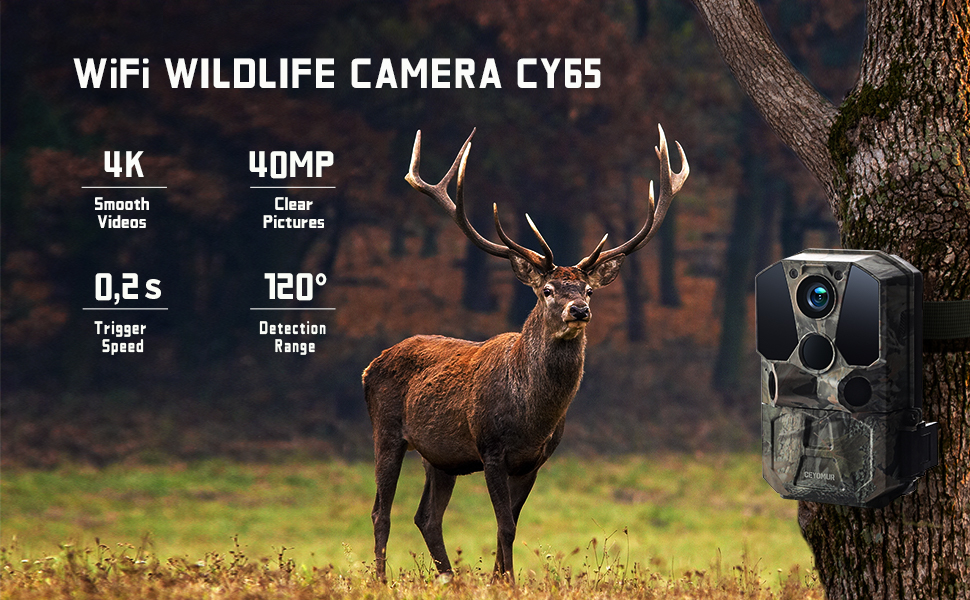
Image: Remote operation of the camera via a smartphone app, showing live view and wireless transmission.
4.3 Motion Detection and Trigger Speed
Equipped with three upgraded Passive Infrared (PIR) sensors, the camera offers a wide 120-degree detection angle and a rapid 0.2-second trigger speed. This ensures that motion is detected quickly and accurately, capturing fast-moving subjects effectively.

Image: Visual representation of the camera's broad 120-degree detection range.

Image: Illustrates the fast 0.2-second trigger speed, capable of capturing quick movements.
4.4 Night Vision
The camera is equipped with 36 infrared LEDs, providing clear black and white images and videos at night without emitting a visible flash that could disturb wildlife. The night vision range is up to 10 meters.

Image: Comparison of day and night capture, showcasing the camera's 40MP resolution and effective night vision.
5. Maintenance
5.1 Waterproof Design
The CEYOMUR CY65 features an IP66 waterproof design, protecting it from dust, rain, and snow. Ensure the camera casing is always securely closed to maintain this protection.

Image: The camera demonstrating its IP66 waterproof capability in a wet environment.
5.2 Cleaning and Storage
- Wipe the lens and sensors regularly with a soft, dry cloth to ensure clear image quality.
- Avoid using abrasive cleaners or solvents.
- When not in use for extended periods, remove the batteries and store the camera in a cool, dry place.
6. Troubleshooting
6.1 Common Issues and Solutions
- Camera not powering on: Check battery installation and ensure batteries are fully charged or new.
- Poor image/video quality: Clean the lens and ensure the camera is securely mounted to prevent movement. Verify settings for resolution and night vision.
- Motion detection issues: Adjust PIR sensitivity settings. Ensure no obstructions are blocking the sensors.
- WiFi connection problems: Ensure you are within the 7-10 meter range. Restart the camera and your smartphone. Verify the WiFi password.
- SD card errors: Ensure the SD card is correctly inserted and formatted (FAT32 recommended). Try a different SD card if issues persist.
7. Specifications
| Feature | Specification |
|---|---|
| Model Name | CY65 |
| Photo Resolution | 40MP |
| Video Resolution | 4K (3840x2160), 1296p, 1080p @ 30fps |
| Trigger Speed | 0.2 seconds |
| Detection Angle | 120 degrees (3 PIR sensors) |
| Night Vision Range | 10 meters (36 infrared LEDs) |
| Water Resistance | IP66 Waterproof |
| Connectivity | Wi-Fi, Bluetooth (App Control) |
| Power Source | 8x AA Batteries (not included) |
| Dimensions (L x W x H) | 9.65 x 13.97 x 7.87 cm |
| Weight | 570 grams |
| Storage | SD Card (up to 128GB, not included) |
| Mounting Type | Wall Mount |
8. Warranty and Support
CEYOMUR products are designed for reliability and performance. For specific warranty details, please refer to the warranty information provided with your purchase or visit the official CEYOMUR website. If you encounter any issues or require technical assistance, please contact CEYOMUR customer support through the contact information provided in your product documentation or on the official website.


