Introduction
This manual provides essential information for setting up, operating, maintaining, and troubleshooting your HP Pavilion Desktop PC TP01-2022. Designed for reliable performance, this desktop features an AMD Ryzen 7 5700G processor, 16 GB RAM, and a 512 GB SSD, running on Windows 11 Pro. It includes Wi-Fi 5 and Bluetooth connectivity, along with multiple USB ports for versatile use.
1. Setup
1.1 Unpacking the System
Carefully remove all components from the packaging. Ensure the following items are present:
- HP Pavilion Desktop PC TP01-2022 Tower
- USB Wired Keyboard
- USB Wired Mouse
- Power Cable
- Documentation
1.2 Connecting Peripherals
Before powering on your desktop, connect all necessary peripherals.
- Monitor: Connect your monitor to the appropriate video output port (HDMI, VGA) on the rear of the desktop.
- Keyboard and Mouse: Plug the USB wired keyboard and mouse into any available USB ports. The desktop features 9 USB ports, including 4 SuperSpeed USB Type-A, 1 SuperSpeed USB Type-C, and 4 USB 2.0 Type-A ports.
- Power: Connect the power cable to the desktop's power input and then to a wall outlet.
- Network (Optional): For a wired internet connection, connect an Ethernet cable from your router to the Ethernet port on the rear of the desktop.
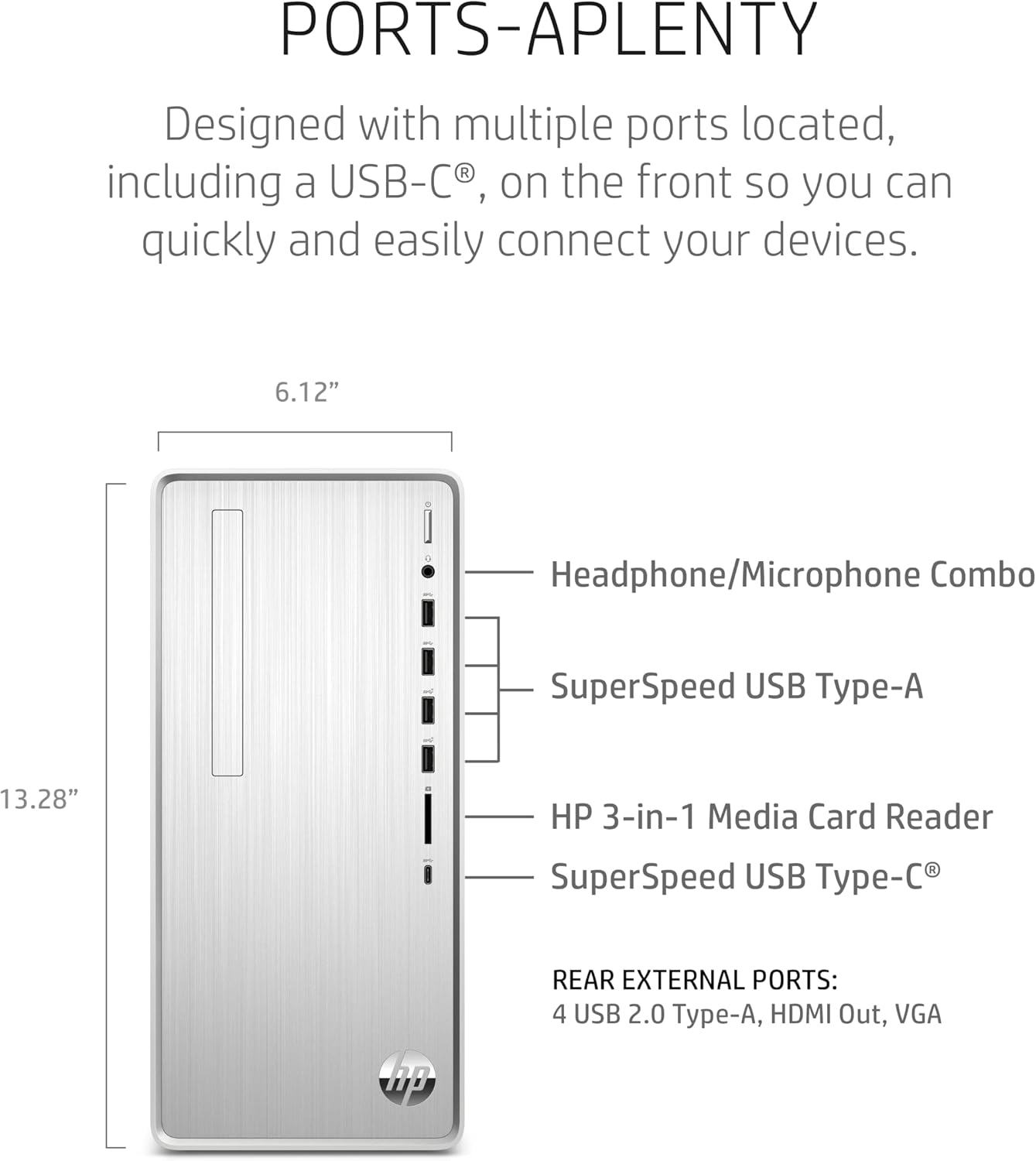
Image: Front view of the HP Pavilion Desktop PC, highlighting the various front-facing ports including headphone/microphone combo, SuperSpeed USB Type-A, HP 3-in-1 Media Card Reader, and SuperSpeed USB Type-C.
1.3 Initial Power On
Press the power button located on the front of the desktop. The system will boot up, and you will be guided through the initial Windows 11 Pro setup process.
2. Operating Instructions
2.1 Windows 11 Pro Overview
Your HP Pavilion Desktop PC comes pre-installed with Windows 11 Pro. This operating system offers a redesigned user interface, enhanced productivity features, and improved security. Explore the Start menu, Snap Layouts, and Widgets for a personalized computing experience.
2.2 Wireless Connectivity
The desktop supports Wi-Fi 5 (802.11ac) and Bluetooth connectivity.
- Wi-Fi: To connect to a wireless network, click the Wi-Fi icon in the taskbar, select your network, and enter the password.
- Bluetooth: To pair Bluetooth devices, go to Settings > Bluetooth & devices, turn on Bluetooth, and select your device to pair.

Image: The HP Pavilion Desktop PC setup, including the tower, monitor displaying Windows 11, keyboard, and mouse. Icons below indicate AMD Ryzen 7 5700G Processor, Wi-Fi 5 & Bluetooth, and Windows 11 Pro.
2.3 HP QuickDrop
HP QuickDrop allows for seamless wireless transfer of photos, videos, documents, and other files between your HP PC and mobile devices (iOS and Android). Download the HP QuickDrop app on your mobile device and follow the on-screen instructions to pair with your desktop.
3. Maintenance
3.1 Software Updates
Regularly update your Windows operating system and drivers to ensure optimal performance and security. Windows 11 Pro automatically checks for updates, but you can manually check via Settings > Windows Update.
3.2 Physical Cleaning
Keep your desktop clean to prevent dust buildup, which can affect performance and longevity.
- Use a soft, lint-free cloth to wipe the exterior surfaces.
- For vents, use compressed air to gently remove dust.
- Avoid using liquid cleaners directly on components.
4. Troubleshooting
This section addresses common issues you might encounter.
4.1 No Power
- Ensure the power cable is securely connected to both the desktop and the wall outlet.
- Verify the wall outlet is functional by plugging in another device.
4.2 No Display on Monitor
- Check that the monitor is powered on and the video cable is firmly connected to both the desktop and the monitor.
- Ensure the correct input source is selected on your monitor.
4.3 Wi-Fi or Bluetooth Connectivity Issues
- Restart your router/modem and the desktop.
- Check Windows settings to ensure Wi-Fi or Bluetooth is enabled.
- Ensure your desktop is within range of the wireless access point or Bluetooth device.
4.4 System Performance Issues
- Close unnecessary applications running in the background.
- Ensure your operating system and drivers are up to date.
- Check for malware or viruses using reputable antivirus software.
5. Specifications
Detailed technical specifications for the HP Pavilion Desktop PC TP01-2022.
| Feature | Specification |
|---|---|
| Processor | AMD Ryzen 7 5700G (3.8 GHz) |
| RAM | 16 GB DDR4 |
| Memory Speed | 3.8 GHz |
| Hard Drive | 512 GB SSD (PCIe NVMe M.2) |
| Graphics Coprocessor | AMD Radeon Graphics (Integrated) |
| Chipset Brand | AMD |
| Wireless Type | 802.11a/b/g/n/ac (Wi-Fi 5), Bluetooth |
| USB 2.0 Ports | 4 |
| USB 3.0 Ports | 5 (including 1 USB Type-C) |
| Operating System | Windows 11 Pro |
| Item Weight | 13.14 pounds |
| Product Dimensions (LxWxH) | 11.97 x 6.12 x 13.28 inches |
| Color | Natural silver |
| Audio | 5.1 Surround Sound support |
6. Warranty and Support
6.1 Limited Hardware Warranty
Your HP Pavilion Desktop PC TP01-2022 is covered by a 1-year limited hardware warranty from the date of purchase. This warranty covers manufacturing defects and hardware malfunctions under normal use. Please retain your proof of purchase for warranty claims.
6.2 Technical Support
For technical assistance, driver downloads, or further information, please visit the official HP Support website. You can also find contact information for HP customer service there.
Note: Damage resulting from misuse, accidents, or unauthorized modifications is not covered under the standard warranty. Optional HP Accidental Damage Protection Care Packs may be available for extended coverage.