
Introduction
The DYMO LabelWriter 550 is a direct thermal label printer designed for quick, accurate, and effortless label printing. It features automatic label recognition, allowing users to instantly see the label size, type, color, and remaining quantity. This printer eliminates the need for ink or toner, offering a compact solution for various labeling needs, including address labels, shipping labels, and barcode labels. It is compatible with both PC and Mac systems.
Setup
1. Unboxing the Printer
Carefully remove all components from the packaging. The box should contain the DYMO LabelWriter 550 printer, a power adapter, a USB cable, and a starter roll of labels.
2. Connecting the Printer
- Connect the power adapter to the printer's power port and then plug it into a wall outlet.
- Connect the USB cable to the printer's USB port and the other end to an available USB port on your computer.
3. Software Installation
Download and install the DYMO Connect for Desktop software from the official DYMO website. Follow the on-screen instructions to complete the installation for your PC or Mac.
4. Loading Labels
- Open the printer lid.
- Place the label roll onto the spindle, ensuring the labels feed from underneath the roll.
- Insert the label roll and spindle into the label compartment. The labels should align with the feed slot.
- Feed the first label into the slot until the printer automatically grips it.
- Close the printer lid. The printer will automatically recognize the label type and size.
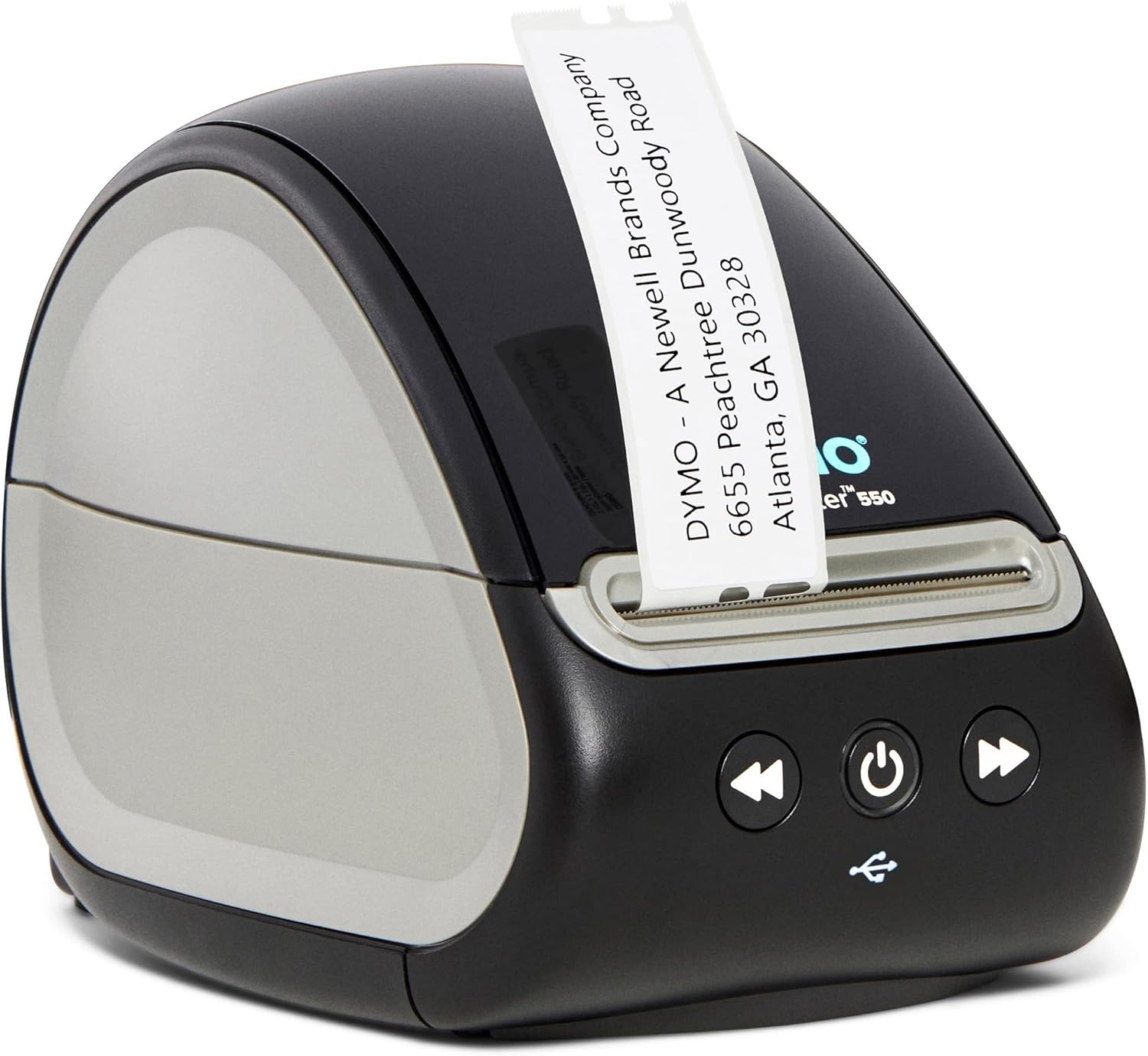
Image: The DYMO LabelWriter 550 with its lid open, showing a roll of labels correctly inserted and ready for use.
Operating the Printer
1. Automatic Label Recognition
The LabelWriter 550 features automatic label recognition. Once a label roll is loaded, the printer identifies the label's size, type, and color. The DYMO Connect software will display this information, along with the number of remaining labels, to prevent running out during a print job.

Image: A laptop displaying the DYMO Connect software interface, showing a pop-up notification for automatic label type detection and the quantity of labels remaining.
2. Creating and Customizing Labels
Use the DYMO Connect for Desktop software to design your labels. The software allows you to customize text, fonts, sizes, and add various elements like barcodes or images. You can create over 60 different label types.

Image: A workstation showing the DYMO LabelWriter 550 printer next to a computer monitor, which displays the DYMO Connect software with various label design options.
3. Printing Labels
Once your label design is complete in the DYMO Connect software, click the 'Print' button. The printer will quickly produce your labels using direct thermal printing technology, which means no ink or toner is required.
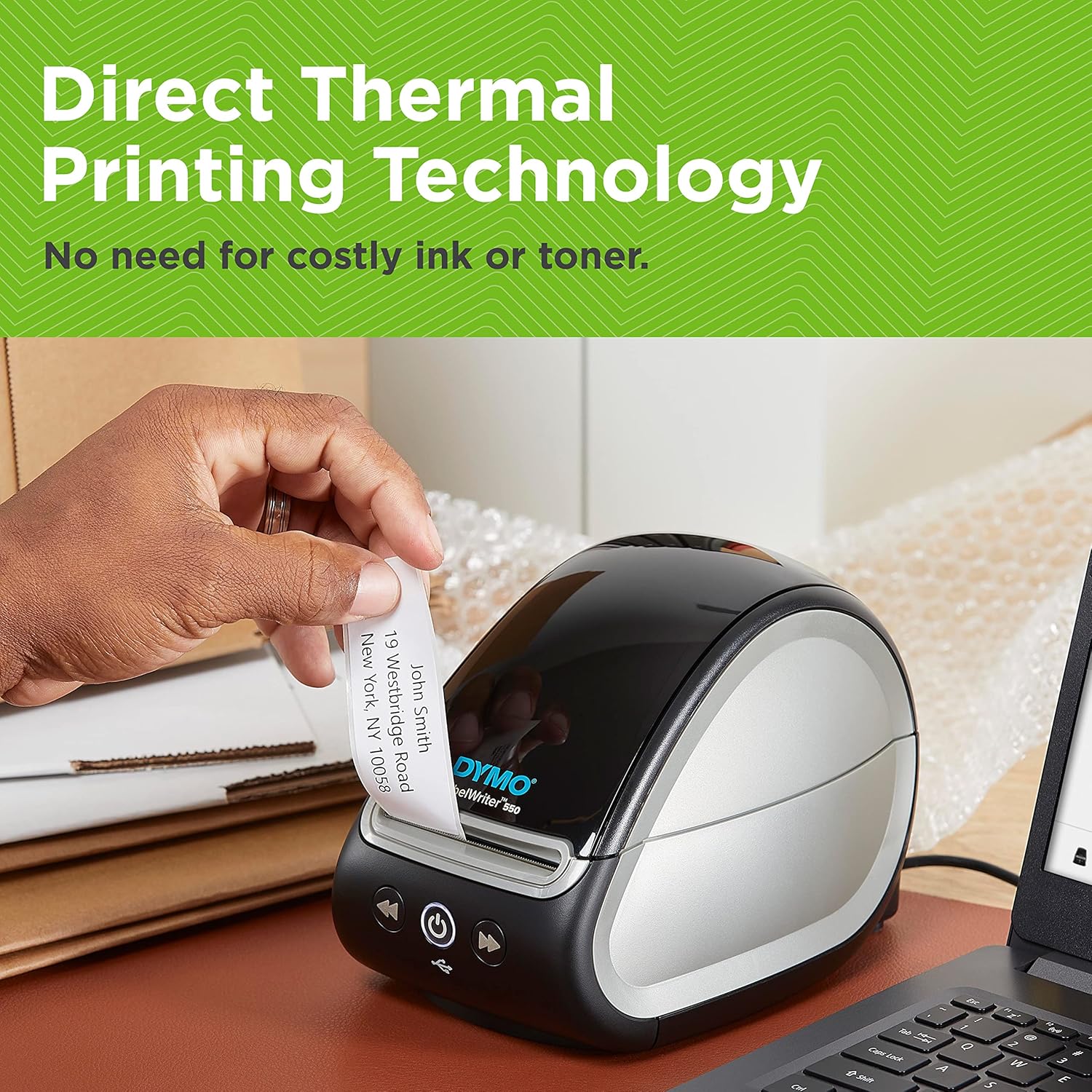
Image: A close-up of the DYMO LabelWriter 550 printer, demonstrating the direct thermal printing process as a label emerges from the output slot.
4. Label Compatibility
The DYMO LabelWriter 550 is designed to work exclusively with authentic DYMO LabelWriter labels. Using non-authentic labels may result in recognition issues or suboptimal print quality.

Image: Multiple DYMO LabelWriter printers on a desk, highlighting the requirement for authentic DYMO labels to ensure proper operation and avoid waste.
Maintenance
1. General Care
Keep the printer clean and free from dust. Use a soft, dry cloth to wipe the exterior. Avoid using abrasive cleaners or solvents.
2. Cleaning the Print Head
If print quality degrades, the print head may need cleaning. Refer to the DYMO Connect software or the official DYMO support website for specific instructions on how to clean the print head using a cleaning card (if applicable) or a lint-free cloth with isopropyl alcohol.
3. Label Roll Replacement
When the label roll is depleted, replace it by following the 'Loading Labels' instructions in the Setup section. Ensure the new roll is correctly seated for automatic recognition.
Troubleshooting
1. Printer Not Recognized
- Ensure the USB cable is securely connected to both the printer and the computer.
- Verify the printer is powered on (the power light should be illuminated).
- Try connecting the printer to a different USB port on your computer.
- Restart your computer and the printer.
2. Labels Not Feeding or Printing Correctly
- Check that the label roll is loaded correctly and the first label is fed into the print slot.
- Ensure you are using authentic DYMO LabelWriter labels. The printer may not recognize or properly feed non-authentic labels.
- Clean the print head if print quality is poor or labels are smudged.
3. Software Issues
- If the DYMO Connect software is not detecting the printer or experiencing errors, try reinstalling the software.
- Ensure your operating system and DYMO Connect software are up to date.
Specifications
| Feature | Specification |
|---|---|
| Brand | DYMO |
| Model Name | 2112722 (LabelWriter 550) |
| Printing Technology | Thermal |
| Connectivity Technology | USB |
| Printer Output | Monochrome |
| Max Print Speed Monochrome | 65 labels per minute |
| Maximum Black and White Print Resolution | 300 dpi |
| Product Dimensions | 7.36 x 4.99 x 5.34 inches (18.7 x 12.7 x 13.6 cm) |
| Item Weight | 2.2 pounds (1 kg) |
| Memory Storage Capacity | 64 MB |
| Supported Media Sizes | Various, including 62 x 89 millimeters |
| Included Components | Labels |
Warranty
The DYMO LabelWriter 550 comes with a limited warranty. For detailed information regarding warranty terms, coverage, and duration, please refer to the documentation included with your product or visit the official DYMO support website.
Support
For further assistance, technical support, or to access additional resources such as FAQs and software updates, please visit the official DYMO support website. You can also find contact information for customer service there.


