
Introduction
This manual provides detailed instructions for the Logitech Rally Bar Remote Control, Model 952-000057. This Bluetooth-enabled remote is designed to enhance your control over the Logitech Rally Bar Video Conferencing System, offering convenient access to various functions from a distance. Please read this manual thoroughly before using your remote control to ensure proper operation and to maximize its lifespan.
Package Contents:
- Logitech Rally Bar Remote Control (Model 952-000057)
Setup
1. Battery Installation
- Locate the battery compartment cover on the back of the remote control.
- Slide the cover downwards or press the latch to open it.
- Insert two AAA batteries (not included) into the compartment, ensuring the positive (+) and negative (-) terminals align correctly with the indicators.
- Replace the battery compartment cover, ensuring it clicks securely into place.
2. Bluetooth Pairing
To connect your remote control to the Logitech Rally Bar Video Conferencing System:
- Ensure the Logitech Rally Bar is powered on and in pairing mode. Refer to the Rally Bar's user manual for specific instructions on enabling Bluetooth pairing.
- On the remote control, press and hold the Bluetooth Pairing button (often indicated by a Bluetooth symbol) for approximately 3-5 seconds until an indicator light on the remote begins to flash. This indicates the remote is in pairing mode.
- Follow the on-screen prompts on the display connected to your Rally Bar to complete the pairing process. The indicator light on the remote will stop flashing and remain solid once successfully paired.
- If pairing fails, ensure the remote is within range of the Rally Bar and repeat the steps.
Operating the Remote Control
The Logitech Rally Bar Remote Control features 14 buttons designed for intuitive control of your video conferencing experience. Below is an overview of the remote and its typical button functions.
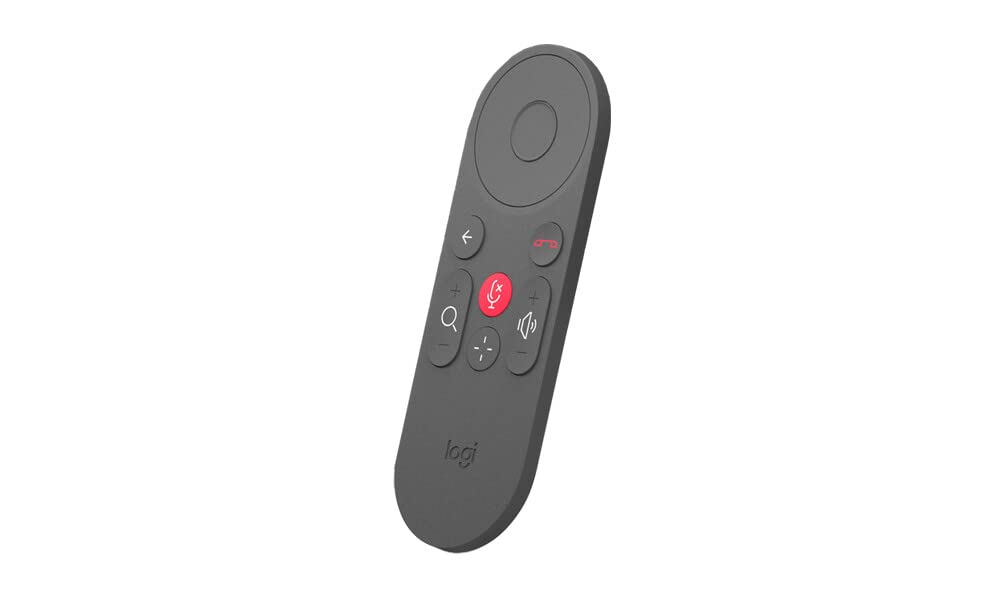
This image displays the Logitech Rally Bar Remote Control, highlighting its various buttons for controlling video conferencing functions.
Button Functions (Typical)
- Power Button: Turns the Rally Bar system on or off.
- Call Answer/End: Initiates or terminates a video call.
- Volume Up/Down: Adjusts the audio output volume.
- Mute Microphone: Toggles the microphone mute function.
- Camera Pan/Tilt/Zoom (PTZ) Controls: Directional buttons (Up, Down, Left, Right) for camera movement, and dedicated buttons for zooming in or out.
- Home/Menu Button: Accesses the main menu or returns to the home screen of the Rally Bar interface.
- Navigation Buttons (Arrow Keys & OK/Select): Used to navigate through menus and select options on the screen.
- Bluetooth Pairing Button: Initiates Bluetooth pairing mode (as described in the Setup section).
- Preset Buttons (if available): Quickly recall pre-configured camera positions.
Specific button functionalities may vary slightly depending on the firmware version of your Logitech Rally Bar. Refer to the Rally Bar's on-screen interface for precise button mapping.
Maintenance
Cleaning
To clean your remote control, use a soft, dry, lint-free cloth. For stubborn dirt, slightly dampen the cloth with water. Avoid using abrasive cleaners, solvents, or aerosol sprays, as these can damage the remote's surface and internal components.
Battery Replacement
When the remote control's performance degrades or the indicator light signals low battery, replace the batteries following the steps outlined in the "Battery Installation" section. Always use fresh, high-quality AAA batteries and dispose of old batteries responsibly according to local regulations.
Troubleshooting
- Remote is unresponsive:
- Check if the batteries are correctly installed and have sufficient charge. Replace them if necessary.
- Ensure there are no obstructions between the remote control and the Logitech Rally Bar.
- Verify that the remote is within the effective Bluetooth range (typically up to 10 meters or 33 feet).
- Remote does not pair with Rally Bar:
- Ensure the Rally Bar's Bluetooth is enabled and in pairing mode.
- Restart both the Rally Bar and the remote control (by removing and reinserting batteries).
- Attempt the pairing process again as described in the "Bluetooth Pairing" section.
- If other Bluetooth devices are nearby, temporarily disable their Bluetooth to avoid interference.
- Buttons are not performing expected functions:
- Confirm that the remote is correctly paired with the Rally Bar.
- Check the Rally Bar's on-screen interface or user manual for any specific button remapping or context-sensitive functions.
- Ensure the Rally Bar's firmware is up to date.
If you continue to experience issues, refer to the Logitech support website for further assistance.
Specifications
| Feature | Description |
|---|---|
| Brand | Logitech |
| Model Name | 952-000057 |
| Compatible Devices | Logitech Rally Bar Video Conferencing System |
| Controller Type | Remote Controller |
| Connectivity Technology | Bluetooth |
| Additional Features | Wireless |
| Button Quantity | 14 |
| Power Source | Battery Powered (2x AAA, not included) |
| Item Weight | 100 Grams |
| Item Dimensions (L x W x H) | 1.18 x 5.12 x 1.97 inches |
| Color | Graphite |
Warranty and Support
Warranty Information
The Logitech Rally Bar Remote Control (Model 952-000057) is covered by a 1-Year Limited Hardware Warranty from the date of purchase. This warranty covers defects in materials and workmanship under normal use. It does not cover damage caused by accidents, misuse, unauthorized modifications, or external causes such as drops or liquid exposure.
Please retain your proof of purchase for warranty claims.
Customer Support
For technical assistance, warranty claims, or further information regarding your Logitech Rally Bar Remote Control, please visit the official Logitech support website. You can find FAQs, troubleshooting guides, and contact information for customer service there.


