
Lenovo 62CAUAT1WL
Lenovo ThinkVision M15 15" FHD Mobile Monitor User Manual
Model: 62CAUAT1WL
1. Introduction
Thank you for choosing the Lenovo ThinkVision M15 Mobile Monitor. This ultra-portable 15.6-inch Full HD (FHD) display is designed to enhance your productivity by providing additional screen space for your laptop or compatible devices via a single USB-C connection. Its lightweight and slim design makes it an ideal companion for mobile professionals. This manual provides comprehensive instructions for setting up, operating, maintaining, and troubleshooting your ThinkVision M15 monitor.

Figure 1: Lenovo ThinkVision M15 Mobile Monitor, front view.
2. Safety Information
Please read all safety instructions carefully before using the monitor.
- Do not expose the monitor to rain or moisture.
- Do not disassemble the monitor. Refer all servicing to qualified service personnel.
- Avoid placing the monitor in direct sunlight or near heat sources.
- Use only the power adapter and cables provided or recommended by Lenovo.
- Clean the screen with a soft, lint-free cloth. Do not use liquid cleaners or aerosol cleaners directly on the screen.
3. Package Contents
Verify that all items are present in your package:
- Lenovo ThinkVision M15 Mobile Monitor
- USB-C to USB-C Cable
- Protective Sleeve
- Quick Start Guide (This manual serves as a detailed guide)
4. Product Overview
Familiarize yourself with the components and ports of your ThinkVision M15 monitor.

Figure 2: Left side view showing USB-C port and brightness controls.

Figure 3: Right side view showing power button and another USB-C port.
- USB-C Ports (x2): Used for video input, power delivery, and power pass-through.
- Power Button: Turns the monitor on or off.
- Brightness Controls: Adjusts the screen brightness.
- Adjustable Stand: Integrated stand allows for tilt adjustment from 0 to 90 degrees and height adjustment.
5. Setup
Follow these steps to set up your ThinkVision M15 monitor:
- Unpack the Monitor: Carefully remove the monitor and all accessories from the packaging.
- Position the Monitor: Place the monitor on a stable, flat surface. Adjust the integrated stand to your desired viewing angle.
- Connect to a Device:
- Connect one end of the provided USB-C cable to either USB-C port on the ThinkVision M15.
- Connect the other end of the USB-C cable to a compatible USB-C port on your laptop, smartphone, or other device that supports DisplayPort Alternate Mode (Alt Mode) and power delivery.
- Power On: Press the Power Button on the monitor. The monitor should automatically detect the signal from your connected device.
- Power Pass-Through (Optional): If your laptop requires charging, you can connect your laptop's USB-C power adapter to the other USB-C port on the ThinkVision M15. This allows the monitor to power itself and pass power through to your laptop using a single adapter.
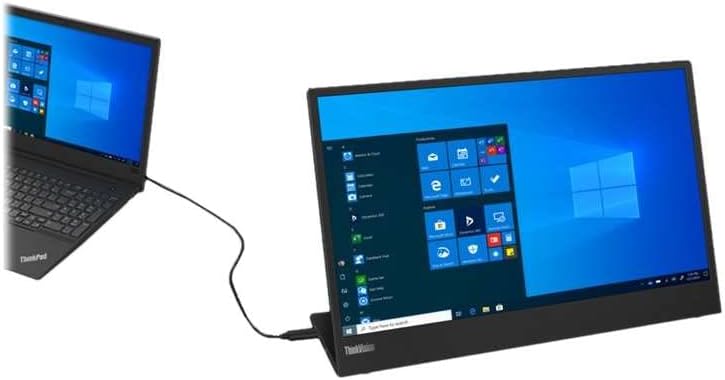
Figure 4: ThinkVision M15 connected to a laptop via USB-C, extending the display.
6. Operating the Monitor
Once connected, your ThinkVision M15 operates as an extended or mirrored display.
6.1 Display Modes
Your operating system (Windows, macOS, Android, etc.) controls how the external display functions.
- Extend Display: The monitor acts as a separate screen, allowing you to drag windows between your primary display and the ThinkVision M15.
- Duplicate Display (Mirror): The monitor shows the exact same content as your primary display.
- Second Screen Only: Only the ThinkVision M15 displays content, while your primary display is turned off.
Refer to your device's operating system display settings to configure these modes.
6.2 Adjusting Brightness
Use the dedicated brightness buttons on the side of the monitor to increase or decrease the screen brightness.
7. Maintenance
Proper care ensures the longevity of your ThinkVision M15 monitor.
- Cleaning the Screen: Gently wipe the screen with a soft, dry, lint-free cloth. For stubborn smudges, lightly dampen the cloth with water. Do not spray cleaning solutions directly onto the screen.
- Cleaning the Casing: Use a soft, damp cloth to wipe the monitor's casing. Avoid abrasive cleaners.
- Storage: When not in use, store the monitor in its protective sleeve to prevent scratches and dust accumulation.
- Handling: Always handle the monitor by its edges. Avoid applying pressure directly to the screen.
8. Troubleshooting
If you encounter issues with your ThinkVision M15, refer to the following common problems and solutions.
| Problem | Possible Cause | Solution |
|---|---|---|
| No display/Black screen |
|
|
| Flickering screen |
|
|
| No power pass-through |
|
|
9. Specifications
Detailed technical specifications for the Lenovo ThinkVision M15 Mobile Monitor.
| Feature | Detail |
|---|---|
| Model Number | 62CAUAT1WL |
| Screen Size | 15.6 inches |
| Panel Type | IPS |
| Resolution | 1920 x 1080 (FHD) |
| Aspect Ratio | 16:9 |
| Connectivity | 2 x USB-C (DisplayPort 1.2 Alt Mode, Power Delivery 3.0) |
| Weight | Approx. 860g (1.9 lbs) |
| Dimensions (HxWxD) | 360.0mm x 235.5mm x 10.0mm (14.17" x 9.27" x 0.39") |
| Color | Raven Black |
| Adjustable Stand | Tilt (0° to 90°), Height Adjustment |
10. Warranty and Support
Lenovo provides a standard limited warranty for the ThinkVision M15 Mobile Monitor. Please refer to the warranty card included with your product or visit the official Lenovo support website for detailed warranty terms and conditions specific to your region.
For technical support, driver downloads, or further assistance, please visit the Lenovo Support website: support.lenovo.com.