
1. Introduction
The XTOOL EZ400 Pro is a professional-grade diagnostic scan tool designed for comprehensive vehicle system analysis. This device offers advanced functionalities including bi-directional control, ECU coding, and a wide range of service functions, making it suitable for both automotive enthusiasts and professional technicians. This manual provides detailed instructions for setting up, operating, maintaining, and troubleshooting your EZ400 Pro device.
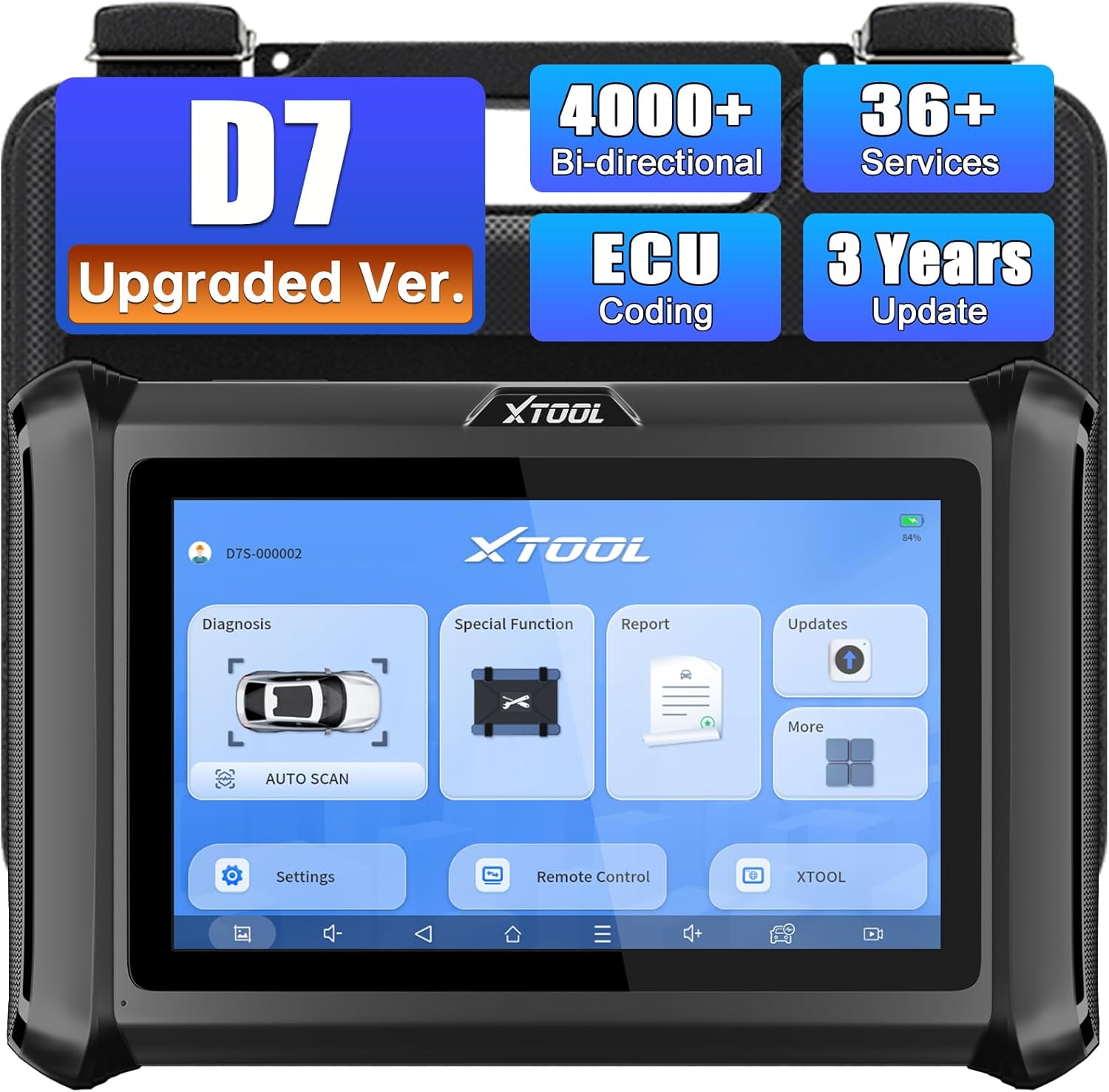
The XTOOL EZ400 Pro diagnostic scan tool, featuring a large color touchscreen. The screen shows options for Diagnosis, Special Function, Report, Updates, Settings, Remote Control, and XTOOL. Above the screen, labels indicate 'D7 Upgraded Ver.', '4000+ Bi-directional', 'ECU Coding', '36+ Services', and '3 Years Update'.
2. Setup
2.1 Unboxing and Initial Inspection
Upon receiving your XTOOL EZ400 Pro, carefully unpack all components from the hard-shell case. Verify that the following items are present:
- XTOOL EZ400 Pro main unit
- OBD-II 16-pin main cable
- Various diagnostic adapters (e.g., Honda, Kia, Toyota, Fiat, Suzuki, Hyundai, Mercedes round connector, BMW)
- USB charging cable (PlayStation 4 style connector)
- Power adapter with US and EU style connectors
- Certificate of Quality
2.2 Powering On and Wi-Fi Connection
To power on the device, press and hold the power button. The device will boot up to the main interface. Connect the EZ400 Pro to a stable Wi-Fi network to enable updates and remote access features. Navigate to Settings to configure Wi-Fi.
2.3 Charging the Device
The EZ400 Pro can be charged using the provided USB cable and power adapter. Connect the USB cable to the device's charging port and the power adapter to a suitable electrical outlet. When connected to a vehicle's OBD-II port, the device will draw power from the vehicle, preventing battery drain during diagnostic sessions.
3. Operating Instructions
3.1 Connecting to a Vehicle
- Locate the vehicle's OBD-II port, typically found under the dashboard on the driver's side.
- Connect the 16-pin main cable to the EZ400 Pro unit.
- Connect the other end of the 16-pin main cable to the vehicle's OBD-II port. For older vehicles or specific models, use the appropriate adapter from the included kit.
- Turn the vehicle's ignition to the "ON" position (where the dashboard lights illuminate, but the engine is not necessarily running).
3.2 Main Interface Overview
The main screen provides access to the primary functions of the EZ400 Pro:
- Diagnosis: Initiates vehicle system scanning and fault code retrieval.
- Special Function: Accesses various service and reset functions.
- Report: Views saved diagnostic reports.
- Updates: Manages software updates for vehicle models and system improvements.
- Settings: Configures device preferences, language, and units.
- Remote Control: Enables remote technical support via TeamViewer.
- XTOOL (More): Provides access to additional features like the XTOOL cloud browser.
3.3 Auto Scan Function
The Auto Scan feature automatically identifies the vehicle and scans all available electronic control modules (ECUs) for diagnostic trouble codes (DTCs). This provides a quick overview of the vehicle's health.
- From the main menu, select Diagnosis, then choose Auto Scan.
- The tool will attempt to identify the vehicle's make, model, and year. Confirm the vehicle information if prompted.
- The scan tool will then proceed to scan all detectible modules. The progress will be displayed on the screen.
- Once the scan is complete, a report will show detected modules and any associated fault codes.
Note: The number of detectible modules and supported functions can vary significantly between vehicle makes, models, and years. For optimal performance, ensure your software is up to date.
3.4 Special Functions (Service Resets)
The EZ400 Pro includes 16 built-in special functions for various service resets and adaptations. These functions are crucial for maintenance and repair tasks.
- Access these functions by selecting Special Function from the main menu.
- Examples of special functions include Oil Reset, EPB (Electronic Parking Brake) Reset, SAS (Steering Angle Sensor) Calibration, ABS Bleeding, Injector Coding, and more.
Important: Always verify the compatibility of specific special functions with your vehicle by contacting XTOOL support or consulting the official XTOOL website. Not all functions are supported on all vehicles.
3.5 Live Data Streaming
Live data allows you to view real-time parameters from the vehicle's ECUs, which is essential for diagnosing intermittent issues and monitoring system performance.
- After performing a diagnosis, select a specific module (e.g., Engine Control Module).
- Choose Live Data.
- Select the parameters you wish to monitor. You can view data in numerical, graphical, or combined formats.
- The EZ400 Pro supports monitoring over 250 data streams simultaneously, with graphing capabilities for up to four parameters at once.
3.6 Actuation Tests (Bi-directional Control)
Actuation tests allow the diagnostic tool to send commands to vehicle components to test their functionality, aiding in precise fault isolation.
- From a selected module's diagnostic menu, choose Actuation Test.
- Select the component you wish to test (e.g., water pump, window motor, fuel door actuator).
- Follow the on-screen prompts to activate or deactivate the component.
- Observe the component's response and any associated live data to confirm proper operation.
Caution: When performing actuation tests or programming, ensure the vehicle's battery voltage is stable and above 12 volts. Low voltage can lead to module damage or incomplete programming. Consider using a battery maintainer.
3.7 Reading and Clearing Trouble Codes
The EZ400 Pro can read and clear diagnostic trouble codes (DTCs) from various vehicle systems.
- After an Auto Scan or manual system selection, choose Read Trouble Codes to view current, pending, and historical DTCs.
- To clear codes, select Clear Trouble Codes. Confirm the action when prompted.
- After clearing, re-scan the system to ensure the codes do not immediately return, indicating a persistent issue.
4. Maintenance
- Software Updates: Regularly check for and install software updates via the Updates menu. Updates often include new vehicle coverage, bug fixes, and improved functionalities.
- Cleaning: Keep the device clean using a soft, dry cloth. Avoid abrasive cleaners or solvents.
- Storage: Store the EZ400 Pro in its protective hard-shell case when not in use to prevent damage.
- Battery Care: While the device draws power from the vehicle during use, ensure it is charged periodically when stored for extended periods to maintain battery health.
5. Troubleshooting
- Device Not Powering On: Ensure the battery is charged or connect the device to a vehicle's OBD-II port.
- No Communication with Vehicle:
- Verify the OBD-II cable is securely connected to both the tool and the vehicle.
- Ensure the vehicle's ignition is in the "ON" position.
- Check if the vehicle's battery is sufficiently charged.
- Confirm that the correct diagnostic adapter is being used for the vehicle, if applicable.
- Limited Module Detection / Unsupported Functions:
- Ensure the device software is fully updated.
- Vehicle coverage and specific function support vary by make, model, and year. Some advanced functions may not be available for all vehicles.
- Contact XTOOL support with your vehicle's VIN and the specific function you are attempting to perform to verify compatibility.
- Screen Unresponsive: Restart the device. If the issue persists, contact technical support.
6. Specifications
| Feature | Detail |
|---|---|
| Brand | XTOOL |
| Model Number | EZ400 Pro |
| Item Weight | 12.62 pounds |
| Package Dimensions | 16.9 x 15 x 6.1 inches |
| Power Source | Corded Electric (via OBD-II) |
| UPC | 789605297205 |
| Date First Available | September 8, 2021 |
7. Warranty and Support
The XTOOL EZ400 Pro comes with a two-year warranty, providing coverage for manufacturing defects and malfunctions under normal use. Additionally, the device includes three years of free software updates from the date of activation, ensuring access to the latest vehicle coverage and diagnostic features.
For technical assistance, warranty claims, or to inquire about specific vehicle compatibility and supported functions, please contact XTOOL customer support. It is recommended to provide your device's serial number and vehicle identification number (VIN) for efficient support.


