
Introduction
This manual provides detailed instructions for the setup, operation, maintenance, and troubleshooting of your Macally UCSLIMKEYCA USB-C Compact Wired Keyboard. Please read this manual thoroughly before using the product to ensure optimal performance and longevity.

Image: Top-down view of the Macally UCSLIMKEYCA USB-C Compact Wired Keyboard, highlighting its compact design and US layout.
Setup
The Macally UCSLIMKEYCA keyboard is designed for simple plug-and-play functionality. No additional drivers or software are required for installation.
Connecting the Keyboard
- Locate an available USB-C port on your computer (MacBook, iPad, PC, iMac, etc.).
- Plug the USB-C connector of the keyboard's 5-foot cable into the USB-C port on your device.
- The keyboard will be automatically recognized by your operating system and ready for use.
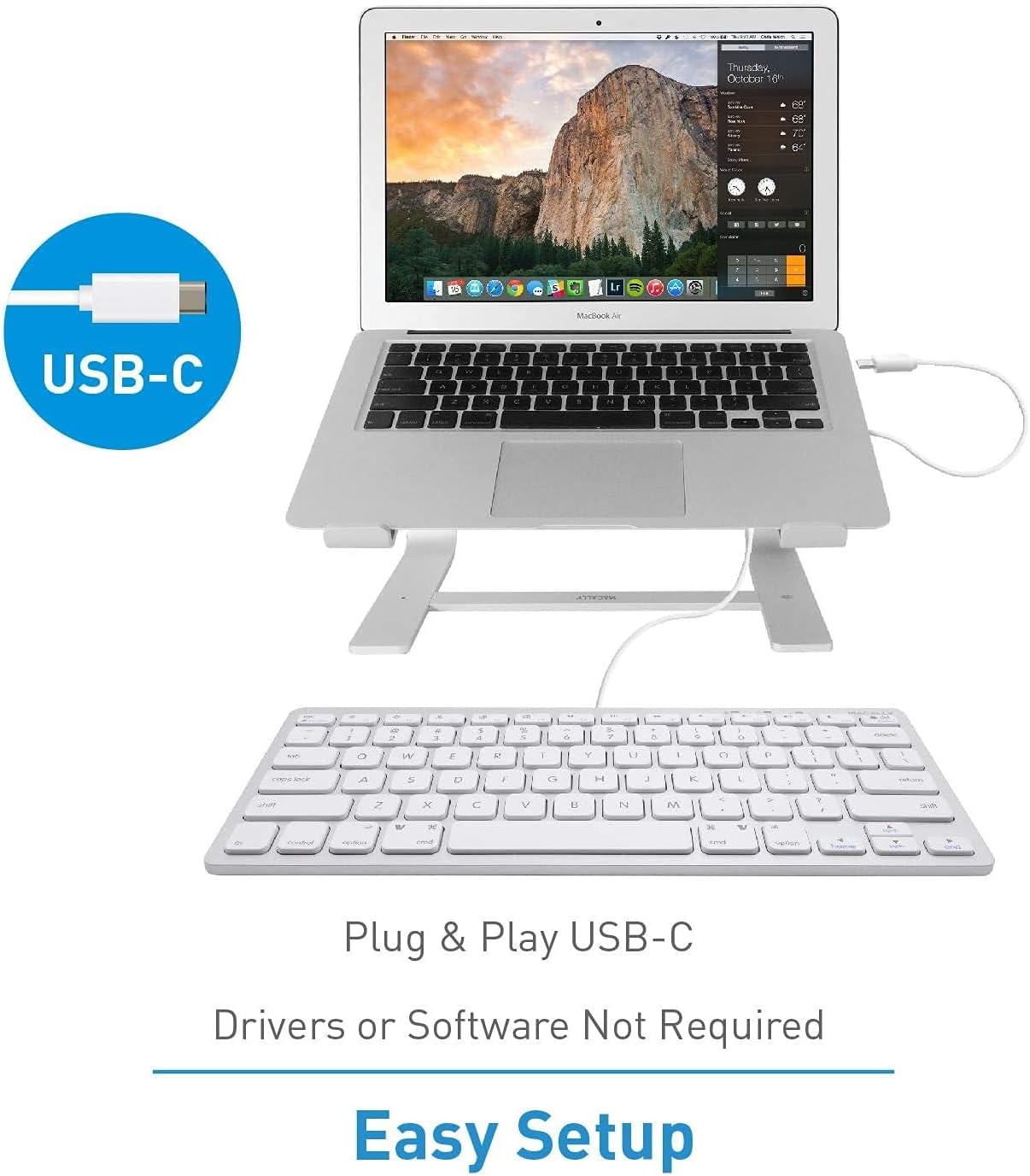
Image: A diagram illustrating the simple plug-and-play setup process using the USB-C connection, indicating no drivers or software are required.

Image: The Macally UCSLIMKEYCA keyboard connected to a laptop, demonstrating its use as an external input device.
System Compatibility
- Mac OS X v10.6 or later
- Windows 7/8/10 or later

Image: Icons illustrating the broad operating system compatibility of the keyboard, including Mac, Windows, Android, iPadOS, and Chrome.
Operating Instructions
Key Features
- 78-Key Layout: A compact yet full-featured layout for efficient typing.
- Scissor-Switch Keys: Provides a smooth, quiet, and responsive typing experience.
- 13 Shortcut Keys: Dedicated keys for enhanced productivity on both Mac and Windows systems.
- LED Indicators: Visual cues for Fn Lock, Caps Lock, and Power status.

Image: A diagram illustrating the difference between a regular key mechanism and a scissor-key switch, highlighting the quiet operation of the scissor-switch.
Shortcut Keys
The keyboard includes 13 convenient shortcut keys to streamline your workflow. These keys are compatible with both Apple and Windows PC functions.
- Mac Functions: Includes shortcuts for brightness control (dim/brighten), cut, copy, paste, iTunes controls (play/pause, previous track, next track), volume control (mute, volume up/down), and eject.
- Windows PC Functions: Multimedia shortcuts are also supported.

Image: A visual representation of the keyboard highlighting the 13 Apple shortcut keys and their corresponding functions, such as brightness, cut, copy, paste, media playback, and volume control.
LED Indicators
The keyboard features LED indicators located above the function keys to provide status information:
- Fn Lock: Indicates when the Function (Fn) key is locked, allowing direct access to F1-F12 keys without pressing Fn.
- Caps Lock: Indicates when Caps Lock is active.
- Power: Indicates power status (for some models, may also indicate connection).

Image: A close-up view of the keyboard's upper right section, showing the LED indicators for Fn Lock, Caps Lock, and Power.
Maintenance
To ensure the longevity and proper functioning of your keyboard, follow these maintenance guidelines:
- Cleaning: Use a soft, lint-free cloth slightly dampened with water or a mild cleaning solution to wipe the surface of the keyboard. Avoid harsh chemicals or abrasive materials.
- Dust Removal: Use compressed air to remove dust and debris from between the keys.
- Storage: When not in use, store the keyboard in a clean, dry environment away from extreme temperatures and direct sunlight.
- Avoid Spills: Keep liquids away from the keyboard to prevent damage to internal components.
Troubleshooting
If you encounter issues with your Macally UCSLIMKEYCA keyboard, please refer to the following common solutions:
Keyboard Not Responding
- Check Connection: Ensure the USB-C cable is securely plugged into both the keyboard and your computer's USB-C port.
- Try Another Port: Connect the keyboard to a different USB-C port on your computer to rule out a faulty port.
- Restart Computer: Sometimes, a simple restart of your computer can resolve connectivity issues.
- Test on Another Device: If possible, test the keyboard on another compatible computer to determine if the issue is with the keyboard or your original device.
Keys Not Functioning Correctly
- Clean Keys: Ensure there is no debris or foreign objects lodged under the affected keys. Refer to the Maintenance section for cleaning instructions.
- Software Issues: Check your operating system's keyboard settings to ensure no custom key mappings or accessibility features are interfering with normal operation.
Shortcut Keys Not Working
- OS Compatibility: Verify that your operating system version is supported for the specific shortcut functions.
- Application Focus: Ensure the application you are using supports the multimedia or system control shortcuts.
Specifications
| Brand | Macally |
| Model Number | UCSLIMKEYCA |
| Connectivity Technology | USB-C (Wired) |
| Compatible Devices | PC (Mac, Windows, iPad, iMac, MacBook) |
| Keyboard Description | Multifunction, Compact |
| Recommended Uses | Business, General Use |
| Special Feature | Silent Scissor-Switch Keys |
| Color | Silver |
| Product Dimensions (L x W x H) | 33 cm x 14 cm x 2 cm (13 x 5.5 x 0.8 inches approx.) |
| Material | Plastic |
| Minimum Required OS Version | Mac OS X 10.6 Snow Leopard, Windows 7 |
| Number of Keys | 78 |
| Keyboard Layout | QWERTY (US Layout) |
| Switch Type | Tactile (Scissor-Switch) |
| Hand Orientation | Ambidextrous |
| Item Weight | 0.34 Kilograms |
| Included Components | USB Cable |
| Country of Origin | China |

Image: A diagram illustrating the physical dimensions of the Macally UCSLIMKEYCA keyboard, showing its length, width, and height.
Warranty Information
The Macally UCSLIMKEYCA USB-C Compact Wired Keyboard comes with a 2-year limited warranty from the date of purchase. This warranty covers defects in materials and workmanship under normal use. It does not cover damage caused by accidents, misuse, unauthorized modifications, or external causes such as liquid damage or power surges.
For warranty claims, please retain your proof of purchase and contact customer support.
Customer Support
If you require further assistance or have questions not covered in this manual, please contact Macally customer support through the following channels:
- Website: Visit the official Macally website for FAQs, support resources, and contact forms.
- Email: Refer to your product packaging or the official website for customer support email addresses.
- Phone: Check the official Macally website for regional customer service phone numbers.
Please have your product model number (UCSLIMKEYCA) and proof of purchase ready when contacting support.
