
1. Introduction
This manual provides comprehensive instructions for the safe operation, setup, and maintenance of your le-idea IDEA36 GPS Drone. The IDEA36 is a sophisticated quadcopter equipped with a 4K camera, GPS positioning, brushless motors, and 5GHz WiFi FPV capabilities, designed for both beginners and experienced users. Please read this manual thoroughly before operating the drone to ensure proper function and safety.
2. Safety Precautions
Operating a drone requires attention to safety. Adhere to the following guidelines to prevent injury or damage.
- Always ensure the aircraft is fully charged before flight.
- Do not touch the aircraft while its flying.
- Do not fly near obstacles, people, or pets.
- Do not use if the aircraft is damaged or low on battery.
- Adult supervision is always recommended for users under 14 years of age.
- Please fly responsibly and adhere to local regulations.

Image: Back of the IDEA36 drone packaging, detailing safety warnings and product specifications.
3. Package Contents
Verify that all items are present in the package before first use.
- IDEA36 GPS Drone (x1)
- Remote Controller (x1)
- Intelligent Flight Battery (x2)
- Spare Propellers (x4)
- USB Charging Cable (x1)
- Screwdriver (x1)
- Storage Case (x1)
- User Manual (this document)

Image: Overview of the IDEA36 drone and its included accessories, neatly arranged.
4. Product Overview
The IDEA36 drone incorporates several advanced features for an enhanced flight experience.
4.1. 4K HD Camera with Adjustable Angle
The drone is equipped with a 4K HD camera, providing high-resolution images and videos. The camera features a 120° Field of View (FOV) lens and can be adjusted by 90° to capture a wider range of perspectives.
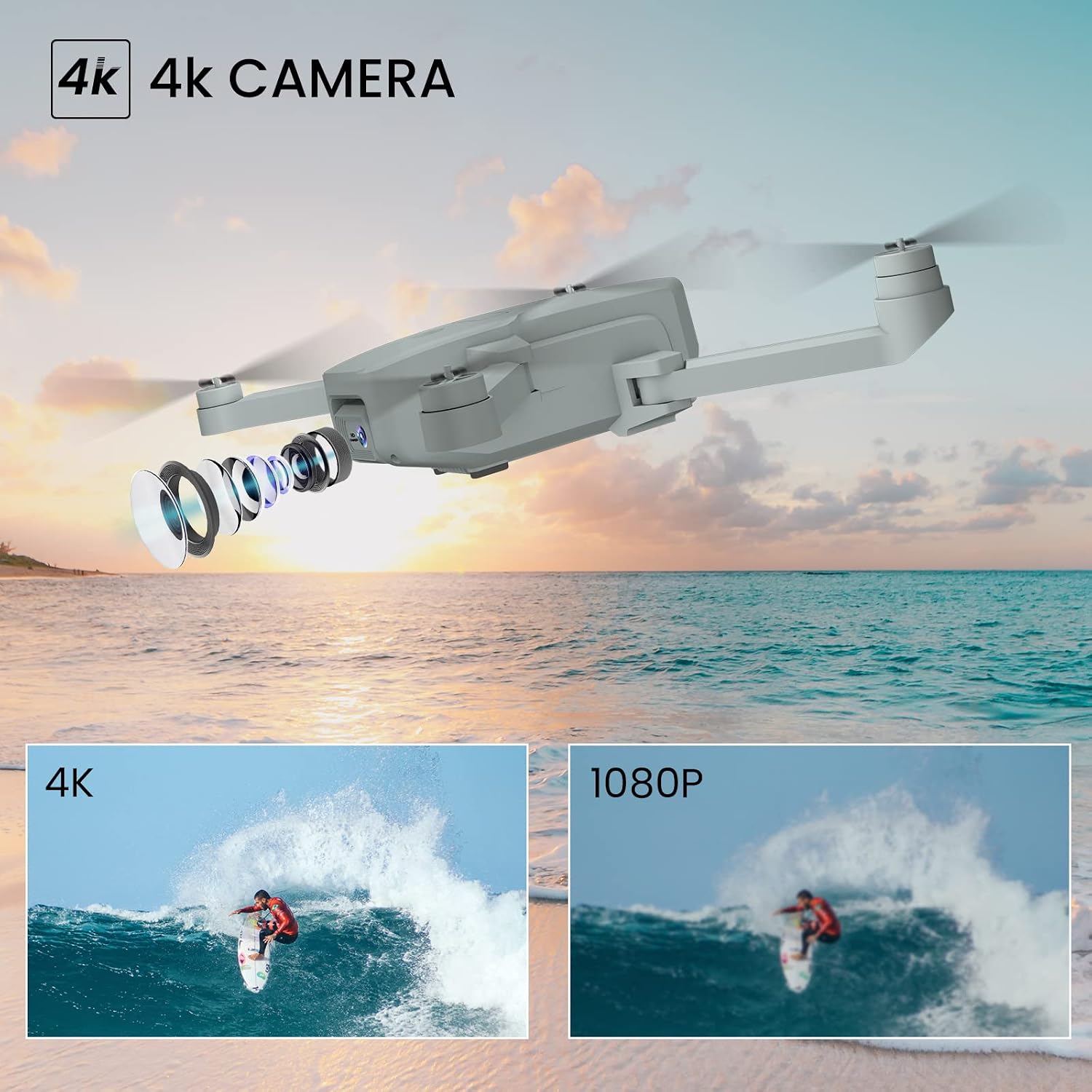
Image: Visual representation of the drone's 4K camera capabilities, highlighting image clarity compared to 1080P.
4.2. GPS Global Positioning System
Integrated GPS technology ensures stable flight and enables intelligent functions such as Auto Return Home. This feature allows the drone to automatically return to its take-off point in cases of low battery, signal loss, or manual activation.

Image: Depiction of the GPS Return to Home feature, showing the drone's flight path back to the user.
4.3. Brushless Motors
The IDEA36 is equipped with brushless motors, which provide greater power, stability, and efficiency compared to traditional brushed motors. They also offer a longer lifespan and quieter operation.

Image: Detailed view of the brushless motor, illustrating its benefits for drone performance.
4.4. Optical Flow Positioning
The optical flow positioning system, utilizing a second camera on the drone's underside, allows for precise hovering indoors and outdoors. This feature enhances stability and makes the drone easier to control, especially for beginners.

Image: Visual explanation of optical flow positioning, showing the drone maintaining a stable altitude.
4.5. 5GHz WiFi FPV Transmission
Experience real-time video transmission from the drone's camera to your smartphone via 5GHz WiFi. This provides a smooth and clear First Person View (FPV) for immersive flight.
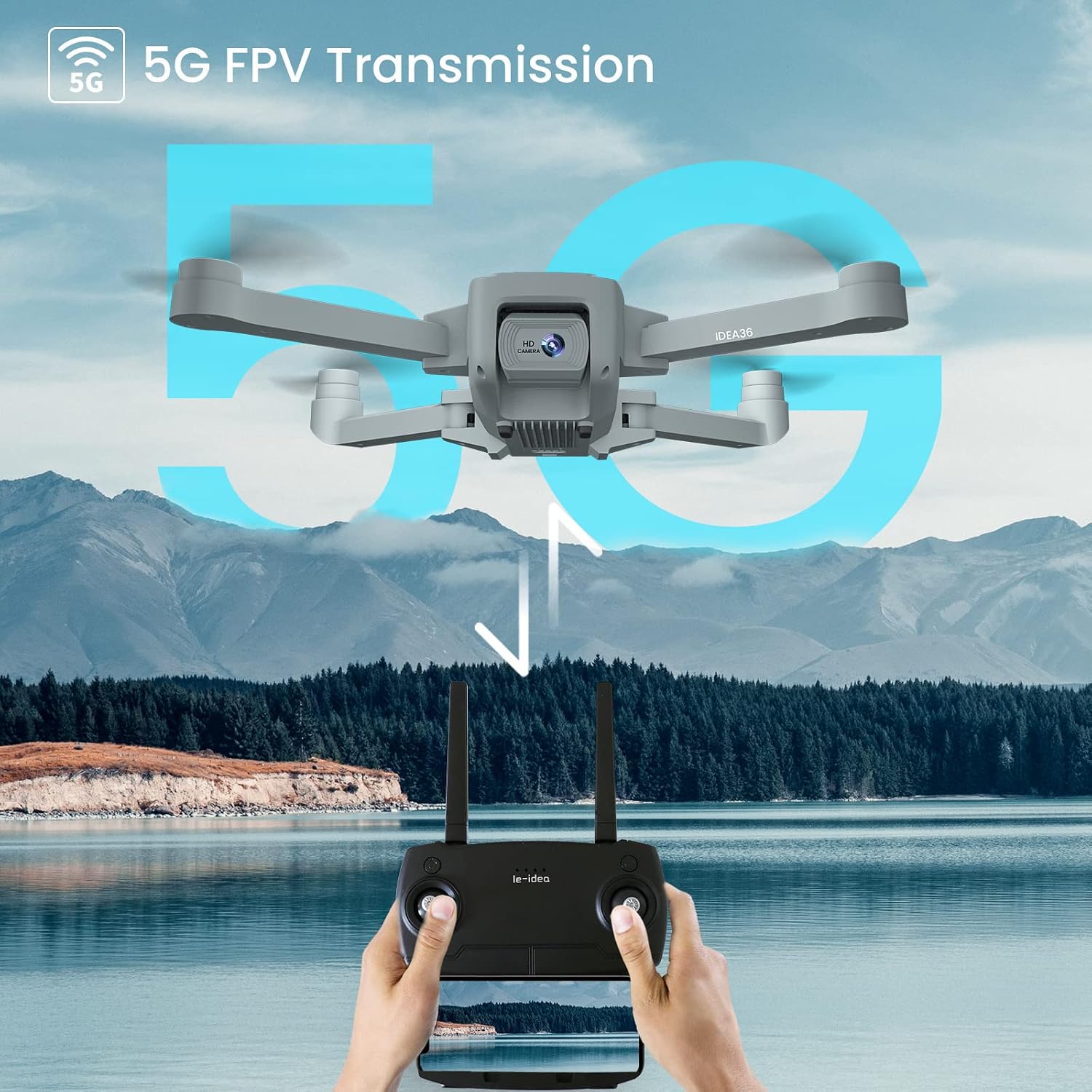
Image: Diagram showing the 5GHz FPV transmission setup, connecting the drone to the remote and smartphone.
5. Setup
5.1. Unfolding the Drone
- Gently unfold the front arms of the drone until they lock into place.
- Unfold the rear arms.
- Ensure all arms are fully extended and stable before flight.
5.2. Battery Installation and Charging
- Drone Battery: Insert the intelligent flight battery into the battery compartment on the drone until it clicks securely. To remove, press the release button and pull the battery out.
- Remote Controller Battery: Open the battery cover on the back of the remote controller and insert the required batteries (check specifications for type, usually AA). Close the cover.
- Charging: Connect the drone's intelligent flight battery to the USB charging cable. Connect the USB cable to a suitable USB power adapter (e.g., 5V/2A). The indicator light on the battery will show charging status. Ensure batteries are fully charged before each flight.
5.3. Propeller Installation (if required)
If propellers are not pre-installed or need replacement:
- Identify the 'A' and 'B' markings on the propellers and the corresponding motor arms.
- Attach propeller 'A' to motor 'A' and propeller 'B' to motor 'B'. Ensure they are securely fastened. Incorrect installation will prevent proper flight.
6. Operating Instructions
6.1. Powering On and Pairing
- Place the drone on a flat, open surface.
- Press and hold the power button on the drone until the indicator lights turn on.
- Turn on the remote controller. The controller will automatically attempt to pair with the drone.
- Once paired, the drone's indicator lights will become solid.
6.2. GPS Signal Acquisition
For optimal performance and access to GPS features, ensure the drone acquires a sufficient number of GPS satellites before take-off.
- Place the drone outdoors in an open area, away from tall buildings or interference.
- Wait for the GPS indicator on the remote or app to show a strong signal (usually 7+ satellites).
6.3. Take-off and Landing
- One-Key Take-off: Press the One-Key Take-off button on the remote controller. The drone will automatically ascend to a safe altitude and hover.
- Manual Take-off: Push both joysticks down and outwards to arm the motors. Slowly push the left joystick up to ascend.
- One-Key Landing: Press the One-Key Landing button. The drone will automatically descend and land gently.
- Manual Landing: Slowly pull the left joystick down to descend. Once landed, push both joysticks down and inwards to disarm the motors.
6.4. Flight Controls
Familiarize yourself with the remote controller's functions:
- Left Joystick: Controls altitude (up/down) and rotation (left/right).
- Right Joystick: Controls forward/backward and left/right movement.
- Refer to the remote controller diagram in the full manual for specific button layouts.
6.5. Camera Operation
To capture photos and videos:
- Ensure your smartphone is connected to the drone's 5GHz WiFi network and the le-idea app is open.
- Use the dedicated buttons on the remote controller or the app interface to take photos or start/stop video recording.
- Adjust the camera angle using the designated control on the remote or app.
6.6. Intelligent Flight Modes
- Auto Return Home (RTH): Press the RTH button on the remote. The drone will return to its recorded take-off point. This function also activates automatically on low battery or signal loss.
- Follow Mode: (If available via app) The drone will follow the remote controller or a designated subject. Refer to the app instructions for activation.
- Optical Flow Positioning: This system automatically maintains the drone's position and altitude, especially useful in areas with weak GPS signals or indoors.
7. Maintenance
- Cleaning: Use a soft, dry cloth to clean the drone and remote controller. Avoid using liquids or solvents.
- Propeller Inspection: Regularly check propellers for damage (cracks, bends). Replace damaged propellers immediately using the provided spare parts.
- Battery Care: Store batteries in a cool, dry place. Do not overcharge or over-discharge. If storing for extended periods, charge to approximately 50-60%.
- Storage: When not in use, store the drone and its accessories in the provided storage case to protect them from dust and physical damage.
8. Troubleshooting
| Problem | Possible Cause | Solution |
|---|---|---|
| Drone does not power on. | Battery not charged or not inserted correctly. | Ensure battery is fully charged and securely inserted. |
| Drone cannot pair with remote. | Drone or remote not powered on; too far apart; interference. | Ensure both are on and close to each other. Restart both devices. Avoid areas with strong interference. |
| Poor FPV video feed or no image. | Weak WiFi signal; incorrect app settings; phone not connected to drone's WiFi. | Ensure phone is connected to the drone's 5GHz WiFi. Fly within range. Restart app and drone. |
| Drone drifts during flight. | Not calibrated; strong wind; weak GPS signal. | Perform gyroscope calibration. Fly in calm conditions. Ensure strong GPS signal outdoors. |
| Auto Return Home not working. | Insufficient GPS signal; RTH point not recorded. | Ensure strong GPS signal (7+ satellites) before take-off. |
9. Specifications
| Feature | Detail |
|---|---|
| Model | IDEA36 |
| Brand | le-idea |
| Dimensions | 28.6 x 22 x 7.9 cm |
| Weight | 249 g |
| Camera Resolution | 4K (Video Capture) |
| Camera Adjustment | 90° Adjustable, 120° FOV |
| Motor Type | Brushless |
| FPV Frequency | 5GHz WiFi |
| Positioning System | GPS, Optical Flow Positioning |
| Batteries | 2 Lithium Ion batteries (included) |
| Special Features | Adjustable Camera, Auto Return, Integrated GPS, Optical Flow, Headless Mode, One-Key Lift/Land, Altitude Hold, Modular Battery, 3 Speed Modes, Photo/Video |
10. Warranty and Support
le-idea offers dedicated customer service to assist with any inquiries or issues you may encounter with your IDEA36 drone.
- Manufacturer: le-idea
- Customer Service: For support, please refer to the contact information provided on the product packaging or the official le-idea website.
- Warranty: Specific warranty terms and conditions may vary by region. Please retain your proof of purchase for warranty claims.
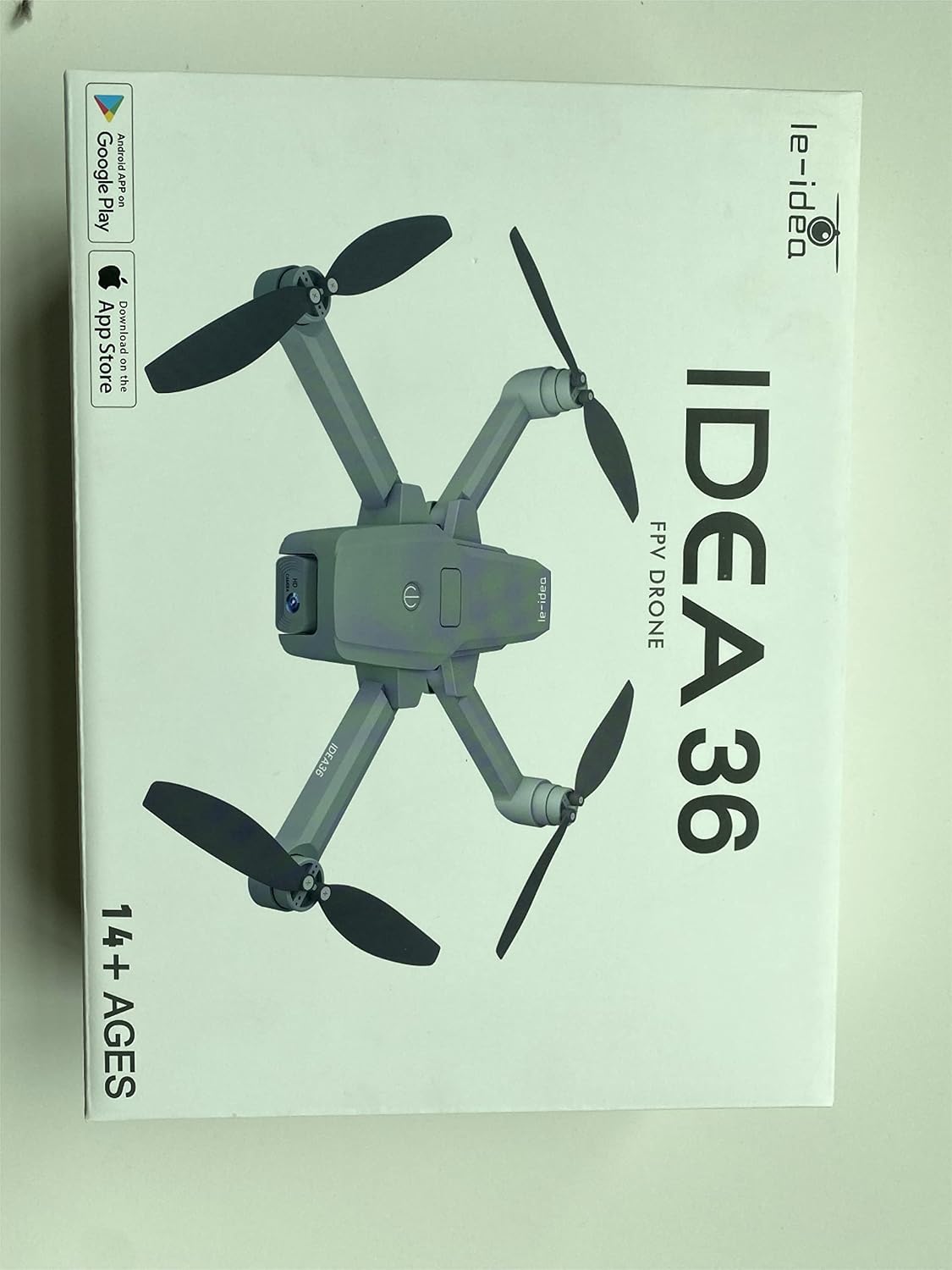

Image: Product packaging displaying brand and key features, useful for support information.

