
Introduction
The LexonElec K61 is a 60% compact gaming keyboard designed for efficiency and performance. It features a UK QWERTY layout, RGB LED backlighting, and a wired USB connection for stable, high-speed input. Its ergonomic design and mechanical-like key feel make it suitable for both gaming and office environments, while its compact size saves valuable desk space and enhances portability.
Package Contents
- LexonElec K61 60% Compact Gaming Keyboard
- USB Cable
Setup
- Connect the Keyboard: Plug the USB cable from the keyboard into an available USB port on your computer or compatible device.
- Driver Installation: The keyboard is plug-and-play and typically does not require additional drivers for basic functionality. Your operating system should automatically detect and install the necessary drivers.
- Placement: Position the keyboard comfortably on your desk. Adjust the keyboard feet to your preferred typing angle for optimal ergonomics.

Image: The LexonElec K61 keyboard connected via USB, illustrating its wide compatibility with various devices including laptops, PCs, and gaming consoles.
Operating Instructions
RGB Backlight Control
The K61 keyboard features dynamic RGB backlighting with multiple modes and adjustable settings.
- Change RGB Mode: Press Fn + P to cycle through various monochrome and dynamic colorful backlight modes.
- Adjust RGB Speed: Press Fn + [{/}] to increase or decrease the speed of dynamic backlight effects.
- Adjust RGB Brightness: Press Fn + ;/: to increase or decrease the brightness of the backlighting.

Image: Detailed view of the keyboard highlighting the Fn key and its combinations for controlling RGB backlight modes, speed, and brightness.
Multimedia Key Functions
Access 13 multimedia functions instantly using the Fn key combinations:
- Fn + 1-0/—/+: Control playback (play, pause, previous, next), volume (up, down, mute), and other media functions.
- Fn + Esc: Easily exit certain functions or applications.
Anti-Ghosting and N-Key Rollover
The K61 keyboard features 19-key anti-ghosting, allowing multiple key presses to be registered simultaneously without conflict. This is crucial for fast-paced gaming and efficient typing.
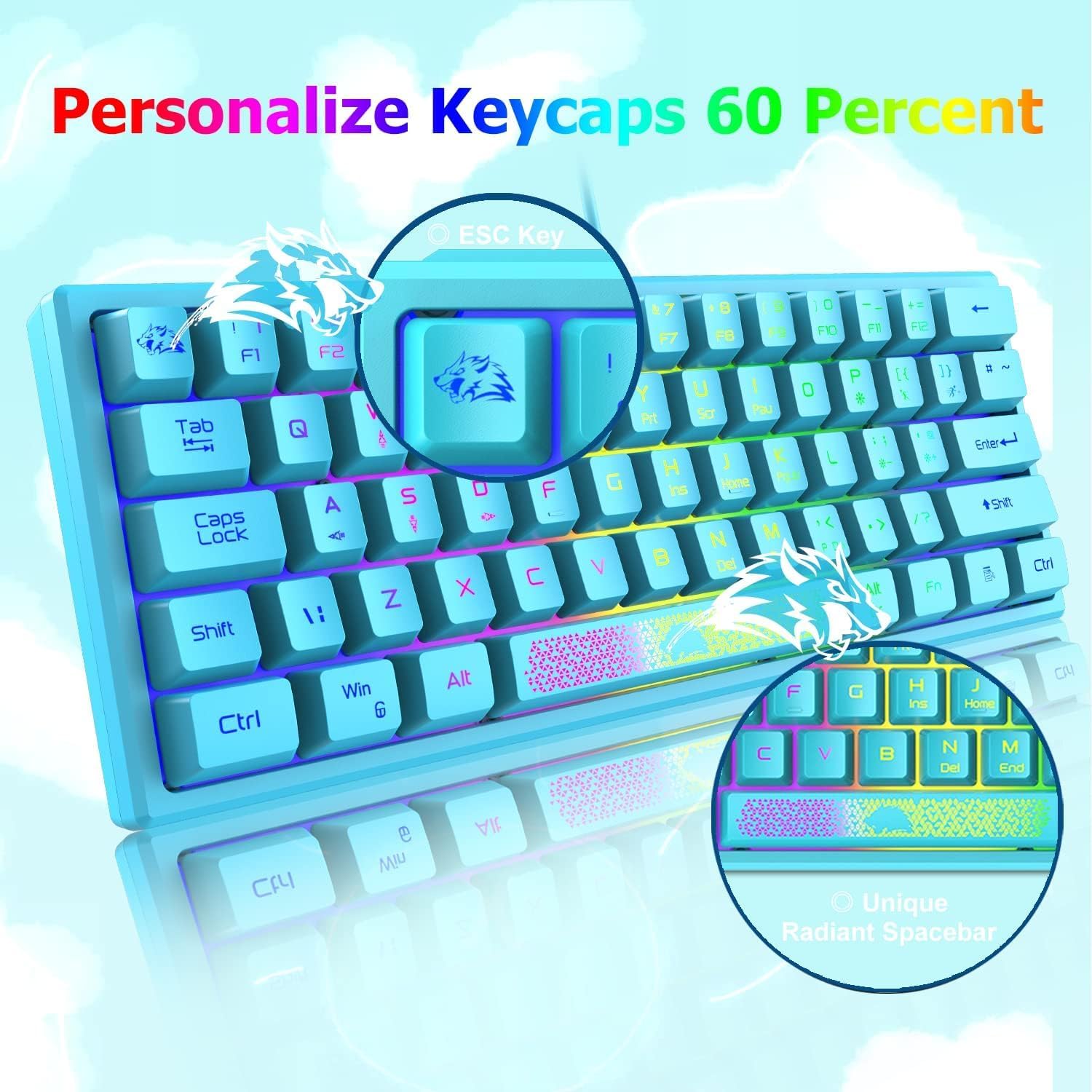
Image: The keyboard layout showing the location of 13 multimedia shortcut keys and indicating the 19 anti-ghosting keys for simultaneous input.
Ergonomics and Design
The K61 keyboard is designed with user comfort in mind. The key height and curve are optimized to follow natural finger movement, reducing strain during extended use. Adjustable keyboard feet allow you to set the most comfortable typing and gaming angle. The advanced mechanical imitation technology provides a satisfying tactile feedback, enhancing the overall typing experience.

Image: The keyboard demonstrating its ergonomic profile and highlighting its water-resistant construction.
Maintenance
- Cleaning: Use a soft, dry cloth to wipe the keyboard surface. For deeper cleaning, a can of compressed air can remove debris from between keys.
- Water Resistance: The keyboard features a water-resistant design. In case of accidental spills, disconnect the keyboard immediately, wipe off any liquid, and allow it to dry completely before reconnecting. Avoid submerging the keyboard in water.
- Storage: Store the keyboard in a cool, dry place away from direct sunlight and extreme temperatures.
Troubleshooting
- Keyboard Not Responding: Ensure the USB cable is securely connected to both the keyboard and the computer. Try plugging the keyboard into a different USB port.
- Keys Not Working: Check for any physical obstructions under the keycaps. If specific keys are unresponsive, ensure no software conflicts are present.
- Backlight Issues: If the RGB backlight is not functioning, ensure the keyboard is properly powered. Use the Fn key combinations (Fn + P, Fn + [{/}], Fn + ;/:) to adjust modes, speed, and brightness.
- Lag or Delay: Ensure the USB cable is not damaged. Try connecting to a different USB port.
Specifications
| Feature | Detail |
|---|---|
| Brand | LexonElec |
| Model Number | K61 |
| Connectivity Technology | Wired (USB) |
| Keyboard Description | Mechanical-like (Blue Switches) |
| Keyboard Layout | UK QWERTY, 60% Compact (62 Keys) |
| Backlight | RGB LED (Adjustable modes, speed, brightness) |
| Anti-Ghosting | 19-Key Anti-Ghosting |
| Special Features | Ergonomic Design, Adjustable Feet, Water-resistant |
| Product Dimensions (L x W x H) | 30.5 x 11 x 3 cm |
| Compatible Operating Systems | Windows Series, PC, Linux, MacOS |
| Compatible Devices | PC, Laptop, Mac, Xbox, PS4, Tablets |

Image: The compact dimensions of the K61 keyboard, shown alongside other devices for scale, emphasizing its space-saving design.
Warranty and Support
For warranty information or technical support, please refer to the retailer's return policy or contact LexonElec customer service directly. Contact details can typically be found on the manufacturer's official website or the product packaging.