1. Introduction
Thank you for choosing the XTRIKE ME GK-915 Mechanical Gaming Keyboard. This keyboard is designed for an enhanced gaming and typing experience, featuring responsive mechanical switches and customizable backlighting. This manual provides essential information for proper setup, operation, and maintenance of your new keyboard.
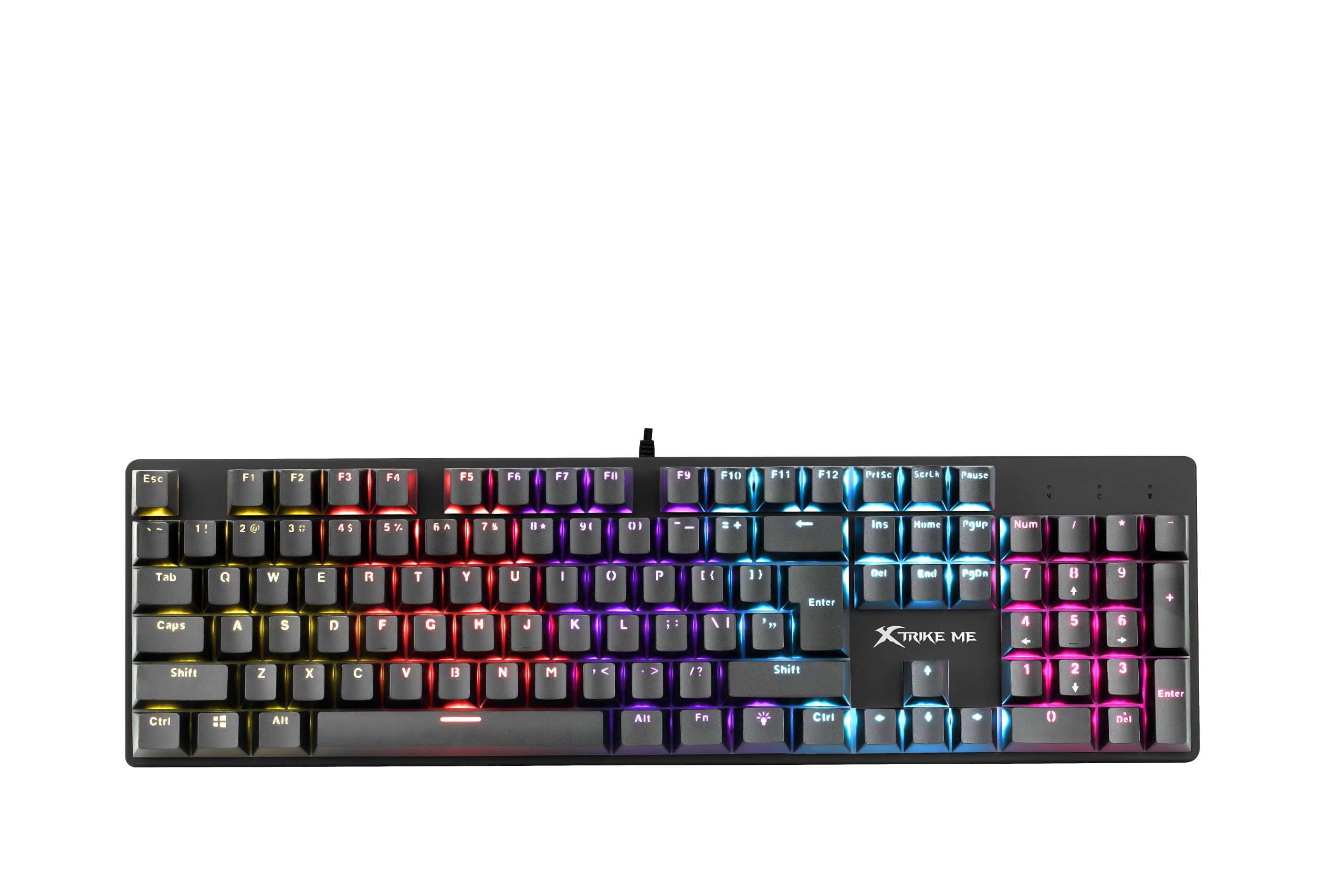
Image 1.1: The XTRIKE ME GK-915 Mechanical Gaming Keyboard. This image displays the full keyboard layout, highlighting the vibrant RGB backlighting on the keys and the detachable keycaps.
2. Package Contents
Please check the package contents carefully. If any items are missing or damaged, contact your retailer.
- XTRIKE ME GK-915 Mechanical Gaming Keyboard
- USB-C to USB-A Cable
- User Manual (this document)
3. Product Features
The XTRIKE ME GK-915 keyboard offers a range of features designed for performance and customization:
- Mechanical Switches: Provides tactile feedback and durability for a superior typing and gaming experience.
- 25-Key Rollover: Ensures that up to 25 simultaneous key presses are registered accurately, preventing ghosting during intense gaming sessions.
- Multi-Color Backlighting: Features individual LED backlighting for each key, offering vibrant illumination.
- 12 Lighting Modes: Choose from various preset lighting effects to personalize your keyboard's appearance.
- USB-C Connectivity: Provides a reliable and fast wired connection to your computer.
- Durable Construction: Built with a plastic body for longevity.
4. Setup Instructions
Follow these steps to connect and begin using your XTRIKE ME GK-915 keyboard:
- Unpack the Keyboard: Carefully remove the keyboard and USB-C cable from its packaging.
- Connect the Cable: Insert the USB-C end of the cable into the port on the keyboard.
- Connect to Computer: Plug the USB-A end of the cable into an available USB port on your computer.
- Driver Installation: The keyboard is plug-and-play. Your operating system (e.g., Windows 10) will automatically detect and install the necessary drivers. No additional software installation is typically required for basic functionality.
- Verify Functionality: Once connected, the keyboard's backlight should illuminate. Test by typing in a text editor to ensure all keys are responsive.
5. Operating Instructions
This section details how to use the various functions of your keyboard, particularly the backlighting.
5.1 Backlight Control
The GK-915 features multiple backlight modes and brightness levels.
- Changing Lighting Modes: Press the Fn + Ins key combination to cycle through the 12 available lighting modes.
- Adjusting Brightness: Use Fn + Up Arrow to increase backlight brightness and Fn + Down Arrow to decrease brightness.
- Adjusting Speed/Direction (for dynamic modes): For certain dynamic lighting modes, you can adjust the speed or direction using Fn + Left Arrow and Fn + Right Arrow.
5.2 Multimedia and Function Keys
The keyboard includes function keys that can be combined with the Fn key for multimedia control and other shortcuts. Refer to the keycaps for specific icons indicating their secondary functions (e.g., volume control, media playback).
- Fn + F1-F12: These combinations typically control multimedia functions (e.g., play/pause, stop, previous/next track, volume up/down, mute) or system functions (e.g., open browser, email).
- Fn + Win: Locks the Windows key to prevent accidental presses during gaming.
6. Maintenance
Proper care and maintenance will extend the lifespan of your keyboard.
- Cleaning:
- Disconnect the keyboard from your computer before cleaning.
- Use a soft, dry cloth to wipe the surface of the keyboard.
- For dust and debris between keys, use compressed air.
- Avoid using harsh chemicals or abrasive materials, as these can damage the finish or keycaps.
- Spills: In case of liquid spills, immediately disconnect the keyboard and allow it to dry completely before reconnecting. Do not attempt to use it while wet.
- Storage: Store the keyboard in a cool, dry place away from direct sunlight and extreme temperatures.
7. Troubleshooting
If you encounter issues with your keyboard, refer to the following common problems and solutions:
| Problem | Possible Cause | Solution |
|---|---|---|
| Keyboard is not responding. | Loose connection, faulty USB port, driver issue. |
|
| Backlight is not working or stuck. | Backlight settings, software conflict. |
|
| Certain keys are not working. | Debris under keycap, faulty switch. |
|
8. Specifications
Detailed technical specifications for the XTRIKE ME GK-915 Mechanical Gaming Keyboard:
- Brand: XTRIKE ME
- Model: GK-915
- Connectivity: Wired, USB-C
- Key Rollover: 25-key anti-ghosting
- Backlight: Multi-color, individual LED per key, 12 lighting modes
- Material: Plastic
- Color: Black
- Dimensions (L x W x H): 44.5 x 15.5 x 4 cm
- Weight: 920 g
- Compatible Operating System: Windows 10 (and generally compatible with other modern OS)
- Recommended Use: Gaming
9. Warranty and Support
9.1 Warranty Information
XTRIKE ME products are manufactured to the highest quality standards. This product is covered by a limited warranty from the date of purchase. Please retain your proof of purchase for warranty claims. The warranty covers manufacturing defects but does not cover damage caused by misuse, accident, modification, or unauthorized repair. For specific warranty terms and conditions, please refer to the warranty card included with your product or visit the official XTRIKE ME website.
9.2 Customer Support
If you have any questions, require technical assistance, or need to report an issue with your XTRIKE ME GK-915 keyboard, please contact our customer support team. You can typically find contact information (email, phone, or support portal) on the XTRIKE ME official website or through your retailer.
Online Resources: For additional information, FAQs, and driver updates (if applicable), please visit the official XTRIKE ME website.


