1. Introduction
1.1 Product Overview

This manual provides instructions for the WINFLIKE ER-22654HS remote control, designed as a replacement for various Hisense LCD TV models. It offers an ergonomic design for comfortable use.
Compatible Hisense TV models include:
- LHD32K220WCEU
- LHD32K220WSEU
- LTDN40K220WTEU
- LTDN50K220WSEU
- LTDN55K220WSEU
Image description: This image shows the front of the ER-22654HS remote control, displaying all its buttons including power, channel, volume, navigation, and input selection. The model number ER-22654HS is visible at the bottom right.
1.2 Package Contents
The package includes:
- 1 x WINFLIKE ER-22654HS Remote Control
Note: AAA batteries are not included and must be purchased separately.
2. Setup
2.1 Battery Installation
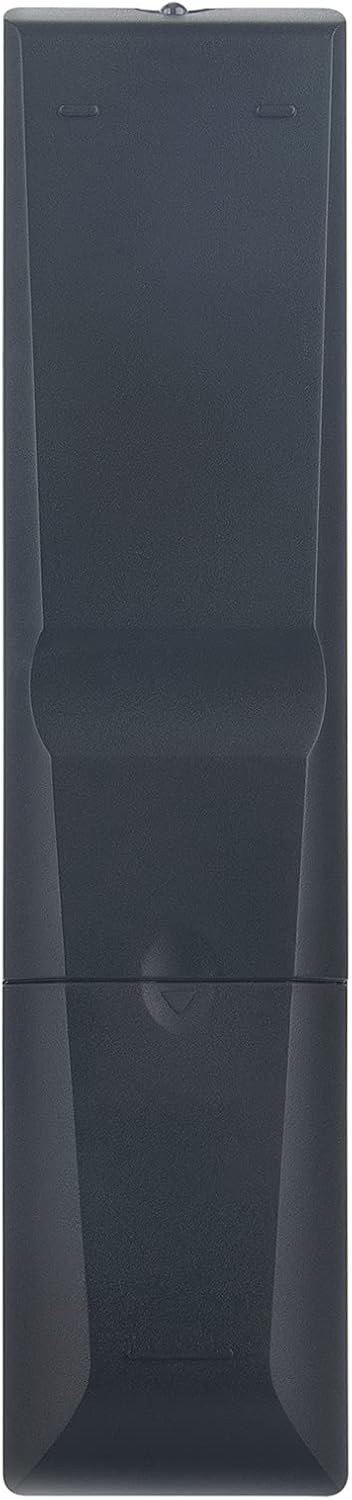
To install batteries:
- Locate the battery compartment on the back of the remote control.
- Slide the battery compartment cover downwards and remove it.
- Insert two (2) AAA batteries, ensuring the positive (+) and negative (-) terminals align correctly with the markings inside the compartment.
- Replace the battery compartment cover by sliding it back into place until it clicks securely.
Image description: This image displays the back of the ER-22654HS remote control with the battery compartment cover removed, revealing the two AAA battery slots. This illustrates how to insert or replace batteries.
2.2 Initial Use
The WINFLIKE ER-22654HS remote control requires no programming or pairing. Once batteries are correctly installed, it is ready for immediate use with compatible Hisense LCD TV models.
3. Operating Instructions
This remote control provides standard functions for operating your Hisense LCD TV. Familiarize yourself with the button layout for optimal use.
- Power Button: Turns the TV on or off.
- Number Buttons (0-9): Selects channels directly.
- CH+/CH-: Changes channels sequentially.
- VOL+/VOL-: Adjusts the volume level.
- MUTE: Silences the TV audio.
- SOURCE/INPUT: Selects the input source (e.g., HDMI, AV).
- Navigation Buttons (Up, Down, Left, Right, OK): Navigates through TV menus and confirms selections.
- MENU: Accesses the TV's main menu.
- EXIT: Exits the current menu or function.
- RETURN/BACK: Returns to the previous screen or channel.
- Media Playback Controls: Play, Pause, Stop, Fast Forward, Rewind, Next, Previous for media content.
4. Maintenance
4.1 Battery Replacement
Replace the batteries when the remote control becomes unresponsive or its range decreases significantly. Always replace both batteries simultaneously with new AAA batteries.
4.2 Cleaning
To clean the remote control, gently wipe its surface with a soft, dry cloth. For stubborn dirt, slightly dampen the cloth with water. Avoid using harsh chemicals or abrasive cleaners, as these can damage the remote's finish or internal components.
5. Troubleshooting
5.1 Common Issues and Solutions
- Remote not responding:
- Check if the batteries are inserted correctly with the correct polarity.
- Replace old batteries with new AAA batteries.
- Ensure there are no obstructions between the remote control and the TV's infrared sensor.
- Confirm the remote is pointed directly at the TV.
- Buttons are sticky or unresponsive:
- Clean the remote control as described in the Maintenance section.
- Ensure no liquid has spilled into the remote. If so, allow it to dry completely before use.
- Limited range:
- Replace the batteries.
- Ensure no strong light sources (like direct sunlight) are interfering with the TV's IR sensor.
6. Specifications
| Feature | Specification |
|---|---|
| Model Number | ER-22654HS |
| Compatible Brand | For Hisense TV |
| Material | ABS Material |
| Power Source | 2 x AAA batteries (not included) |
| Connectivity Technology | Infrared |
| Special Feature | Ergonomic design |
| Max Number of Supported Devices | 1 (Television) |
| Item Weight | 2.11 ounces (approximately 60 grams) |
| Package Dimensions | 4.72 x 1.57 x 0.39 inches (approximately 12 x 4 x 1 cm) |
7. Warranty and Support
For information regarding product warranty or technical support, please contact the manufacturer, WINFLIKE, directly through their official channels. Specific warranty terms and support procedures may vary.


