Introduction
This manual provides comprehensive instructions for the installation, operation, and maintenance of your winees Smart Video Doorbell Camera. Please read this manual thoroughly before use to ensure proper functionality and safety.

Image: The winees Smart Video Doorbell Camera and its accompanying indoor chime unit.
Product Features
- 1080P Full HD and 2-Way Audio: Provides super-clear 1080p full HD resolution with a 170° wide-angle view. Enables real-time two-way communication with visitors via your smartphone.
- Smart PIR Motion Detection and IP65 Waterproof: Built-in PIR motion sensor detects movement and sends notifications to your phone. The device is IP65 waterproof, suitable for outdoor installation.
- 2.4G Wi-Fi & Night Vision: Supports 2.4GHz Wi-Fi connectivity (5GHz Wi-Fi not supported). Features infrared night vision for clear monitoring in low-light conditions.
- Remote Control on App & Free Wireless Chime Included: Manage the doorbell remotely and access playback video via the encrypted Cloud Service. The included chime offers 58 ringtones and adjustable volume.
- Secure Cloud Storage & Local Storage: Utilizes financial encryption for data security. Supports up to 128GB Micro SD card storage (not included) and cloud storage options.
What's in the Box
Please verify that all components are present upon unboxing:
- winees Smart Video Doorbell Camera
- Indoor Wireless Chime
- Mounting Bracket and Screws
- USB Charging Cable (for doorbell, if battery-powered)
- User Manual (this document)
- Quick Start Guide
Setup Guide
1. Charging the Doorbell (if applicable)
If your doorbell model is battery-powered, ensure it is fully charged before installation. Connect the doorbell to a USB power source using the provided cable until the indicator light shows a full charge.
2. App Installation and Account Creation
Download the official winees app from your smartphone's app store (iOS App Store or Google Play Store). Follow the in-app instructions to create an account and log in.
3. Connecting the Indoor Chime
The indoor chime connects wirelessly to your doorbell. Plug the chime into a standard power outlet. Refer to the video below for detailed pairing instructions.
Video: Instructions on how to connect the winees video doorbell chime, including volume adjustment, music selection, and pairing steps.
To pair the chime with the doorbell:
- Plug in the chime.
- Press and hold the "Set" button on the chime for approximately 3 seconds until it rings (e.g., a bird voice).
- Within 30 seconds, press the doorbell button twice. The chime should ring again, indicating successful pairing.

Image: The winees doorbell and chime, illustrating their interaction during the setup process.
4. Wi-Fi Connection
Ensure your Wi-Fi network is 2.4GHz. The doorbell does not support 5GHz Wi-Fi. Follow the in-app instructions to connect your doorbell to your home Wi-Fi network. A recommended network environment is 32KB/S-2MB/S.
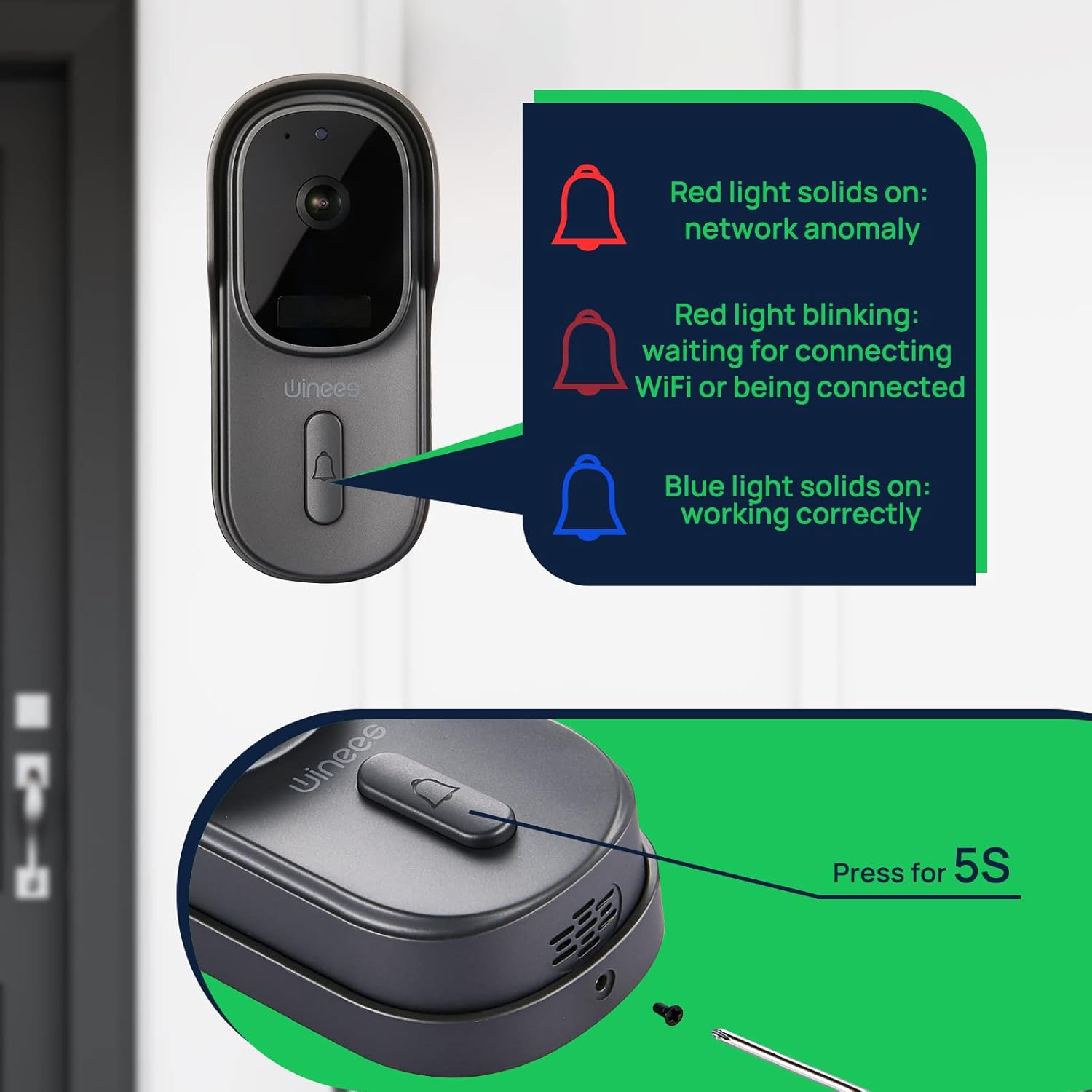
Image: Visual guide to doorbell status lights: Red solid (network anomaly), Red blinking (waiting for Wi-Fi connection), Blue solid (working correctly).
5. Physical Installation
Choose a suitable location for your doorbell, typically near your front door. Use the provided mounting bracket and screws to securely attach the doorbell to the wall. Ensure the camera has a clear, unobstructed view.

Image: The doorbell installed outdoors, demonstrating its IP65 waterproof rating against rain.
Operating Instructions
Live View and Two-Way Audio
Open the winees app to access the live feed from your doorbell camera. When a visitor presses the doorbell or motion is detected, you will receive a notification. Tap the notification to view the live feed and use the two-way audio feature to communicate with the person at your door.
Motion Detection Settings
Adjust the sensitivity of the PIR motion sensor within the app settings to minimize false alerts. The 170° wide-angle view provides comprehensive coverage for motion detection.

Image: Illustrates the 170° ultra-wide angle view and the clear 1080P HD night vision capabilities of the doorbell camera.
Night Vision
The doorbell automatically switches to infrared night vision in low-light conditions, ensuring clear video monitoring 24/7.
Storage Options
Recorded videos can be stored securely in the encrypted Cloud Service or locally on a Micro SD card (up to 128GB, not included). Manage your storage preferences and review recorded footage through the app.
Smart Home Integration (Alexa)
The winees doorbell camera can integrate with smart home systems like Amazon Alexa. You can use voice commands to view your front door on compatible devices.

Image: A person interacting with an Alexa-enabled smart display, showing the doorbell camera feed, demonstrating smart home integration.
Maintenance
- Cleaning: Gently wipe the camera lens and doorbell surface with a soft, damp cloth. Avoid abrasive cleaners or solvents.
- Firmware Updates: Regularly check the winees app for available firmware updates to ensure optimal performance and security.
- Battery Life (if applicable): Monitor the battery level through the app and recharge as needed to prevent interruptions in service.
- Wi-Fi Signal: Ensure your Wi-Fi router is within an optimal range for a stable connection.
Troubleshooting
Doorbell Not Connecting to Wi-Fi
- Ensure your Wi-Fi network is 2.4GHz. 5GHz networks are not supported.
- Check the Wi-Fi signal strength at the doorbell's location. Move the router closer or use a Wi-Fi extender if necessary.
- Verify that the Wi-Fi password entered in the app is correct.
- Restart your Wi-Fi router and the doorbell.
No Notifications or Delayed Notifications
- Check your phone's notification settings for the winees app to ensure notifications are enabled.
- Verify the doorbell's internet connection is stable.
- Adjust motion detection sensitivity in the app.
Two-Way Audio Issues
- Ensure your phone's microphone is enabled for the winees app.
- Check the volume settings on both your phone and within the app.
- A weak Wi-Fi signal can affect audio quality.
Chime Not Ringing
- Ensure the chime is plugged into a working power outlet.
- Re-pair the chime with the doorbell following the "Connecting the Indoor Chime" steps in the Setup Guide.
- Check the chime's volume settings.
For further assistance, please refer to the official winees support channels.
Specifications
| Feature | Detail |
|---|---|
| Video Resolution | 1080p Full HD |
| Viewing Angle | 170° Wide Angle |
| Connectivity | 2.4GHz Wi-Fi (IEEE 802.11b/g/n) |
| Audio | Two-Way Audio |
| Motion Detection | Smart PIR Sensor |
| Night Vision | Infrared Night Vision |
| Weather Resistance | IP65 Waterproof |
| Storage Options | Cloud Storage, Local Micro SD (up to 128GB, not included) |
| Power Source | Corded Electric (for chime), Battery (for doorbell, if applicable) |
| Color | Dark Grey |
| Item Weight | 1.1 pounds |
| Dimensions | 5.91 x 4.45 x 4.17 inches (Package) |
Warranty and Support
For warranty information, technical support, or further inquiries, please visit the official winees website or contact their customer service. You can also refer to the official Instructions for Use (IFU) PDF document for additional details:


