
NetumScan B09DJC5LTD
NetumScan Bluetooth CCD Bar Code Scanner User Manual
Model: B09DJC5LTD
Introduction
This manual provides comprehensive instructions for the NetumScan Bluetooth CCD Bar Code Scanner (Model B09DJC5LTD). This 1D wireless barcode scanner is designed to efficiently read most CCD barcodes from both screens and printed materials, offering versatile scanning capabilities for various environments such as libraries and warehouses.

Image: The NetumScan Bluetooth CCD Bar Code Scanner with its stand, showing the red scanning light projecting onto a barcode.
Setup
The NetumScan barcode scanner offers multiple connectivity options for easy setup.
Connectivity Options:
- Bluetooth Connection: Pair the scanner with your Bluetooth-enabled device (e.g., smartphone, tablet, laptop). Ensure Bluetooth is enabled on your device and search for the scanner.
- 2.4G Wireless Mode: Insert the provided USB dongle into a USB port on your computer. The scanner will automatically connect to the dongle.
- USB Wired Mode: Connect the scanner directly to your computer using the USB cable. This mode also charges the scanner. No driver installation is required for any mode.

Image: Demonstrates the three connectivity options: Bluetooth pairing with a smartphone, USB wired connection to a laptop, and 2.4G wireless connection via a USB dongle inserted into a laptop.
Operating Modes
The scanner supports various operating and upload modes to suit different scanning needs.
Scanning Modes:
- Key Trigger Mode: Press the trigger button to initiate a scan.
- Continuous Scan Mode: The scanner continuously emits a scanning beam, ideal for high-volume scanning.
- Auto-induction Mode: The scanner automatically detects a barcode within its field of view and initiates a scan. This mode may require activation or specific settings.

Image: Illustrates the three scanning modes: Key Trigger, Continuous Scan, and Auto-induction mode. The scanner is shown on its stand, with a smartphone displaying a barcode for scanning.
Upload Modes:
- Instant Upload Mode: Barcodes are transmitted to your connected device immediately after scanning.
- Storage Mode: Barcodes are stored in the scanner's internal memory. Data can be uploaded to your device later when within wireless transmission range. This is useful for scanning in areas outside of wireless coverage.

Image: Depicts the two upload modes: Instant Upload Mode, where scanned barcodes are immediately sent to a laptop, and Storage Mode, where barcodes are saved internally before being uploaded to a laptop.
Decoding Ability
Equipped with an advanced CCD sensor, the NetumScan scanner can quickly capture 1D codes from both paper and digital screens. It is capable of reading various 1D barcode types, including CODE128 and UPC/EAN Add on 2 or 5. The scanner is designed to read even deformed barcodes such as smudged, damaged, fuzzy, or reflective barcodes, offering faster and more accurate scanning compared to traditional laser scanners.

Image: Shows the scanner's ability to decode various 1D barcodes, including those on paper and screens, highlighting its fast scanning speed and high accuracy.
Compatibility
The NetumScan barcode scanner offers high compatibility with a wide range of devices and operating systems, making it suitable for various applications.
- Compatible Devices: Laptop, Desktop, Tablet, Smartphone, Point-of-Sale (POS) systems.
- Compatible Operating Systems: Windows XP/7/8/10, Mac OS, iOS, Android.

Image: Illustrates the scanner's compatibility with various devices and operating systems, including Mac OS/iOS, Android, and Windows (7/8/10/XP).
Special Functions
The scanner includes advanced features for customizing barcode data output.
- Editable Prefix or Suffix: You can add a prefix or suffix of up to 32 digits to the scanned barcode data. This is useful for adding identifiers or formatting data for specific applications.
- Hiding Part of a Barcode: The scanner is capable of hiding specific portions of a scanned barcode. Refer to the detailed programming guide (not included in this general manual) for instructions on how to configure this feature.
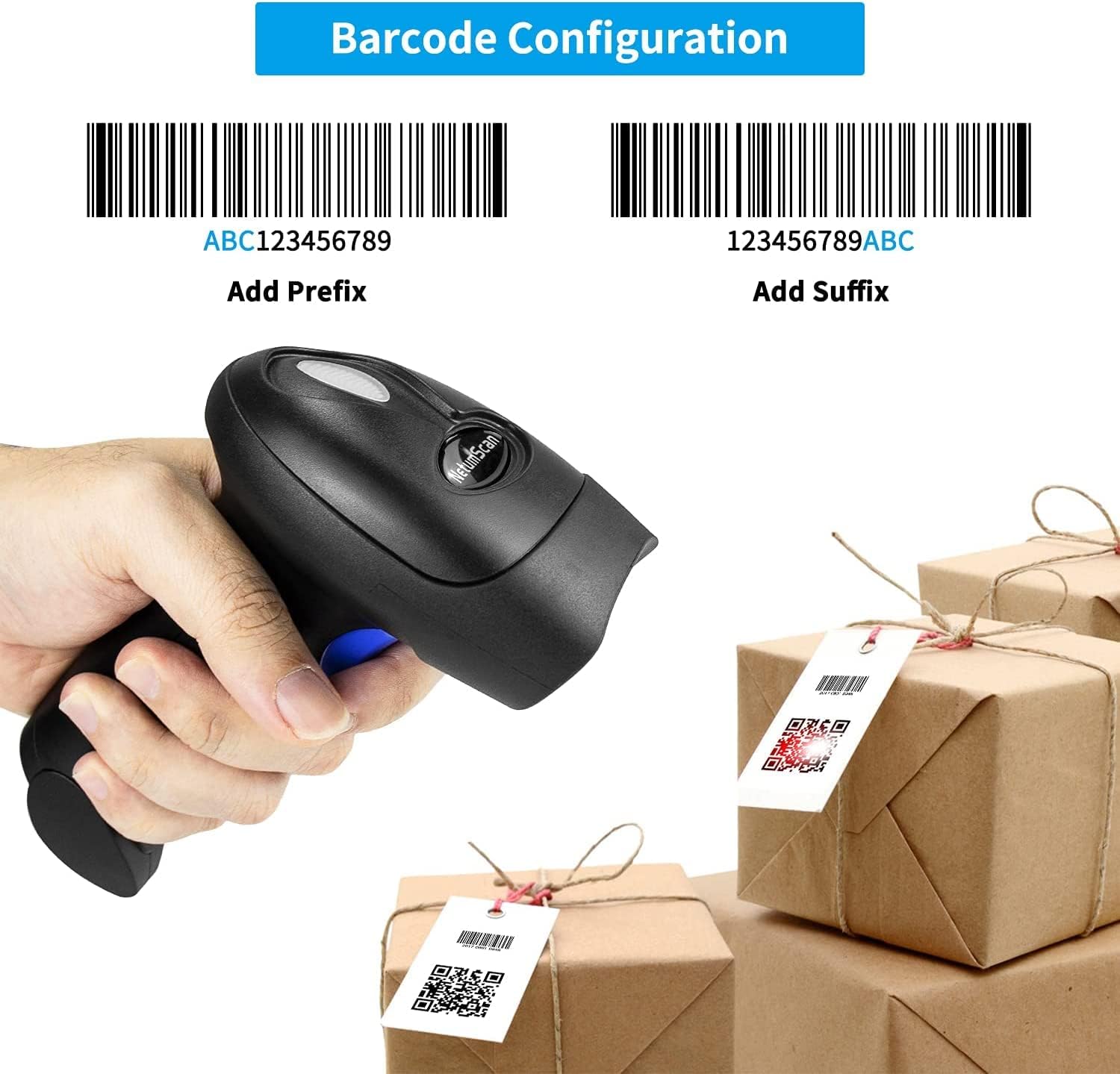
Image: Demonstrates the ability to add prefixes (e.g., "ABC" before the barcode) and suffixes (e.g., "ABC" after the barcode) to scanned data.
Maintenance
The NetumScan barcode scanner is built with professional anti-shock design, utilizing high-quality ABS+PC materials and a silicone protective cover. This construction helps prevent scratches and friction from falls up to 6.57 feet. The IP54 technical rating ensures protection against dust and moisture.
- Cleaning: Use a soft, dry cloth to clean the scanner's exterior. For stubborn dirt, a slightly damp cloth with mild soap can be used, ensuring no liquid enters the device.
- Storage: Store the scanner in a cool, dry place away from direct sunlight and extreme temperatures.
- Battery Care: The 2000mAh built-in battery provides a standby time of up to 60 days. For optimal battery life, avoid fully discharging the battery frequently and charge it regularly.
Troubleshooting
If you encounter issues with your NetumScan barcode scanner, please refer to the following common troubleshooting steps:
- Scanner not connecting: Ensure the scanner is charged. For Bluetooth, check if it's paired correctly. For 2.4G wireless, ensure the USB dongle is securely inserted. For wired mode, check the USB cable connection.
- Scanner not reading barcodes: Ensure the barcode is clean and not excessively damaged. Adjust the distance and angle of the scanner to the barcode. Verify the scanner is in the correct scanning mode (e.g., not in storage mode if instant upload is desired).
- Slow or inaccurate scanning: Check for obstructions on the scanner's lens. Ensure the barcode is well-lit.
- Self-sensing scanning inactive: If the auto-sensing function is not working, it may need to be reactivated through specific programming barcodes. Refer to the full programming manual or contact customer support.
For more detailed troubleshooting or specific programming instructions, please contact NetumScan customer support.
Specifications
| Feature | Detail |
|---|---|
| Model | B09DJC5LTD |
| Connectivity Technology | Bluetooth / 2.4G USB Wireless / USB 2.0 Wired |
| Decoding Ability | 1D CCD (CODE128, UPC/EAN Add on 2 or 5, etc.) |
| Battery | 2000mAh Lithium Ion (1 required) |
| Power Source | Battery Powered |
| Item Weight | 1.32 pounds |
| Package Dimensions | 8.27 x 5.59 x 4.41 inches |
| Material | ABS+PC with silicone protective cover |
| Drop Resistance | Up to 6.57 feet |
| IP Rating | IP54 (dust and moisture protection) |
Warranty and Support
NetumScan products are designed for reliability and performance. For warranty information, technical support, or to customize product features, please refer to the official NetumScan website or contact their customer service directly. Contact details are typically found on the product packaging or the manufacturer's official online channels.
For further assistance, you may visit the NetumScan Store on Amazon.
Related Documents - B09DJC5LTD
 |
NetumScan NS2055L Quick Setup Guide and Features A quick setup guide for the NetumScan NS2055L barcode scanner, covering USB connection, keyboard language setup, programming codes, and troubleshooting common issues. Learn how to configure your scanner for optimal performance. |
 |
NetumScan RF2.4G/Bluetooth/USB 3-in-One Scanner User Manual User manual for the NetumScan RF2.4G/Bluetooth/USB 3-in-One Scanner. Provides setup instructions, connection options (USB, Bluetooth), configuration settings, and troubleshooting FAQs for efficient barcode scanning. |
 |
NetumScan NSW7-X: Wireless Bluetooth 2D Barcode Scanner User Manual Comprehensive user manual for the NetumScan NSW7-X wireless Bluetooth 2D barcode scanner. Learn how to connect via USB, 2.4G, and Bluetooth, configure settings, and optimize scanner performance. |
 |
NetumScan 2.4G/Bluetooth/USB 3-in-1 Scanner Manual A comprehensive manual for the NetumScan 3-in-1 scanner, covering 2.4G wireless, Bluetooth, and USB connectivity. Learn about setup, connection modes, programming, and troubleshooting. |
 |
NetumScan SD Series Document Camera: Quick Start Guide and Software Overview Get started quickly with the NetumScan SD Series Document Camera. This guide covers hardware installation, software setup, and detailed descriptions of software functions like scanning, OCR, and video recording. Learn about the parts and contact information for NetumScan. |
 |
NetumScan 2D Scanning Platform User Manual User manual for the NetumScan 2D Scanning Platform, covering setup, operation, and system settings. Includes instructions for USB connection, keyboard language configuration, and various scanning preferences. |
Ask a question about this manual
Ask about setup, troubleshooting, compatibility, parts, safety, or missing instructions. Manuals+ will review the question and use this page’s manual context to help answer it.