
1. Introduction
The Sphero Indi Student Kit is an innovative screenless coding robot designed to introduce fundamental computer science concepts to children aged 4 and up. This educational STEM toy empowers young learners to explore programming basics through hands-on activities, solving puzzles, building intricate mazes, and engaging in creative play. It offers both screenless interaction using color tiles and app-enabled options for more advanced learning, fostering critical thinking and problem-solving skills in an engaging way.
2. What's in the Box
Your Sphero Indi Student Kit includes the following components:
- 1 Indi Robot
- 20 Durable Silicone Color Tiles
- 1 Student Case
- 15 Beginner’s Programming Challenge Cards
- 1 Quick Start Guide
- 2 Decorative Sticker Sheets to customize Indi
- 1 Charging Cable

Image: All components included in the Sphero Indi Student Kit, neatly laid out. This includes the Indi robot, its blue carrying case, a stack of colorful silicone tiles, programming challenge cards, decorative stickers, and a charging cable.
3. Setup
3.1 Initial Charging
Before first use, ensure your Indi robot is fully charged. Connect the provided charging cable to the robot and a suitable USB power source. The robot's indicator light will show charging status. A full charge typically provides all-day battery life under normal usage.
3.2 Quick Start Guide
Refer to the included Quick Start Guide for detailed instructions on initial setup, including how to power on the Indi robot and basic interactions. For app-enabled features, download the free Sphero Edu Jr app from your device's app store and follow the in-app instructions for pairing.
4. Operating Indi
4.1 Screenless Play with Color Tiles
Indi is designed for screenless learning. Place the durable silicone color tiles on a flat, smooth surface to create paths and mazes. Each color tile corresponds to a specific command (e.g., move forward, turn, stop). As Indi drives over a tile, it executes the associated command, teaching basic programming concepts like sequencing and debugging.
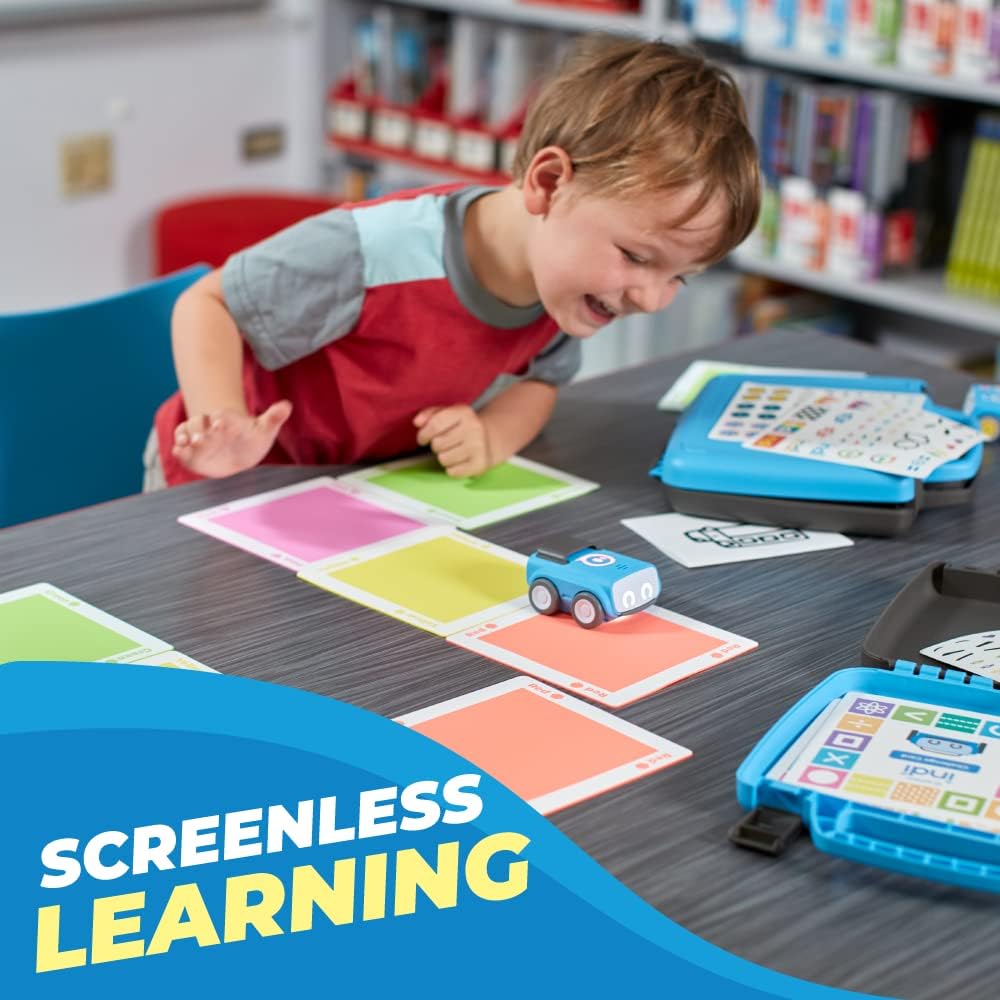
Image: A young child observes the Indi robot moving across a path of colorful tiles on a carpeted floor, illustrating the screenless learning experience.
4.2 App-Enabled Learning (Sphero Edu Jr App)
For expanded learning and customization, use the free Sphero Edu Jr app. The app provides a simplified drag-and-drop block coding interface, allowing users to program Indi with more complex sequences, change its colors, and customize sounds. This option helps children level up their coding skills.

Image: A child's hands are shown holding a tablet displaying the Sphero Edu Jr app interface, with the Indi robot visible nearby, demonstrating app-based coding.
4.3 Challenge Cards
The kit includes 15 self-guided Beginner’s Programming Challenge Cards. These cards provide structured activities and puzzles to guide children in designing mazes and applying coding principles, encouraging independent problem-solving.

Image: Several children are gathered around the Indi robot and color tiles on the floor, actively engaged in a problem-solving activity, with a ruler also visible.
4.4 Customization
Use the included decorative sticker sheets to personalize your Indi robot, adding a creative touch to the learning experience.
4.5 Video Demonstrations
Note: Video content could not be embedded as relevant video URLs with creator type "Seller" were not available in the provided data. If available, official product videos demonstrating setup and operation would be displayed here.
5. Maintenance
5.1 Cleaning
To clean the Indi robot and color tiles, gently wipe them with a soft, dry cloth. For stubborn dirt, a slightly damp cloth can be used, ensuring no moisture enters the robot's ports or internal components. Do not use harsh chemicals or abrasive cleaners.
5.2 Battery Care
The Indi robot is equipped with a durable battery designed for extended play. Recharge the robot using the provided charging cable when the battery is low. For optimal battery life, avoid fully depleting the battery frequently and store the robot in a cool, dry place when not in use.
5.3 Storage
Store the Indi robot and all accessories, especially the color tiles and challenge cards, in the provided student case to protect them from damage and keep them organized. This also helps maintain the integrity of the latex-free rubber color tiles.
6. Troubleshooting
- Indi is not moving or responding:
- Ensure the robot is fully charged.
- Check that the power button is pressed and the robot is turned on.
- Verify that the color tiles are placed on a flat, smooth surface. Indi may not operate correctly on uneven surfaces, rugs, or carpets.
- If using the app, ensure Bluetooth is enabled on your device and Indi is properly paired.
- Indi is not recognizing color tiles:
- Ensure the color tiles are clean and free from obstructions.
- Make sure the tiles are laid flat and not bent or creased, as this can affect recognition.
- Confirm the lighting conditions are adequate; extreme darkness or direct bright light might interfere with the robot's sensors.
- App connectivity issues:
- Restart the Sphero Edu Jr app.
- Turn off and on your device's Bluetooth.
- Restart the Indi robot.
- Ensure your device's operating system is up to date and compatible with the app.
- Robot behaving erratically:
- Perform a soft reset by turning the robot off and then on again.
- Ensure there are no physical obstructions or debris in the robot's wheels or sensors.
7. Specifications
| Feature | Detail |
|---|---|
| Product Dimensions | 10 x 10 x 2.52 inches |
| Item Weight | 12.3 ounces |
| Item Model Number | 980-0530 |
| Manufacturer Recommended Age | 3 years and up |
| Batteries | 1 Lithium Ion battery (included) |
| Language | English |
| Manufacturer | Sphero |
8. Safety Information
Warning: Not suitable for children under the age of 4.
Always supervise young children during play. Ensure all small parts, such as stickers or damaged tiles, are kept out of reach of very young children to prevent choking hazards. Use the product on appropriate surfaces as indicated in the operating section.
9. Warranty & Support
For warranty information, product support, or to purchase replacement parts, please visit the official Sphero website or contact their customer service directly. You can find more information and resources at the Sphero Store on Amazon.
Sphero is committed to providing high-quality educational products and support for their users.