Introduction
This manual provides detailed instructions for the Ltvystore 104-Key Typewriter Style Mechanical Gaming Keyboard. This keyboard features a full 104-key layout with anti-ghosting capabilities, mechanical blue switches, and customizable RGB backlighting. It is designed for both gaming and office use, offering a unique retro aesthetic combined with modern functionality.

Image: The Ltvystore 104-Key Typewriter Style Mechanical Gaming Keyboard, showcasing its full layout and retro design.
Package Contents
- Ltvystore 104-Key Typewriter Style Mechanical Gaming Keyboard
- USB Cable
Setup
- Connect the Keyboard: Locate the USB cable provided with your keyboard.
- Plug into Computer: Insert the USB connector into an available USB 2.0 port on your computer (Windows, Mac, or Linux).
- Automatic Installation: The keyboard is plug-and-play. Your operating system should automatically detect and install the necessary drivers. No additional software is required.
- Adjust Feet: For optimal typing comfort, adjust the rear feet of the keyboard to your preferred angle.

Image: A user operating the keyboard, demonstrating its use in an office or gaming setup.
Operating Instructions
Key Features:
- 104-Key Layout: Full-size keyboard with a numeric keypad.
- Anti-Ghosting: Supports full keys without conflict, ensuring all keystrokes are registered during intense gaming or fast typing.
- Mechanical Blue Switches: Provides a tactile and audible "clicky" feedback, ideal for typing and gaming.
- Ergonomic Design: Stepped keycaps and an arc/slope design reduce hand fatigue during prolonged use.
Backlight Control:
The keyboard features 9 true RGB backlight modes. Use the following key combinations to control the backlighting:
- Switch Lighting Modes: Press FN + INS to cycle through 9 different lighting effects and modes.
- Adjust Brightness: Press FN + ↑ (Up Arrow) or FN + ↓ (Down Arrow) to adjust the backlight brightness (3 levels).
- Adjust Breathing Speed: Press FN + ← (Left Arrow) or FN + → (Right Arrow) to adjust the backlight breathing speed.
- Disable WIN Key: For gaming, the WIN key can be disabled to prevent accidental presses. Refer to specific key combinations if available on your model (often FN + WIN key).

Image: The keyboard displaying its RGB backlight effects, with instructions for changing modes and brightness.
Multimedia Keys:
The keyboard includes 12 multimedia keys for quick access to various functions. These are typically accessed by holding the FN key and pressing the corresponding F-key (F1-F12).
- FN + F1: Media Player
- FN + F2: Volume Down
- FN + F3: Volume Up
- FN + F4: Mute
- FN + F5: Stop
- FN + F6: Previous Track
- FN + F7: Play/Pause
- FN + F8: Next Track
- FN + F9: Email
- FN + F10: Web Browser
- FN + F11: My Computer
- FN + F12: Calculator
Maintenance
- Cleaning: Use a soft, dry cloth to wipe down the keyboard surface. For dust and debris between keycaps, use compressed air.
- Spill Resistance: The keyboard features a splash-proof design. In case of minor spills, quickly disconnect the keyboard, wipe off the liquid, and allow it to dry completely before reconnecting. Avoid submerging the keyboard in liquid.
- Keycap Removal: Keycaps can be carefully removed for deeper cleaning or switch replacement. Use a keycap puller if available, or gently pry them off from the edges.
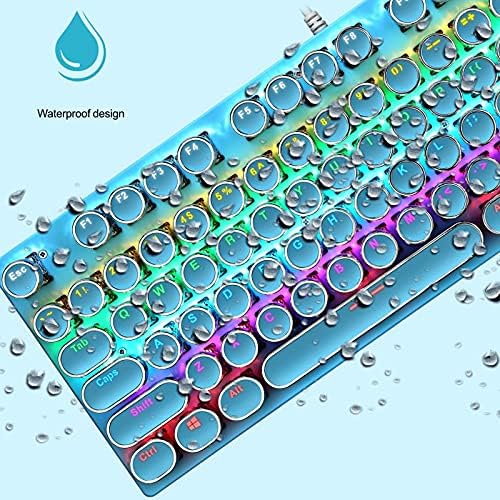
Image: Close-up of the keyboard surface with water droplets, highlighting its splash-proof design.
Troubleshooting
- Keyboard is not responding:
- Ensure the USB cable is securely connected to both the keyboard and the computer's USB port.
- Try connecting the keyboard to a different USB port on your computer.
- Test the keyboard on another computer to determine if the issue is with the keyboard or the computer.
- Restart your computer.
- Backlighting is not working or is dim:
- Press FN + INS to cycle through different backlight modes.
- Press FN + ↑ (Up Arrow) to increase brightness.
- Ensure the keyboard is receiving sufficient power from the USB port.
- Keys are not registering or are lagging:
- Clean around and under the affected keycaps to remove any debris that might be obstructing the switch.
- Ensure the keycaps are properly seated on the switches.
- If a specific key is consistently failing, it might indicate a faulty switch.
- Keyboard is typing incorrect characters:
- Check your computer's language and keyboard layout settings.
- Ensure no other software is interfering with keyboard input.
Specifications
| Brand | Ltvystore |
| Model | Typewriter Style Mechanical Gaming Keyboard |
| ASIN | B09DFBDCZ9 |
| Connectivity Technology | Mini USB (Wired) |
| Keyboard Description | Mechanical |
| Switch Type | Blue Switches |
| Backlighting | RGB (9 modes, adjustable brightness/speed) |
| Special Feature | Round Keycaps, Anti-Ghosting, Splash-Proof Design |
| Compatible Devices | Windows (2000, XP, ME, Vista, 7, 8), Linux, Mac |
| Recommended Uses | Gaming, Office |
| Material | Plastic |
| Item Weight | 1.8 pounds (approx. 0.82 kg) |
| Package Dimensions | 18.66 x 6.69 x 1.65 inches (approx. 47.4 x 17 x 4.2 cm) |
Warranty and Support
For warranty information and customer support, please refer to the documentation included with your purchase or contact the manufacturer directly. Keep your purchase receipt for warranty claims.