1. Introduction
This manual provides essential instructions for the safe and efficient operation of your Panasonic TH-65JX750DX 65-inch 4K Ultra HD Smart Android LED TV. Please read this manual thoroughly before using your television and retain it for future reference. It covers setup, operation, maintenance, and troubleshooting to ensure you get the best experience from your new device.
2. Safety Information
Always observe the following safety precautions to prevent electric shock, fire, or damage to the television.
- Power Source: Connect the TV only to an AC power supply within the specified voltage range.
- Ventilation: Ensure adequate ventilation around the TV. Do not block ventilation openings.
- Placement: Place the TV on a stable, level surface or mount it securely to a wall. Avoid direct sunlight, heat sources, and excessive dust.
- Liquid Exposure: Do not expose the TV to rain or moisture. Keep liquids away from the device.
- Cleaning: Unplug the TV before cleaning. Use a soft, dry cloth. Avoid abrasive cleaners.
- Servicing: Do not attempt to service the TV yourself. Refer all servicing to qualified personnel.
3. What's in the Box
Verify that all components are present upon unpacking:
- 1 LED TV
- 1 Remote Controller
- 1 Wall Mount (for wall installation)
- 2 Table Top Stand (for stand installation)
- 1 AC Cord
- 1 AV Cable

Image: Front view of the Panasonic TH-65JX750DX 65-inch 4K Ultra HD Smart Android LED TV.
4. Setup
4.1 Stand Installation
If you choose to place the TV on a surface, attach the included table-top stands. Ensure the TV is placed on a stable and level surface to prevent tipping.
- Carefully place the TV face down on a soft, clean cloth to prevent screen damage.
- Align each stand with the corresponding screw holes on the bottom of the TV.
- Secure the stands using the provided screws.

Image: Angled view of the Panasonic TH-65JX750DX TV with its table-top stands installed.
4.2 Wall Mounting
If you intend to wall-mount the TV, use the included wall mount and follow its specific installation instructions. Professional installation is recommended for safety.
4.3 Connecting Peripherals
The TV offers various ports for connecting external devices:
- HDMI Ports (x3): For set-top boxes, Blu-ray players, gaming consoles.
- USB Ports (x2): For hard drives and other USB devices.
- VGA Slot (x1): For connecting a laptop or PC.
- Headphone Jack (x1): For audio output to headphones.
- AV Input Slot (x1): For older devices using composite video and stereo audio.
- RF Slot (x1): For antenna or cable connection.
- LAN Port: For wired internet connection.
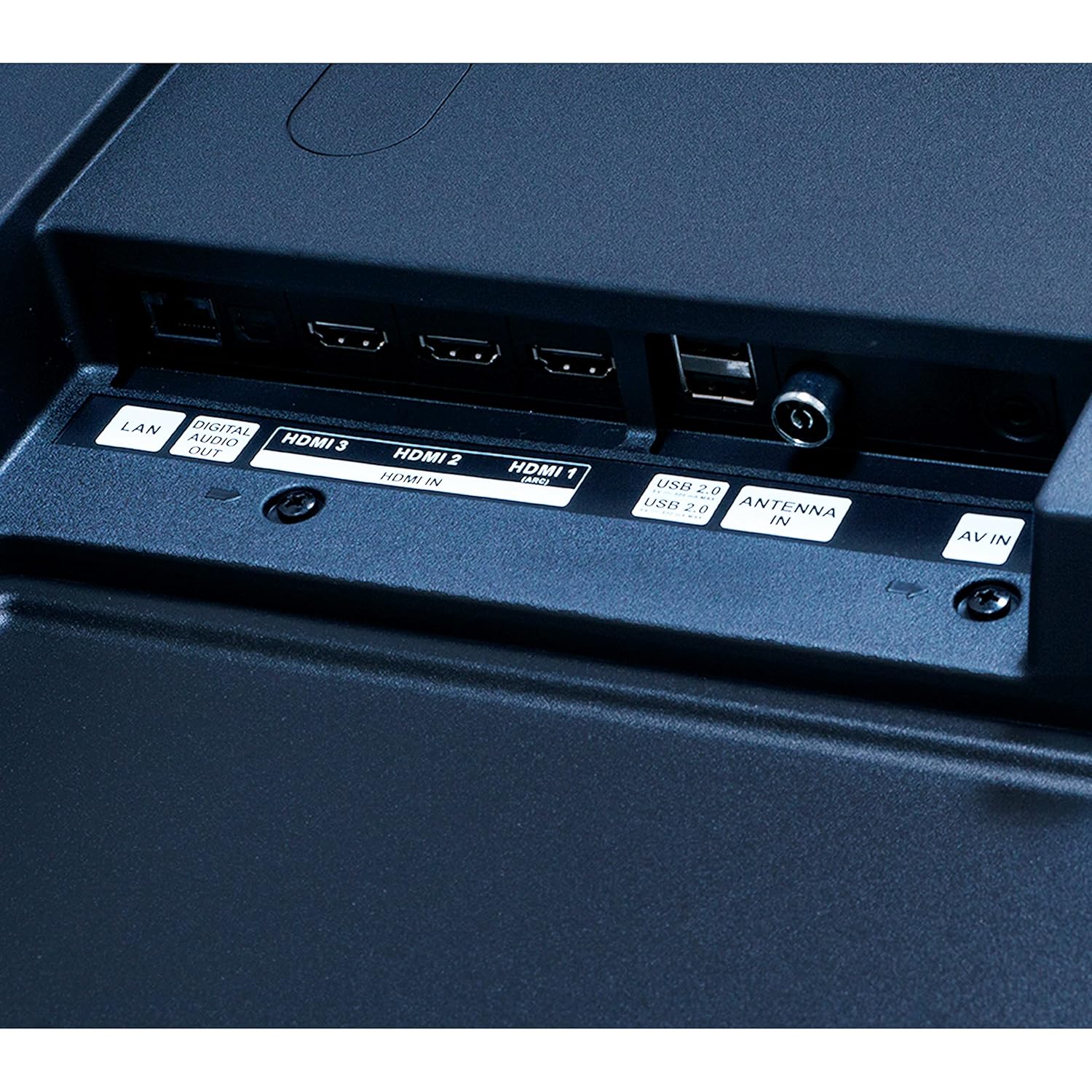
Image: Close-up of the rear panel of the Panasonic TH-65JX750DX TV, highlighting the HDMI, USB, LAN, and other input/output ports.
4.4 Power Connection
After connecting all necessary peripherals, plug the AC power cord into the TV's power inlet and then into a wall outlet.
4.5 Initial Setup Wizard
Upon first power-on, the TV will guide you through an initial setup process. This includes language selection, network connection (Wi-Fi or Ethernet), Google account login, and channel scanning. Follow the on-screen prompts.
5. Operating Your TV
5.1 Remote Control
The included remote control allows you to navigate the TV's features. Insert two AAA batteries (not included) into the remote control, observing polarity.

Image: The remote control for the Panasonic TH-65JX750DX TV, showing buttons for power, volume, channel, navigation, and dedicated app buttons.
- Power Button: Turns the TV on or off.
- Navigation Buttons (Up/Down/Left/Right/OK): For menu navigation and selection.
- Volume Up/Down: Adjusts the sound level.
- Input/Source Button: Switches between connected devices.
- Home Button: Accesses the Android TV home screen.
- App Buttons: Direct access to services like Netflix, Prime Video, YouTube, Disney+Hotstar.
- Google Assistant Button: Activates voice control.
5.2 Smart TV Features (Android OS 10)
Your TV runs on Android OS 10, providing access to a wide range of smart features:
- Built-In Wi-Fi: Connect to your home network for internet access.
- Built-In Chromecast: Cast content from your smartphone or tablet directly to the TV.
- Google Assistant & Alexa Compatible: Use voice commands to control your TV, search for content, and manage smart home devices.
- Pre-installed Apps: Enjoy popular streaming services like Prime Video, Netflix, Disney+Hotstar, and more.
- Google Play Store: Download additional apps and games.

Image: A kitchen scene showing a Panasonic TV displaying a recipe, with a smart speaker and text bubble indicating 'Ok Google, turn up the volume', demonstrating Google Assistant integration.
5.3 Display and Audio Settings
- 4K Colour Engine: Optimizes color reproduction for vibrant and accurate visuals.
- HDR (High Dynamic Range): Enhances contrast and color detail in compatible content.
- Dolby Audio & DTS Studio Sound: Provides immersive and clear audio experiences.
- Access these settings through the TV's main menu to customize your viewing and listening preferences.
6. Maintenance
6.1 Cleaning
- Screen: Gently wipe the screen with a soft, lint-free cloth. For stubborn marks, use a screen cleaner specifically designed for LED displays, applied to the cloth, not directly to the screen.
- Cabinet: Wipe the TV cabinet with a soft, dry cloth. Avoid using water or chemical cleaners.
6.2 Software Updates
Your Android TV may receive periodic software updates to improve performance and add new features. Ensure your TV is connected to the internet to receive these updates. You can check for updates manually in the TV's settings menu.
7. Troubleshooting
If you encounter issues, refer to the following common problems and solutions:
| Problem | Possible Solution |
|---|---|
| No Power | Check if the power cord is securely plugged into both the TV and the wall outlet. Ensure the outlet is functional. |
| No Picture, But Sound is Present | Verify the correct input source is selected. Check cable connections (HDMI, AV). |
| No Sound, But Picture is Present | Check volume level and mute status. Ensure audio cables are connected correctly. |
| Remote Control Not Working | Replace batteries. Ensure no obstructions between the remote and the TV's IR sensor. |
| Wi-Fi Connection Issues | Restart your router. Check Wi-Fi settings on the TV. Ensure the TV is within range of your Wi-Fi network. |
| Apps Not Loading/Crashing | Clear app cache/data in TV settings. Ensure sufficient storage (8 GB ROM). Update the app or TV software. |
If problems persist, consult the Panasonic support website or contact customer service.
8. Specifications
Detailed technical specifications for the Panasonic TH-65JX750DX TV:

Image: The Panasonic TH-65JX750DX TV with its physical dimensions (width, height, depth) clearly labeled in centimeters.
| Feature | Detail |
|---|---|
| Model | TH-65JX750DX |
| Screen Size | 65 Inches (165 cm) |
| Display Technology | LED |
| Resolution | 4K Ultra HD (3840 x 2160 pixels) |
| Refresh Rate | 60 Hz |
| Viewing Angle | 178 Degrees |
| Operating System | Android OS 10 |
| Memory Storage (ROM) | 8 GB |
| Connectivity | 3 HDMI, 2 USB, 1 VGA, 1 Headphone Jack, 1 AV Input, 1 RF, Built-In Wi-Fi |
| Audio Output | 20 Watts, Dolby Audio, DTS Studio Sound |
| Special Features | 4K Colour Engine, Accuview Display, HEXA Chrome Drive, Wide Color Gamut, HDR, Built-In Home Theatre, Built-In Chromecast, MirAle, Built-In Google Assistant, Alexa Compatible |
| Product Dimensions (LxWxH) | 144 x 8.1 x 83.7 cm |
| Item Weight | 17.7 kg |
| Model Year | 2021 |
9. Warranty and Support
9.1 Warranty Information
Your Panasonic TH-65JX750DX TV comes with a 1 Year Standard Manufacturer Warranty from Panasonic, covering manufacturing defects and issues under normal use. Please retain your purchase receipt for warranty claims.
9.2 Customer Support
For technical assistance, warranty claims, or further inquiries, please visit the official Panasonic support website or contact their customer service helpline. Refer to the documentation included with your TV for specific contact details in your region.


