
Iproda 1169YM
Iproda Laptop User Manual
Model: 1169YM | Brand: Iproda
1. Introduction
This manual provides essential information for the safe and efficient use of your Iproda 1169YM Laptop. The Iproda Laptop is a versatile 2-in-1 convertible device, designed for portability and performance. It features a 360-degree hinge, allowing it to transform between laptop and tablet modes, and an intuitive touchscreen display.
We recommend reading this manual thoroughly to understand all features and ensure proper operation and maintenance of your device.

Image: The Iproda Laptop showcasing its 360-degree convertible design and touchscreen capabilities.
2. Key Features
- 2-in-1 Convertible Design: The laptop features a 360-degree hinge, allowing it to be used as a traditional laptop or folded into a tablet. It is ultra-thin at 0.5 inches and weighs 2.2 pounds, making it highly portable.
- High-Performance Processor: Equipped with an efficient Intel Celeron N4100 processor (up to 2.4 GHz), 4 GB DDR4 RAM, and 64 GB SSD storage, ensuring smooth operation for daily tasks.
- Vibrant Touchscreen Display: Features an 11.6-inch FHD IPS display with 1920x1080 resolution and multi-point precision touchscreen functionality.
- Windows 10 Pro: Comes with an authorized and activated Windows 10 Pro operating system.
- Long-Lasting Battery: A 3500 mAh battery provides up to 8 hours of usage for work, reading, browsing, or entertainment.
- Versatile Connectivity: Includes a Type-C port (for power), Micro-HDMI (for external display), Micro-USB, Micro-SD card slot (expandable up to 128 GB), and a headphone jack.
- Expandable Storage: Supports M.2 2242 SSD expansion (up to 512 GB) for additional storage capacity.
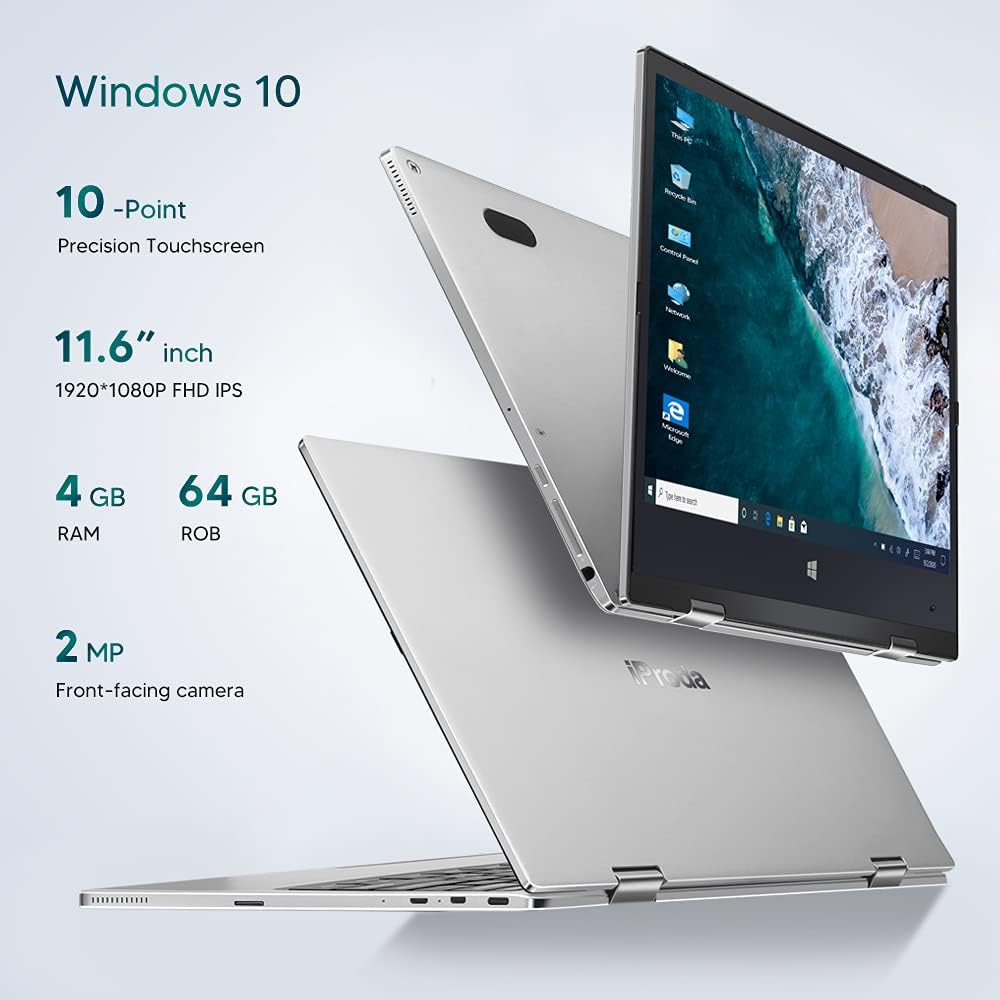
Image: Overview of key specifications including display, memory, and camera.
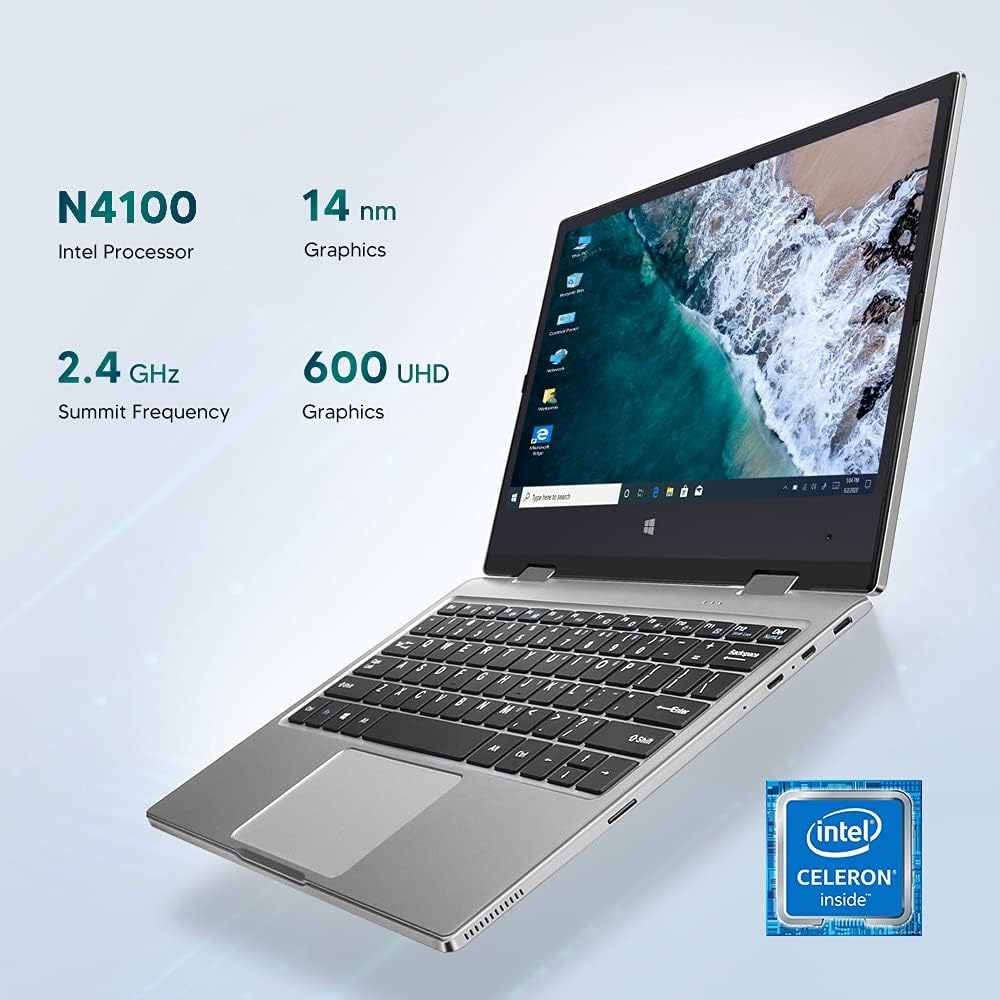
Image: Details of the Intel Celeron N4100 processor and integrated graphics.

Image: The laptop's slim and lightweight design.
3. Initial Setup
- Unpacking: Carefully remove the laptop and all accessories from the packaging. Ensure all components are present: laptop, power adapter, and documentation.
- Charging the Battery: Before first use, connect the power adapter to the Type-C port on the laptop and plug it into a power outlet. Allow the battery to charge fully. The charging indicator light will typically change color or turn off when fully charged.
- Power On: Press and hold the Power Button located on the side of the laptop until the screen illuminates.
- Initial Windows Setup: Follow the on-screen instructions to complete the Windows 10 Pro setup. This includes selecting your language, region, connecting to a Wi-Fi network, and creating a user account.
- Connect Peripherals: If desired, connect external devices such as a mouse, keyboard, or external monitor using the available ports (Micro-USB, Micro-HDMI). Note: For standard USB 2.0 devices, a Micro-USB to USB 2.0 OTG cable is required.

Image: Illustration of the laptop's ports and buttons for connectivity and control.
4. Operating Instructions
4.1. Using the 2-in-1 Convertible Feature
The Iproda Laptop's 360-degree hinge allows for flexible usage modes:
- Laptop Mode: Standard laptop configuration for typing and productivity.
- Tent Mode: Fold the screen back to stand the laptop in a "tent" shape, ideal for watching videos or presentations.
- Stand Mode: Fold the screen back further, resting the keyboard face down, for a compact display.
- Tablet Mode: Fold the screen completely back against the base for a full tablet experience, utilizing the touchscreen.
4.2. Touchscreen Functionality
The 11.6-inch display supports 10-point precision touch. You can interact with Windows 10 Pro directly on the screen using gestures similar to a smartphone or tablet. Common gestures include tapping, swiping, pinching to zoom, and two-finger scrolling.
4.3. Connecting to External Displays
Use the Micro-HDMI port to connect your laptop to an external monitor or projector. You may need an appropriate Micro-HDMI to HDMI cable (not included). Once connected, you can configure display settings in Windows to extend or duplicate your screen.
4.4. Video Conferencing
The integrated 2MP front-facing camera and microphone enable video conferencing. Ensure you have a stable internet connection and appropriate software (e.g., Zoom, Microsoft Teams) installed.
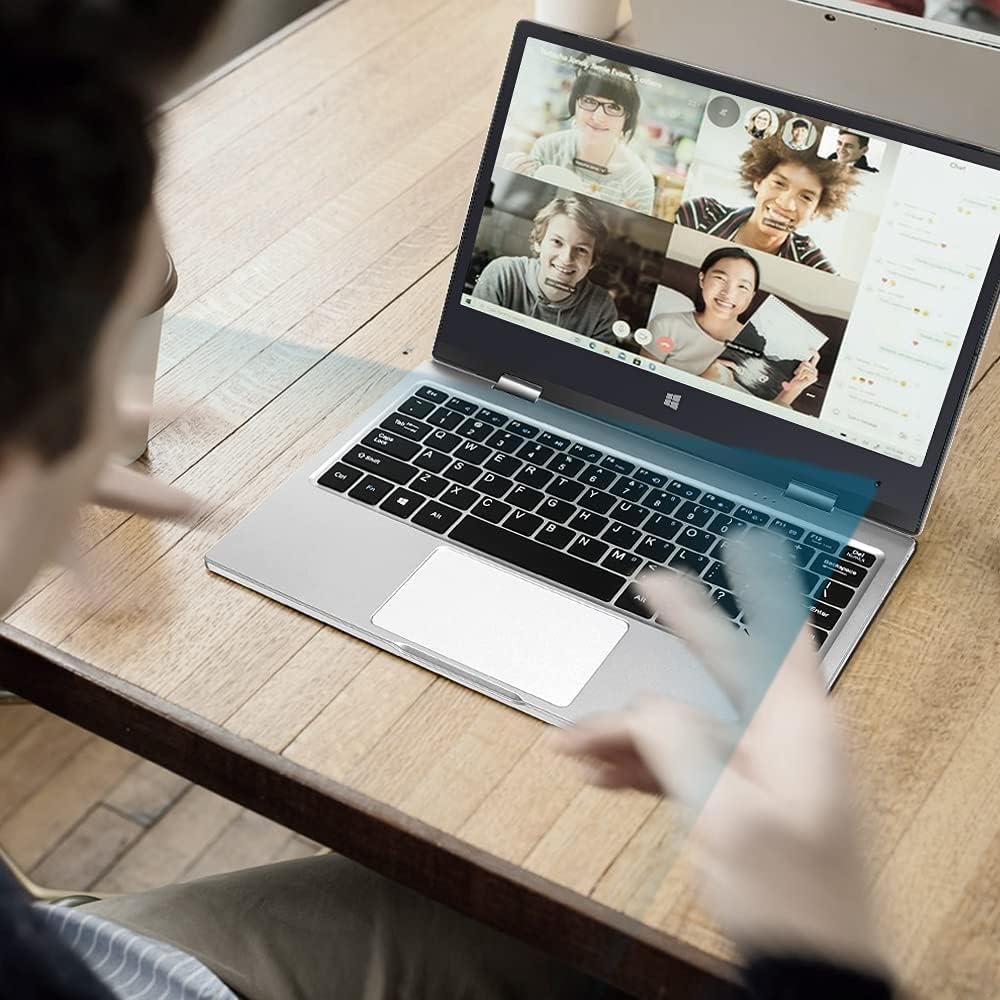
Image: The laptop in use for a video conference.
Image: Detail of the front-facing camera during a video call.
5. Maintenance and Care
- Cleaning the Screen: Use a soft, lint-free cloth specifically designed for electronics. For stubborn smudges, lightly dampen the cloth with water or a screen cleaner solution (avoid harsh chemicals).
- Cleaning the Chassis: Wipe the exterior with a soft, dry cloth. Avoid liquid contact with ports and openings.
- Battery Care: To prolong battery life, avoid fully discharging the battery frequently. Store the laptop in a cool, dry place when not in use for extended periods.
- Storage Expansion: The laptop supports M.2 2242 SSDs (128GB/256GB/512GB, not included) for expanding storage. Refer to a qualified technician for installation to avoid damaging the device.
- Software Updates: Regularly update Windows 10 Pro and device drivers to ensure optimal performance and security.

Image: Illustration of the M.2 SSD slot for storage expansion.

Image: Detailed view of the M.2 SSD installation for storage expansion.
6. Troubleshooting
If you encounter issues with your Iproda Laptop, try the following common troubleshooting steps:
- Laptop does not power on:
- Ensure the power adapter is securely connected to both the laptop's Type-C port and a working power outlet.
- Allow the laptop to charge for at least 30 minutes before attempting to power it on again.
- Try a different power outlet.
- Screen is blank or unresponsive:
- Press the Power Button briefly to see if the screen wakes up from sleep.
- Perform a hard reset by holding the Power Button for 10-15 seconds until the laptop powers off, then restart it.
- If connected to an external display, ensure the display cable is properly connected and the external display is powered on.
- Wi-Fi connectivity issues:
- Check if Wi-Fi is enabled in Windows settings.
- Restart your Wi-Fi router and the laptop.
- Ensure you are within range of your Wi-Fi network.
- Touchscreen not responding:
- Restart the laptop.
- Ensure the screen is clean and free of debris.
- Check for any pending Windows updates that might include touchscreen driver fixes.
If these steps do not resolve the issue, please refer to the Warranty and Support section for further assistance.
7. Technical Specifications
| Feature | Specification |
|---|---|
| Brand | Iproda |
| Model Number | 1169YM |
| Color | Silver |
| Form Factor | Laptop (2-in-1 Convertible) |
| Screen Size | 11.6 Inches |
| Display Resolution | 1920 x 1080 Pixels (FHD IPS) |
| Processor Brand | Intel |
| Processor Type | Intel Celeron N4100 |
| Processor Speed | Up to 2.4 GHz |
| RAM Size | 4 GB |
| RAM Technology | DDR4 |
| Hard Drive Size | 64 GB |
| Hard Drive Type | SSD |
| Graphics Coprocessor | Intel UHD Graphics 600 |
| Wireless Connectivity | Wi-Fi (2.4 GHz) |
| Operating System | Windows 10 Pro |
| Battery Capacity | 3500 mAh (26.6 Watt-hours) |
| Average Battery Life | 8 Hours |
| Ports | Type-C (Power), Micro-HDMI, Micro-USB, Micro-SD Card Slot, Headphone Jack |
| Dimensions (L x W x H) | 27.43 x 18.8 x 1.27 cm |
| Weight | 997.9 g (approx. 2.2 lbs) |
8. Warranty and Support
The Iproda Laptop comes with a one-year warranty. This warranty covers manufacturing defects and ensures the quality of all Iproda products. For warranty claims or technical support, please contact Iproda customer service.
If you encounter any problems or have questions regarding your device, please do not hesitate to contact us. Please have your model number (1169YM) and purchase information ready when contacting support.
Contact Information: Please refer to the retailer's website or your purchase documentation for specific customer service contact details.
Related documents1169YM


Ask a question about this manual
Ask about setup, troubleshooting, compatibility, parts, safety, or missing instructions. Manuals+ will review the question and use this page’s manual context to help answer it.