
Introduction
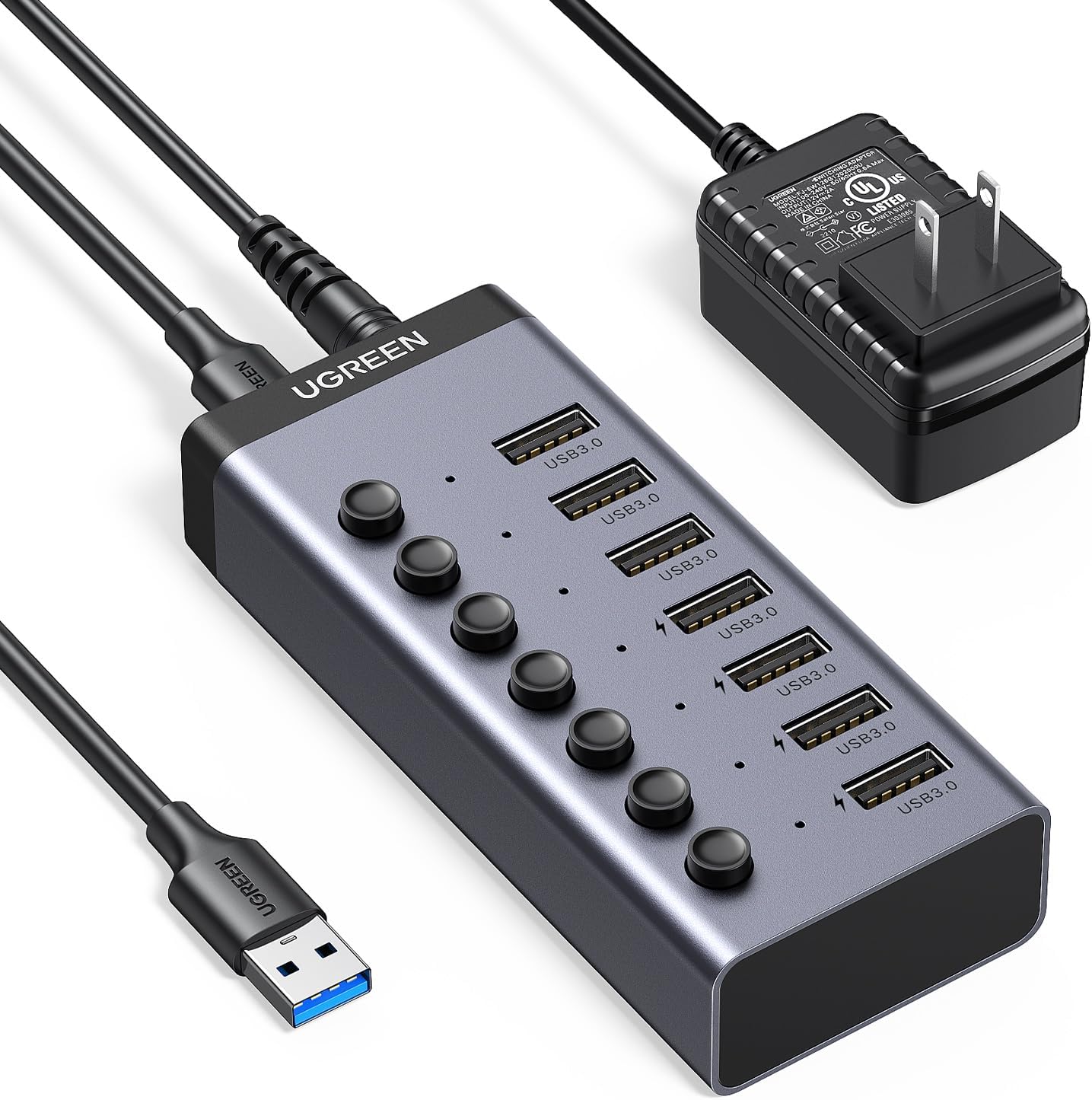
This manual provides detailed instructions for the installation, operation, and maintenance of your UGREEN Powered USB 3.0 Hub (Model 90305). Please read this manual thoroughly before using the product to ensure optimal performance and safety.
Package Contents
- 1 x UGREEN USB 3.0 Hub
- 1 x USB-A to USB-B Data Cable (approximately 40 inches)
- 1 x 12V/2A DC Power Adapter (approximately 59 inches)
- 1 x User Instruction Manual

Image: Diagram illustrating the components included in the product package: the USB hub, data cable, and power adapter.
Product Features
- 7 USB 3.0 Data Ports: Expand your computer's connectivity with seven high-speed USB 3.0 ports, supporting data transfer rates up to 5 Gbps.
- 4 Smart Charging Ports: Four dedicated ports automatically detect and deliver optimal charging for smartphones, tablets, and other USB-powered devices.
- Individual On/Off Switches: Each USB port features an independent switch and LED indicator for convenient control over connected devices, promoting energy saving and safety.
- External 12V/2A Power Adapter: Ensures stable power delivery for all connected devices, especially high-power peripherals like external hard drives.
- Universal Compatibility: Driver-free operation for Windows, macOS, UNIX, and Linux operating systems.

Image: The UGREEN hub highlighting its 7-in-1 functionality, distinguishing between data-only and data+charging ports.

Image: Visual representation of the hub's 5Gbps data transfer capability, indicating fast file transfers.

Image: A hand interacting with an individual on/off switch on the hub, illustrating the control feature.

Image: The UGREEN USB Hub displaying its blue LED lights, indicating active ports.
Setup Instructions
- Connect Power Adapter: Plug the included 12V/2A DC power adapter into the DC 12V port on the UGREEN USB Hub. Then, plug the power adapter into a wall outlet. This ensures stable power for all connected devices.
- Connect to Computer: Use the provided USB-A to USB-B data cable to connect the USB-B port on the hub to an available USB-A port on your computer (laptop or desktop PC).
- Verify Connection: The hub is plug-and-play, requiring no driver installation. Your computer should automatically recognize the hub.
- Connect USB Devices: Plug your USB devices (e.g., keyboard, mouse, external hard drive, smartphone) into the available USB 3.0 ports on the hub.

Image: Close-up view of the UGREEN USB Hub showing the DC 12V power input port and the connection of the power adapter.
Operating Instructions
- Using USB 3.0 Data Ports: Connect your USB peripherals such as keyboards, mice, flash drives, printers, or card readers to any of the seven USB 3.0 ports. These ports support data transfer up to 5 Gbps.
- Using Smart Charging Ports: The four ports marked with a lightning bolt symbol are smart charging ports. Connect your smartphones, tablets, or other devices that require charging. The hub will automatically detect the device's charging protocol to deliver an optimized charge. These ports also support data transfer.
- Individual On/Off Switches: Each port has a corresponding button. Press the button to activate or deactivate the port. A blue LED indicator will light up when the port is active. This allows you to manage power to individual devices, conserving energy and extending device lifespan.
- Compatibility: The hub is compatible with a wide range of devices including laptops, desktop PCs, printers, speakers, and tablets. It supports Windows, macOS, UNIX, and Linux operating systems without requiring additional drivers.

Image: The UGREEN USB Hub demonstrating its universal compatibility with various devices such as phones, tablets, mice, keyboards, and printers.

Image: The UGREEN USB Hub connected to a laptop, simultaneously charging multiple smartphones and an earbud case while transferring data.
Specifications
| Feature | Specification |
|---|---|
| Model Number | 90305 |
| Product Dimensions | 3.05 x 1.89 x 1.18 inches |
| Item Weight | 10.9 ounces |
| USB Ports | 7 x USB 3.0 (4 with Smart Charging capability) |
| Data Transfer Speed | Up to 5 Gbps |
| Power Input | 12V/2A DC Power Adapter |
| Hardware Interface | USB 3.0 |
| Compatible Devices | Laptops, PC, Printers, Speakers, Tablets |
| Operating Systems | Windows, macOS, UNIX, Linux |
Troubleshooting
- Device Not Recognized:
- Ensure the 12V/2A power adapter is securely connected to both the hub and a working power outlet.
- Verify the USB data cable is firmly connected between the hub and your computer.
- Check if the individual switch for the specific port is turned on (blue LED should be lit).
- Try connecting the device to a different port on the hub or directly to your computer to isolate the issue.
- Slow Data Transfer Speed:
- Ensure both the hub and the connected device support USB 3.0 for optimal speeds.
- Avoid connecting too many high-bandwidth devices simultaneously if experiencing slowdowns.
- Confirm the USB data cable used is a USB 3.0 compatible cable.
- Charging Issues:
- Ensure the power adapter is connected and providing power to the hub.
- Use the dedicated smart charging ports for devices requiring higher power.
- Check the charging cable for the device; a faulty cable can prevent proper charging.
- Hub Disconnects Randomly:
- Ensure the power adapter is providing stable power. Unstable power can cause disconnections.
- Avoid overloading the hub with devices that collectively draw more power than the adapter can supply.
- Ensure the connection cable to the computer is secure.
Maintenance
- Keep the hub in a dry environment, away from moisture and extreme temperatures.
- Clean the hub with a soft, dry cloth. Avoid using liquid cleaners or solvents.
- Do not attempt to disassemble or repair the hub yourself. Contact customer support for assistance.
- Avoid placing heavy objects on the hub or subjecting it to physical shock.
Warranty and Support
UGREEN products are designed with quality and reliability in mind. For warranty information or technical support, please refer to the official UGREEN website or contact their customer service directly. Keep your purchase receipt for warranty claims.