
1. Introduction
Thank you for purchasing the Dxyiitoo Mini Portable DVD Player, model XFDX-JP-101. This compact and versatile device is designed to provide high-quality video and audio playback for your entertainment needs. Featuring HDMI output, USB input, and region-free compatibility, it allows you to enjoy your favorite DVDs, CDs, and digital media files on various displays, including TVs, projectors, and portable monitors. This manual provides essential information for setting up, operating, and maintaining your DVD player.

Image 1.1: Dxyiitoo Mini Portable DVD Player, remote control, HDMI cable, and Micro USB cable.
2. Product Features
- Compact and Lightweight Design: Measuring approximately 15.3 x 13.5 x 3 cm and weighing around 300g, this player is highly portable and space-saving.
- High-Quality Output: Delivers high-definition video (up to 1080P) and excellent audio quality, utilizing premium materials and advanced chips for vivid images.
- Region-Free Compatibility: Play DVDs from any region without restrictions.
- Wide Media Format Support: Compatible with DVD, DVD+RW, DVD-RW, DVD+R, DVD-R, HDCD, VCD, CD, CD+R, CD-R, MP3, KODAK PICTURE CD, and DIVX. Note: Blu-ray discs are not supported.
- USB 2.0 Input: Play videos, photos, and music directly from a USB flash drive (supports up to 32GB).
- HDMI Output: Connects to TVs, projectors, computers, tablet PCs, and portable displays for a larger viewing experience.
- Advanced Technology: Features new scanning technology and a robust drive system for increased read speed and reduced operational noise.
- Last Memory Function: Resumes playback from where you left off after powering on the device.

Image 2.1: The Dxyiitoo Mini DVD Player (Model DX-01, equivalent to XFDX-JP-101) highlighting HDMI output and 1080P HD video support.


Image 2.2: Visual representation of high-speed loading capabilities and the last memory function.
3. Package Contents
Please check that all the following items are included in your package:
- Dxyiitoo Mini Portable DVD Player (XFDX-JP-101) x 1
- Remote Control (with battery) x 1
- HDMI Cable x 1
- Micro USB Cable x 1
- Instruction Manual x 1
4. Setup
4.1 Power Connection
- Connect the provided Micro USB cable to the Micro USB port on the DVD player.
- Connect the other end of the Micro USB cable to a compatible power source, such as a portable power bank, car charger, or a PC USB port. Note: An AC adapter is not included.
- Ensure the power switch on the side of the player is in the 'ON' position.
4.2 Connecting to a Display (TV/Projector/Monitor)
- Connect one end of the provided HDMI cable to the HDMI OUT port on the DVD player.
- Connect the other end of the HDMI cable to an HDMI input port on your television, projector, computer monitor, or portable display.
- Select the corresponding HDMI input on your display device.
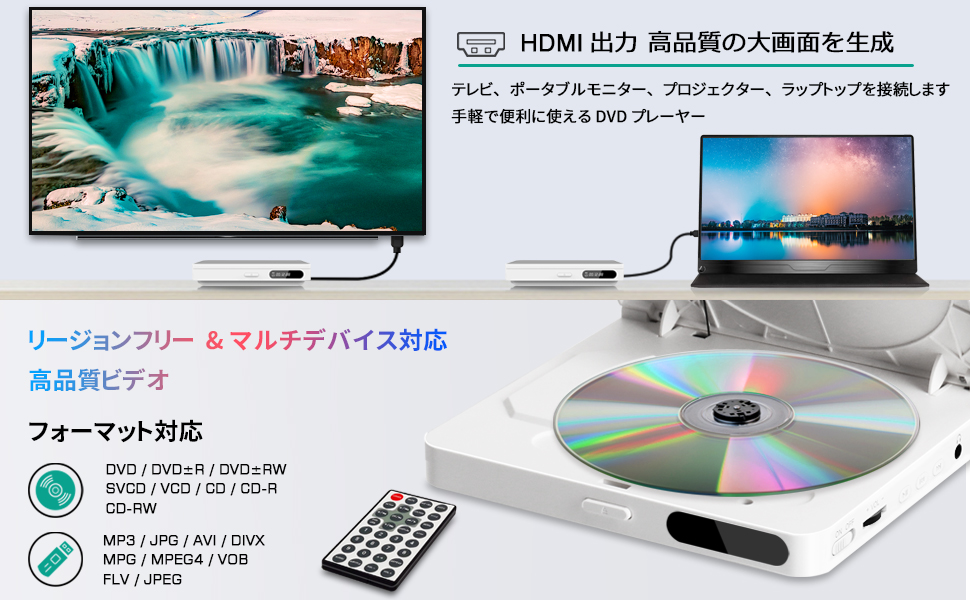
Image 4.1: Connecting the DVD player to a TV or laptop via HDMI for high-quality video output.

Image 4.2: The DVD player connected to a projector, demonstrating its compact size and the disc loading mechanism. Note the protective card inside the disc tray that must be removed before use.
4.3 Inserting a Disc
- Gently open the disc tray cover on the top of the player.
- Important: Before first use, remove any protective card or sticker from the disc lens area.
- Place the DVD or CD onto the spindle with the label side facing up.
- Gently close the disc tray cover. The player will begin reading the disc automatically.
4.4 Using USB Storage
- Insert a USB flash drive (up to 32GB) into the USB port on the side of the DVD player.
- The player will detect the USB drive and display its contents. Use the remote control to navigate and select your desired media files (videos, photos, or music).

Image 4.3: Inserting a USB flash drive into the USB 2.0 input port.
5. Operating Instructions
5.1 Basic Playback
- Play/Pause: Press the PLAY/PAUSE button on the remote control or the player to start or pause playback.
- Stop: Press the STOP button to stop playback.
- Next/Previous: Use the NEXT or PREVIOUS buttons to skip tracks or chapters.
- Fast Forward/Rewind: Hold down the FF or REW buttons for fast forward or rewind.
5.2 Volume Control
Adjust the volume using the VOL+ and VOL- buttons on the remote control or the physical volume knob on the player. Press the MUTE button to temporarily silence the audio.
5.3 Menu Navigation
Use the arrow buttons (UP, DOWN, LEFT, RIGHT) and the ENTER button on the remote control to navigate through disc menus or USB file directories.
5.4 Other Functions
- SETUP: Access the system settings menu to configure video, audio, and other preferences.
- DISPLAY: Show playback information on the screen.
- REPEAT: Repeat the current track/chapter or the entire disc/folder.
- A-B: Set a specific section for repeat playback.
6. Maintenance
6.1 Cleaning the Player
- Wipe the exterior of the player with a soft, dry cloth. Do not use liquid cleaners or abrasive materials.
- Keep the disc tray area free from dust and debris. Avoid touching the lens directly.
6.2 Disc Handling
- Always hold discs by their edges.
- Clean discs with a soft, lint-free cloth, wiping from the center outwards.
- Store discs in their cases to prevent scratches and dust accumulation.
7. Troubleshooting
If you encounter issues with your Dxyiitoo Mini Portable DVD Player, please refer to the following common problems and solutions:
| Problem | Possible Cause | Solution |
|---|---|---|
| No power | Power cable not connected properly; Power switch is OFF. | Ensure Micro USB cable is securely connected to a power source. Turn the power switch to 'ON'. |
| No picture on screen | HDMI cable not connected; Incorrect input selected on TV/monitor; Disc or USB file issue. | Check HDMI cable connection. Select the correct HDMI input on your display. Try a different disc or USB file. |
| No sound | Volume is too low or muted; Audio settings incorrect; HDMI audio issue. | Increase volume or unmute. Check audio settings in the player's SETUP menu. Ensure your display's audio is not muted. |
| Disc not playing or frequently stops | Disc is dirty or scratched; Disc format not supported; Protective card not removed. | Clean the disc. Ensure the disc format is supported (Blu-ray is not). Remove any protective card from the disc tray. Try a different disc. |
| Remote control not working | Battery low or incorrectly inserted; Obstruction between remote and player; Remote too far from player. | Ensure battery is correctly inserted. Replace battery if needed. Remove obstructions. Operate remote within close range (approx. 2 feet). |
| USB drive not recognized | USB drive not formatted correctly; USB drive capacity too large; USB drive corrupted. | Ensure USB drive is formatted to FAT32. Use a USB drive 32GB or smaller. Try a different USB drive. |
8. Specifications
| Feature | Specification |
|---|---|
| Brand | Dxyiitoo |
| Model Name | XFDX-JP-101 |
| Color | White |
| Product Dimensions (L x W x H) | 15.3 x 13.5 x 3 cm |
| Product Weight | 300g (approx.) |
| Resolution | 1920 x 1080 (1080P HD) |
| HDMI Ports | 1 |
| USB Ports | 1 (USB 2.0, supports up to 32GB) |
| Supported Media Types | CD, DVD, MP3, VCD |
| Supported Audio Formats | Dolby Digital, DTS, PCM, MP3 |
| Audio Output Mode | Stereo |
| Remote Control | IR (Infrared) |
| Power Input | Micro USB (AC adapter not included) |
| Video System | PAL/NTSC |
9. Warranty and Support
Your Dxyiitoo Mini Portable DVD Player comes with a 12-month return support period from the date of purchase. For any product-related inquiries or technical assistance, please contact our customer service team. We offer 7-day customer service to address your concerns promptly.
For further assistance, please refer to the contact information provided with your purchase or visit the official Dxyiitoo support website.