
Product Overview
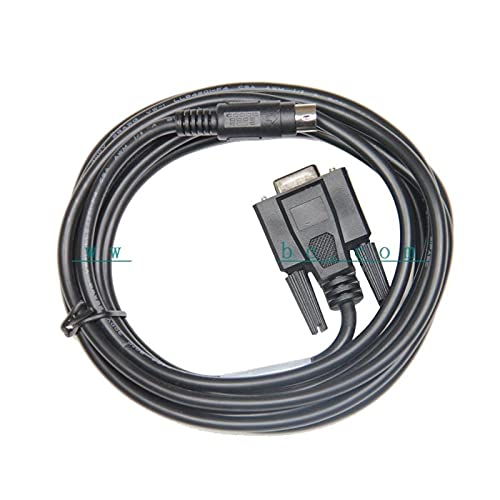
Image: The Davitu PC-XC/DVP Xinje PLC Download Cable, featuring a black insulated cable with a 9-pin D-sub connector on one end and a circular DIN connector on the other, designed for connecting Xinje PLCs to a computer.
The Davitu PC-XC/DVP cable is specifically designed for connecting Xinje PLCs (Programmable Logic Controllers) to a computer for programming, data transfer, and monitoring. This cable is compatible with various Xinje PLC models, including XC1, XC2, XC3, and XC5 series. It features an insulated design with a copper conductor and PVC insulation material, ensuring reliable and safe data transmission.
Setup Instructions
- Driver Installation: Before connecting the cable, ensure that the necessary USB-to-serial port drivers are installed on your computer. These drivers are typically provided by the PLC manufacturer or can be downloaded from their official website. Without the correct drivers, the cable will not be recognized by your operating system.
- Connect to PLC: Locate the programming port on your Xinje PLC. This is typically a circular DIN port. Carefully insert the circular DIN connector of the PC-XC/DVP cable into the PLC's programming port. Ensure a secure connection.
- Connect to Computer: Connect the 9-pin D-sub (DB9) connector of the PC-XC/DVP cable to an available serial port on your computer. If your computer does not have a serial port, you may need a USB-to-serial adapter.
- Power On: Ensure both the PLC and your computer are powered on.
- Software Configuration: Open your PLC programming software (e.g., Xinje programming software). Navigate to the communication settings and select the correct COM port corresponding to the connected cable. Configure other communication parameters such as baud rate, data bits, parity, and stop bits as required by your PLC model.
Operating Instructions
Once the cable is properly set up and recognized by your programming software, you can proceed with the following operations:
- Program Upload/Download: Use the software to upload existing programs from the PLC to your computer or download new programs from your computer to the PLC. Always back up existing programs before downloading new ones.
- Online Monitoring: Establish an online connection with the PLC to monitor its status, input/output values, and internal registers in real-time. This is crucial for debugging and troubleshooting.
- Parameter Configuration: Modify PLC parameters, such as communication settings, clock settings, and other system configurations, through the programming software.
- Firmware Updates: In some cases, the cable may be used to update the PLC's firmware. Refer to your PLC's specific documentation for firmware update procedures.
Always ensure that the PLC is in a safe state before performing any operations that modify its program or parameters. Refer to your specific Xinje PLC manual for detailed programming and operation guidelines.
Maintenance
- Storage: Store the cable in a cool, dry place away from direct sunlight and extreme temperatures. Avoid kinking or tightly coiling the cable, which can damage the internal conductors.
- Cleaning: If necessary, gently wipe the cable and connectors with a soft, dry cloth. Do not use harsh chemicals or abrasive materials.
- Inspection: Periodically inspect the cable for any signs of wear, cuts, or damage to the insulation or connectors. Do not use a damaged cable.
- Handling: Always grasp the connector housing when plugging or unplugging the cable, rather than pulling on the cable itself, to prevent damage to the wires and connectors.
Troubleshooting
- Cable Not Recognized:
- Ensure drivers are correctly installed. Check Device Manager for any unknown devices or driver errors.
- Try a different USB port on your computer or a different USB-to-serial adapter if applicable.
- Restart your computer.
- Communication Error:
- Verify that the correct COM port is selected in your programming software.
- Check communication parameters (baud rate, data bits, parity, stop bits) in the software to match the PLC's settings.
- Ensure the cable is securely connected to both the PLC and the computer.
- Confirm the PLC is powered on and functioning correctly.
- Intermittent Connection:
- Inspect the cable for physical damage.
- Ensure connectors are clean and free of debris.
- Avoid electromagnetic interference from other devices.
Specifications
| Model Number | PC-XC/DVP (DVP) |
| Type | Insulated |
| Insulation Material | PVC |
| Conductor Material | Copper |
| Compatibility | Xinje PLC XC1, XC2, XC3, XC5 series |
| Manufacturer | DAVITU |
| ASIN | B09D8GRJ1K |
| Manufacturer Reference | DVT-30E9C7978D418E79DBC4E0AD0BDD8F67 |