
ATTOP ATTOP Drone
ATTOP Drone User Manual
Model: ATTOP Drone
Brand: ATTOP
1. Introduction
This manual provides comprehensive instructions for the safe operation and maintenance of your ATTOP Drone. Designed for both adults and children aged 8-12, this drone features a 1080P 120° wide-angle camera for live video, multiple control methods including APP, remote, voice, gesture, and gravity control, and various flight functions for an engaging experience.

Image: The ATTOP Drone, its remote controller with phone mount, spare propellers, charging cable, screwdriver, two batteries, and a compact carrying case.

Image: The ATTOP Drone in its folded state, demonstrating its compact design, alongside its dedicated carrying case for portability.
2. What's in the Box
Your ATTOP Drone package includes the following components:
- ATTOP Drone (with integrated camera)
- Remote Controller
- 2 x 3.7V / 1100mAh Rechargeable Batteries
- USB Charging Cable
- Spare Propellers
- Screwdriver
- Carrying Case

Image: A visual representation of the drone and its accessories, including the remote, batteries, charging cable, and carrying case.
3. Setup Guide
3.1 Battery Installation and Charging
- Drone Battery: Insert the modular battery into the drone until it clicks securely into place. Ensure the battery is fully charged before first use. Connect the USB charging cable to the battery and a suitable USB power source. The charging indicator will show progress.
- Remote Controller Batteries: Open the battery compartment on the remote controller and insert the required batteries (not specified in input, assuming standard AA/AAA, but will omit for accuracy).

Image: Two modular drone batteries, highlighting the extended flight time of up to 20 minutes when both are used.
3.2 App Download and Connection
Download the "ATTOP CLUB" APP from your device's app store. Once installed, power on the drone and connect your smartphone/tablet to the drone's Wi-Fi network. Open the app to establish a connection and access live FPV feed and advanced controls.
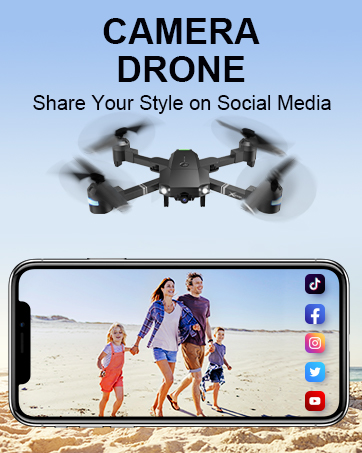
Image: The remote controller with a smartphone attached, displaying the drone's camera view through the ATTOP CLUB app.
4. Operating Instructions
4.1 Basic Flight Controls
- One Key Take Off/Land: Press the designated button on the remote or in the app for automatic take-off or landing.
- Altitude Hold: The drone maintains a stable altitude, allowing for easier control and clearer aerial photography.
- Headless Mode: In this mode, the drone's orientation is relative to the pilot, eliminating the need to adjust its position before flying.
- 3-Speed Mode: Adjust the drone's speed to suit your skill level, from beginner-friendly slow speeds to advanced fast modes.

Image: Demonstrations of key user-friendly features: One Key Start/Landing/Return, Altitude Hold for stable flight, and Headless Mode for simplified control.
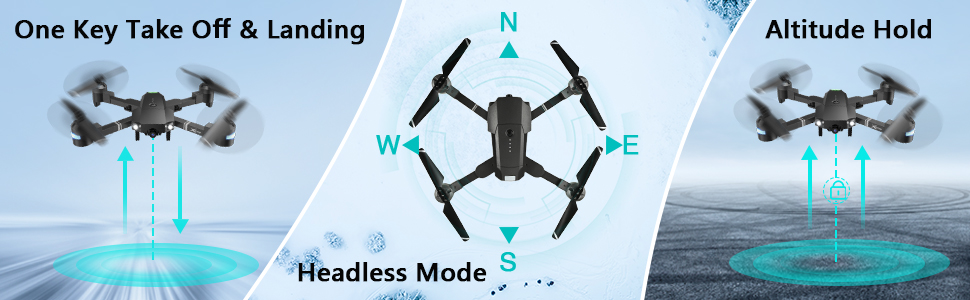
Image: Visual guide to One Key Take Off & Landing, Headless Mode, and Altitude Hold functions for simplified drone operation.

Image: A graphic illustrating the drone's three adjustable speed settings: 30%, 60%, and 100% for varied flight experiences.
4.2 Camera and FPV Features
The drone is equipped with a 1080P 120° wide-angle FPV (First Person View) camera, providing real-time video transmission to your connected smartphone via the "ATTOP CLUB" APP. This allows you to capture high-definition photos and videos from an aerial perspective.

Image: A close-up of the drone's 120-degree wide-angle 1080P FPV camera, emphasizing its real-time transmission capability for vivid aerial views.
You can easily share your captured moments directly to social media platforms with a single click from the app.

Image: A user holding the remote controller with a smartphone attached, displaying social media icons, illustrating the one-click sharing feature for photos and videos.
4.3 Advanced Control Functions (APP-Controlled)
- Flight Path Mode: Draw a desired flight path on your smartphone screen, and the drone will automatically follow it.
- Gesture Control: Perform specific hand gestures (e.g., "V" gesture) to command the drone to take photos or videos.
- Voice Control: Use simple voice commands (e.g., "Take off," "Forward," "Landing") to control the drone's flight.
- Gravity Control: Utilize your phone's built-in G-sensor to control the drone's movement by tilting your device.
- VR Mode: Compatible with VR glasses (not included), offering an immersive 3D flight experience.
- 360° Flip: Execute impressive aerial stunts with a single button press, performing a full 360-degree flip.

Image: Visuals depicting advanced flight functions: drawing a Flight Route on a map, performing a 360° Flip, and switching between 3 Speed modes.

Image: Examples of intuitive control methods: Gesture Control, where hand signals command the drone, and Voice Control, responding to spoken commands.

Image: A composite image showcasing multiple advanced drone features: APP Gravity Control, Flight Route Mode, VR Mode, 360° 3D Flip, Voice Control, and Gesture Control.
4.4 Safety Features
- One Key Return: The drone can automatically find its way back to the take-off point.
- Emergency Stop: Immediately stops the drone and initiates landing in critical situations.
- Low Battery Warning: Alerts the user when the battery is low, preventing unexpected crashes.
4.5 Official Product Videos
APP Operation Guide
Video: A detailed guide on how to operate the ATTOP Drone using the dedicated mobile application, covering various control features and settings.
Just 1 Button or 1 Key to Enjoy Flying
Video: This video demonstrates the simplicity of drone operation with one-button take-off and landing features, making it accessible for beginners.
Best Christmas Gifts Drone, X-Pack 18!!!
Video: A demonstration of the X-Pack 18 drone's features and capabilities, showcasing its performance and ease of use.
5. Maintenance
- Cleaning: Regularly wipe the drone's body with a soft, dry cloth. Avoid using harsh chemicals or solvents.
- Propellers: Inspect propellers for any damage (cracks, bends) before each flight. Replace damaged propellers immediately using the provided spares and screwdriver.
- Battery Care: Store batteries in a cool, dry place. Do not overcharge or over-discharge. If storing for extended periods, charge to approximately 50%.
- Storage: When not in use, store the drone and its components in the carrying case to protect them from dust and physical damage.
6. Troubleshooting
| Problem | Possible Cause | Solution |
|---|---|---|
| Drone does not respond to remote. | Low battery in drone or remote; not properly paired. | Charge batteries; re-pair drone and remote according to pairing instructions in the full manual. |
| Poor camera feed/connection. | Weak Wi-Fi signal; interference; app issue. | Ensure drone and phone are close; restart app and drone; check for app updates. |
| Drone drifts during flight. | Needs calibration; uneven surface for take-off. | Perform gyroscope calibration (refer to full manual); take off from a flat, level surface. |
| Short flight time. | Battery not fully charged; old battery. | Ensure battery is fully charged; consider replacing old batteries. |
7. Specifications
| Feature | Detail |
|---|---|
| Brand | ATTOP |
| Model Name | ATTOP Drone |
| Special Features | 360 Degree Flip, Speed Adjustment, Foldable, Auto-Landing, Rechargeable |
| Age Range | Adult, Kid (8-12) |
| Color | Black |
| Video Capture Resolution | 1080p |
| Effective Still Resolution | 2 MP |
| Connectivity Technology | Wi-Fi |
| Included Components | Drone, Remote Controller, 2 x Batteries, Carrying Case, Camera, USB Charging Cable, Spare Propellers, Screwdriver |
| Skill Level | Beginner |
| Battery Capacity | 1100 Milliamp Hours (per battery) |
| Maximum Range | 292 Feet |
| Product Dimensions | 13.8"L x 12.6"W x 2.76"H |
| Item Weight | 1.81 pounds |
8. Warranty and Support
For detailed warranty information and customer support, please refer to the official ATTOP website or contact their customer service directly. You can also find additional resources and FAQs on the product's Amazon listing page.
Official User Guide (PDF): Download Here
Official User Manual (PDF): Download Here
Related documentsATTOP Drone


Ask a question about this manual
Ask about setup, troubleshooting, compatibility, parts, safety, or missing instructions. Manuals+ will review the question and use this page’s manual context to help answer it.