
1. Introduction
Thank you for choosing the A4tech FG1112 Fstyler Wireless Keyboard and Mouse Set. This compact and efficient combo provides a reliable 2.4GHz wireless connection, offering convenience and comfort for your daily computing needs. The keyboard features a Q Turkish layout with FN multimedia keys, while the mouse offers precise 1200 DPI optical tracking. This manual will guide you through the setup, operation, and maintenance of your new device.
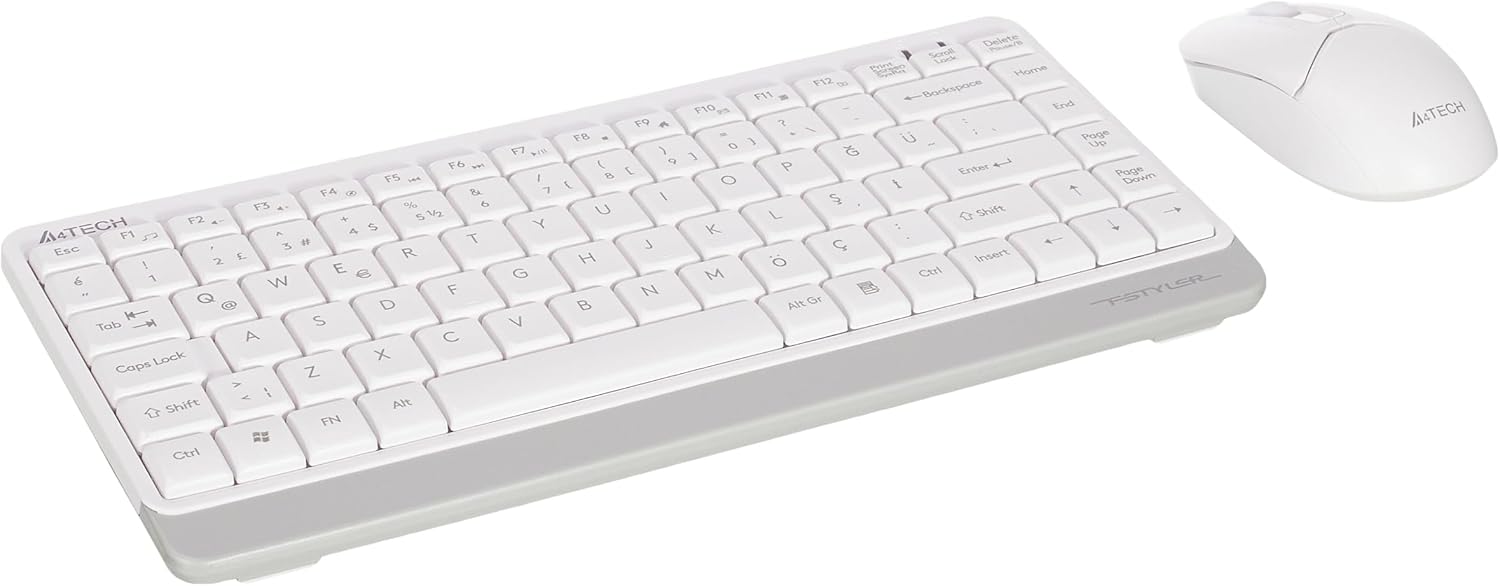
Image 1.1: A4tech FG1112 Fstyler Wireless Keyboard and Mouse Set (White)
2. Package Contents
Please check the package contents to ensure all items are present:
- 1 x A4tech FG1112 Wireless Keyboard
- 1 x A4tech Fstyler Wireless Mouse
- 1 x USB Nano Receiver
- 2 x AAA Batteries (for keyboard)
- 1 x AA Battery (for mouse, typically included)
- 1 x User Manual (this document)
3. Setup Instructions
- Insert Batteries:
- For the keyboard: Open the battery compartment cover on the underside of the keyboard. Insert two AAA batteries, ensuring correct polarity (+/-). Close the cover.
- For the mouse: Open the battery compartment cover on the underside of the mouse. Insert one AA battery, ensuring correct polarity (+/-). Close the cover.

Image 3.1: Mouse bottom view showing battery compartment and power switch.
- Connect USB Nano Receiver: Locate the USB Nano Receiver, typically stored inside the mouse's battery compartment or packaged separately. Plug the receiver into an available USB port on your computer.
- Power On:
- For the keyboard: Ensure the keyboard is powered on. There might be a power switch on the top right or underside.
- For the mouse: Slide the power switch on the underside of the mouse to the "ON" position.
- Automatic Connection: Your computer should automatically detect and install the necessary drivers for the keyboard and mouse. This process may take a few moments. Once complete, your devices are ready for use.
Video 3.1: A short demonstration of the A4tech Fstyler Wireless Keyboard and Mouse Set, showing its compact design and wireless connectivity. This video illustrates the product's features and ease of use.
4. Operating Instructions
4.1 Keyboard Usage
The A4tech FG1112 keyboard features a compact design with a Q Turkish layout. It is designed for comfortable and quiet typing.

Image 4.1: Top view of the A4tech FG1112 Wireless Keyboard, highlighting its Q Turkish layout.
Multimedia and Function Keys:
The keyboard includes 12 multimedia and internet function keys integrated into the F1-F12 keys. To activate these functions, press the FN key simultaneously with the desired F-key.
- FN + F1: Media Player
- FN + F2: Volume Down
- FN + F3: Volume Up
- FN + F4: Mute
- FN + F5: Previous Track
- FN + F6: Next Track
- FN + F7: Play/Pause
- FN + F8: Stop
- FN + F9: Home Page
- FN + F10: Email
- FN + F11: My Computer
- FN + F12: Calculator

Image 4.2: Illustration of FN key functionality for multimedia controls.
4.2 Mouse Usage
The A4tech Fstyler mouse provides precise 1200 DPI optical tracking for smooth and accurate cursor movement.

Image 4.3: Top view of the A4tech Fstyler Wireless Mouse.
Basic Functions:
- Left Click: Primary function, used for selecting items, opening files, etc.
- Right Click: Secondary function, typically opens context menus.
- Scroll Wheel: Used for scrolling documents and web pages vertically. Can also function as a middle click button.
5. Maintenance
- Cleaning: Use a soft, dry cloth to clean the keyboard and mouse. For stubborn dirt, a slightly damp cloth can be used, but ensure no liquid enters the devices.
- Battery Replacement: When the keyboard or mouse becomes unresponsive or exhibits delayed input, it's time to replace the batteries. Follow the "Insert Batteries" steps in the Setup section.
- Storage: When not in use for extended periods, turn off the mouse to conserve battery life. Store the devices in a cool, dry place.
6. Troubleshooting
| Problem | Possible Solution |
|---|---|
| Keyboard/Mouse not responding |
|
| Delayed or intermittent response |
|
| Multimedia keys not working |
|
7. Specifications
| Feature | Detail |
|---|---|
| Brand | A4tech |
| Model | FG1112 |
| Connectivity Technology | 2.4GHz Wireless |
| Keyboard Layout | Q Turkish |
| Keyboard Type | Multimedia Membrane |
| Mouse DPI | 1200 DPI Optical |
| Keyboard Power Source | 2 x AAA Batteries |
| Mouse Power Source | 1 x AA Battery (typical) |
| Special Features | Wireless, Mini, Multimedia Keys, Optical Mouse, Laser Printed Keys, Water-resistant design (with drainage channels) |
| Product Weight | 0.62 Kilograms (Set) |
| Dimensions (Keyboard) | Approx. 315mm (Width) x 146mm (Depth) x 25mm (Height) |
| Dimensions (Mouse) | Approx. 64mm (Width) x 108mm (Depth) x 35mm (Height) |

Image 7.1: Dimensions of the A4tech FG1112 Keyboard and Mouse.
8. Warranty and Support
This A4tech FG1112 Fstyler Wireless Keyboard and Mouse Set comes with a 2-year warranty from the date of purchase. Please retain your proof of purchase for warranty claims.
For technical support, troubleshooting assistance, or warranty inquiries, please contact A4tech customer service through their official website or your local distributor.
You can find more information and support resources on the A4tech Store on Amazon.


