1. Introduction
This manual provides detailed instructions for the installation, operation, and maintenance of your WeHere 16 Key Lock Box Wall Mount. This smart key cabinet offers multiple secure unlocking methods and efficient key management for various environments such as offices, valet services, realtors, and hotels.

Image: The WeHere 16 Key Lock Box, showcasing its digital keypad, physical keyhole, and a smartphone displaying the companion app for smart control.
Video: An overview of the WeHere 16 Key Lock Box, demonstrating its purpose and how it helps manage keys efficiently.
2. Product Features
The WeHere 16 Key Lock Box is designed with robust materials and smart functionalities to ensure secure and convenient key management.
- Durable Construction: Made from 0.6 mm cold rolled steel, providing a solid and scratch-resistant structure. The key hooks are made of durable plastic.
- Multiple Unlocking Methods: Offers versatile access options including physical key, Bluetooth via app, remote WiFi (with optional bridge), One-Time Password (OTP), time-based passwords, and static fixed codes.
- 16 Key Capacity: Equipped with 16 key hooks and includes writable key tags for easy organization and identification.
- Smart Key Management (Mini ERP): The companion app allows for tracking key usage, generating various password types, and monitoring battery levels.

Image: Visual representation of the smart key box features, highlighting the various unlocking methods and management capabilities.

Image: The interior of the key box displaying its capacity and organized key tags.

Image: Detailed view of the key box construction, including the frame, hinges, and writable key tags.
Video: A short demonstration highlighting the key features and design of the WeHere 16 Key Lock Box.
3. Setup
3.1 Wall Mounting
The WeHere key box is designed for wall mounting. Ensure you select a sturdy location capable of supporting the weight of the box and its contents. Mounting hardware is typically included.
- Mark the desired drilling points on the wall using the key box as a template.
- Drill holes at the marked locations.
- Insert wall anchors if necessary.
- Secure the key box to the wall using appropriate screws.
3.2 Battery Installation
The smart lock is powered by 2 AA batteries.
- Locate the battery compartment, usually on the back or inside the lock mechanism.
- Insert 2 AA batteries, ensuring correct polarity.
- Close the battery cover securely.
3.3 App Download and Initial Setup
To utilize the smart features, download the WeHere app from your device's app store.
- Search for "WeHere" in your app store and download the official application.
- Open the app and follow the on-screen prompts to create an account or log in.
- Add your WeHere key box to the app by scanning the QR code provided with the product or manually entering its serial number.
- Ensure Bluetooth is enabled on your smartphone for initial pairing and local operations.
4. Operating Instructions
4.1 Unlocking Methods
The WeHere key box offers several convenient unlocking methods:
- Physical Key Unlock: Use the included spare key for manual access. This is a reliable backup method.
- App Bluetooth Unlock:

Image: The WeHere app interface for Bluetooth unlocking, showing a large 'OPEN' button.
Ensure your smartphone's Bluetooth is on and you are within range of the key box. Open the WeHere app, select your device, and tap the 'OPEN' button to unlock.
- OTP (One-Time Password) Unlock:

Image: A user receiving an OTP via a link on their smartphone to unlock the key box.

Image: Explanation of dynamic passwords, which are randomly generated and can be shared via URL.
Generate a dynamic (one-time) password through the app. This password is valid for a short period (e.g., 60 seconds) and can be shared with temporary users. Enter the OTP on the key box keypad to unlock.
Video: A demonstration of how to generate and use a one-time password to unlock the WeHere key box.
- Time-Based Password Unlock:

Image: Explanation of setting a password that is valid only for a certain amount of time.
Set a password that is valid only for a specific duration (e.g., certain hours of the day, specific dates). This is ideal for scheduled access.
- Static Fixed Code Unlock:
Create a permanent fixed code through the app for regular users. This code remains valid until manually changed or deleted.
- Wi-Fi Remote Unlock:

Image: Illustration of remote Wi-Fi unlocking using the optional WeHere W100 bridge.
For remote unlocking capabilities, the WeHere W100 bridge (sold separately) is required. Connect the bridge to your Wi-Fi network and link it to your key box via the app. This allows you to unlock the box from anywhere with an internet connection.
4.2 Key Tag Management
The included key tags are rewritable for convenient management.
- Use a pen or marker to write key identification details on the tags.
- For changes, erase the previous writing and update the information.
4.3 Mini ERP Records
The WeHere app features a Mini ERP system to track key movements.

Image: A user interacting with the WeHere app's Mini ERP feature to manage key pickup and return records.
Video: A detailed look at the WeHere smart key box's Mini ERP system, showing how to track key movements and manage records.
- Taking a Key: In the app, select the key number being taken. This records the timestamp and user.
- Saving a Key: When a key is returned, record its return in the app.
- View Records: Access the 'Records' section in the app to view a complete history of key pickups and returns.
5. Maintenance
- Battery Replacement: The app displays the battery level. Replace the 2 AA batteries when the level is low to ensure continuous operation.
- Cleaning: Wipe the exterior of the key box with a soft, damp cloth. Avoid abrasive cleaners or solvents.
- Regular Checks: Periodically inspect the mounting, hinges, and lock mechanism for any signs of wear or damage.
6. Troubleshooting
| Issue | Possible Cause | Solution |
|---|---|---|
| Key box not unlocking with app. | Bluetooth off, out of range, low battery, app not connected. | Ensure Bluetooth is on and you are close to the box. Check battery level in app. Reconnect device in app. |
| Password not working. | Incorrect password, expired OTP/time-based password. | Verify the password. Generate a new OTP or check the validity period for time-based passwords. |
| Battery drains quickly. | Frequent usage, old batteries. | Replace with fresh, high-quality AA batteries. |
| Cannot connect to Wi-Fi (if bridge used). | Bridge not powered, out of range, network issues. | Ensure bridge is powered and within range of both key box and Wi-Fi router. Check network connection. |
7. Specifications
| Feature | Detail |
|---|---|
| Brand | WeHere |
| Model Number | WeHere-SAFE-16K |
| Product Dimensions | 11"D x 8.4"W x 2.5"H |
| Item Weight | 2.2 pounds (1 Kilogram) |
| Material | Steel (cold rolled) |
| Lock Type | Key, Smart Lock |
| Mounting Type | Wall Mount |
| Control Type | Key Control, App Control |
| Included Components | Smart lock, Spare keys, Key tags, Key Box |
| Power Source | 2 AA Batteries (not included) |
| Special Features | OTP unlock, Timed password unlock, Spare key unlock, Heavy Duty |
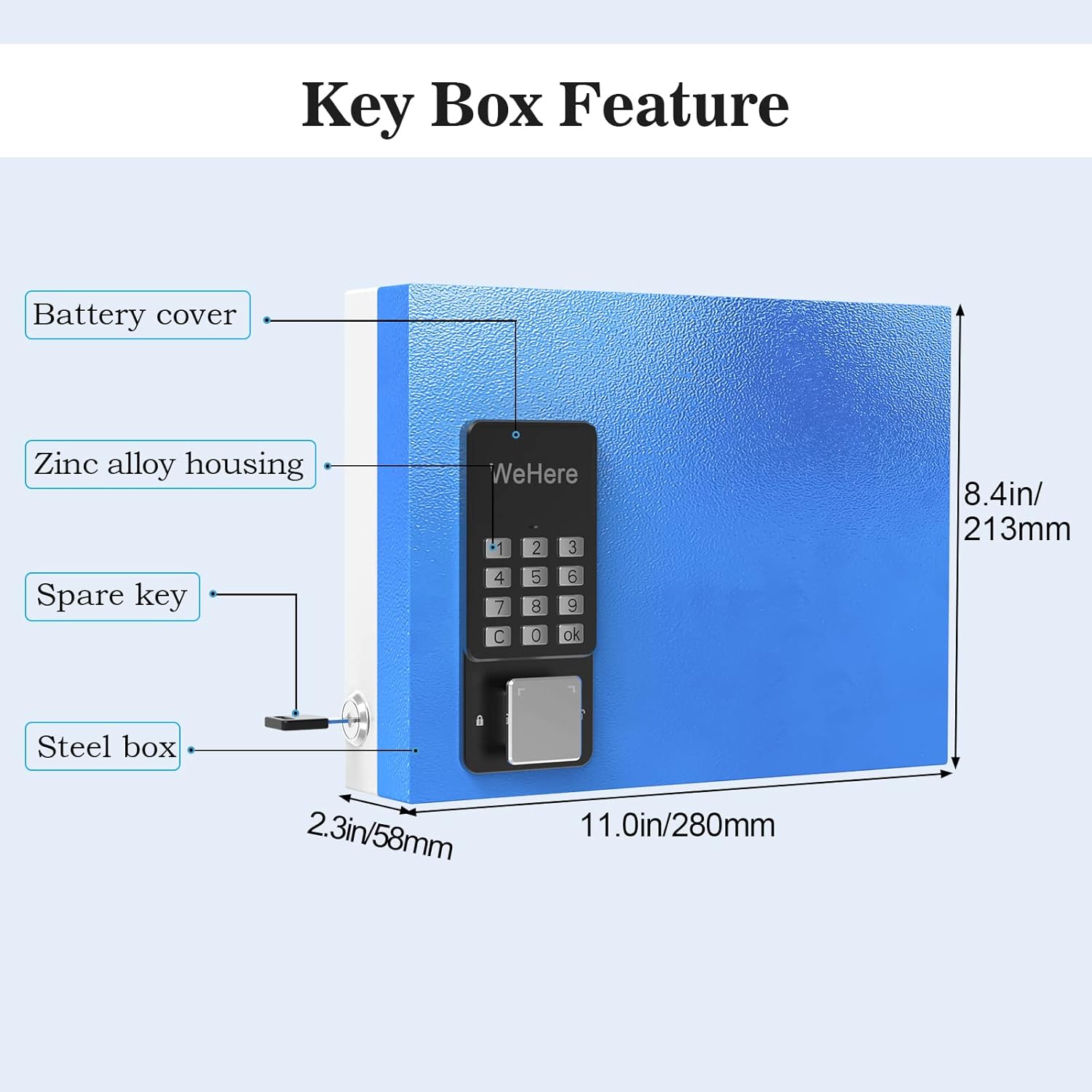
Image: Technical diagram illustrating the dimensions and key components of the WeHere key box.
8. Warranty and Support
For after-sales service and support, please contact WeHere directly through the app.
- Open the WeHere app.
- Navigate to Account.
- Select About Us to view the official email address for support.
Video: Instructions on how to find the contact information for WeHere customer service within the app.