
1. Introduction
Thank you for choosing the Bluedee SK010 Computer Soundbar. This manual provides essential information for the safe and efficient use of your new soundbar. Please read it thoroughly before operation and retain it for future reference.
Safety Information
- Do not expose the device to water or moisture.
- Avoid extreme temperatures.
- Do not disassemble the unit. Refer servicing to qualified personnel.
- Ensure proper ventilation to prevent overheating.
2. Package Contents
Verify that all items are present in your package:
- Bluedee SK010 Computer Soundbar
- Nylon-braided Y-cable (USB power + 3.5mm AUX audio)
- User Manual (this document)

Figure 2.1: Bluedee SK010 Soundbar with its included Y-cable.
3. Product Overview
The Bluedee SK010 Soundbar features a compact design with integrated controls and ambient lighting. It is designed to provide enhanced audio for various devices.
Key Features:
- Hi-Fi Sound Quality: Dual drivers and dual diaphragms for balanced audio.
- Versatile Connectivity: Supports 3.5mm Aux-in and Bluetooth 5.0.
- Ambient Lighting: Gentle light strips enhance the aesthetic of your workspace.
- USB Powered: Simple plug-and-play operation via USB.
- Compact Design: Slim profile fits neatly under most monitors.

Figure 3.1: Internal components illustrating the dual drivers and diaphragms for Hi-Fi sound.

Figure 3.2: The multi-function control knob for volume, play/mute, front light, and mode control.
4. Setup
4.1 Power Connection
- Locate the nylon-braided Y-cable included with your soundbar.
- Plug the USB-A connector of the Y-cable into an available USB port on your computer, laptop, power bank, or a USB wall adapter (5V). The soundbar will power on automatically.

Figure 4.1: Connecting the soundbar to a laptop for power via USB.
4.2 Audio Connection (3.5mm AUX)
- After connecting power, plug the 3.5mm AUX connector of the Y-cable into the headphone jack or audio output port of your device (computer, laptop, smartphone, tablet, etc.).
- The soundbar will automatically switch to AUX mode.
4.3 Bluetooth Pairing
- Ensure the soundbar is powered on.
- Press and hold the control knob for 3 seconds to enter Bluetooth pairing mode. The LED light will flash, indicating it's ready to pair.
- On your device (smartphone, tablet, computer), enable Bluetooth and search for "SK010".
- Select "SK010" from the list of available devices to connect. A confirmation tone will sound upon successful pairing.
Video 4.1: Demonstrates the setup and Bluetooth pairing process for the Bluedee SK010 Computer Speaker.

Figure 4.2: The soundbar offers versatile compatibility with multiple devices.
5. Operation
5.1 Power On/Off
The soundbar powers on automatically when connected to a USB power source. To turn off, disconnect the USB power cable.
5.2 Volume Control
- Rotate the control knob clockwise to increase volume.
- Rotate the control knob counter-clockwise to decrease volume.
5.3 Play/Mute
- Short press the control knob to play or pause audio.
- Short press the control knob to mute or unmute audio.
5.4 Mode Switching (Bluetooth / AUX)
- Double-click the control knob to switch between Bluetooth and 3.5mm AUX input modes.
5.5 RGB Lighting Control
- The soundbar features gentle breathing ambient lights.
- Double-click the control knob to turn the front LED light on or off.
- The side lights remain on during use for consistent ambiance.
Video 5.1: Demonstrates the gentle breathing lighting feature of the Bluedee PC soundbar.
Video 5.2: Shows the dynamic RGB lighting and HiFi sound quality of the computer speakers.
6. Maintenance
- To clean the soundbar, use a soft, dry cloth.
- Do not use abrasive cleaners or solvents.
- Keep the speaker grilles free from dust and debris for optimal sound performance.
- Store the soundbar in a cool, dry place when not in use for extended periods.
7. Troubleshooting
| Problem | Possible Cause | Solution |
|---|---|---|
| No sound |
|
|
| Bluetooth not pairing |
|
|
| Humming/Distortion |
|
|
8. Specifications
| Feature | Detail |
|---|---|
| Model Name | SK010 |
| Dimensions (D x W x H) | 2.67" x 16.45" x 2.67" |
| Input Voltage | 5 Volts |
| Power Source | USB Power Cable |
| Connectivity Technology | Auxiliary, Bluetooth 5.0 |
| Bluetooth Range | 10 Meters |
| Audio Output Mode | Stereo (2.0 Surround Sound Channel Configuration) |
| Speaker Maximum Output Power | 6 Watts |
| Frequency Response | 20 KHz |
| Impedance | 4 Ohms |
| Material | 85% Eco-friendly ABS Material, 5% Metal |
| Special Features | 3.5 mm headphone plug, Ambiance Lights, Stereo Sound |
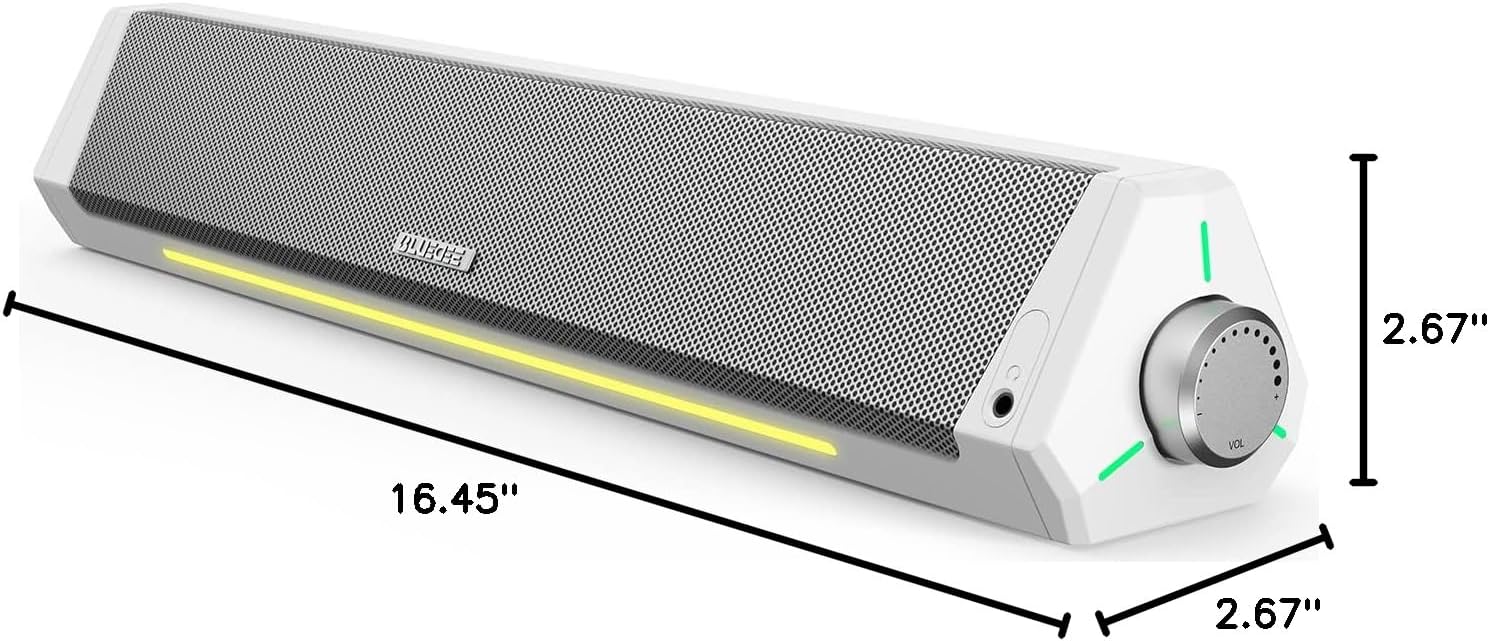
Figure 8.1: Dimensions of the Bluedee SK010 Soundbar.
9. Warranty & Support
Warranty Information
The Bluedee SK010 Computer Soundbar comes with an 18-month warranty from the date of purchase. This warranty covers manufacturing defects and ensures the product meets its specified performance standards.
Customer Support
As a valued customer, you are entitled to lifetime after-sales service. Should you have any queries, require technical assistance, or need to claim warranty service, please contact us via Amazon messages or refer to the contact information provided in your product packaging.


