
Cadrim JS2706
Cadrim Kids Alarm Clock Sleep Trainer User Manual
Model: JS2706
Product Overview
The Cadrim Kids Alarm Clock Sleep Trainer is designed to help children develop healthy sleep habits. It features a digital display, 7 color-changing night lights, customizable alarm settings, and a child-safe design. This manual provides detailed instructions for setup, operation, and maintenance.
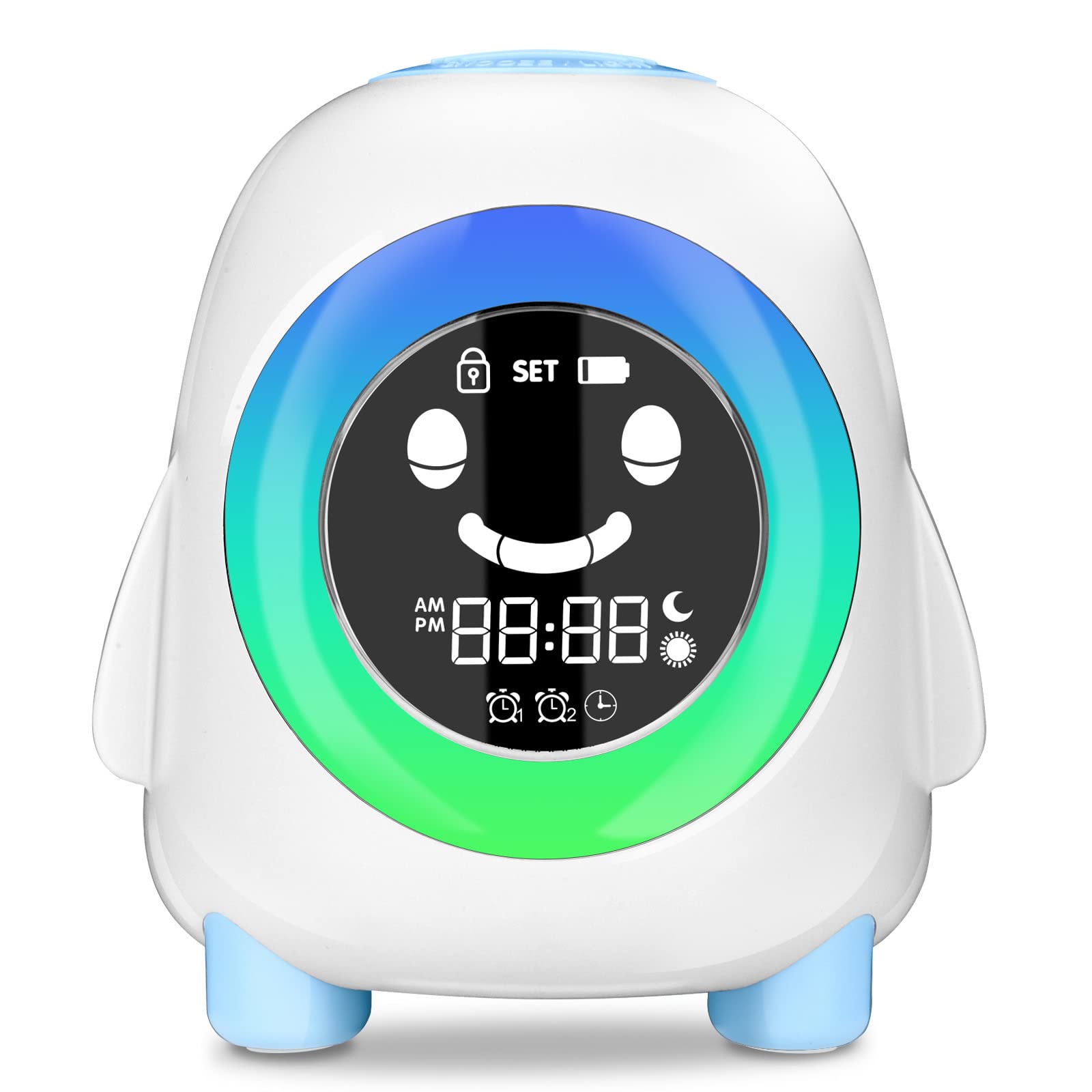
Front view of the Cadrim Kids Alarm Clock Sleep Trainer, showing the digital time display, a smiling face icon, and various function icons on the right side indicating dual alarms, day/night mode, battery status, lock, and light settings.
Key features include:
- Sleep Training Function: Visual cues (light colors, display icons) to indicate sleep and wake times.
- 7 Color Night Light: Adjustable colors to create a soothing environment.
- Customizable Alarms: Two independent alarms with 5 ringtones and 8 music sounds.
- Snooze Function: Adjustable snooze duration.
- Child Safety: Made from child-safe materials.
- USB Charging: Built-in rechargeable battery for portability.
Setup
Before first use, ensure the device is fully charged. Locate the USB charging port on the back of the unit.

Rear view of the alarm clock, illustrating the location and function of various buttons and switches: Child Safety Lock, Up/Down buttons, SNOOZE/LIGHT button, Setting Function, NAP Time Setting, Night Light switch, Time Setting, Alarm Setting, Sleep/Wake time setting, Sound Setting, and the ON/OFF switch.
- Power On: Locate the ON/OFF switch on the bottom of the device and slide it to the "ON" position.
- Charging: Connect the provided USB cable to the charging port and a suitable USB power adapter (not included). The battery indicator on the display will show charging status. A full charge takes approximately 3-4 hours.
- Initial Time Setting:
- Press and hold the Time Setting button (labeled "SET" on the back diagram).
- Use the Up/Down buttons to adjust the hour, then press Time Setting again to confirm and move to minutes.
- Repeat for minutes, then confirm.
- Child Safety Lock: To prevent accidental changes, slide the Child Safety Lock switch to the locked position.
Operating Instructions
Sleep and Wake Training
The alarm clock uses visual cues to guide children on when to sleep and wake up.

A four-panel image demonstrating the sleep and wake training functions. "Go to Sleep" shows a blue light at 9:00 PM. "Fall Asleep" shows a dim screen with a moon icon at 9:30 PM. "Wake Up" shows a yellow light at 6:30 AM. "Get Up" shows a green light with a sun icon at 7:00 AM.
- Go to Sleep (Blue Light): 30 minutes before the set sleep time, the blue light will automatically turn on.
- Fall Asleep (Dim Screen, Moon Icon): At the set sleep time, the eyes on the display will close, a moon icon will appear, and the LCD screen will dim.
- Wake Up (Yellow Light): 30 minutes before the set wake-up time, the yellow light will turn on.
- Get Up (Green Light, Sun Icon): At the set wake-up time, the eyes will open, a sun icon will appear, and the green light will be on for 1 hour. The LCD brightness will return to its previous setting.
To set Sleep/Wake times:
- Press and hold the Sleep/Wake time setting button.
- Use Up/Down buttons to adjust the desired sleep and wake times.
- Press the Sleep/Wake time setting button to cycle through and confirm each setting.
Alarm Settings
The clock supports two independent alarms (Alarm 1 and Alarm 2).

An image showing customization options for alarms, including 5 ringtones, 8 music sounds, and 3 volume levels. It also highlights the snooze function, which adds 10 minutes when the SNOOZE button is pressed.
- Press and hold the Alarm Setting button.
- Use Up/Down buttons to select Alarm 1 or Alarm 2, then press Alarm Setting.
- Adjust the alarm time (hour and minute) using Up/Down buttons, confirming each with Alarm Setting.
- Select a ringtone (5 options) or music sound (8 options) using Up/Down buttons.
- Adjust the alarm volume (3 levels) using Up/Down buttons.
- Confirm all settings by pressing Alarm Setting until the display returns to normal time.
Snooze Function: When an alarm sounds, short press the SNOOZE / LIGHT button to activate snooze for 10 minutes. You can set up to 8 snooze intervals.
Night Light and Display Settings

An image displaying four levels of LCD brightness (25%, 50%, 75%, 100%) and five examples of the 7-color night light feature, showing different colored halos around the clock face.
- Turn Night Light On/Off: Use the Night Light switch on the back.
- Change Light Color: When the night light is on, short press the SNOOZE / LIGHT button to cycle through 7 colors or set a favorite color.
- Adjust LCD Brightness: Press the Up/Down buttons to adjust the LCD display brightness (4 levels: 25%, 50%, 75%, 100%).
- Emojis: The display features changing emojis.
Sound Settings (Music and White Noise)
The clock includes 8 types of music and white noise to aid sleep.

An image showing a child sleeping next to the alarm clock, with icons representing 8 different sound options: Music 1, Water flow, Birdsong, Music 2, Music 3, White noise, Cricket sound, and Rain.
- Press and hold the Sound Setting button.
- Use Up/Down buttons to select from the available sounds (Music 1, Water flow, Birdsong, Music 2, Music 3, White noise, Cricket sound, Rain).
- Press Sound Setting to confirm.
- Adjust volume using the Up/Down buttons.
NAP Timer Setting
The NAP timer allows for a short, timed sleep period.
- Press and hold the NAP Time Setting button.
- Use Up/Down buttons to set the desired nap duration.
- Press NAP Time Setting to start the timer.
Maintenance
- Cleaning: Wipe the device with a soft, dry cloth. Do not use abrasive cleaners or immerse in water.
- Battery Care: The built-in 2200mAh lithium battery provides approximately 1 week of battery life. After a low power shutdown, the device retains previous settings. Charge regularly to maintain optimal performance. Maximum brightness can last for 10-18 hours on a full charge.
- Storage: Store in a cool, dry place away from direct sunlight and extreme temperatures.
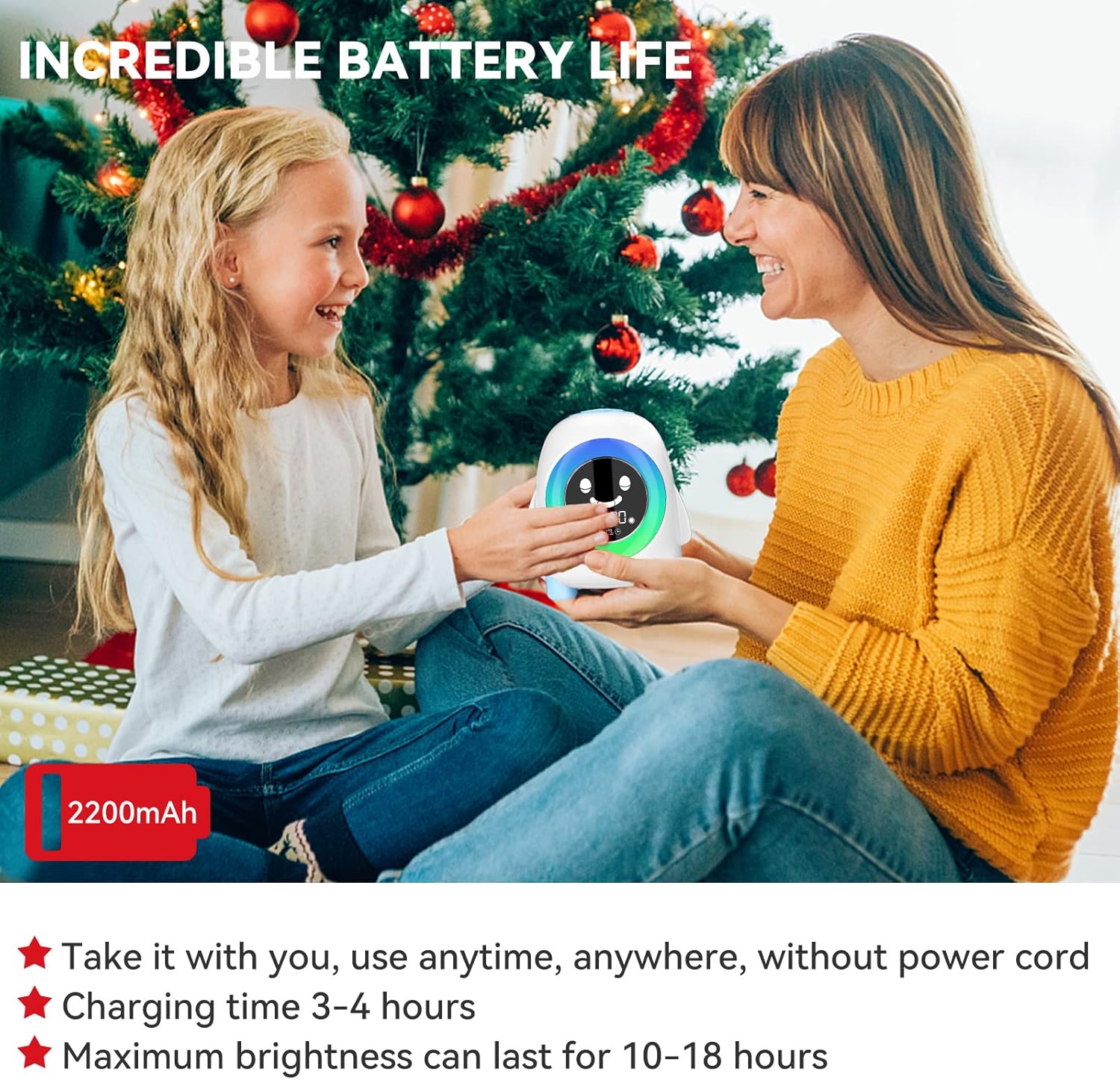
An image highlighting the 2200mAh battery, stating it can be used anytime, anywhere without a power cord, has a charging time of 3-4 hours, and maximum brightness can last for 10-18 hours.
Troubleshooting
| Problem | Possible Cause | Solution |
|---|---|---|
| Device does not turn on. | Battery is depleted. ON/OFF switch is off. | Charge the device for 3-4 hours. Ensure the ON/OFF switch is in the "ON" position. |
| Alarm does not sound. | Alarm is not activated. Volume is too low. | Verify alarm settings and ensure it is enabled. Increase alarm volume. |
| Display is dim or unresponsive. | Low battery. Brightness setting is too low. | Charge the device. Adjust LCD brightness using the Up/Down buttons. |
| Settings are not saved. | Child Safety Lock is engaged during setting. | Ensure the Child Safety Lock is disengaged when making changes. Settings are saved after low power shutdown, but ensure proper confirmation during setup. |
| Device freezes or malfunctions. | Temporary software glitch. | Locate the RESET button (small hole on the back) and use a thin object (like a paperclip) to press it. This will restart the device without losing settings. |
Specifications
| Brand | Cadrim |
| Model Number | JS2706 (Part Number: CK12200) |
| Display Type | Digital |
| Power Source | Battery Powered (1 Lithium-ion Battery, included) |
| Battery Capacity | 2200mAh |
| Charging Time | 3-4 hours |
| Special Features | Adjustable Volume, Charging Port, Timer, 7 Color Night Light, Sleep Trainer, Snooze Function |
| Shape | Round |
| Room Type | Bedroom |
Warranty and Support
Cadrim is committed to providing quality products. In case of any quality issues, the product will be replaced at no cost. For further assistance or inquiries, please refer to the contact information provided with your purchase or visit the official Cadrim support website.
Ask a question about this manual
Ask about setup, troubleshooting, compatibility, parts, safety, or missing instructions. Manuals+ will review the question and use this page’s manual context to help answer it.